How to Reduce Lag in Online Games: Diagnose First, Then Fix

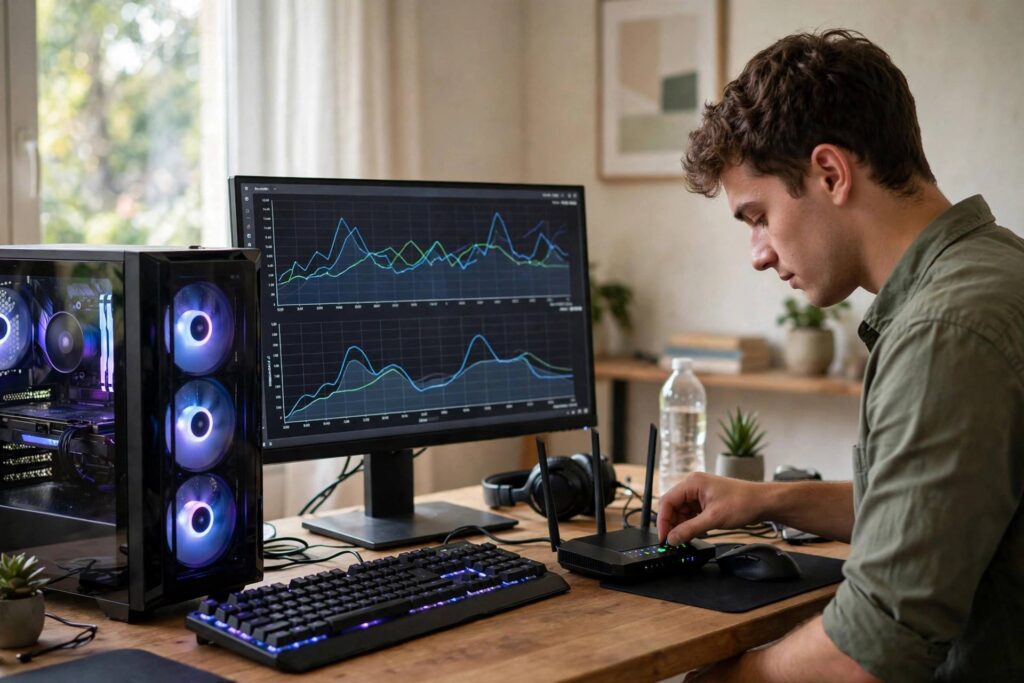
Nothing kills a gaming session like lag. You line up the perfect shot, press the button, and your character responds half a second later, already dead. I have spent years optimizing setups for competitive play, and here is the mistake almost everyone makes when trying to figure out how to reduce lag in online games: they treat all lag as the same problem. It is not. Network lag, low FPS, and input lag are three completely different issues with completely different fixes, and applying the wrong fix wastes your time and money.
This guide starts with diagnosis, because the fix depends on the cause. I will show you how to tell which type of lag you have, then give you the fixes in order of impact, starting with the single most effective one: a wired connection.
Step 1: Diagnose Which Lag You Have
Before changing anything, identify your enemy. The three types feel different if you know what to look for.
Network lag (high ping, rubber-banding). Symptoms: your character teleports or snaps back to earlier positions (rubber-banding), other players stutter across the screen, actions register late but the game itself looks smooth. Check the in-game ping or latency display, usually in the settings or scoreboard overlay. Consistently above 80-100ms to your region’s servers means network lag. Packet loss (shown as a percentage in network stats) above 1-2% also causes stuttering even with decent ping.
Low FPS (frame rate lag). Symptoms: the whole game looks choppy, animations stutter, the image tears or freezes briefly. This happens even in offline single-player games, which is the giveaway: if it lags with no internet involved, it is not network lag. Check your FPS counter (most games have one in settings, or use your GPU software’s overlay). Below your monitor’s refresh rate, typically 60 FPS, and you will feel it.
Input lag. Symptoms: the game looks smooth and ping is fine, but there is a delay between pressing a button and seeing the result. Common culprits: TV “motion smoothing” processing, wireless controllers with interference, or V-Sync adding frame buffering. Test by comparing against a known-good setup if you can.
Many players have two types at once, especially network lag plus low FPS on an aging setup. Diagnose both, fix in order of severity.
How to Reduce Lag in Online Games: Fix #1 – Switch to Ethernet
If you have network lag and you are on Wi-Fi, stop reading and plug in a cable. I am serious. A wired Ethernet connection is the single most impactful fix for online gaming lag, and it is not close. Wi-Fi adds latency through interference, signal fluctuation, and shared airtime with every other device in your home. Ethernet eliminates all of that.
The difference is measurable: Wi-Fi typically adds 5-20ms of baseline latency plus unpredictable spikes; Ethernet adds under 1ms with near-zero jitter. For competitive games, that is the difference between reacting and guessing. A long flat Ethernet cable run along baseboards costs less than a pizza and outperforms every “gaming router” setting on Wi-Fi.
Can not run a cable? Powerline adapters (which send network signal through your home’s electrical wiring) are the next best option, though quality varies by house wiring. A Wi-Fi 6 router placed in the same room as your setup is third best. But Ethernet first, always.
Network Lag Checklist (After Ethernet)
Close bandwidth hogs. Streaming video, cloud backups, large downloads, and video calls on the same network all compete with your game. Pause them during play. Check for background updaters too: game launchers, OS updates, and cloud sync tools love to download at the worst moment.
Play on the right server region. Check that you are queued in your actual region. VPNs add routing distance and latency; disable them for gaming unless you specifically need one. Some games auto-select poorly; manually pick the lowest-ping server.
Restart your router and modem. The classic advice exists for a reason: consumer networking gear accumulates junk state over weeks of uptime. A monthly reboot clears it. If your modem is rented from your ISP and several years old, ask for a replacement; old hardware bottlenecks modern speeds.
Check for bufferbloat. If lag spikes whenever someone else uses the internet, your router may suffer from bufferbloat, where its packet queues fill up and add huge latency. Routers with SQM (Smart Queue Management) or fq_codel QoS settings fix this dramatically. It is a slightly technical setting, but guides for most router models exist, and it is worth it.
Talk to your ISP. If ping is high at all hours even on Ethernet with nothing else running, the problem may be your line or your ISP’s routing. Run speed and ping tests at different times of day, document the results, and call support with data. “My ping to the game server is 150ms on Ethernet at 2am” gets better support than “my game is laggy.”
Low FPS Fixes (Hardware and Settings)
Lower the right settings first. Not all graphics settings cost equally. Shadows, anti-aliasing, and volumetric effects are usually the biggest FPS drains; textures and view distance cost less than people expect. Drop shadows to medium or low first and re-test before touching anything else.
Match resolution to your hardware. Playing at 4K on a mid-range GPU guarantees low FPS. Dropping to 1440p or 1080p, or using your GPU’s upscaling (DLSS, FSR, XeSS), can double frame rates with minimal visual loss. Upscaling in particular is close to free performance on modern cards; turn it on.
Update GPU drivers. New game releases often ship alongside driver updates with specific optimizations. If a game that used to run fine suddenly stutters after an update, a driver update (or occasionally a rollback) is the first thing to check.
Check thermals. Overheating CPUs and GPUs throttle themselves, causing FPS to crater after 20-30 minutes of play. If performance starts fine and degrades, check temperatures with free monitoring software. Cleaning dust from fans and reapplying thermal paste on older machines can restore lost performance.
Close background apps. Browsers with dozens of tabs, Discord overlays, and recording software all consume CPU and RAM. For competitive play, close everything non-essential. Game Mode on Windows helps by prioritizing the game process.
Input Lag Fixes
Enable Game Mode on your TV/monitor. TVs apply heavy image processing (motion smoothing, noise reduction) that adds 50-100ms of input delay. Game Mode disables it. This single setting transforms TV gaming.
Use wired peripherals for competitive play. Modern wireless mice and controllers are excellent, but wired eliminates one more variable. If you use wireless, keep the receiver close and clear of interference sources.
Consider V-Sync alternatives. Traditional V-Sync eliminates screen tearing but adds input delay. G-Sync/FreeSync monitors solve tearing without the delay; if your monitor supports it, use it instead of V-Sync. As a last resort, uncapped frame rates with tearing are actually preferable to V-Sync delay in competitive games.
What About “Gaming” Routers and VPNs?
Gaming routers can help through better QoS settings and stronger Wi-Fi, but no router fixes the fundamental physics of Wi-Fi versus Ethernet. Buy one for the features (SQM, good QoS), not the marketing. As for gaming VPNs that promise “optimized routing”: they occasionally help if your ISP’s routing to game servers is terrible, but they usually add latency. Test with and without; keep the VPN only if measurements prove it helps.
If you are curious about the tech behind modern game delivery, our explainer on how cloud gaming works covers why latency matters even more when the game itself runs in a data center.
The 5-Minute Lag Audit
Before changing anything, run this quick audit. First, note your in-game ping and FPS during a laggy session. Second, check whether anyone else is streaming or downloading on your network right now. Third, confirm you are on the correct server region. Fourth, check if the problem happens in offline games too (points to FPS, not network). Write down the answers; this five-minute record turns vague “it lags” into a diagnosable problem and tells you exactly which section of this guide to apply first.
Frequently Asked Questions
What is a good ping for online gaming?
Under 50ms is excellent, 50-80ms is good and playable for most games, 80-120ms is noticeable but manageable in casual play, and above 120ms significantly impairs competitive games. Consistency matters as much as the number: stable 80ms beats spiky 40ms.
Does Wi-Fi cause lag in games?
Yes, Wi-Fi adds latency and jitter compared to Ethernet due to interference and shared airtime. It is the most common cause of network lag in home setups. Switching to a wired Ethernet connection is the single most effective fix.
Why is my game lagging with good internet speed?
Speed (bandwidth) and latency (ping) are different things. A 500 Mbps connection can still have high ping, packet loss, or jitter. Check your ping and packet loss to the game server, not just your download speed. Bufferbloat on your router is another common culprit.
How do I check my FPS in a game?
Most games have an FPS counter in their graphics or interface settings. Alternatively, use your GPU software’s overlay (GeForce Experience, AMD Adrenalin) or Steam’s built-in FPS counter in its settings.
Will a better GPU reduce network lag?
No. A better GPU fixes low frame rates, not network lag. If your ping is high or players rubber-band, the problem is your connection, and GPU upgrades will not help. Diagnose first, upgrade second.
Does closing background apps reduce lag?
It can help with FPS (freeing CPU/RAM) and with network lag (stopping background downloads/uploads from competing for bandwidth). It is free and takes seconds, so it is always worth trying.
Final Thoughts
Lag is not one problem, so stop applying one solution. Diagnose: ping test for network, FPS counter for hardware, Game Mode check for input delay. Fix in order: Ethernet first, then settings, then hardware. Most laggy setups I have seen were fixed by a fifteen-dollar cable and ten minutes in the settings menu, not by new hardware.