Every device you own has a firewall, and you’ve probably never thought about it. That’s the point — firewalls are the silent bouncers of the internet, deciding which network traffic gets in and which gets turned away at the door.
I’m Sophia, and I think of firewalls as the most underappreciated security technology in existence. Here’s how they actually work, in plain language.
Table of Contents
- The Bouncer Analogy
- What Network Traffic Actually Looks Like
- Packet Filtering: The Guest List
- Stateful Inspection: Remembering Conversations
- Next-Gen Firewalls: Checking IDs
- Hardware vs Software Firewalls
- Do You Still Need a Firewall in 2026?
- Firewall vs VPN vs Antivirus: What Each Does
- Testing Your Firewall
- Frequently Asked Questions

The Bouncer Analogy
A nightclub bouncer decides who enters based on rules: on the list, right dress code, not already banned. A firewall does the same for network traffic: every piece of data trying to reach your device (or leave it) gets checked against a rule set. Match an “allow” rule → through. Match a “deny” rule → blocked. No match → the default policy decides (usually deny for incoming, allow for outgoing).
The beauty is that this happens thousands of times per second, invisibly, while you browse, stream, and scroll.
What Network Traffic Actually Looks Like
To understand firewalls, you need one concept: packets. All internet data travels in small chunks called packets, each stamped with:
- Source address (where it’s from — an IP address)
- Destination address (where it’s going)
- Port number (which “door” — port 80/443 for web, 25 for email, etc.)
- Protocol (TCP, UDP, ICMP — the delivery method)
A firewall reads these stamps and makes decisions. It doesn’t need to understand your Netflix stream — it just needs to verify the packets are part of a conversation you started.
Packet Filtering: The Guest List
The oldest and simplest firewall technique: check each packet’s stamps against a list of rules.
Example rules:
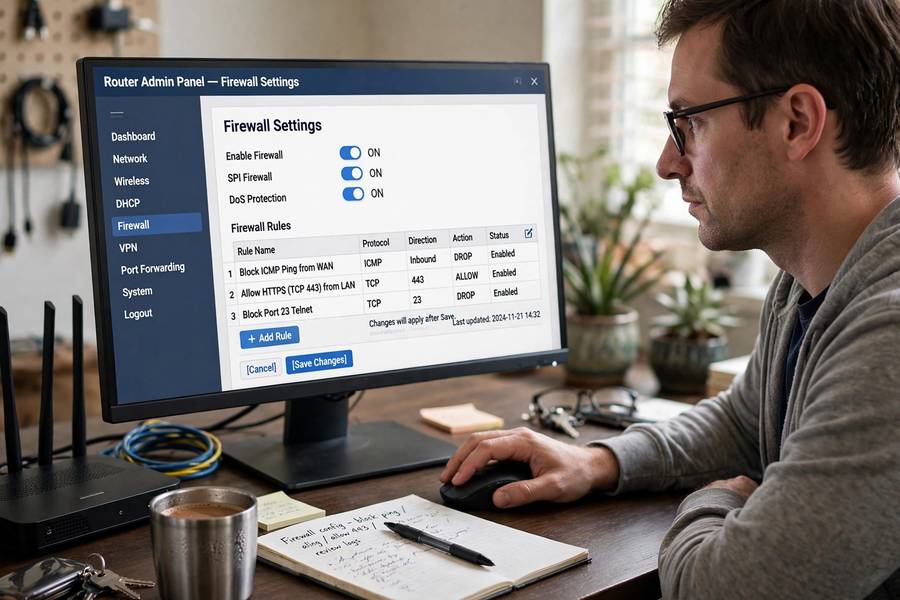
– Allow outgoing traffic to any address on port 443 (HTTPS web browsing)
– Deny all incoming traffic on port 23 (Telnet — ancient and insecure)
– Allow incoming traffic on port 22 (SSH) but only from the office IP range
Packet filtering is fast and simple, but dumb — it judges each packet in isolation, with no memory of what came before. That’s fine for basic protection, but attackers can craft packets that look legitimate individually while being malicious as a group.
Stateful Inspection: Remembering Conversations
Modern firewalls are stateful — they remember conversations. When your browser requests a webpage, the firewall notes: “outgoing request to this server, expecting a reply.” When the reply arrives, it’s recognized as part of an established conversation and allowed through.
Unsolicited incoming traffic — packets that aren’t replies to anything you requested — gets blocked by default. This single behavior stops the vast majority of network attacks: port scans, worm propagation, and drive-by connection attempts all bounce off because you never invited them.
This is the firewall running on your laptop and phone right now, and the one built into your home router. Stateful inspection is the quiet workhorse of internet security.
Next-Gen Firewalls: Checking IDs
Enterprise next-generation firewalls (NGFWs) go deeper — they open the packets and inspect the actual content:
- Application awareness: Instead of just “port 443,” they identify “this is Netflix traffic” vs “this is a file upload to an unknown server” — and can allow one while blocking the other.
- Intrusion prevention: They match traffic patterns against databases of known attack signatures, blocking exploits in real time.
- TLS inspection: They can decrypt, inspect, and re-encrypt encrypted traffic (with proper certificates) to catch malware hiding inside HTTPS.
- User identity: Rules can apply per-user or per-group (“the finance team can reach the accounting server; nobody else can”).
You don’t need an NGFW at home. But the company whose network you’re on right now probably runs one.
Hardware vs Software Firewalls
Software firewalls run on your device — Windows Defender Firewall, macOS’s built-in firewall, Linux iptables/nftables. They protect that one device and can control traffic per-application (“let Chrome through, block that sketchy installer”).
Hardware firewalls are dedicated boxes (or router features) guarding a whole network. Your home router has one — it’s why devices on your WiFi network aren’t directly reachable from the internet. The router’s NAT (Network Address Translation) plus its firewall means unsolicited inbound connections die at the router.
The layered answer: You want both. The router firewall guards the network perimeter; the device firewall guards the device itself — which matters the moment you join a coffee shop network where there’s no trusted perimeter at all.
Do You Still Need a Firewall in 2026?
Short answer: yes, and you already have several running.
- Windows and macOS ship with firewalls enabled by default. Leave them on.
- Your router has one built in. Don’t disable it, and change the router’s default admin password.
- Your phone has an equivalent (mobile OSes sandbox apps and restrict inbound connections by design).
When to care actively:
– Running a home server, game server, or remote-access tool? You’ll configure port forwarding on your router — punching specific holes through the firewall. Only open what you need.
– Getting “blocked by firewall” errors from legitimate software? Add an exception for that app rather than disabling the whole firewall.
– On public Wi-Fi? Your device firewall is your main defense — plus a VPN for good measure.
The firewall is one layer, not the whole security story. It stops network attacks; it doesn’t stop you from clicking a phishing link or downloading malware. Security is layers — firewall, updates, strong passwords, 2FA, and skepticism.
Firewall vs VPN vs Antivirus: What Each Does
These three get confused constantly. Here’s the one-paragraph distinction:
- Firewall controls which network traffic reaches your device. It stops unsolicited connections and network-based attacks. Think: bouncer at the door.
- Antivirus detects and removes malicious software already on (or trying to get onto) your device. Think: security guard inside the building.
- VPN encrypts your traffic and routes it through a server elsewhere, hiding your activity from local networks and changing your apparent location. Think: armored car for your data in transit.
They’re complementary, not interchangeable:
| Threat | What stops it |
|---|---|
| Port scan / network worm | Firewall |
| Malware download / infected file | Antivirus |
| Snooping on public Wi-Fi | VPN |
| Phishing email | None of these — that’s on you |
Do you need all three? The firewall and antivirus are built into your OS — just leave them on. A VPN is situational: valuable on public Wi-Fi, for remote work, or for privacy from your ISP — unnecessary for most home browsing on a trusted network.
Marketing often blurs these (“our VPN includes a firewall!”), but understanding the layers means you buy (or enable) the right tool for the actual threat instead of paying for overlapping protection you don’t need.
Testing Your Firewall
Curious whether yours is actually working? These safe, well-known tests check from the outside:
ShieldsUP! (grc.com): Steve Gibson’s classic free tool probes your public IP’s ports and reports which are open, closed, or stealthed (invisible). Behind a typical home router, you want everything stealth — no response at all to unsolicited probes.
What the results mean:
– Stealth: Port doesn’t respond — ideal. Attackers can’t even tell it exists.
– Closed: Port responds “nothing here” — safe, but confirms your IP is live.
– Open: Something is listening — investigate. Could be intentional (a game server you set up) or a problem (UPnP opened something you didn’t expect).
Check UPnP: Many routers have Universal Plug and Play enabled, which lets devices open firewall ports automatically — convenient, and occasionally abused by malware. Consider disabling UPnP in your router settings and forwarding ports manually only for things you actually run.
The one-minute router check: Log into your router (usually 192.168.1.1), confirm the firewall is enabled, change the default admin password if you never did, and check for firmware updates. Four steps, five minutes, and you’ve eliminated the most common home-network weaknesses.
Keep reading: if this helped, you’ll also like how a search engine works — I wrote them in the same plain-English style.

Frequently Asked Questions
A firewall inspects every piece of network traffic against a set of rules — like a bouncer with a guest list. Traffic matching “allow” rules passes through; unsolicited incoming traffic is blocked by default. Modern firewalls remember your conversations so legitimate replies get through automatically.
Software firewalls run on individual devices (like Windows Defender Firewall) and can control traffic per app. Hardware firewalls are dedicated devices or router features protecting an entire network at its perimeter. Best practice is using both.
Yes — they do different jobs. A firewall blocks malicious network traffic from reaching your device; antivirus detects and removes malware that’s already on it. You need both layers, and both are built into modern operating systems.
No. Disabling your firewall removes a core security layer for minimal benefit. If legitimate software is blocked, add a specific exception for that app instead of turning the whole firewall off.
Stateful inspection means the firewall remembers active network conversations. When you request a webpage, it notes the outgoing request and allows the reply through — while blocking unsolicited incoming traffic that you never asked for. This is how modern firewalls stop most network attacks automatically.
A next-generation firewall (NGFW) inspects traffic content, not just packet headers — identifying applications, blocking known attack patterns, and enforcing per-user rules. They’re standard in businesses but overkill for home use, where built-in OS and router firewalls suffice.