Note-Taking Apps for iPad: The Complete Student Guide

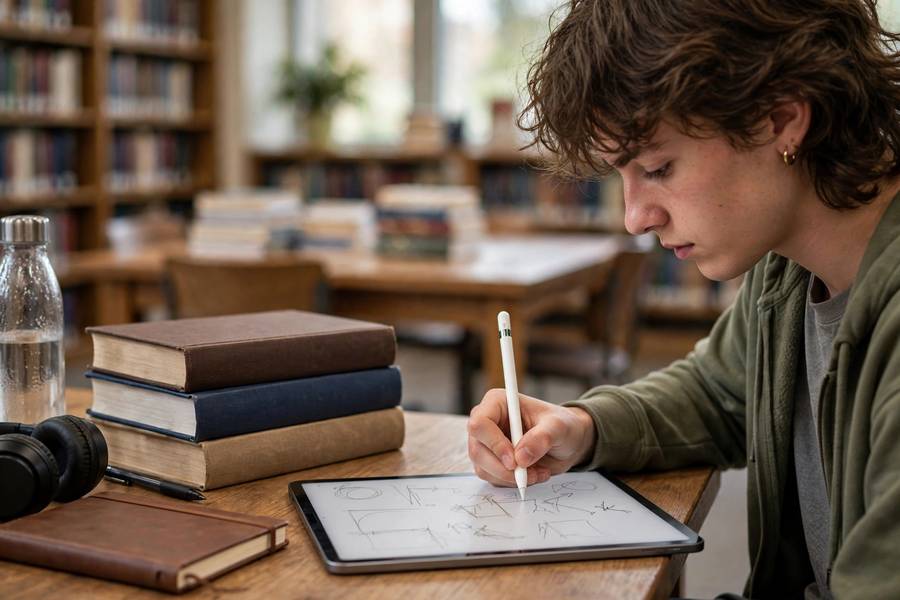
An iPad can be the best study tool you own or the most expensive distraction you own, and the app you choose decides which. I have coached dozens of iPad-carrying students, and the successful ones share a pattern: they picked one primary notes app in week one, learned it properly, and built a review habit around it. The unsuccessful ones collected six apps and took notes in none of them.
This guide covers the iPad note-taking apps worth your time in 2026, how to set yours up for a full semester, and the accessories and habits that make the iPad actually work for school. the best note-taking apps overall
Everything below assumes you already own the iPad — this is not a buying guide for the device. It is the guide I wish someone had handed me on the day I unboxed mine: what to install, how to set it up, and how to study with it. how to study for final exams
In this guide:
- The Apps Worth Your Time
- Setting Up for a Semester
- Study Workflows That Use the iPad's Strengths
- Accessories That Actually Matter
- Beating the Distraction Problem
- iPad Workflows by Major
The Apps Worth Your Time
GoodNotes is the default recommendation for handwriting students — paper-like feel, binder organization, templates, flashcards, one-time purchase. If you write daily with an Apple Pencil, start here. how to write a strong thesis statement
Notability is the lecture specialist — best-in-class audio synced to your handwriting, great multitasking, subscription pricing. Pick it when lectures are fast and you want the replay safety net.
Apple Notes is the free sleeper pick — genuinely good handwriting, instant sync, zero cost. A huge number of students need nothing more, and I always mention it before anyone spends money.
OneNote is the cross-platform pick — free, infinite canvas, audio recording, works with Windows and Android. Slightly less polished on iPad, but unmatched if your digital life is not all-Apple. CollaNote deserves a mention as a capable free alternative students on tight budgets should know about.
Setting Up for a Semester
Week one setup takes thirty minutes and pays off all term. Create one notebook or folder per course, named with the course code. Inside each, make a template page: course name, date, topic line, and your preferred layout — Cornell, blank, or lined. Set the app to back up or sync automatically, and test sync between your iPad and phone with one note.
Import your syllabi as PDFs into each course notebook. Having the syllabus one tap away ends the 'wait, when is the midterm?' panic permanently. If professors post slides, import those before each lecture so you can annotate directly instead of copying what is already on the slide.
Learn ten minutes of power features: handwriting-to-text conversion, the lasso tool for moving and resizing your writing, and how to export a notebook to PDF. Students who learn the lasso tool in week one take visibly better-organized notes all semester — it turns messy live capture into clean review material in seconds.
Study Workflows That Use the iPad's Strengths
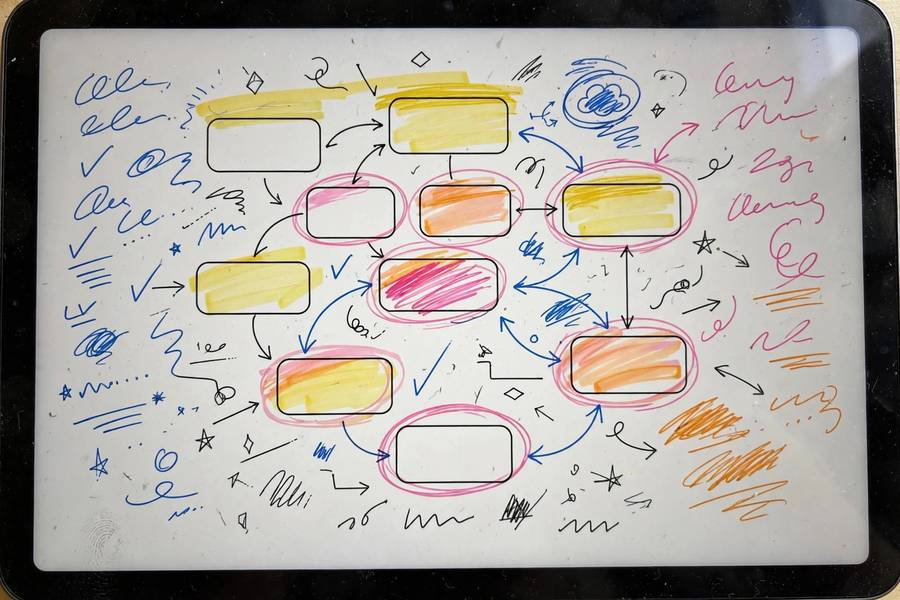
The annotate-and-review loop is the iPad's killer study workflow. Import the chapter PDF, read with the pencil — underline key ideas, jot margin questions, circle terms to define. Then close the PDF and rewrite the key ideas from memory on a blank page. That retrieval step is where learning happens; the annotation was just preparation.
For STEM, the iPad replaces the whiteboard: work problems by hand, use layers or new pages for each attempt, and keep every attempt instead of erasing. Reviewing your wrong attempts before an exam is one of the highest-value study activities there is, and paper students who erase lose it.
Flashcards from notes close the loop. GoodNotes can turn covered sections of your notes into self-tests; otherwise, export key terms to a flashcard app. The principle is always the same: the iPad captures beautifully, but you still have to test yourself. Capture is not studying.
Accessories That Actually Matter
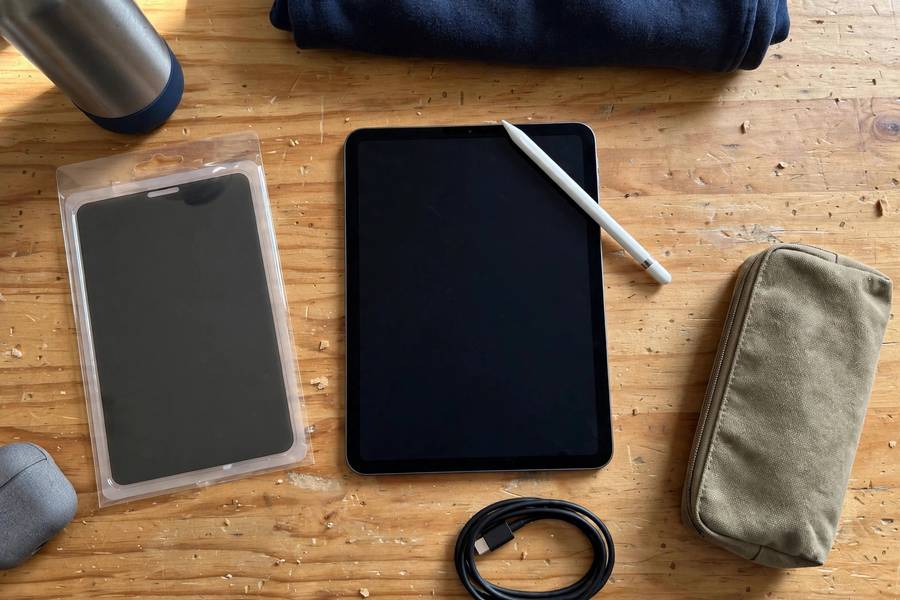
A paper-like matte screen protector is the single best accessory purchase — it transforms the slippery glass feel into something with friction, and handwriting control improves immediately. This matters more than which app you chose.
A case that holds the Pencil and props the iPad at a writing angle saves daily annoyance. You do not need the expensive keyboard case if you have a laptop; a simple folio that angles the screen for writing is enough and far cheaper. how to prepare for the GRE
Replacement stylus tips: check yours monthly. A worn tip skips and scratches, and students always notice their handwriting 'getting worse' right before discovering the tip is the problem. Keep a spare pack in your bag — they cost little and the failure always happens at the worst time.
Beating the Distraction Problem
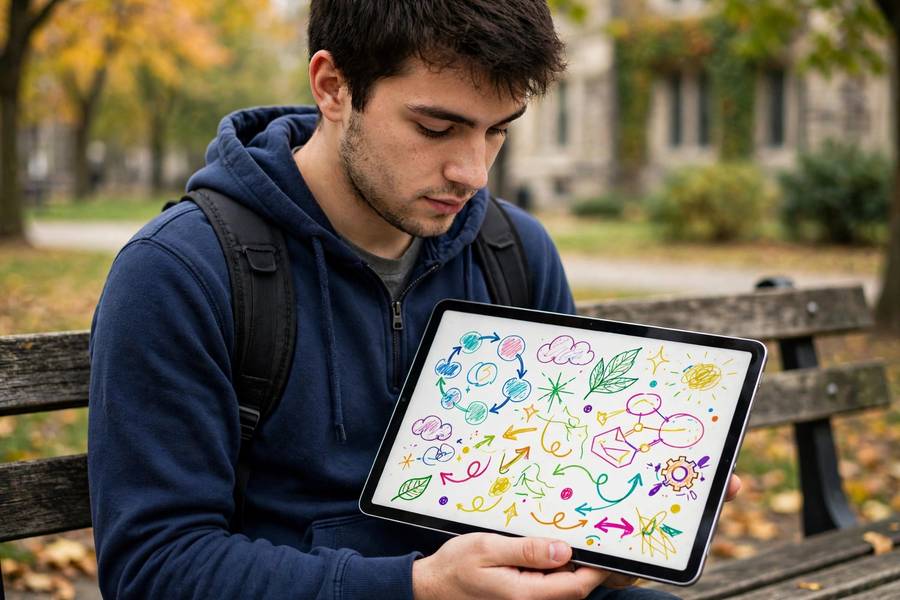
Let us be honest: the iPad is also a games and social media machine, and it sits open on your desk during every lecture. The students who succeed with iPads set boundaries early: notifications off during class hours, social apps in a folder off the home screen or deleted during the semester, and lecture notes in full-screen mode.
Use Focus modes — one for class, one for studying — that limit which apps can interrupt you. It takes five minutes to set up and removes hundreds of micro-distractions per week. I have watched students' note quality visibly improve the week they turn on notification discipline.
If you genuinely cannot resist the pull, the answer is not a worse app — it is leaving the iPad in your bag for that one tempting class and using paper or a laptop. Know yourself. The tool serves the habit, never the reverse.
iPad Workflows by Major
STEM majors: the iPad is a problem-solving machine. Work problem sets by hand in GoodNotes or OneNote, keeping every attempt — wrong ones included — because reviewing errors is where exam points come from. Annotate textbook PDFs with margin questions, and use the lasso tool to reorganize messy derivations into clean review sheets before tests.
Humanities majors: the iPad shines for reading and annotating. Import articles and book chapters as PDFs, mark them up with a real annotation system (one color for claims, one for evidence, one for your objections), and export annotated readings into your essay planning docs. The ability to carry a semester of readings in your bag changes how much you actually read.
Business majors: split the iPad between case prep and quantitative work. Annotate case PDFs with margin frameworks, sketch models and graphs by hand, and keep a running 'frameworks' notebook where each concept gets one page with definition, example, and application. Recruiters' case interviews reward exactly this kind of organized thinking.
Arts and design majors: the iPad doubles as a sketchbook and a research journal. Keep visual references, annotate them with notes on technique, and maintain a process journal with photos of work in progress. Critique prep becomes trivial when your development is documented.
Pre-med and pre-law: the volume majors. The iPad's value here is review portability — flashcards from notes, annotated outlines, recorded lectures for commute review. Build systems early: these tracks punish disorganization more than any others, and the iPad rewards the organized disproportionately.
Whatever your major, audit your workflow each semester: which iPad tasks actually helped your grades, and which were just pleasant? Double down on the first, cut the second. The iPad serves your major — never let your major serve your iPad.
One more major-specific tip: education majors should practice with the apps their future classrooms use — many schools standardize on specific platforms, and student-teaching with fluent tool skills impresses supervisors. Your iPad workflow now is professional training, not just study convenience.
Engineering majors: pair the iPad with a proper PDF reader for standards and datasheets — annotating reference documents by hand builds the familiarity that speeds up open-book exams and, later, professional practice. The habit of marking up references starts paying off immediately.
Nursing and allied health majors: use the iPad for anatomy labeling drills — cover the labels on a diagram and rewrite them from memory, then check. This active-recall loop on the tablet is one of the highest-yield study techniques in memorization-heavy programs.
GoodNotes for daily handwriting, Notability for audio-synced lectures, Apple Notes as the free option most students never outgrow, and OneNote if you also use Windows or Android.
Yes, if you commit to one app and a review habit — handwriting with search, PDF annotation, and portable review are genuine advantages. It fails when it becomes a distraction device or when students collect apps instead of studying.
For handwriting apps, yes — finger writing is too slow and imprecise for real coursework. For typed notes, a keyboard case matters more. Match the accessory to how you will actually take notes.
Turn off notifications during class hours, use Focus modes to limit apps, keep notes in full-screen, and move social apps off the home screen. If one class is irresistible, leave the iPad bagged for that hour.
Start with Apple Notes — it is free and genuinely good. Buy GoodNotes only when you can name something specific you need: better templates, flashcards from notes, or binder-style organization.
No — a base-model iPad with an Apple Pencil handles note-taking brilliantly. The expensive models add power for video editing and art, not for writing notes. Spend the difference on a good screen protector and case.