Photo Recovery Apps That Actually Work (Honest Guide)


Search for “photo recovery app” and you’ll drown in options — hundreds of apps promising to bring back deleted photos, most of them worthless, some of them outright scams. I’ve tested and researched this category extensively, and I’m going to save you hours: most photo recovery apps can’t do what they claim, a few are genuinely useful in specific situations, and knowing which is which comes down to understanding what recovery software can actually do on a modern phone.
This isn’t a ranked list of affiliate links. It’s an honest guide to the categories of recovery tools, what each one can realistically achieve, the red flags that mark a scam, and the free built-in options you should always try first. Because here’s the truth I tell every client: the best “photo recovery app” is usually the trash folder and cloud backup you already have. For the full picture, see my complete guide on how to recover deleted photos.
The Reality Check: What Recovery Apps Can Actually Do
Let me explain the technical reality first, because it makes everything else obvious. Modern phones — iPhones and Androids alike — encrypt their internal storage. When you delete a photo, the encryption keys for that data are discarded, and the space is marked free. No app, regardless of its marketing, can reconstruct encrypted data whose keys are gone. This is a mathematical fact, not a limitation of any particular app.
So what do recovery apps actually find? Three things: photos in trash folders and caches (which you could recover yourself for free), thumbnails and preview images left behind by gallery apps (small, low-quality versions), and — for SD cards and computer drives, which aren’t encrypted the same way — genuinely deleted photo data via deep scanning. That last category is where real recovery happens, and it requires desktop software with direct access to the storage, not a phone app.
Understanding this saves you from the core disappointment of this category: installing five “photo recovery” apps, each showing exciting scan results, and discovering the “recovered” photos are tiny thumbnails you already had. Set your expectations by the storage type — SD card or computer drive means real hope; phone internal storage without backup means very little.
What to Try Before Any Recovery App
Before downloading anything, check the free built-in recovery options — they resolve the majority of cases with zero risk.
Check every trash folder: your gallery app’s Recently Deleted or Recycle Bin, Google Photos trash, and your cloud service’s trash. Check your cloud backups: Google Photos library, iCloud.com, Samsung Cloud. Check messaging apps where you shared the photos — WhatsApp, Telegram, and Messages keep independent copies. These built-in options recover full-quality originals instantly, which no third-party app can beat.
Only when all of these come up empty should you consider recovery software. And at that point, the question isn’t “which app” but “what storage” — because the storage type determines whether software can help at all. If your photos were on an SD card or a computer drive, desktop software is worth trying. If they were on phone internal storage with no backup, be honest with yourself about the odds before spending money or granting permissions.
Desktop Recovery Software: The Tools That Genuinely Work
Desktop recovery software — programs you install on a Windows or Mac computer — is the legitimate core of this category. These tools deep-scan storage devices sector by sector, finding photo data that the file system no longer lists. They work well on SD cards, USB drives, and computer hard drives.
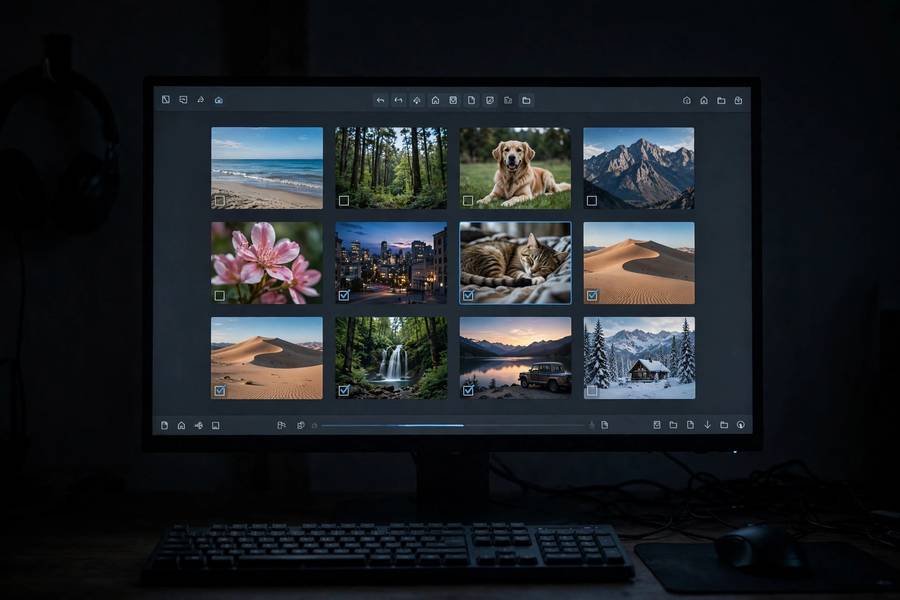
The reputable tools share common traits: they’re made by established software companies with real websites and support, they offer free scans that show you previews before asking for payment, and they don’t require disabling your antivirus. The workflow is always the same: connect the storage to the computer (via card reader for SD cards), select it in the software, run a deep scan, preview what it finds, and restore to a different drive.
My practical advice: start with a free option. Free tools handle straightforward deletions — the most common case — perfectly well. Only consider paying when a free scan has already shown you previews of your actual photos but requires a license to restore them. At that point you know the paid version will work, because the scan already proved the data is recoverable. Never pay for recovery software before seeing your photos in a preview — that’s the single rule that protects you from wasting money.
Download only from the developer’s official website. Search results for recovery software are packed with ads for copycat programs, some bundled with unwanted software. If a download asks you to disable your antivirus or install “helper” programs, walk away.
Phone Recovery Apps: Limited but Sometimes Useful
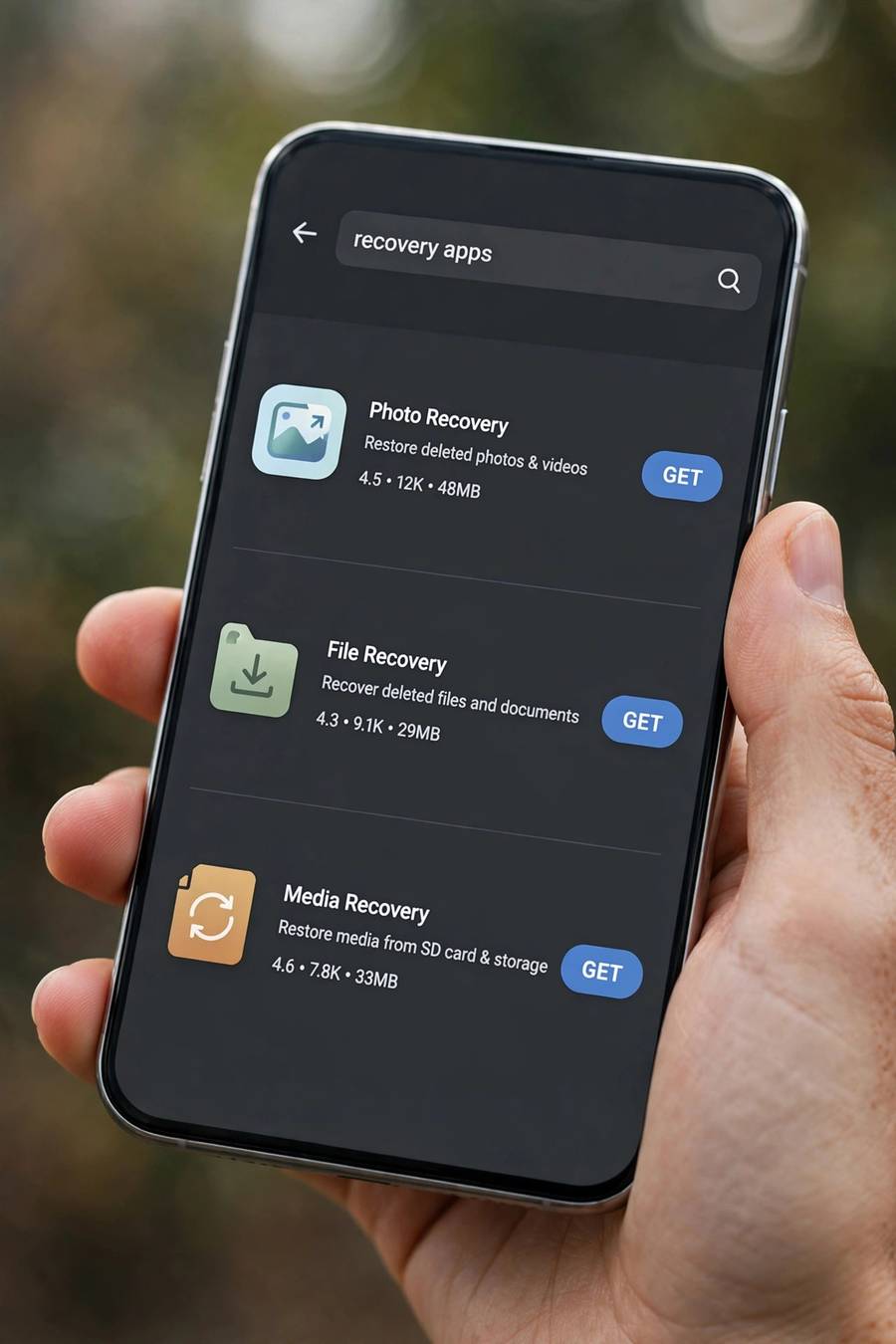
Phone-based recovery apps — the ones in the Play Store and App Store — operate under severe constraints. On iPhone, App Store sandboxing means no app can scan the phone’s storage at all; iPhone “recovery” apps are really backup browsers or thumbnail finders. On Android, apps can access more, but encryption still blocks true deleted-file recovery from internal storage.
What phone apps can legitimately do: find cached thumbnails and preview images (useful if you just need to identify what was lost, not recover full quality), browse your existing backups, and — on Android with SD cards — some can scan the card directly with modest success. A few can also help you organize and deduplicate the photos you do recover.
The honest use case for a phone recovery app is narrow: you want to quickly check for cached thumbnails, or you want to scan an SD card without a computer handy. For anything serious, desktop software is more capable. And treat every phone recovery app as guilty until proven innocent — this category has one of the highest scam densities in either app store.
Cloud and Backup Extraction Tools
There’s a middle category worth knowing about: tools that extract photos from your existing backups without requiring a full restore. If you have an iTunes/Finder backup or an iCloud backup containing your deleted photos, these tools let you browse the backup and pull out just the photos — saving you from wiping your whole phone to restore.
This is genuinely useful and I recommend it as step one whenever a backup exists. Apple’s own restore process is all-or-nothing; extraction tools are surgical. The legitimate ones show you previews from the backup before charging, work with encrypted backups (you’ll need the password), and come from established developers.
But keep perspective: these tools don’t recover anything that isn’t already in your backup. They’re convenience tools, not magic. If no backup exists, they have nothing to extract. And the same payment rule applies — previews first, payment only when you’ve seen your photos.
Red Flags: How to Spot Recovery Scams
The photo recovery space attracts scammers because desperate people make easy targets. Here are the warning signs I’ve learned to watch for.
Guaranteed recovery claims
No legitimate tool guarantees recovery. Any app promising “100% recovery” or “guaranteed results” is lying — recovery depends on whether the data still exists, which no software can control.
Payment before preview
Legitimate tools show you what they found before asking for money. If an app demands payment to “unlock” scan results you’ve never seen, it’s a gamble at best and a scam at worst.
Fake scan animations
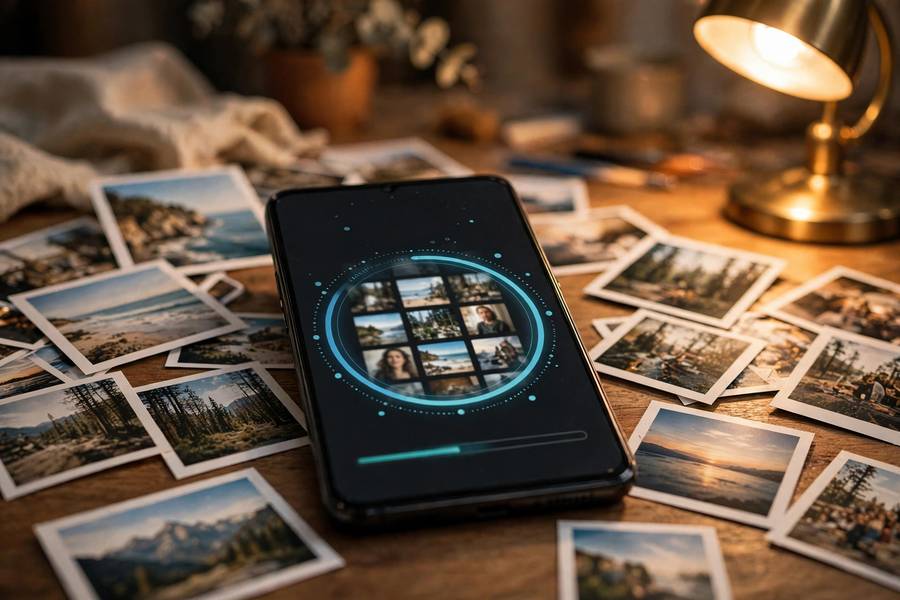
Some apps show impressive-looking scan progress bars and “files found” counters that are completely fabricated — they’re designed to create excitement before the payment demand. Real scans take time and show actual file previews, not just numbers.
Excessive permissions and antivirus warnings
A photo recovery tool needs storage access — not your contacts, not your SMS, not device administrator rights. And if your antivirus flags it, or it asks you to disable protection to install, treat that as a final verdict.
Subscription traps
Some apps bury a weekly subscription in the fine print behind a “free scan.” Photo recovery is a one-time need — you should never need a subscription for it. Check the payment terms before tapping anything.
The One Scenario Where Software Shines: SD Cards
If I had to name the single situation where recovery software earns its reputation, it’s SD cards. Memory cards aren’t encrypted like phone storage, deleted data persists until overwritten, and deep scans genuinely reconstruct complete photos. This is the scenario where free desktop tools perform beautifully.
The process: stop using the card immediately, lock it with the physical switch, connect it to a computer via a card reader, and run a deep scan with reputable software. Restore found photos to your computer’s drive — never back to the card. My detailed walkthrough covers every step, and it’s the highest-success-rate recovery procedure I know.
This is also why I recommend SD cards as camera storage but never as sole storage. They’re the most recoverable medium when things go wrong — and the most failure-prone medium overall. Copy photos off promptly, and the card’s recoverability becomes a safety net you never need.
My Honest Verdict and Recommended Approach
Here’s my straight recommendation, in order. First, check all trash folders and cloud backups — free, instant, full-quality. Second, look for shared and messaged copies — often overlooked, frequently successful. Third, if the photos were on an SD card or computer drive, use reputable desktop recovery software with a free scan. Fourth, if a phone backup exists, use an extraction tool to pull photos from it without a full restore.
Skip phone-based “recovery” apps except for thumbnail checks. Never pay before seeing previews. Never grant suspicious permissions. And understand the encryption reality: without a backup, deleted photos on modern phone internal storage are almost certainly gone.
Then, whatever the outcome, set up automatic backups so you never shop for recovery software again. If you use Android, see how to back up an Android phone; for iPhone, how to back up an iPhone. The best recovery tool is the backup you set up before you needed it — and it costs nothing but ten minutes.
Frequently Asked Questions
It depends on the storage. Desktop recovery software genuinely works on SD cards, USB drives, and computer drives via deep scanning. Phone apps are far more limited — they can find cached thumbnails but can’t recover deleted data from encrypted phone internal storage. No app can overcome encryption; be skeptical of any that claim to.
Several reputable tools offer free tiers that handle straightforward deletions on SD cards and drives. Rather than naming one “best” (the landscape changes), look for established developers with official websites, free scans with previews before payment, and no antivirus warnings. Start free; only pay after a scan shows previews of your actual photos.
Sometimes, on SD cards and computer drives where the data wasn’t overwritten. Deleted data persists until new data overwrites it, so a lightly-used card can yield photos from months ago. On phone internal storage, which is constantly written to and encrypted, old deletions are effectively unrecoverable.
Some are, many aren’t. Stick to established developers’ official websites, never disable your antivirus to install one, and never grant permissions beyond storage access. The Play Store and App Store both host fake “recovery” apps that are ad farms or subscription traps — previews before payment is the rule that protects you.
Only after a free scan shows previews of your actual photos. At that point, paying for the restore license is reasonable because the scan already proved the data is recoverable. Never pay before seeing previews, never buy a subscription for one-time recovery, and try all free built-in options (trash folders, cloud backups) first.