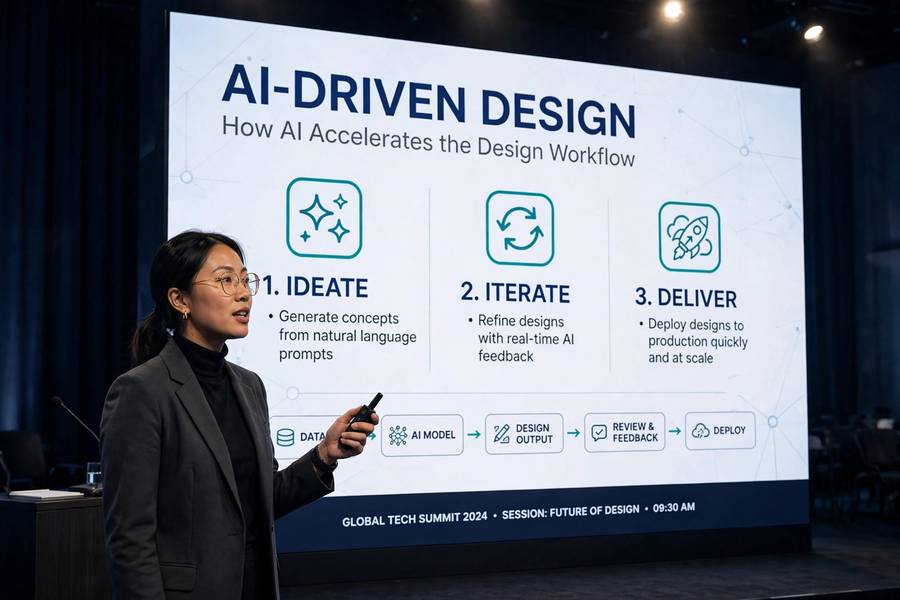
The average business presentation is a crime scene: forty slides of bullet points, read aloud by someone standing next to a screen the audience is already reading. AI can’t fix a boring presenter. What it can do — genuinely, today — is compress the brutal middle work of presenting: structuring the story, drafting the slides, generating the visuals, and rehearsing the delivery. I built a keynote last month using AI for about seventy percent of the production work, and the audience feedback was the best I’d had in two years. The difference wasn’t the AI. It was that the AI gave me time to focus on the one thing it can’t do: being interesting.
This guide covers how to use AI for presentations across the whole pipeline — from the blank page to the final rehearsal. If you’re new to workplace AI generally, start with my overview of how to use AI at work, then come back here for the presentation-specific playbook.
Table of Contents
- Start With the Story, Not the Slides
- Build Your Outline With AI
- Turn the Outline Into Slide Drafts
- Generate Visuals That Are Not Stock Photos
- Write Speaker Notes That Sound Like You
- Rehearse With an AI Coach
- Design for the Room, Not the Screen
- The Mistakes That Make AI Presentations Obvious
- A Workflow That Actually Works
- Frequently Asked Questions
Start With the Story, Not the Slides
The single biggest presentation mistake is opening PowerPoint first. The slide deck is not the presentation — the presentation is the argument, and the argument should exist before a single slide does. AI’s first job is helping you find that argument.
Before generating anything, have a conversation with the AI about your talk. What is the one sentence you want the audience to remember? Who are they and what do they already believe? What would make them resist your point? This is the work most presenters skip, and it’s why most presentations are forgettable. A chatbot makes a surprisingly good sparring partner for it, because it will ask clarifying questions you’d never ask yourself and suggest angles outside your habits.
My rule: if you can’t state your presentation’s point in one sentence, you’re not ready for slides. AI can help you get there faster, but it can’t skip the thinking. The presenters whose AI-assisted talks fall flat are almost always the ones who outsourced the thinking along with the formatting.
Build Your Outline With AI
Once you have your one-sentence point, ask the AI to propose three different outline structures for the talk — a problem-solution arc, a story-driven arc, and a data-driven arc, for example. Don’t accept the first outline. Compare the three, steal the best parts of each, and iterate. This takes fifteen minutes and produces a structure dramatically better than the chronological brain-dump most outlines start as.
Give the AI real constraints: the talk length, the audience’s knowledge level, what happened before your slot (audience energy after lunch is a real variable), and what you want them to do afterward. An outline for a twenty-minute conference talk is a different animal from an outline for a ten-minute internal update, and the AI needs to know which animal it’s building.
The output you want is a narrative spine: the beats of the talk in order, each with a one-line description of its purpose. “Beat 3: the cost-of-delay story that makes the problem feel urgent.” If a beat can’t justify its existence in one line, cut it. AI is great at generating material and terrible at cutting it — the cutting is your job, and it’s the highest-value part of the whole process.
Turn the Outline Into Slide Drafts
With the outline settled, AI slide tools can generate a first draft of the deck — layouts, titles, placeholder visuals, even suggested talking points. The quality of these tools has improved enormously; what used to be a template with your text pasted in is now genuinely decent design.
But treat the generated deck as a rough draft, not a deliverable. AI-generated slides have tells: too much text per slide, generic section dividers, the same three layouts recycled, transitions that add nothing. Your editing pass should be ruthless about text volume. The guideline I use: if a slide has more than twenty words, it’s a document, not a slide — either cut the words or split the slide.
One underused technique: ask the AI to regenerate specific weak slides rather than accepting them. “This slide is too text-heavy — redesign it as a visual comparison with three data points maximum.” Targeted regeneration beats global regeneration every time, because you keep the slides that already work.
Generate Visuals That Are Not Stock Photos
Stock photography is the fastest way to make a presentation look generic. That handshake photo, that diverse-team-around-a-table photo — your audience has seen them in forty other decks this year. AI image generation lets you create custom visuals: diagrams of your specific process, conceptual illustrations of your specific argument, charts styled to your brand.
The trick is specificity in the prompt. “Business growth illustration” gets you stock-photo energy. “Minimalist line illustration of a small boat navigating between large ships, navy and gold palette, wide composition for a title slide” gets you something nobody else has. For guidance on image prompting, see my guide on how to use Midjourney — the prompting principles apply to any image tool.
Two cautions. First, check generated visuals for errors — AI images love to garble text and mangle details like hands and charts. Never put an AI-generated chart with numbers in a deck without verifying every figure. Second, know your audience’s norms: in some academic and formal business settings, undisclosed AI imagery is frowned upon. When in doubt, a small credit line costs nothing.

Write Speaker Notes That Sound Like You
AI-written speaker notes have a distinctive voice: polished, balanced, and completely unlike any human speaking. If you read them verbatim, you’ll sound like a press release. The fix is to use AI notes as raw material and then rewrite them in your own speaking voice — shorter sentences, your actual vocabulary, your asides and examples.
A technique that works well: record yourself explaining the slide conversationally for sixty seconds, transcribe it, and ask the AI to clean it up into notes. The result sounds like you on a good day instead of like a committee. You can also ask the AI to flag where your explanation is unclear or where you’re missing a transition — it’s a decent editor when you give it your real words to work with.
Time your notes. AI has no sense of how long things take to say aloud, and a “five-minute section” of AI notes is often eight minutes of actual speech. Read everything aloud at least once. The rehearsal step catches this, which brings us to…
Rehearse With an AI Coach
This is the most underrated AI presentation use case. Record yourself giving the talk — even just audio on your phone — transcribe it, and ask an AI to critique it: where did you ramble, where did the energy drop, which transitions are missing, what questions is the audience likely to ask. The feedback is blunt in a way human colleagues rarely are, and it’s available at midnight.
Some tools go further: real-time filler-word counting, pace analysis, even simulated Q&A where the AI plays a skeptical audience member and probes your weak points. The simulated Q&A is genuinely valuable. Audiences ask predictable questions — the objections to your argument, the edge cases, the “but what about” — and rehearsing answers to them is the difference between a confident Q&A and a flustered one.
Don’t skip the physical rehearsal, though. AI can critique your words but not your presence. Record video of at least one full run-through and watch it.
Design for the Room, Not the Screen
AI designs for the screen it sees, not the room you’ll present in. A slide that looks crisp on your laptop can be unreadable from the back row of a conference hall. Before finalizing, check your deck against the venue reality: minimum 24-point fonts, high contrast, no detail that requires squinting.
Ask the AI to audit your deck for readability issues — small text, low-contrast color combinations, overcrowded slides. It’s good at this mechanical check. But also consider the lighting: projectors wash out subtle color differences, so that elegant light-gray-on-white design becomes invisible. When in doubt, bolder and simpler wins.
One more room consideration: have a backup. Export to PDF, save offline, bring it on a USB drive. AI can’t save you from a dead venue Wi-Fi, and the most polished deck in the world is useless if it won’t open.
The Mistakes That Make AI Presentations Obvious
Audiences can smell an unedited AI deck, and the tells are consistent. The em-dash epidemic: AI loves em-dashes, and a deck full of them reads as generated. The rule of three everywhere: every list has exactly three items, every argument has three pillars. Perfectly balanced sentence structures with no human rhythm. Generic stock-style AI images. Transitions like “Now, let’s dive deeper into…” that no human says aloud.
None of these are fatal on their own. Together, they signal that nobody cared enough to edit, and audiences respond to that signal by caring less themselves. The fix is always the same: a genuine editing pass where you cut, rewrite, and inject your actual voice. AI gets you from zero to seventy percent fast. The last thirty percent — the part the audience actually feels — is human work.
Also: fact-check everything. AI confidently invents statistics, misattributes quotes, and fabricates case studies. Every number in your deck should be traceable to a source you actually checked. This is non-negotiable, especially for anything you’ll present to people who might verify.
A Workflow That Actually Works
Here’s the workflow I’d recommend, end to end. One: converse with AI to nail your one-sentence point and audience analysis. Two: generate three outline structures, merge the best parts, cut ruthlessly. Three: generate the slide draft, then do a text-volume editing pass. Four: create custom visuals with specific prompts, verifying every detail. Five: write speaker notes from your own recorded explanations, cleaned up by AI. Six: rehearse with AI critique plus one video run-through. Seven: readability audit for the venue, backup exported.
Total time for a twenty-minute talk: roughly six to eight hours, versus the fifteen-plus it used to take me. Students can find tailored picks in my roundup of AI tools for students. The hours saved aren’t the point, though. The point is where they go: I now spend the saved time on the story and the rehearsal — the two things that actually determine whether a presentation lands. That’s what AI is for in presenting: not replacing the presenter, but freeing them to do the presenting.
For sharper prompting throughout this workflow, my guide to getting better answers from ChatGPT covers the techniques these steps depend on.
Frequently Asked Questions
AI can generate a complete slide draft — structure, text, layouts, and visuals — but the result needs serious human editing. Unedited AI decks have recognizable tells: too much text, generic images, and a polished-but-lifeless voice. Use AI for the 70% production work and do the story and editing yourself.
Ask the AI to propose three different outline structures, compare them, and merge the best parts. Give it real constraints — talk length, audience knowledge, what you want them to do afterward. Then cut ruthlessly: every beat should justify itself in one line.
Cut text volume aggressively (under 20 words per slide), generate custom visuals with specific prompts instead of stock-style images, regenerate weak slides individually, and rewrite speaker notes in your own voice. The generic feel comes from accepting AI’s first draft everywhere.
Yes — transcribe a practice run and ask AI to critique pacing, rambling, and missing transitions, or use it for simulated Q&A as a skeptical audience member. It’s blunt feedback available anytime. Still do at least one video run-through to check your physical presence.
For standard business presentations, disclosure isn’t typically expected — AI is a production tool like spell-check. In academic or formal settings, check the norms; some require disclosure of AI-generated content. When in doubt, a brief credit line costs nothing.