How to Schedule Instagram Posts (Free Methods That Work in 2026)

Posting to Instagram at the right moment used to mean setting an alarm, opening the app, and hoping you were free. Now you can line up a week’s worth of content on Sunday night and have it publish itself while you sleep. I schedule Instagram posts for three different projects, and the time it saves is real — but so are the limitations nobody mentions upfront. This guide covers how to schedule Instagram posts using the free official tools, which post types you can and cannot schedule, and the honest truth about whether scheduling hurts your reach.
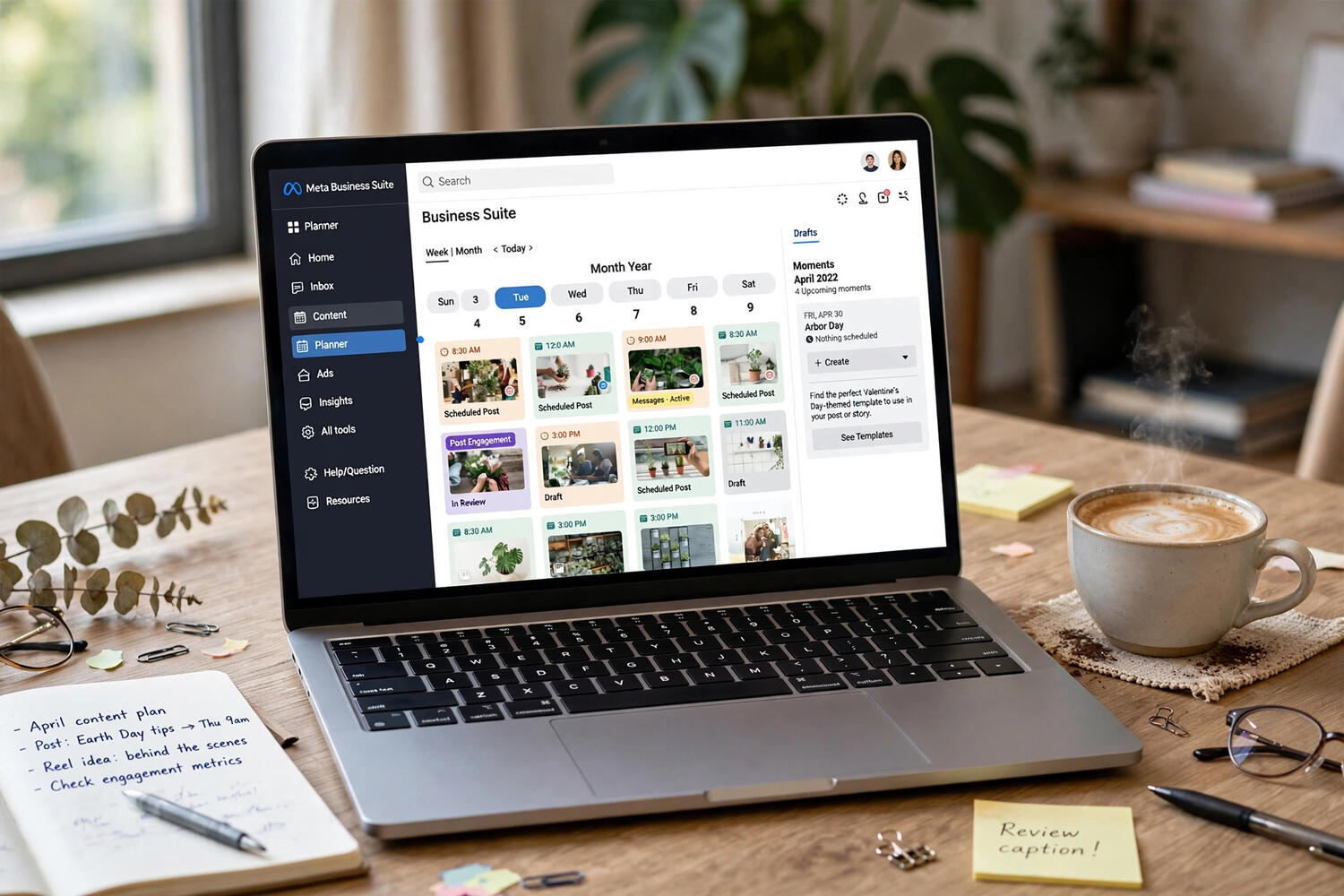
The Free Official Method: Meta Business Suite
Instagram’s owner provides a free scheduling tool, and it is the one you should use first. Meta Business Suite (business.facebook.com) lets you schedule feed posts, reels, and stories to Instagram at no cost — no third-party app, no subscription, no sketchy permissions. The catch: your Instagram account must be a Professional account (Business or Creator), not a personal one, and it must be linked to a Facebook Page. Switching to Professional is free and takes a minute in Instagram’s settings; linking a Page takes another minute in the Accounts Center.
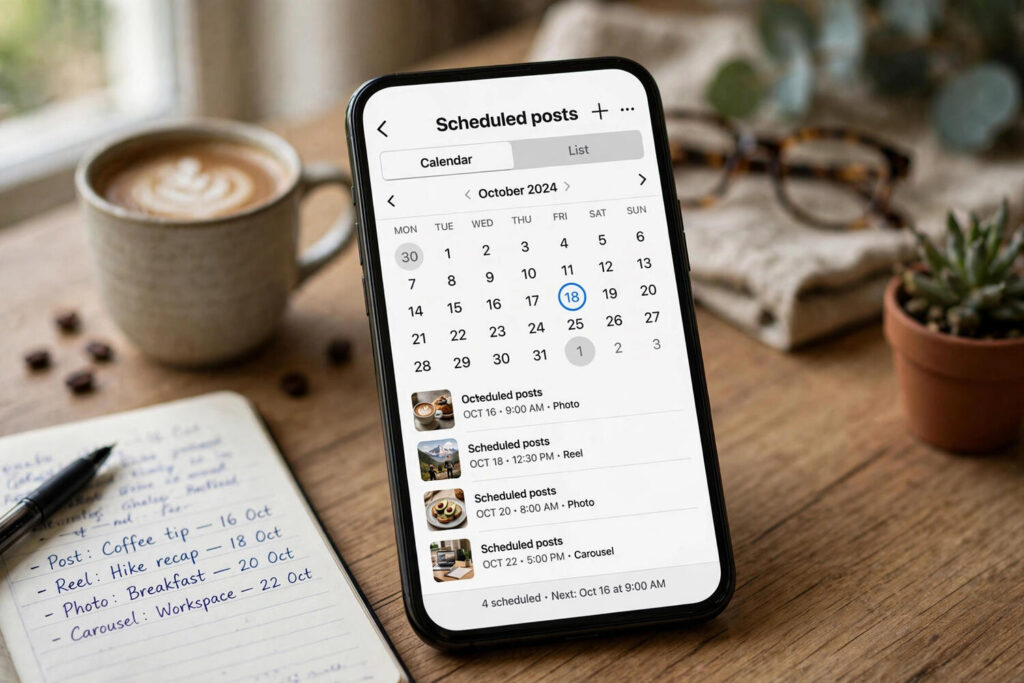
Once connected, the workflow is straightforward. In Business Suite, click Create Post, select your Instagram account, upload your image or video, write your caption, add hashtags, tag people and locations — everything you would do in the app. Then instead of Publish, choose Schedule, pick your date and time (up to 75 days out), and confirm. The post publishes automatically at the scheduled time. You can view, edit, or delete everything from the Content calendar, which shows your queue visually. It is unglamorous and it works.
Scheduling Inside the Instagram App
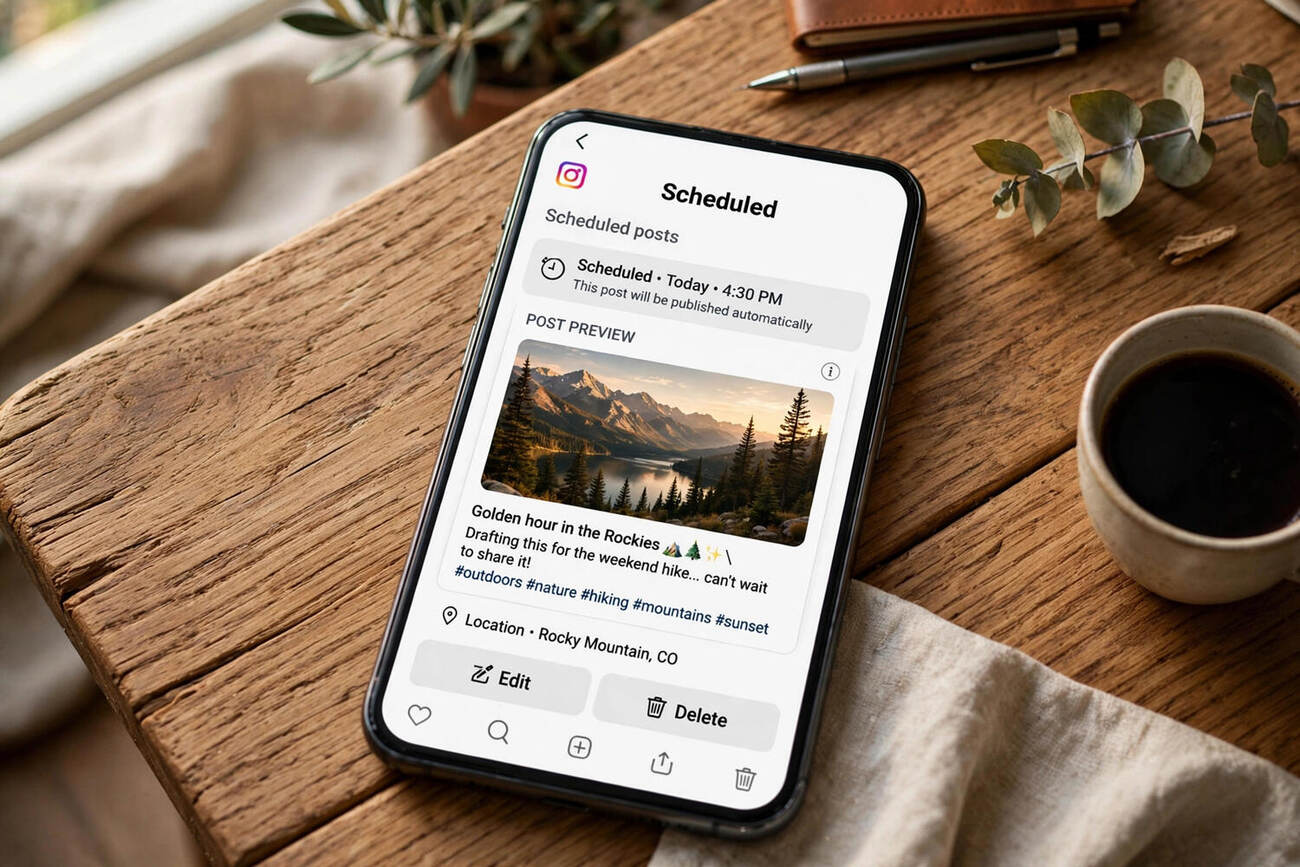
Instagram also lets you schedule directly in the app, though with tighter limits. Create a post or reel as normal, and on the final share screen, tap Advanced Settings, then Schedule. You can schedule up to 75 days ahead, same as Business Suite. This is convenient for one-off scheduling — that post you finished at midnight but want live at 9 a.m. — but the app only handles feed posts and reels this way, and managing a queue of many scheduled posts is clumsier than in Business Suite’s calendar view.
One limitation to know: in-app scheduling is only available on Professional accounts too. Personal accounts get neither option, which is Instagram’s quiet nudge toward the Professional tier. The switch is free and reversible, and your content and followers are unaffected.
What You Can and Cannot Schedule
Schedulable: single-image posts, carousels, reels, and stories (stories via Business Suite). Not schedulable: live broadcasts, obviously, and collaborative posts have restrictions depending on the tool. Product tags on shopping posts work in Business Suite but double-check they carried over — tagged products occasionally drop in scheduled posts, so verify after publishing.
First comment scheduling — posting your hashtags as the first comment instead of in the caption — is not natively supported by Instagram’s own tools. Third-party schedulers offer it, which is one of the few genuine reasons to look beyond the free official options. Everything else most people need is covered natively.
Third-Party Schedulers: When They Are Worth It
Tools like Buffer, Later, Hootsuite, and Planoly exist because the native tools have gaps: visual grid planning, best-time-to-post recommendations, hashtag management, analytics, and multi-platform scheduling from one dashboard. If you manage several accounts or post daily, these are legitimately useful. The free tiers of most cover a small account’s needs.
The tradeoff is that you are granting a third party publishing access to your account, and Instagram’s API limits what they can do — which is why some features lag behind the native tools. My rule: start with Business Suite, which is free and official. Upgrade to a third-party tool only when you hit a specific limitation, not preemptively. Most solo creators never need to.
Does Scheduling Hurt Your Reach?
This is the question everyone asks, and the honest answer is: not directly. Instagram has stated that scheduled posts are treated the same as manually published ones in ranking. What actually affects reach is everything around the schedule — posting times, content quality, and engagement velocity. A scheduled post published when your audience is asleep performs worse than a manual post at peak time, but that is a timing problem, not a scheduling problem.
Understanding how Instagram’s algorithm surfaces content matters more than which button you pressed to publish. Early engagement in the first hour after posting is the strongest signal, so schedule for when your followers are actually online — check your Professional dashboard’s audience insights for your specific peak hours rather than following generic “best time to post” charts.
A Practical Scheduling Workflow
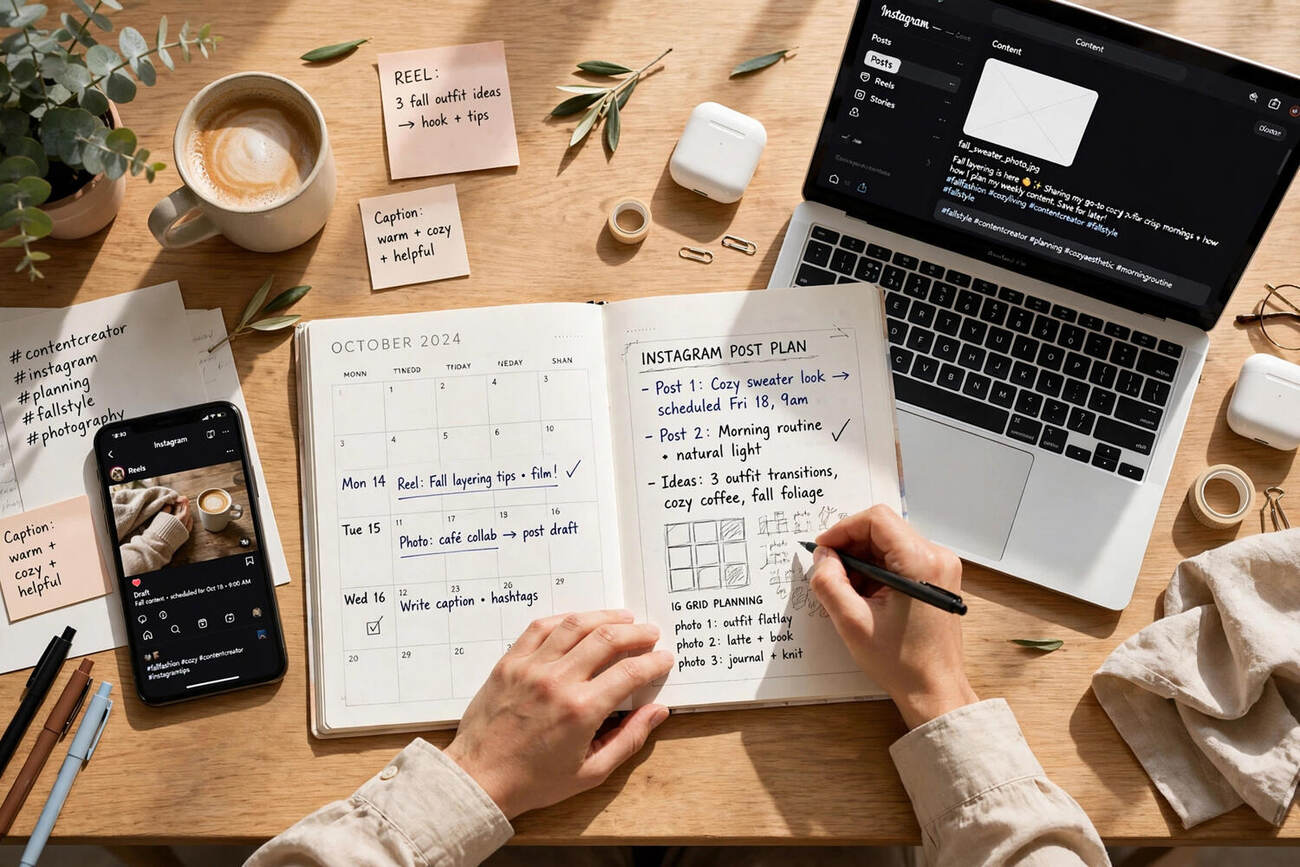
Here is the system I use. Once a week, batch-create: shoot or design three to five posts in one session, write all the captions in one sitting (captions are faster in batches — your brain stays in writing mode), and prepare hashtags in sets you rotate. Then schedule them across the week in Business Suite, spacing posts at your audience’s peak times with at least a few hours between them.
Leave room for spontaneity. A fully rigid queue means you miss trends, and Instagram rewards timeliness. I schedule the evergreen 80% and leave gaps for the reactive 20% — stories especially work better in the moment. Scheduling is a foundation, not a cage. And if Instagram is one channel among several, it helps to think about where it fits in your overall social media platform strategy rather than treating it in isolation.
Common Scheduling Mistakes
Scheduling and forgetting is the big one — scheduled posts still need you to check that they published correctly, especially the first few times. Time zone errors bite travelers: Business Suite schedules in the time zone shown in your settings, so verify after any travel. Over-scheduling makes your feed feel robotic; if every post is perfectly polished and perfectly timed, the account loses the human texture that makes people follow. And never schedule anything time-sensitive far in advance without a review step — the scheduled post announcing an event that got cancelled is a special kind of embarrassment.
How to Schedule Instagram Posts From Your Phone vs. Desktop
Phone scheduling (in-app) is best for speed: finish a post, tap Advanced Settings, schedule it, done — thirty seconds. Desktop scheduling (Business Suite) is best for planning: the calendar view shows your whole week, drag-and-drop rescheduling is easy, and writing captions with a real keyboard is dramatically faster. I draft and schedule the week’s content on desktop Sunday night, then use in-app scheduling during the week for spontaneous additions.
One practical difference: Business Suite on desktop handles bulk operations — editing scheduled times across multiple posts, viewing everything at once — that are painful on mobile. But the mobile app is where you will notice problems first, since push notifications about failed scheduled posts arrive on your phone. Keep both installed and logged in. The workflow that survives is the one with the least friction, and for most people that means desktop for planning, phone for everything else.
Best Times to Schedule (And Why Generic Advice Fails)
Every “best time to post” infographic claims authority, and nearly all of them are useless to you specifically — they aggregate millions of accounts across time zones and niches. Your audience has its own rhythm, and Instagram shows it to you: Professional dashboard > Insights > Audience shows when your followers are online by hour and day. Schedule your important posts into those peaks.
That said, patterns do exist. For most consumer audiences, late morning and early evening on weekdays outperform the dead of night; weekends behave differently by niche — lifestyle content often does well Saturday morning, B2B content dies on weekends entirely. But treat these as starting hypotheses, not laws. Post at your Insights-indicated peaks for a month, note which posts overperform, and adjust. The algorithm rewards consistency of engagement more than any particular hour, so a sustainable schedule you actually maintain beats a theoretically optimal one you abandon.
Scheduling Reels vs. Feed Posts: Strategic Differences
Reels and feed posts play different games, so schedule them differently. Reels are discovery vehicles — they reach non-followers through the Reels tab and Explore — so schedule them when your broader audience is active, and prioritize trends and audio while they are fresh; a reel scheduled two weeks out may miss its moment. Feed posts and carousels serve your existing followers — schedule them for your followers’ peak hours and lean into depth: carousels with real information get saves, and saves are a strong ranking signal.
Cadence matters more than volume. Three thoughtful posts a week, scheduled consistently, outperform daily filler that trains your audience to scroll past you. And never let scheduling replace engagement: the accounts that grow reply to comments, especially in the first hour after posting. Schedule the publishing; do the conversing live. Automation handles distribution, but relationships are still manual — which is exactly as it should be.
The Batching System: A Month of Posts in One Afternoon
Scheduling is only half the battle. The real win is batching — creating all your content in one focused session, then scheduling it across the month. Here is the system I use and recommend.
Start with content pillars: three or four themes you rotate through. For a food account that might be recipes, behind-the-scenes, tips, and community reposts. Pillars remove the daily “what do I post?” decision, which is where most people lose hours.
Next, batch by stage, not by post. Shoot all your photos in one session. Write all your captions in another. Design any graphics in a third. Task-switching is the productivity killer; staying in photo mode for two hours produces a month of images, while shooting one photo a day produces frustration.
Then comes the scheduling session, and this is where the discipline pays off. Upload everything into Meta Business Suite, finalize captions, set your times, and schedule the full month. One afternoon of focused work replaces thirty daily publishing sessions — and because you are not rushing, the quality is higher.
Two rules keep the system honest. First, batch one month ahead, not three. Social moves too fast for a quarter of pre-planned content to stay relevant. Second, leave gaps. Schedule four posts a week, not seven, so you have room for timely posts when something actually happens. A batched calendar should be a foundation, not a cage.
Frequently Asked Questions
Can you schedule Instagram posts for free?
Yes — Meta Business Suite and Instagram’s in-app scheduling are both free. You need a Professional (Business or Creator) account linked to a Facebook Page for Business Suite.
How far ahead can you schedule Instagram posts?
Up to 75 days in advance, in both Meta Business Suite and the Instagram app’s native scheduler.
Does scheduling Instagram posts affect reach?
Not directly — Instagram treats scheduled posts the same as manual ones. Reach depends on content quality, posting time, and early engagement, not the publishing method.
Can you schedule Instagram stories?
Yes, through Meta Business Suite. The Instagram app’s built-in scheduler covers feed posts and reels; stories need Business Suite.
Can you schedule reels on Instagram?
Yes — both in the Instagram app (Advanced Settings > Schedule on the share screen) and in Meta Business Suite, up to 75 days ahead.
Why can’t I schedule posts on my Instagram account?
Scheduling requires a Professional account. Switch via Settings > Account type and tools > Switch to professional account — it’s free and reversible.