How to Factory Reset an Android Phone Safely (Step-by-Step)

A factory reset is the big red button of Android troubleshooting: it wipes your phone back to the state it left the factory, and it fixes a remarkable range of problems along the way. I have walked dozens of people through how to factory reset an android phone over the years — usually right before they sell a phone, hand one down to a relative, or give up on a device that has grown painfully slow. Done correctly, a reset is straightforward and safe. Done carelessly, it can erase photos you never backed up. This guide covers both the preparation and the process, step by step.
Before You Reset: The Back-Up Checklist
This is the part people skip, and it is the only part that truly matters. A factory reset deletes everything stored on the phone’s internal storage — photos, messages, apps, accounts, downloaded files, the lot. Once the wipe runs, recovery is effectively impossible. So before touching the reset menu, run through this checklist:
Photos and videos. Open Google Photos and confirm your recent pictures have actually synced — look for the cloud icon showing a completed backup, not ‘waiting to upload.’ If you keep photos outside Google Photos, copy them to a computer or cloud drive manually.
Contacts, calendar, and email. If these sync to your Google account, they restore automatically. Check that sync is on under Settings > Accounts > Google, and that the last sync time is recent.
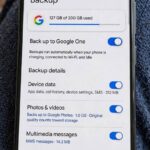
Messages and call history. Standard SMS backup lives under Google One or your manufacturer’s backup settings. If old text threads matter to you, verify they are included in the backup before proceeding. how to back up an Android phone walks through the full backup picture if you want to be thorough.
WhatsApp and other chat apps. WhatsApp keeps its own backup (usually to Google Drive) separate from the system backup. Open the app’s settings and run a manual backup now, rather than trusting the scheduled one.
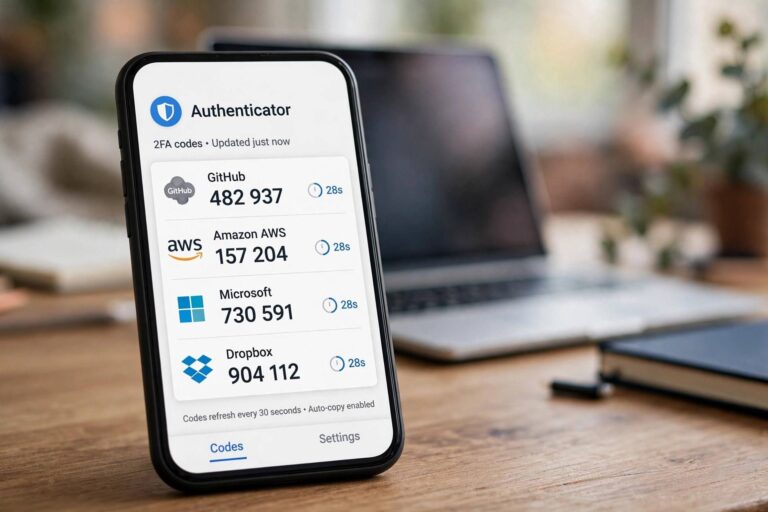
Two-factor authentication apps. This is the one that bites people. If you use an authenticator app for work or banking logins, transfer or back up those codes first — some apps offer cloud sync, others require exporting them manually. A reset without this step can lock you out of accounts for days.
Remove the SD card (optional but wise). On phones with expandable storage, a factory reset generally leaves the SD card alone, but removing it during the reset removes all doubt. Keep it somewhere safe.
How to Factory Reset an Android Phone From Settings
When your backups are confirmed, the standard method takes about five minutes of your time plus a few minutes of automated wiping. Here is the exact path:
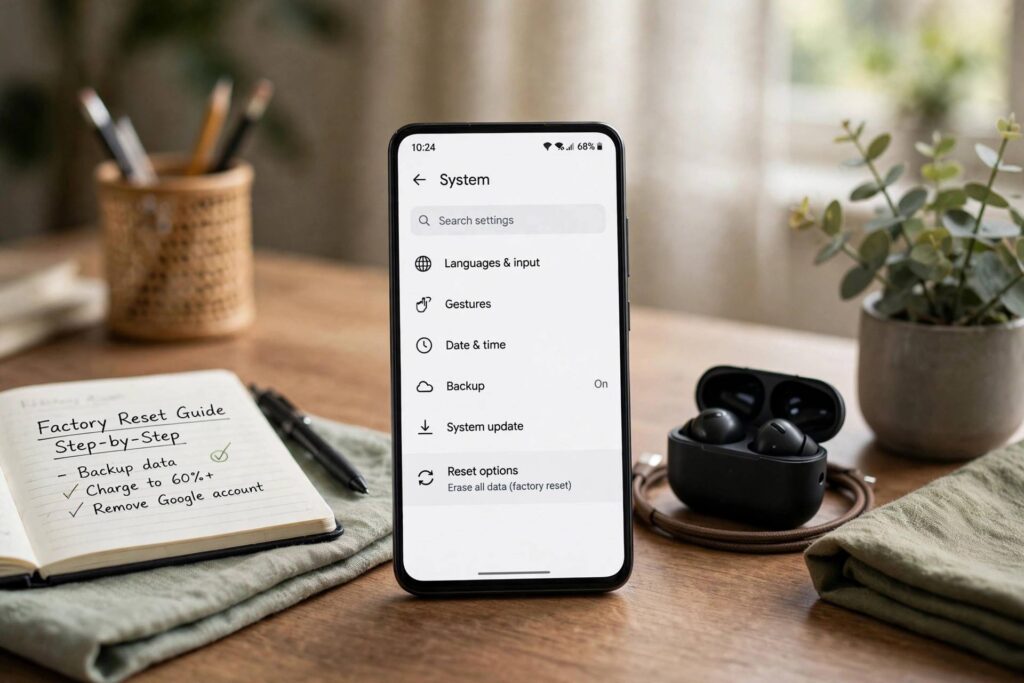
Step 1. Open Settings and tap the search bar at the top. Type ‘factory reset’ or ‘erase’ — Android puts the option under slightly different names on different phones. On a Pixel it lives under System > Reset options > Erase all data (factory reset). On Samsung it is under General management > Reset > Factory data reset. The search approach works everywhere and avoids the maze.
Step 2. Read the summary screen. Android shows you what will be erased and which accounts are signed in. Confirm that the Google account listed is one you can still sign back into — this is critical, because of Factory Reset Protection (more on that below).
Step 3. Tap Erase all data and enter your PIN, pattern, or password when asked. Then tap Erase all data once more to confirm. The phone will reboot and show a progress screen while it wipes. Do not interrupt it — do not hold the power button, do not pull the battery (on phones where that is even possible).
Step 4. When the phone restarts, you will see the original welcome screen, exactly as it looked out of the box. Follow the setup wizard: connect to Wi-Fi, sign in with your Google account, and choose whether to restore from your backup. If you are selling the phone, stop after the welcome screen appears — the new owner should do their own setup.

How to Factory Reset an Android Phone That Won’t Boot
Sometimes the reason you want a reset is that the phone will not start properly — boot loops, frozen logos, a screen that refuses to respond. The settings menu is useless in that situation, so Android provides a hardware fallback: recovery mode.
Step 1. Power the phone completely off. If it will not respond, hold the power button for about 10–15 seconds until it shuts down.
Step 2. Press and hold the correct button combination to enter recovery mode. On most phones this is Power + Volume Up, held together for several seconds. Samsung models sometimes use Power + Volume Up + Home (older) or Power + Volume Up with the phone connected to a computer via USB (newer). Check your manufacturer’s support page if the standard combo does nothing.
Step 3. Use the volume buttons to navigate to Wipe data/factory reset and press the power button to select it. Confirm with Factory data reset. The process runs from here exactly as it does from settings.
Step 4. When it finishes, select Reboot system now. The phone restarts to the welcome screen.
One honest warning: if the phone cannot reach recovery mode at all — no response to any button combination — the problem is likely hardware, and no software reset will fix it. That is a repair-shop conversation, not a settings conversation.
Factory Reset Protection: The Lock You Need to Know About
Since Android 5.1, Google ships a theft-deterrent feature called Factory Reset Protection (FRP). After a reset, the phone demands the Google account credentials that were on it before the wipe. If you cannot provide them, the phone is a brick to you. This is excellent when your phone is stolen. It is a disaster when you reset your own phone and then cannot remember a password.
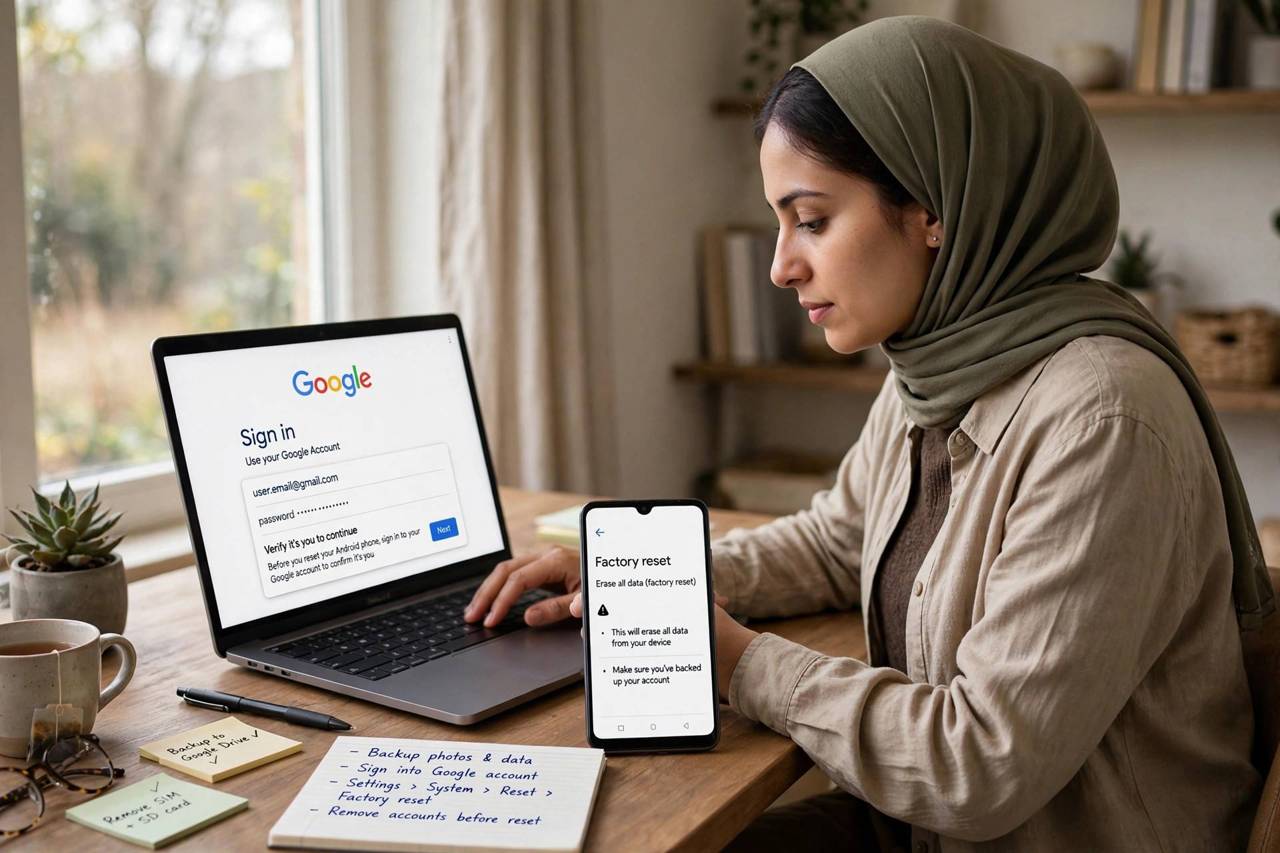
Before resetting, sign into your Google account on a computer and verify the password works. If you changed the password recently, wait 24 hours after the change before resetting — Google imposes a security delay that can otherwise trigger FRP even with correct credentials. And if you are selling or giving away the phone, remove your Google account from the device entirely (Settings > Accounts > remove) before running the reset. Removing the account disables FRP for that reset, so the next person can set the phone up with their own account.
What a Factory Reset Fixes (and What It Doesn’t)
A reset is genuinely effective for software problems: persistent crashes, mysterious battery drain from a misbehaving app, settings corrupted by a bad update, malware that survived a simple uninstall, and the general sluggishness that builds up over years of use. It also cleanly removes your personal data when the phone changes hands, which is its most important job.
What it cannot fix: dying batteries, cracked screens, failing storage chips, or water damage. If the phone was slow because its aging processor cannot keep up with modern apps, it will still be slow after the reset — just slow with a fresh coat of paint. Be honest with yourself about which category your problem falls into before you wipe. For phones that feel sluggish but are otherwise healthy, clearing accumulated clutter often helps first: clearing the cache on Android is a good non-destructive first step worth trying before the nuclear option.
After the Reset: Setting Up Again
If the phone is yours to keep, the setup wizard offers to restore apps, contacts, and settings from your Google backup — take the offer, then reinstall only the apps you actually use. A fresh start is a good moment to break the habit of keeping 200 apps you opened once. Sign back into banking and authenticator apps carefully, and re-add your payment cards to your wallet.
If you are handing the phone to someone else, do nothing. The welcome screen is the correct final state. Optionally, power the phone off and include the charger in the box. If you removed the SD card earlier, put it back in — or keep it, if it held your personal photos.
One more selling tip: after the reset, take the phone off your Google account’s device list (from a computer, via your Google account’s security page) and remove it from any carrier or manufacturer account. A clean paper trail matters as much as a clean phone.
When a Factory Reset Is Not the Answer
Not every phone problem deserves the nuclear option. If only one app misbehaves, uninstalling and reinstalling that app usually fixes it. If the phone is merely slow, try the lighter steps first: restart it, clear cached data, delete apps you no longer use, and check that storage is not nearly full — Android struggles when less than about ten percent of storage is free. A reset is the right call when problems are system-wide, when you are transferring ownership, or when simpler fixes have failed twice. Think of it as surgery: highly effective, but you do not schedule it for a headache.
Frequently Asked Questions
Will a factory reset delete everything on my SD card?
Usually not — the reset targets internal storage, and most phones leave the SD card untouched. But ‘usually’ is not a guarantee, and some phones format adopted storage during a reset. Remove the card beforehand if anything on it matters to you.
Does a factory reset remove viruses or malware?
Almost always, yes. Malware lives in the same software layer the reset wipes, so it goes along with everything else. The rare exceptions are deeply embedded system-level infections, which a standard reset cannot reach — but those are uncommon on phones that were never rooted.
How long does a factory reset take?
The wipe itself typically takes two to ten minutes depending on the phone and how much data it holds. The setup wizard afterward takes another ten to twenty minutes if you are restoring a backup. Budget half an hour total and you will be comfortable.
Can I recover data after a factory reset?
No — not in any practical sense. Modern Android encrypts its storage, and the reset destroys the encryption keys along with the data. This is why the backup checklist at the top of this article is not optional. Once the wipe completes, what is gone is gone.
Will a factory reset improve my phone’s battery life?
It can, if the drain was caused by software — a misbehaving app, corrupted system files, or a bad update. If the battery itself is old and degraded, no reset will bring it back. Check your battery health in settings first; a three-year-old battery is a hardware problem.