How to Free Up iCloud Storage Without Paying for More

You’re trying to take a photo, and instead of a shutter click you get that dreaded message: “iCloud Storage Full.” Or maybe your iPhone has stopped backing up, your emails won’t send, and everything Apple keeps nudging you to buy more storage. Before you reach for your wallet, know this: most people can reclaim gigabytes of iCloud space in about fifteen minutes, just by clearing out things they didn’t know were there. Let me walk you through it step by step — no tech expertise required. Here’s how to free up iCloud storage without spending a cent.
First: See What’s Actually Using Your Space
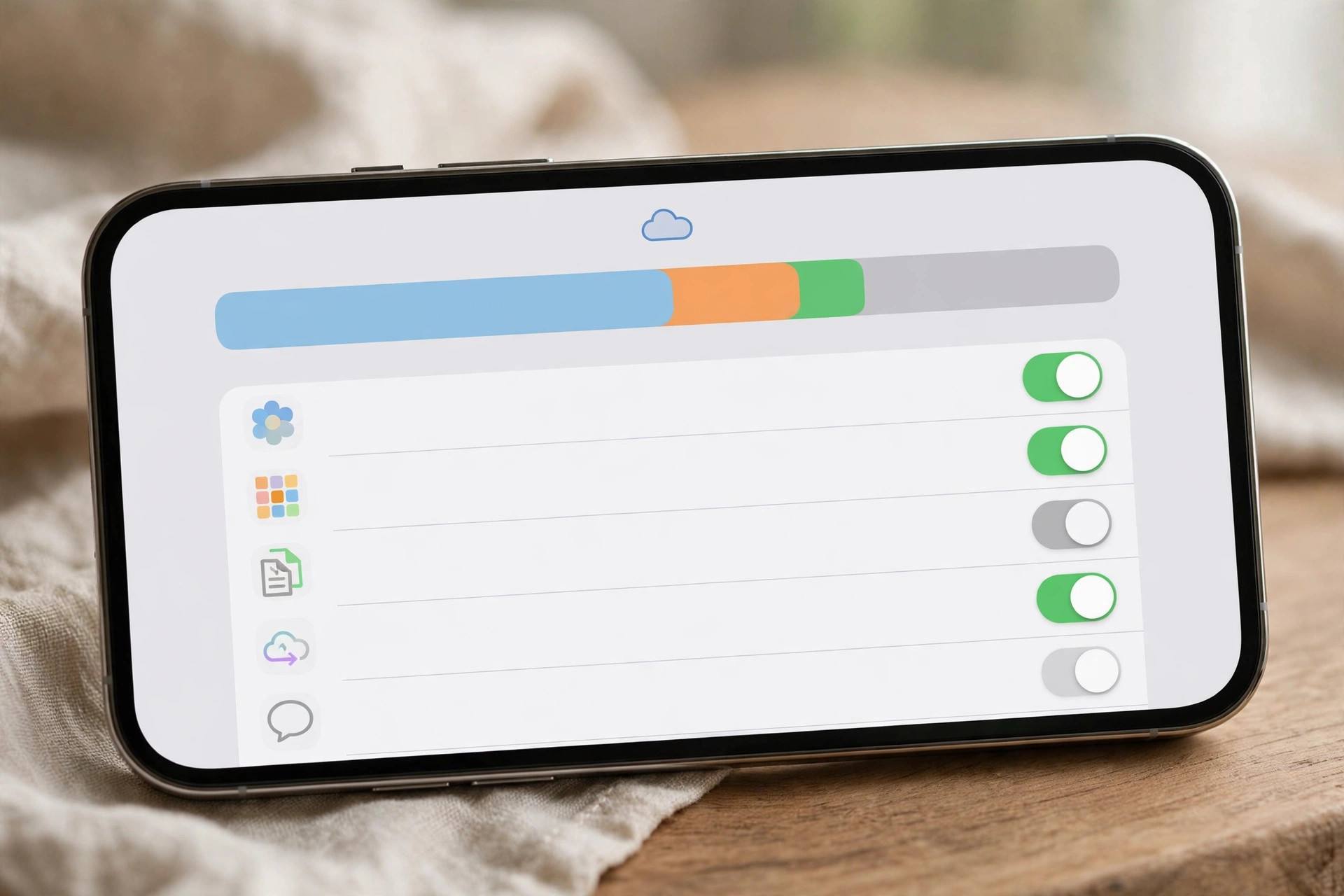
Before deleting anything, let’s diagnose. On your iPhone, go to Settings → [your name] → iCloud. You’ll see a storage bar showing exactly how your space is divided: Photos, Backups, iCloud Drive, Messages, Mail, and so on. Tap “Manage Account Storage” (or “Manage Storage”) for the detailed breakdown.
This step matters because everyone’s storage hog is different. For most people, it’s Photos — often half or more of total usage. For others, it’s old device backups, or years of messages with videos, or a Documents folder full of forgotten files. Knowing your biggest category tells you where fifteen minutes of effort will pay off most.
Also check how much free space you actually have versus your plan. The free tier is 5 GB — which, frankly, hasn’t grown in over a decade while photo and video sizes have exploded. That’s why nearly everyone hits the wall eventually. But let’s fix it without spending money first.
How to Free Up iCloud Storage: Start With Your Photos
Photos and videos are the number-one iCloud storage consumer for most people. Here’s the beautiful part: you can keep every single photo and still free up massive space.
Go to Settings → [your name] → iCloud → Photos and make sure “Optimize iPhone Storage” is turned on (instead of “Download and Keep Originals”). What this does: full-resolution originals live in iCloud, while your phone keeps lightweight versions that look identical on screen. The originals download instantly whenever you view, edit, or share a photo. You lose nothing visible and gain gigabytes.
Next, hunt down the real space hogs hiding in your library:
- Videos. A single minute of 4K video can eat hundreds of megabytes. Scroll through and delete the accidental recordings, the 47 takes of the same moment, and the videos you’ll never watch again.
- Screenshots. Search your library for screenshots — boarding passes from 2022, memes, random captures. Most are safe to delete in bulk.
- Duplicates and bursts. Burst-mode photo sequences and near-duplicate shots pile up silently. Keep the best one or two from each burst.
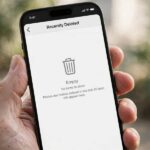
- The Recently Deleted album. Deleted photos sit here for 30 days still consuming space. Go to Albums → Recently Deleted and clear it out to reclaim the space immediately.
One more powerful move: review your Shared Albums. Photos in shared albums don’t count against your iCloud storage — so moving keeper photos you’ll rarely need into a private shared album (shared only with yourself) is a legitimate space-saving strategy.
Tame Your Backups
iCloud backups are essential — but they can also be bloated. Go to Settings → [your name] → iCloud → Manage Account Storage → Backups. You’ll see backups for your current device and possibly old devices you no longer own. Delete backups for devices you’ve sold, traded in, or replaced — there’s no reason to keep them.
Tap your current device’s backup to see what’s inside it. You’ll find a list of apps with toggles. Many apps back up data you don’t need preserved — do you really need every game’s save data and every app’s cache backed up? Turn off backup for apps whose data doesn’t matter to you. The backup shrinks, future backups run faster, and you reclaim space immediately.
If you want a second safety net beyond iCloud, consider a local backup to your computer as well — my guide on how to back up an iPhone covers both methods so your data is protected no matter what.

Clean Out Messages and Mail
If you use iCloud for Messages, years of conversations — especially ones with photos and videos — can quietly consume gigabytes. In Settings → [your name] → iCloud → Manage Account Storage → Messages, you’ll see the biggest conversations listed by size. Those group chats full of videos? Prime candidates for cleanup.
You don’t have to delete whole conversations. Open a heavy thread, tap the contact name, scroll to the photos and attachments, and delete the large files while keeping the text conversation. It’s the videos and images eating the space, not the words.
For Mail: if you use iCloud email, old messages with large attachments add up. Search for emails with attachments (in the Mail app, you can filter for these), delete what you don’t need, then empty the Trash. Also check the Mail app’s storage in iPhone Settings → General → iPhone Storage — sometimes the local mail cache is the real culprit.
Audit iCloud Drive and App Data
Open the Files app → Browse → iCloud Drive and look around with fresh eyes. Old project folders, downloaded PDFs you’ll never read again, installer files, duplicate documents — iCloud Drive becomes a junk drawer over the years. Delete freely; remember that deleted files go to Recently Deleted in Files, where you can purge them immediately.
Then check Settings → [your name] → iCloud and scroll through the app list. Many apps sync data to iCloud that you may not need — old note-taking apps, games, utilities from phones past. Turning off iCloud sync for apps you no longer use (and deleting their stored data when prompted) recovers space and reduces clutter.
Don’t forget Voice Memos, either. Long recordings — interviews, lectures, random memos — sync to iCloud and can be surprisingly large. Review and delete, or move keepers to your computer.
Delete Unused Apps (The Right Way)
Apps themselves mostly live on your phone, not in iCloud — but their data often syncs to iCloud, and offloading the app doesn’t always remove that data. Go to Settings → General → iPhone Storage, find apps you haven’t opened in months, and delete them properly. When you delete an app, you’re asked whether to keep its iCloud data — for apps you’re truly done with, delete the data too.
For a systematic approach to this, my walkthrough on how to delete apps on iPhone covers offloading versus deleting and what each one actually frees up.

Should You Just Buy More Storage?
After the cleanup, take stock. If you’ve reclaimed plenty of space and your usage is now stable, you’re done — no purchase needed. But be honest with yourself: if you’re a heavy photo/video person, or your family shares storage, the paid tiers are genuinely reasonable (50 GB is the entry paid tier, with larger options above it), and they can be shared with family members through Family Sharing.
My patient advice: clean first, then decide. Many people discover after a good cleanup that the free 5 GB is actually enough — or that they only need the smallest paid tier instead of jumping to a large one. Either way, you’ll be paying for space you actually use rather than space occupied by 2021 screenshots.
One security note while you’re in your Apple account settings: this is a good moment to make sure your Apple ID is protected with a strong, unique password and two-factor authentication. If you’re reusing passwords anywhere, consider whether password managers are safe — securing the account that holds all your photos and backups is worth the small effort.
Keep It Clean: A 5-Minute Monthly Habit
The cleanup you just did will slowly undo itself if photos, videos, and files keep piling up unchecked. The fix is a tiny monthly habit: once a month, spend five minutes deleting screenshots, clearing Recently Deleted, and glancing at your storage breakdown. Put a recurring reminder on your phone for the first of the month.
Also, get in the habit of deleting obvious junk in the moment — the blurry photo, the accidental video, the screenshot you needed for ten seconds. Thirty seconds of deletion now saves a fifteen-minute purge later. Future you, the one who never sees “Storage Full” again, says thanks. That’s how to free up iCloud storage and keep it that way.
What About iCloud+ Features You’re Already Paying For?
If you do end up on a paid plan, remember it includes iCloud+ features beyond raw storage: Private Relay for more private browsing, Hide My Email for creating disposable email addresses, and HomeKit Secure Video support for security cameras. Many subscribers pay for the storage and never touch these extras. Take five minutes to explore them in Settings under your Apple ID — you might as well get full value from what you’re paying for.
FAQ
Will deleting photos from iCloud delete them from my iPhone?
If iCloud Photos is turned on, your library is synced — deleting from one place deletes everywhere. That’s why “Optimize iPhone Storage” is the better first move: it shrinks what’s stored on your phone without deleting anything. Only delete photos you’re truly ready to lose from all devices.
How do I see what’s taking up my iCloud storage?
Go to Settings → [your name] → iCloud on your iPhone. The storage bar shows the breakdown by category, and tapping “Manage Account Storage” gives you the detailed per-app and per-feature list, sorted by size.
Is it safe to delete old iCloud backups?
Yes, for devices you no longer own or use. For your current device, keep the backup — but slim it down by turning off backup for apps whose data doesn’t matter. Never delete your only backup of an active device without creating a replacement first.
Do shared album photos count against my iCloud storage?
No — photos in Shared Albums don’t count toward your iCloud storage limit. This makes shared albums a useful place to park photos you want to keep but rarely access, freeing up space in your main library.
Why is my iCloud still full after deleting photos?
Check the Recently Deleted album (deleted items sit there for 30 days), and look at your other categories — backups, messages, iCloud Drive, and mail are the usual suspects. The storage breakdown in Settings will show you exactly where the remaining space is going.