Best Note-Taking Apps for Tablets: Handwriting That Keeps Up

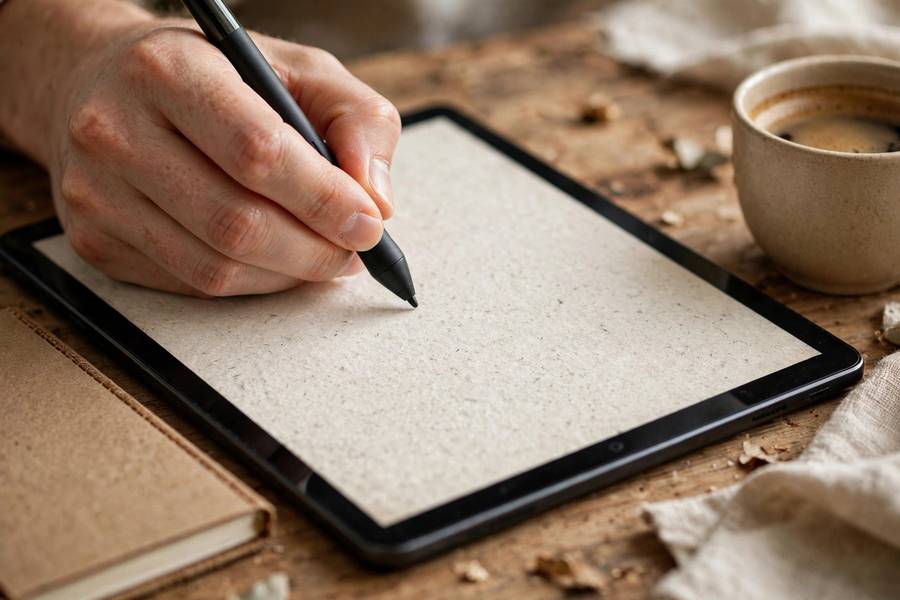
A tablet with a stylus is the closest thing to a superpower a student can buy: the flexibility of handwriting with the searchability of digital text. But the app you put on that tablet decides whether it becomes a study machine or an expensive video screen. I have watched students transform their grades with the right tablet app — and I have watched others take worse notes than they did on paper because they picked an app that fought them.
This guide compares the tablet note-taking apps I actually recommend, explains what to look for beyond the marketing, and covers the hardware realities nobody mentions: palm rejection, latency, and why your choice of tablet matters as much as your choice of app. the best note-taking apps overall
I will also be blunt about when a tablet is the wrong tool — because the honest limitations matter as much as the recommendations, and nobody selling tablets will tell you.
In this guide:
- What to Look For Beyond the Marketing
- The iPad Picks: GoodNotes vs Notability
- Cross-Platform Options
- The PDF Annotation Workflow
- Hardware Truths Nobody Mentions
- Protecting Your Notes: Backup and Sync
What to Look For Beyond the Marketing
Latency is the spec that matters most and appears in no advertisement. It is the delay between your stylus touching the screen and ink appearing. Good latency feels like paper; bad latency feels like writing underwater, and it quietly exhausts you during long lectures. The iPad with Apple Pencil still leads here, with high-end Samsung tablets close behind. how to write a research paper introduction
Palm rejection — the app ignoring your resting hand — separates usable apps from frustrating ones. Every app I recommend below handles it well, but cheap or obscure apps often do not. Test this in the first hour: rest your whole hand on the screen and write. If stray marks appear, the app fails.
Handwriting search (OCR) is the feature that makes digital handwriting worth it. Without it, your beautiful handwritten notes are as unsearchable as paper. GoodNotes, Notability, OneNote, and Noteshelf all convert handwriting to searchable text with varying accuracy — test it with your actual handwriting, not the demo's neat script.
The iPad Picks: GoodNotes vs Notability
GoodNotes is my default iPad recommendation. The writing feel is the most paper-like I have tested, the notebook-and-paper-template system feels natural to students coming from binders, and features like handwriting-to-text conversion and flashcard creation from notes are genuinely useful for studying. The one-time purchase model means no subscription anxiety.
Notability wins on audio. Its recording syncs to your handwriting so precisely that tapping any stroke replays what was being said when you wrote it — I consider this the single best lecture feature on any tablet app. It also handles multitasking with two notes side by side elegantly. The subscription model is the main drawback; evaluate whether the audio feature justifies it during your hardest semester.
Apple Notes deserves an honorable mention: free, excellent handwriting, instant sync, and better than ever. Many students need nothing more. Samsung users should look at Samsung Notes (surprisingly good, free) and then the cross-platform options below.
Cross-Platform Options
OneNote is the best tablet app if you also use Windows or Android. Its infinite canvas suits messy thinkers, audio recording is built in, and everything syncs free. On the iPad it is slightly less polished than the native picks, but the cross-platform freedom is worth it for mixed-device students.
Noteshelf is the quiet contender I recommend to Android tablet users. Natural writing feel, good paper templates, audio recording, and a one-time purchase. It lacks the ecosystem polish of the iPad leaders but covers the fundamentals well on Samsung and other Android tablets.
Nebo is the specialist pick: its handwriting recognition is the best in the business, converting your writing to typed text in real time with remarkable accuracy, including math equations and diagrams. If your goal is handwritten input that becomes searchable, editable text, Nebo is unmatched — though it is more a converter than a full notebook system.
The PDF Annotation Workflow
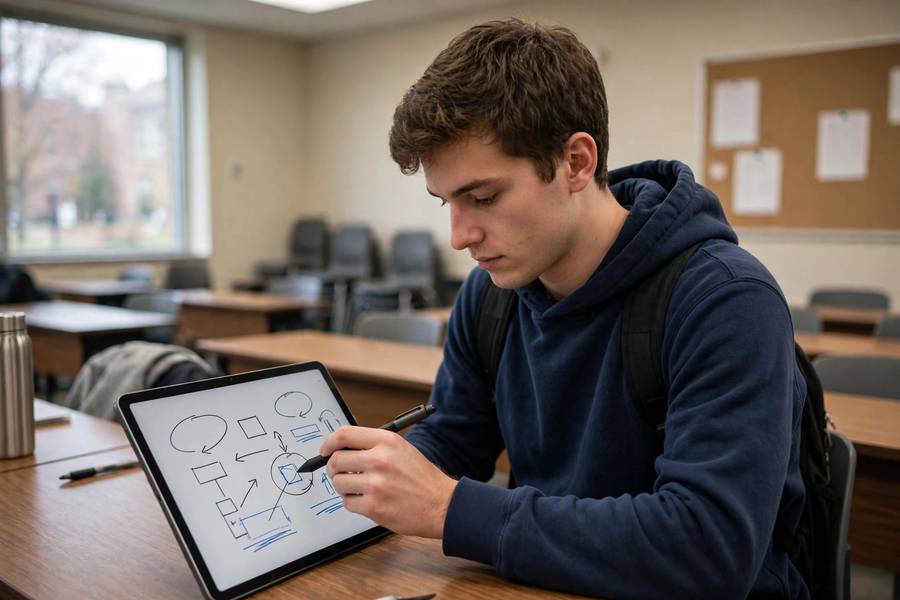
Here is where tablets earn their price: annotating lecture slides and readings directly. The workflow I teach is simple — import the professor's PDF slides before class, take your handwritten notes in the margins and blank spaces during the lecture, and export the annotated PDF to your main notes system afterward. One round trip, no printing, no lost handouts.
GoodNotes and Notability both handle this beautifully, with GoodNotes' document tabs making it easy to flip between the slides and a blank notes page. OneNote imports PDFs as printouts you can write over. Whatever app you use, name annotated files consistently — course code, date, topic — so they are findable in December.
For textbook PDFs, pair your notes app with the handwriting search: highlight key passages, jot margin notes, and trust search to find them later. Students who annotate digitally consistently tell me they re-read more, simply because the material is always in their bag instead of in a locker or dorm room. the best AI note-taking tools for meetings
Hardware Truths Nobody Mentions
A matte screen protector changes the writing experience more than any app feature. The glass-on-glass feel of a bare tablet is slippery; a paper-like protector adds friction that makes handwriting control dramatically better. It is a small purchase with an outsized effect — nearly every student I coach who tries one keeps it.
Stylus tips wear down, and worn tips scratch and skip. Check yours monthly if you write daily; replacement tips are cheap. Also, charge the stylus the night before exam week — a dead Apple Pencil during a final review session is a rite of passage I would rather you skip. how to study for final exams
Finally, the tablet does not replace a laptop for most students; it complements one. Long essays, research databases, and coding still belong on a keyboard. The winning setup I see most often is a laptop for writing and a tablet for annotating, diagramming, and reviewing — each device doing what it does best.
Protecting Your Notes: Backup and Sync
Tablet notes feel safe until they are not. I have coached students through every data-loss scenario: tablets stolen from libraries, apps crashing mid-semester, sync conflicts duplicating or deleting pages, and the classic — a software update wiping local files. Every one was preventable with a backup habit that takes five minutes to set up.
Rule one: automatic cloud sync on, verified working, on day one. Do not assume it is on — open the app's settings, confirm the account, and create a test note on the tablet that you then check on your phone. Unverified sync is the same as no sync, and students discover this during the crisis, not before.
Rule two: a second backup independent of the sync service. Export each course notebook to PDF monthly — most apps do this in a few taps — and save the PDFs to a different cloud service or an external drive. Sync services can propagate deletions and corruption; an independent PDF archive cannot. Monthly exports take ten minutes for a full course load.
Rule three: know how to recover. Learn where your app's trash and version history live before you need them. Accidentally deleted pages are recoverable in most apps for 30 days — but only if you know where to look and act before the window closes. A five-minute exploration of the recovery options now saves panic later.
Handle sync conflicts calmly when they appear: most apps keep both versions and ask you to choose. Never mass-delete duplicates during exam week — pick the fuller version, rename clearly, and sort it out after the term. And if you use two tablets or a tablet plus phone, let one device finish syncing before opening the other; impatience causes most conflicts.
Make backup part of your weekly review: while reviewing notes, glance at the sync status and confirm the monthly PDF export is current. Data protection that rides along with an existing habit actually happens; standalone backup resolutions do not.
Consider the theft scenario specifically, since tablets are stolen more than laptops: enable Find My, set a strong passcode (not four digits), and know that your PDF archive means a stolen tablet costs you hardware, not your semester. Students who have lived through theft say the data survival mattered more than the device loss.
Test your restore process once per term: delete a test page, recover it from trash; open a monthly PDF export and confirm it is complete. Untested backups are hypotheses. Five minutes of verification per term is the cheapest insurance in your academic life.
If you collaborate on shared notes, agree on one canonical app and naming scheme with your group at the start — mixed-app group projects produce the 'which version is current?' chaos that eats study time. One shared folder, one naming rule, zero ambiguity.
GoodNotes for the most paper-like handwriting and notebook organization; Notability if synced audio recording matters most for your lectures. Apple Notes is a strong free alternative many students never outgrow.
Samsung Notes is excellent and free on Samsung devices. For a dedicated app, Noteshelf offers natural writing with audio recording, while OneNote is best if you also use Windows.
It is not required, but it makes the biggest difference of any accessory — the added friction gives you far better handwriting control than writing on bare glass. Most daily handwriters consider it essential.
Yes — GoodNotes, Notability, OneNote, Noteshelf, and Nebo all convert handwriting to searchable text. Accuracy varies with your handwriting, so test with your own writing before committing.
For most students, no. Tablets excel at annotating, diagramming, and reviewing, but long essays, spreadsheets, and specialized software still need a keyboard and full desktop apps. The best setup pairs both.
For most students, the 11-inch class hits the sweet spot — portable enough to carry daily, large enough to write comfortably. Larger tablets are nicer for split-screen but heavier in a bag all day.