How to Record a Phone Call on Android (Built-In + Apps)

Need to record a phone call on Android? Maybe it’s an interview, a customer support promise you want on record, or a family conversation worth keeping. Learning how to record a phone call on Android is easy in theory — but Google’s rules, your phone brand, and your local laws all shape what’s actually possible. I’ve sorted through the mess so you don’t have to.
First, the legal part, because it matters: call recording laws vary wildly. Some places require only one party’s consent (yours), others require everyone on the call to agree. I’m not a lawyer and this isn’t legal advice — check your local law and tell the other person you’re recording when in doubt. Several Android phones now play an automatic “this call is being recorded” announcement anyway, which handles the notification for you.
How to Record a Phone Call on Android With the Built-In Recorder
The easiest method is the one already on your phone. Many Android dialers — especially Google’s Phone app on Pixels and the stock dialer on Samsung, Xiaomi, and Motorola devices — include call recording.
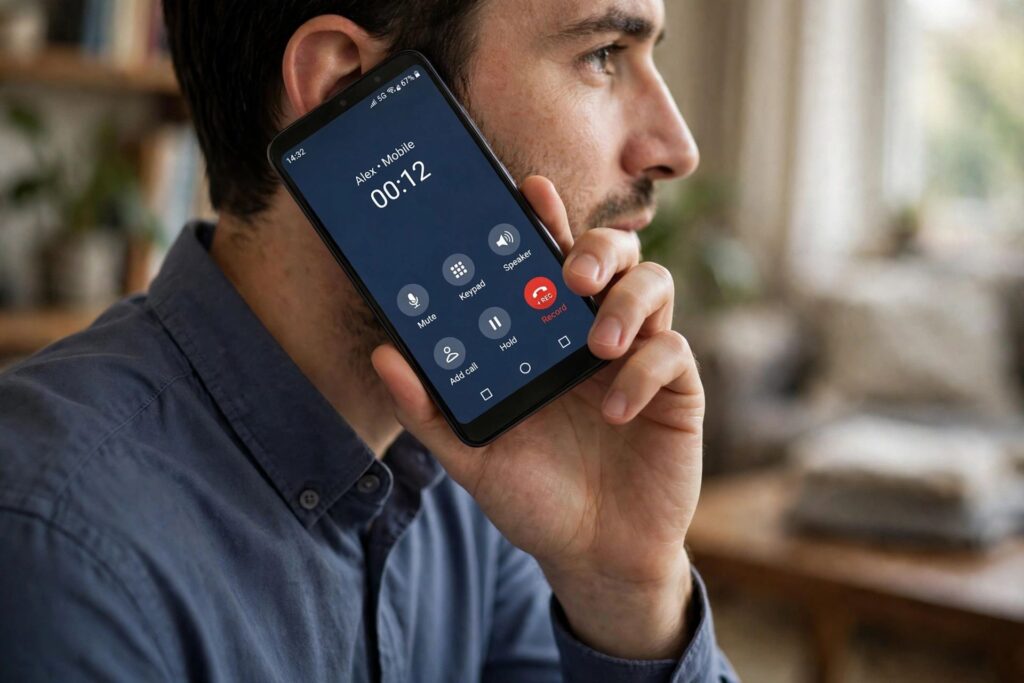
- Start or answer a call.
- Look for a Record button on the in-call screen (it may be under the three-dot menu).
- Tap it to start recording. A beep or announcement usually plays for both sides.
- Tap Stop to end the recording, or it stops automatically when the call ends.
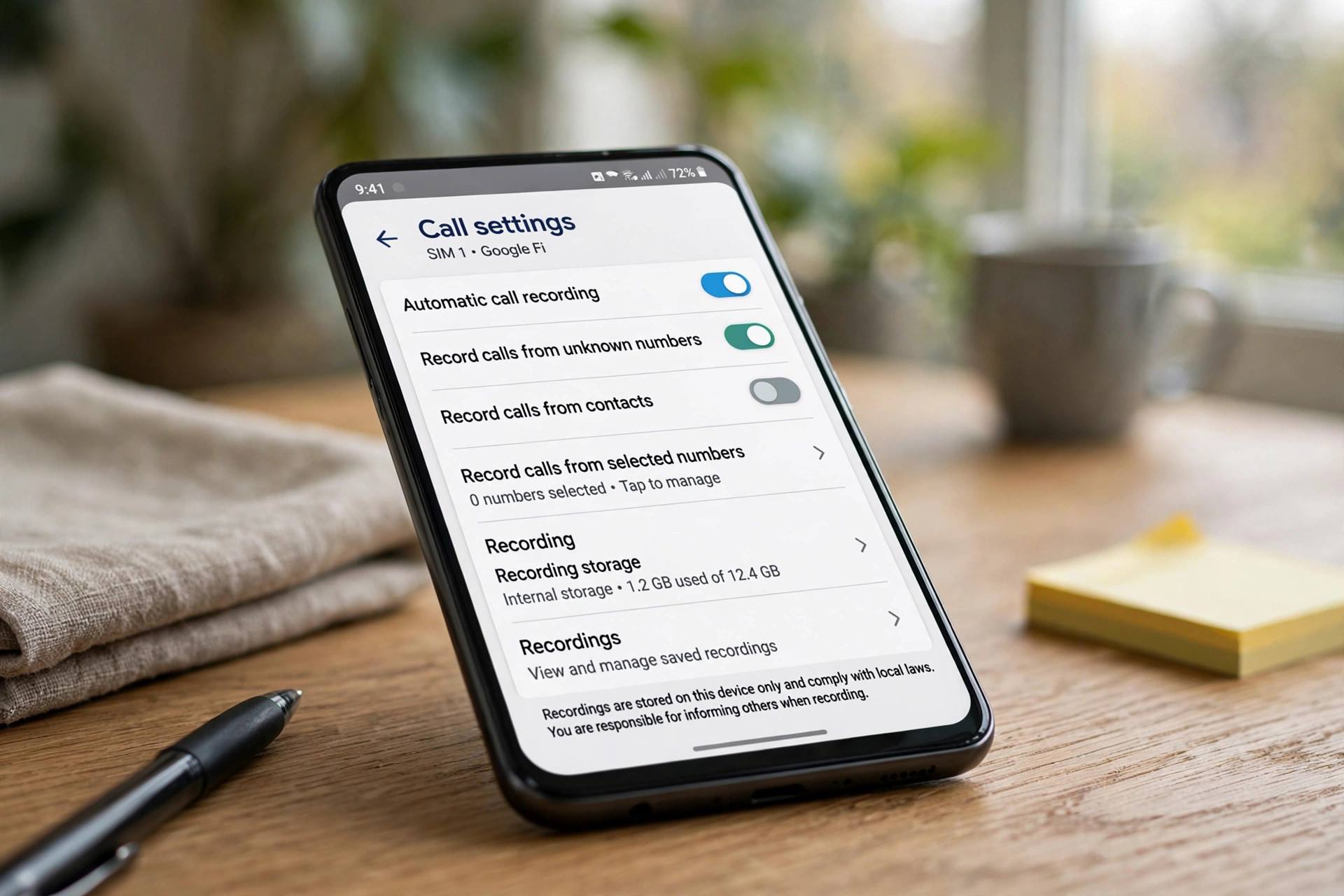
On Samsung phones, go to the Phone app, tap the three dots, then Settings, then Record Calls to configure automatic recording for all calls, unsaved numbers, or specific contacts. On Pixels, the Phone app shows the Record option on supported carriers and regions. On Xiaomi, the stock dialer includes call recording under its call settings. Where do the files go? Usually the Phone app’s Recents tab, a “Recorded” folder, or your file manager under Call Recordings.
Why Your Phone Might Not Show a Record Button
This frustrates a lot of people. Three common reasons:
- Region restrictions: Google disables built-in recording in some countries to comply with local law. The button simply doesn’t appear.
- Carrier or model differences: some carriers request recording be disabled, and some budget models ship without it.
- Third-party dialer: if you use an alternative dialer app, the stock recording feature may not integrate with it.
If the button is missing, check your Phone app’s settings first — on some phones recording is a toggle that’s off by default.
Recording Calls With Third-Party Apps
Google restricted call recording APIs in newer Android versions, which killed most old-school call recorder apps. The ones that still work typically use workarounds like the accessibility service or speakerphone-based recording, and quality varies. A few honest notes from experience:
- Check recent reviews, not old fame. Apps that were great on Android 9 may be broken on Android 13+. Sort reviews by newest before installing.
- Expect the accessibility permission prompt. Legitimate recorders need it to capture call audio on modern Android. That’s normal — but only grant it to apps you trust.
- Test with a friend first. Record a test call and listen: some setups capture only your side of the conversation.
- Speakerphone + voice recorder remains the universal fallback. Put the call on speaker and use your phone’s voice recorder app. It’s clunky and lower quality, but it works on literally any phone.
How to Find Your Recorded Calls
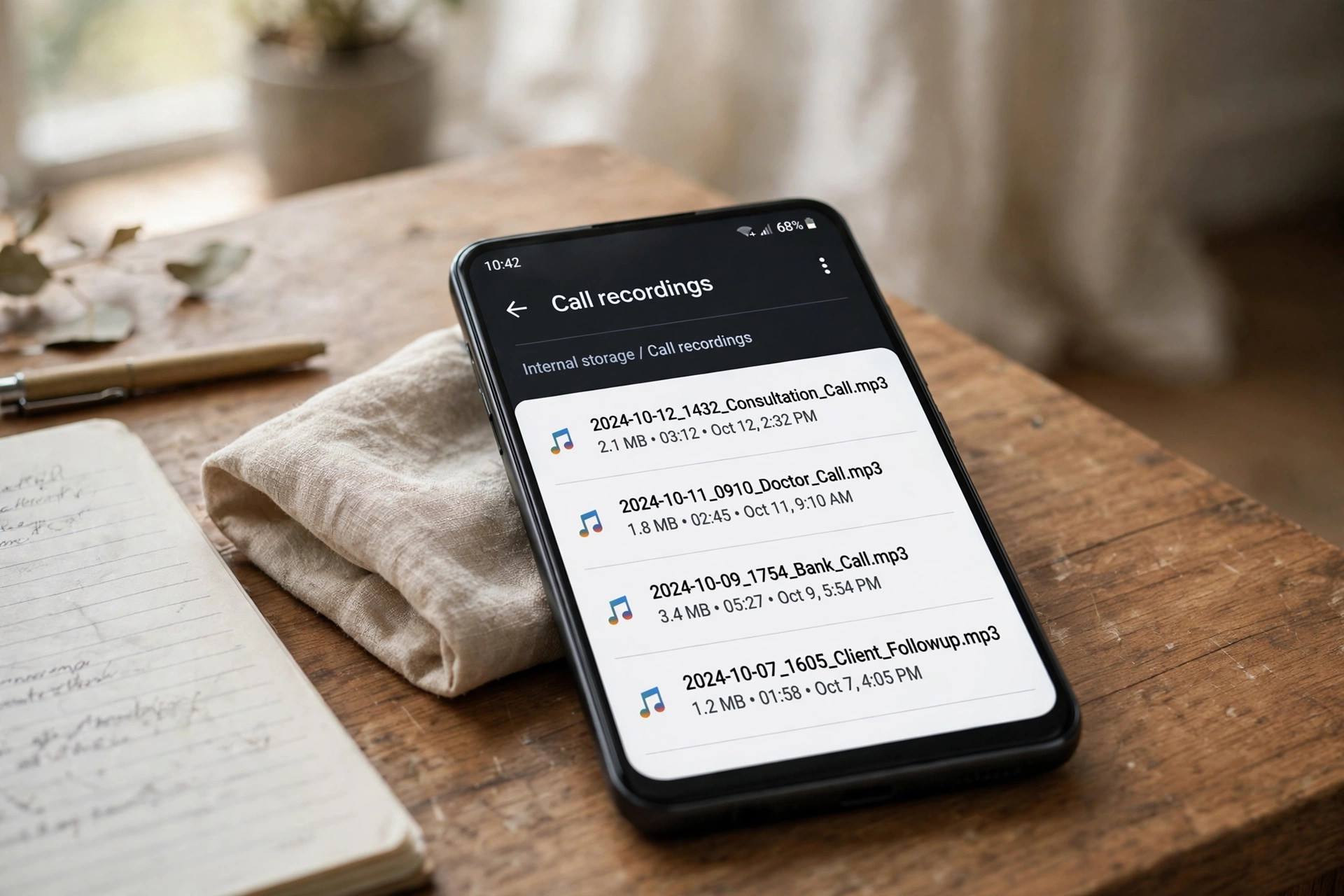
Recordings hide in different places depending on the method: the Phone app’s Recents or a dedicated recordings section, the Files app under internal storage (look for folders named “CallRecordings” or “Recordings”), or your voice recorder app’s library. If you record calls you need to keep, back up your phone regularly — losing a phone shouldn’t mean losing an important recording.
Recording Calls on Android: Practical Tips
- Announce it. Even where one-party consent is legal, saying “I’m recording this call” keeps things clean and often makes the other side more helpful.
- Check storage. Call recordings are small, but automatic recording of every call adds up over months — clear old ones periodically.
- Organize important ones. Rename key recordings with the date and topic so you can find them later.
- Know your workplace policy. Some employers restrict recording work calls regardless of local law.
Call Recording on Samsung vs. Pixel vs. Xiaomi
The experience differs enough by brand that it’s worth spelling out:
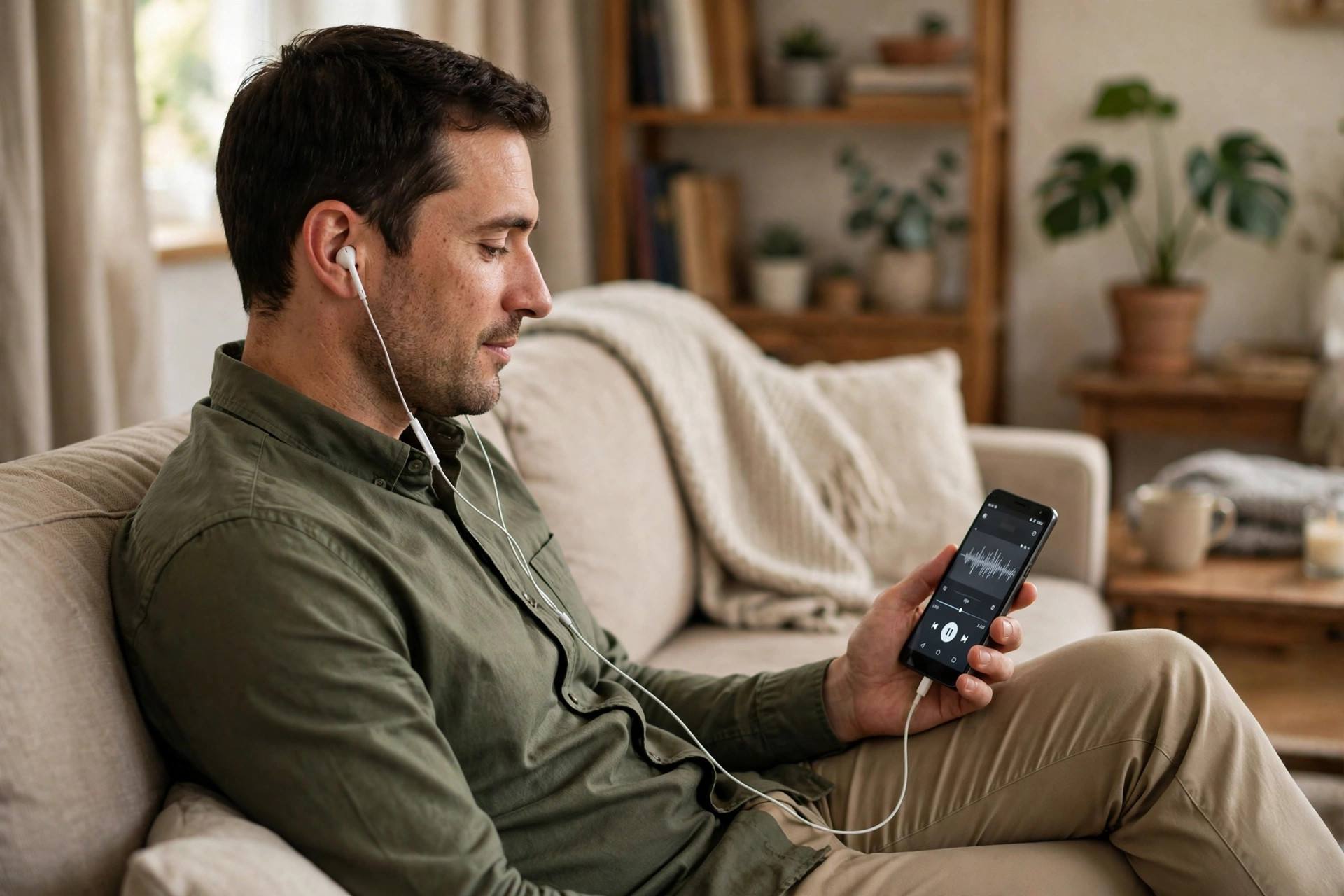
- Samsung: the most generous implementation. Auto-record rules (all calls, unsaved numbers, specific contacts), a dedicated Record Calls settings page, and recordings neatly organized in the Phone app. If call recording matters to you, Samsung is the easiest Android to own.
- Pixel: Google’s Phone app includes manual recording where regionally allowed, with the famous automatic announcement. No auto-record for everything — Google deliberately keeps it manual.
- Xiaomi/Redmi: the stock dialer includes call recording in most regions, sometimes with auto-record options similar to Samsung’s. On some models the feature moved around between MIUI versions, so check under the dialer’s Settings if you don’t see it immediately.
- Motorola/Nothing: typically use Google’s Phone app, so you get whatever Google allows in your region — manual recording or nothing.
What About Recording WhatsApp or Other App Calls?
This is the question I get right after the main one, and the answer is disappointing: Android’s built-in call recorder only works for regular cellular calls. WhatsApp, Telegram, Signal, and other VoIP calls don’t route through the phone dialer, so the record button never appears. Third-party apps struggle here too — most can only capture your side, or nothing at all, because VoIP audio doesn’t pass through the standard call stream.
The reliable workaround is the speakerphone method: put the WhatsApp call on speaker and record with a second device, or with your phone’s voice recorder if the speaker is loud enough. It’s inelegant, but for VoIP calls it’s the only approach that consistently works across brands.
Organizing and Protecting Your Recordings
A recording you can’t find is as useless as one you never made:
- Rename immediately: “CallRecording_20261014_153022.amr” means nothing in six months. Rename important ones with the person’s name and topic.
- Move important ones out of the default folder: some phones or cleaner apps sweep the default recordings folder. Copy key recordings to a dedicated folder or cloud storage.
- Back up before switching phones: recordings don’t always transfer with the standard phone-to-phone migration. back up your phone completely — recordings included — before you wipe the old device.
- Know the format: most Android recorders save as AMR, M4A, or WAV. AMR files are tiny but some players won’t open them; convert to MP3 or M4A if you need to share.
When Recording Isn’t the Right Tool
Sometimes people want call recording for a problem better solved another way. If you’re recording customer support calls because companies keep “losing” your complaints, also follow up in writing — an email creates a paper trail no recording can match. If you’re recording to remember details from calls, many phones now offer live transcription or call summaries that are searchable, which beats scrubbing through audio. And if it’s about safety or harassment, save recordings but also talk to the proper authorities — a recording is evidence, not protection by itself.
Getting the Best Recording Quality
Not all call recordings sound equal. A few things that genuinely affect clarity:
- Record in a quiet room. The microphone picks up everything — traffic, TV, wind. Move somewhere calm before important calls.
- Don’t use Bluetooth headsets for important recordings. Bluetooth audio compression degrades both sides of the recording. The phone’s own earpiece or speaker gives the recorder cleaner source audio.
- Keep the phone still. Handling noise — fingers shifting on the case — is surprisingly loud on recordings.
- Check the recording format. If your recorder offers a choice, WAV or M4A at higher bitrates sounds noticeably better than AMR, at the cost of larger files. For interviews or anything you’ll transcribe, the quality difference matters.
- Test before it counts. Record a two-minute call with a friend and listen on headphones. Check both voices are audible and roughly balanced. Discovering a one-sided recording after the important call is a special kind of pain.
Transcribing Your Call Recordings
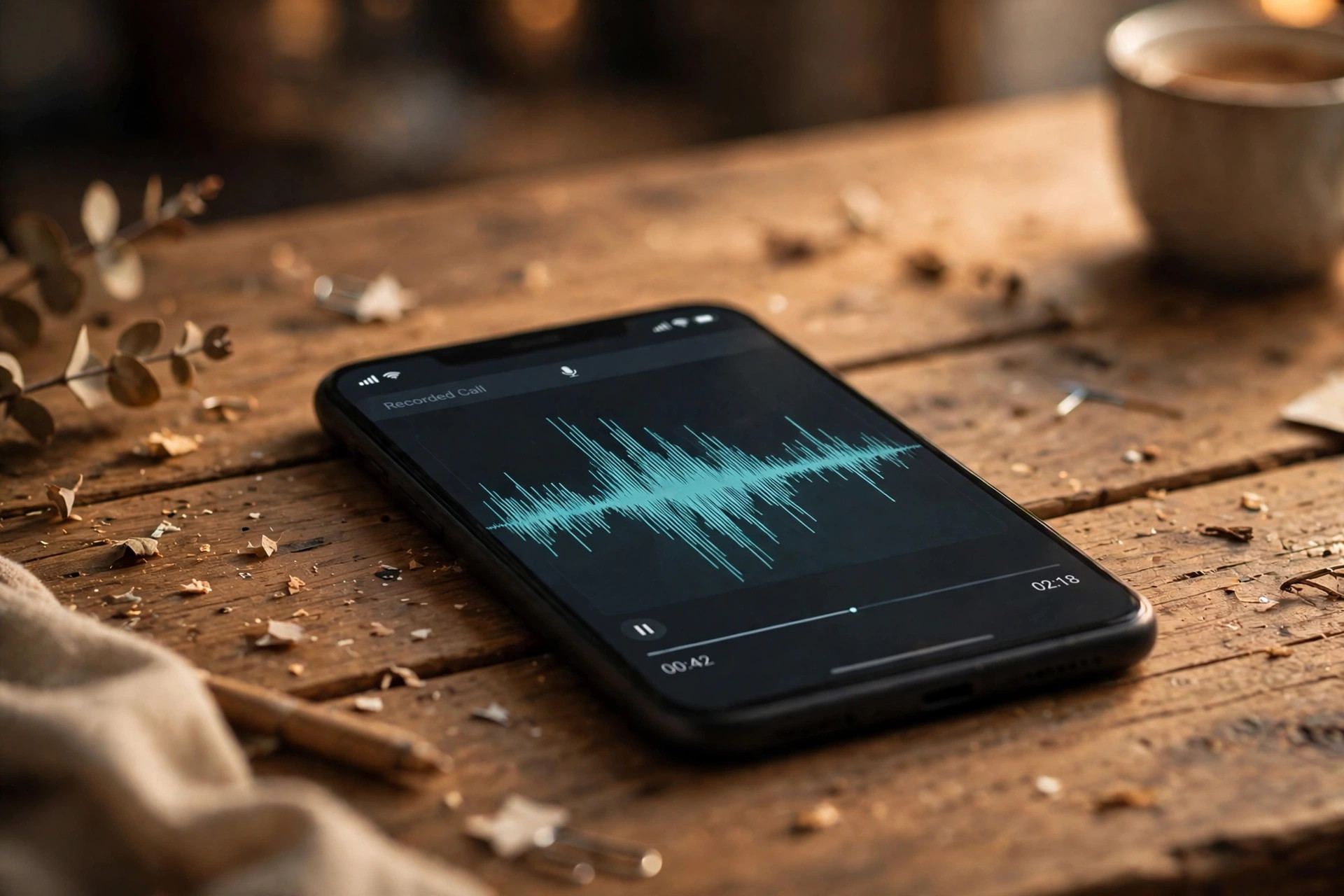
A raw audio file is hard to search. If you record calls for work — interviews, meetings, client discussions — transcription turns them into something useful. Several options exist: Google’s Recorder app on Pixels transcribes in real time (though it’s designed for in-person recording, not calls), and various transcription apps can process an audio file after the fact. Play Store offerings change fast, so look for recent reviews and check whether processing happens on-device (more private) or on company servers (often more accurate, but your audio leaves your phone). For sensitive calls, on-device transcription is the safer choice even if it’s slightly less polished.
Frequently Asked Questions
Is it legal to record a phone call on Android?
It depends entirely on where you are. Some jurisdictions require only one party’s consent; others require all parties to consent. I can’t give legal advice — check your local laws, and when in doubt, tell the other person you’re recording. Many Android phones play an automatic announcement when recording starts.
Why doesn’t my Android phone have a call record button?
The most common reasons are regional restrictions (Google disables it in some countries), carrier customizations, or using a third-party dialer. Check the Phone app’s settings for a recording toggle, and make sure you’re using the stock dialer that came with your phone.
Where are call recordings saved on Android?
Usually in the Phone app under Recents or a recordings section, or in your file manager under folders like “CallRecordings.” Samsung saves them to internal storage and links them from the Phone app. If you used a third-party app, check that app’s own library.
Can the other person tell I’m recording?
Often, yes. Google’s Phone app plays an audible “this call is being recorded” announcement to both sides when recording starts or stops. Samsung’s implementation may differ. Regardless, ethically and often legally, you should inform the other party.
Do call recorder apps still work on Android 13 and 14?
Most of the old ones don’t, because Google restricted the APIs they relied on. Some newer apps use accessibility-service workarounds with mixed results. Read the most recent reviews carefully, and test with a short call before relying on any app for something important.
How do I record a call automatically on Samsung?
Open the Phone app, tap the three-dot menu, go to Settings, then Record Calls. You can enable auto-record for all calls, calls from unsaved numbers, or specific contacts. Samsung also lets you choose where the recordings are stored.