How to Check WiFi Speed at Home: The Room-by-Room Test Protocol


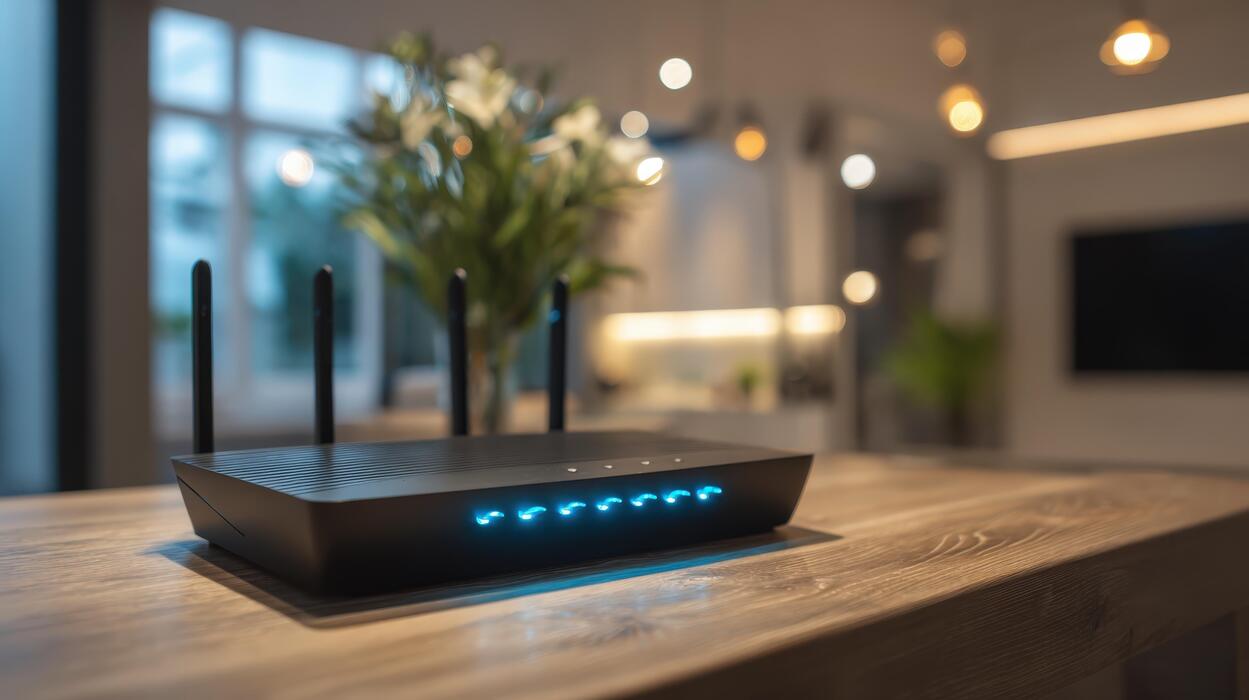
Before you call your internet provider to complain — or buy a fancy new router — you need to know how to check wifi speed at home properly. I have watched people spend hundreds of dollars fixing the wrong problem: upgrading their internet plan when the issue was router placement, or replacing a router when the issue was the plan itself. Ten minutes of proper testing tells you exactly which one it is. The key insight most guides skip: your internet speed and your wifi speed are two different things, and you need to measure both to diagnose anything.
Here is the distinction that makes everything else make sense. Internet speed is the speed your provider delivers to your home — what you pay for, measured at the modem. Wifi speed is the speed your devices actually get over the wireless connection — which is always lower, sometimes dramatically, because walls, distance, interference and old hardware all take their cut. When Netflix buffers, the question is never just “is my internet slow?” It is “where between the street and my screen is the speed disappearing?” Testing tells you exactly where.
What the Numbers Mean (30-Second Primer)
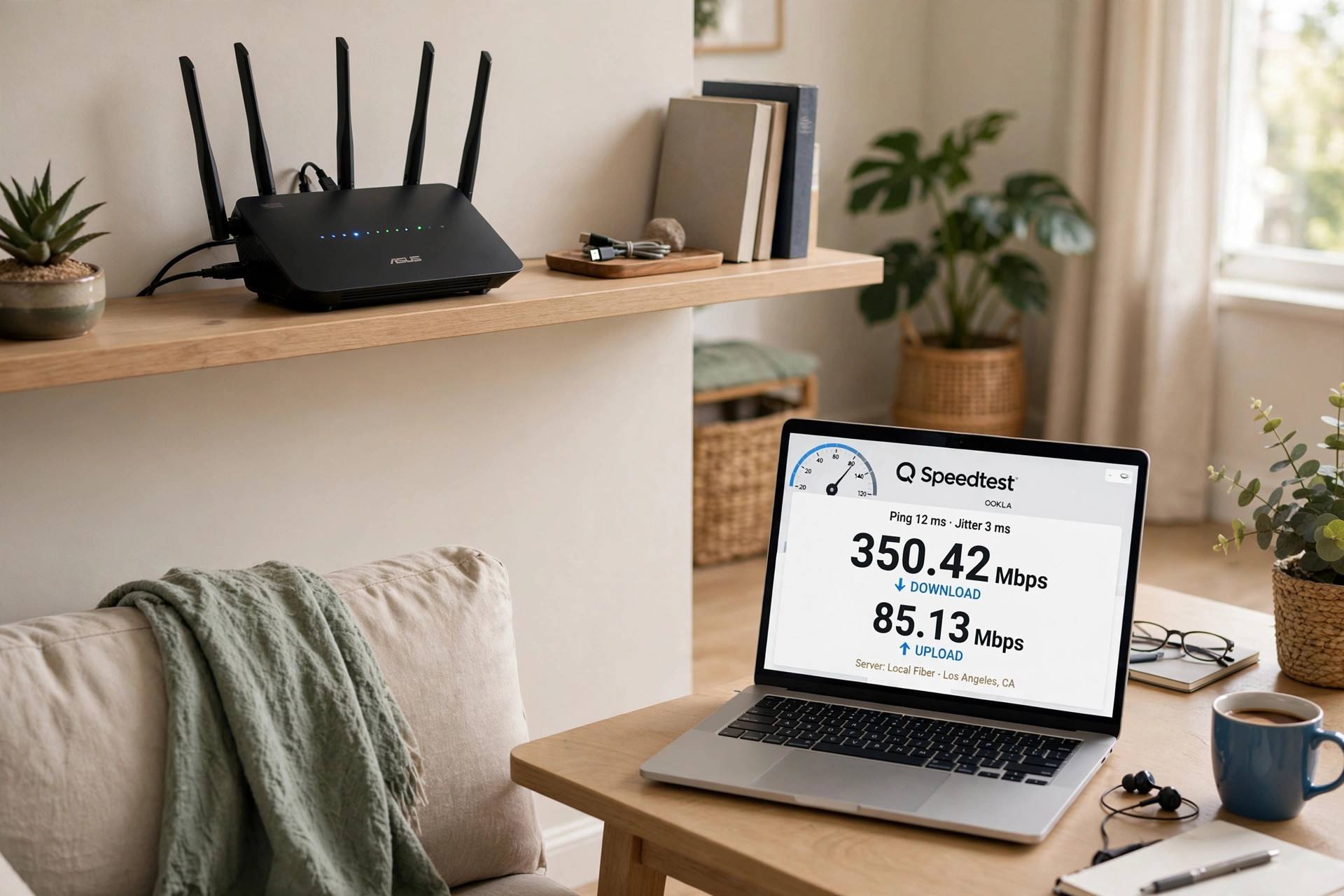
Speed tests report three numbers. Download speed (Mbps) — how fast data comes to you; this is the number that matters for streaming, browsing and downloads. Upload speed (Mbps) — how fast data leaves you; matters for video calls, cloud backups and streaming your own content. Ping/latency (ms) — how long a round trip takes; lower is better, and it is what gamers and video-callers actually feel.
As a rough guide for 2026: 25 Mbps down handles one 4K stream; a household of four with heavy simultaneous use wants 200+ Mbps; video calls need only 5–10 Mbps down but are sensitive to latency (under 50ms is comfortable, over 150ms gets painful). Compare your results to what you are paying for — your plan’s advertised speed — not to some abstract ideal. If you pay for 300 and measure 290 at the modem, your provider is fine and the problem is inside your house.
How to Check WiFi Speed at Home: The Room-by-Room Test Protocol
This is the diagnostic that actually finds problems. You will need a phone or laptop and a free speed test — your browser works fine; no app required, though dedicated apps are slightly more consistent.
Test 1: At the modem (wired). Plug a laptop directly into the router with an ethernet cable, stand next to it, and run three tests. Average them. This is your baseline — the speed your provider is actually delivering. If this number is far below your plan (consistently under 80% of advertised, at off-peak hours), the problem is your provider or modem, and no router upgrade will fix it. Call them with these numbers in hand — specific data gets better support than “it feels slow.”
Test 2: Next to the router (wifi). Unplug the cable, connect via wifi, stand three feet from the router, run three tests. The gap between Test 1 and Test 2 is your router’s wireless overhead — some loss is normal (10–30%), but if wired gives 300 and wifi-at-the-router gives 90, the router itself is the bottleneck. Old router? This is where it shows.
Test 3: Every room you actually use. Walk the house. Test in the home office, the bedroom, the living room — wherever devices live. Note each result. You are mapping dead zones and weak spots: the places where speed collapses. A common pattern is full speed near the router and a cliff two rooms away — that is a coverage problem, not a speed problem, and it has different fixes.
Test 4: At different times. Run the wired baseline once in the morning and once in the evening (7–10 PM, peak hours). If evenings are dramatically slower, you are seeing congestion — either your provider oversubscribing the neighborhood or your own household’s peak usage. This distinction matters because the fixes differ completely.
Write the numbers down. Seriously — a little table of room vs. speed vs. time turns vague frustration into a diagnosable pattern, and it is the first thing any competent technician will ask for.

Reading Your Results: What the Patterns Mean
Wired is slow too: the problem is upstream — provider, modem, or the line into your house. Restart the modem (unplug 60 seconds, it actually helps), check for provider outages, then call support with your test numbers. If the modem is more than five years old, ask about a replacement.
Wired is fine, wifi at the router is slow: the router is the bottleneck. Check for firmware updates first (free fix, often overlooked), then consider the router’s age — a 2018-era router on a 2026 plan is a mismatch. This is also where knowing how wifi actually works helps you shop smarter for a replacement instead of buying blind.
Fast near the router, dead two rooms away: coverage problem. Before buying anything, try relocating the router to a central, elevated, open position — routers shoved in closets or behind TVs perform terribly, and moving one is free. If that fails, a mesh system (multiple units working together) beats a single “stronger” router for most homes. One big router cannot defeat physics; distributed coverage can.
Slow only in the evenings: congestion. Check whether it is your household (four people streaming at once needs real bandwidth — the math is honest) or the neighborhood (ask neighbors on the same provider; if they are slow too, it is upstream). Household congestion is solved with bandwidth or scheduling; neighborhood congestion is a provider problem to escalate.
One device is slow, others are fine: it is the device, not the network. Old wifi chips, outdated drivers, or a phone with a failing antenna. Update the device’s software, forget and rejoin the network, and test again before blaming anything else.
Fix It Only After Measuring: The Right Order
The golden rule: measure first, spend second. The number of people who buy a $300 router to fix a $0 problem (router in a closet) or a provider problem (slow wired baseline) is staggering. Your test map tells you which fix to apply:
Coverage problem → relocate router (free), then mesh system. Router bottleneck → firmware update (free), then modern router — and if you are shopping, understanding what Wi-Fi 6E actually offers keeps you from overpaying for letters on a box. Provider problem → documented complaint with numbers, then plan change or provider switch. Device problem → updates and settings, not network hardware. Congestion → honest bandwidth math about your household’s real simultaneous use.
And the free fixes deserve emphasis: router placement (central, high, open), a weekly router restart (clears memory leaks in cheap firmware), switching crowded devices to the 5GHz band, and moving the router away from the microwave and baby monitor (2.4GHz interference is real). I have seen each of these individually double someone’s effective speed. Measure, apply the free fixes, measure again — then, and only then, open your wallet.
When the Answer Is “Upgrade the Plan” (and When It Is Not)
Sometimes the test results point honestly at the plan itself: your wired baseline is solid but consistently below what your household needs at peak hours. Before upgrading, do the real math. Add up simultaneous use: two 4K streams (about 50 Mbps), two video calls (about 20 Mbps), plus background devices and overhead — most families land between 100 and 300 Mbps of genuine need. If your plan covers that and tests confirm it, do not let a salesperson upsell you to gigabit; unused bandwidth is just a higher bill. Upgrade only when the measured baseline falls short of measured demand — and when you do, confirm the new plan’s upload speeds too, since video calls and cloud backups live or die on upload, and cheap plans often skimp there while advertising big download numbers.
And a final trap to avoid: renting the provider’s router forever. That monthly rental fee buys you mediocre hardware on an endless installment plan — two years of rental exceeds the price of a better router you own outright. If your tests show the router is the bottleneck, buying your own (from the provider’s approved list, where required) is one of the highest-ROI purchases in home networking.
Frequently Asked Questions
What is a good wifi speed for a home?
For most households in 2026: 100–300 Mbps down covers typical family use including 4K streaming and video calls. What matters more than the raw number is consistency — stable 100 beats spiky 500 for real-world use.
Why is my wifi slower than my internet plan?
Wifi always loses some speed to wireless overhead, distance, walls and interference — 10–30% loss near the router is normal. Large losses point to router placement, an old router, or congestion. Test wired at the modem to see what your provider actually delivers versus what wifi delivers.
How do I test wifi speed in different rooms?
Run three speed tests per room on the same device and average them. Start wired at the router for a baseline, then test via wifi next to the router, then in each room you use. The pattern across rooms reveals whether you have a speed problem or a coverage problem.
Does restarting my router actually help?
Often, yes — it clears memory leaks and stale connections in the router’s firmware, and forces reconnection on less congested wifi channels. It is a genuine first troubleshooting step, not just support-script filler. If you need to restart daily, though, the router is failing and needs replacement.
Should I use 2.4GHz or 5GHz wifi?
5GHz is faster with less interference but shorter range — use it near the router. 2.4GHz reaches farther through walls but is slower and more crowded — use it for distant rooms and smart-home devices. Most modern routers steer devices automatically; check your settings if one band is overcrowded.
The Bottom Line
How to check wifi speed at home: test wired at the modem for your baseline, test wifi room by room to map the problem, test at different times to catch congestion — then fix what you measured, starting with the free fixes. Ten minutes with a speed test beats ten hours of guessing, and it is the difference between solving your wifi problem and expensively rearranging it.