How to Check Battery Health on Android: 4 Methods That Work

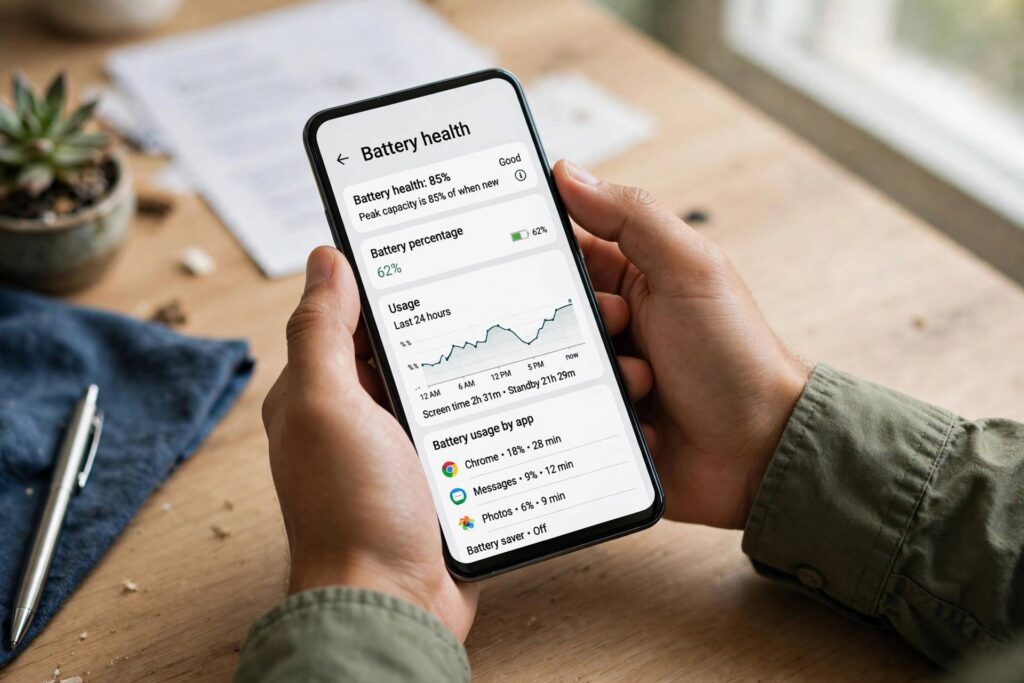
If your phone barely survives the afternoon anymore, you’re probably wondering how to check battery health on Android — and whether the battery itself is the problem or just a hungry app draining it. I’ve troubleshooted this for friends more times than I can count, and the good news is you can usually get a solid answer in under five minutes without installing anything shady.
Unlike iPhones, which show a neat “Maximum Capacity” percentage, Android hides battery health behind menus, diagnostics apps, and manufacturer quirks. There’s no single universal screen. But there are reliable methods for every major brand — Samsung, Google Pixel, Motorola, Xiaomi, and OnePlus all expose it somehow. Here’s every way I trust, starting with the built-in options.
How to Check Battery Health on Android With Built-In Settings
Start with what your phone already has. Open Settings and look for a battery section — but what you’ll find depends on your brand.
Samsung phones (One UI)
Samsung buries battery diagnostics in the Samsung Members app rather than Settings. Open Samsung Members, tap Support, then Phone Diagnostics, then Battery Status. It runs a quick check and tells you whether the battery status is “Good,” “Normal,” or needs service. It also shows current battery level and estimated capacity. It’s a simple pass/fail style report, but it comes straight from Samsung’s own hardware checks, which I trust more than any third-party guess.
Google Pixel phones
On recent Pixels, head to Settings, then Battery, then tap the three-dot menu or look for Battery Information. Some Pixel models show the manufacture date and cycle count — the number of full charge-discharge cycles the battery has completed. A lithium-ion battery is typically rated for roughly 500 to 800 full cycles before noticeable degradation, so if your cycle count is up near that range and the phone dies early, the battery is the likely culprit. (Not every Pixel exposes this, which is annoying, but the newest models do.)
Xiaomi, OnePlus, and others
Xiaomi’s MIUI and HyperOS sometimes show battery health under Settings, then Battery, then Battery Health, depending on the model. OnePlus devices running OxygenOS occasionally expose it under Settings, then Battery, then Battery Health as well. Motorola and Nothing phones generally don’t include a native readout, so you’ll need one of the app-based methods below.
Use a Diagnostic Code to Test Your Android Battery
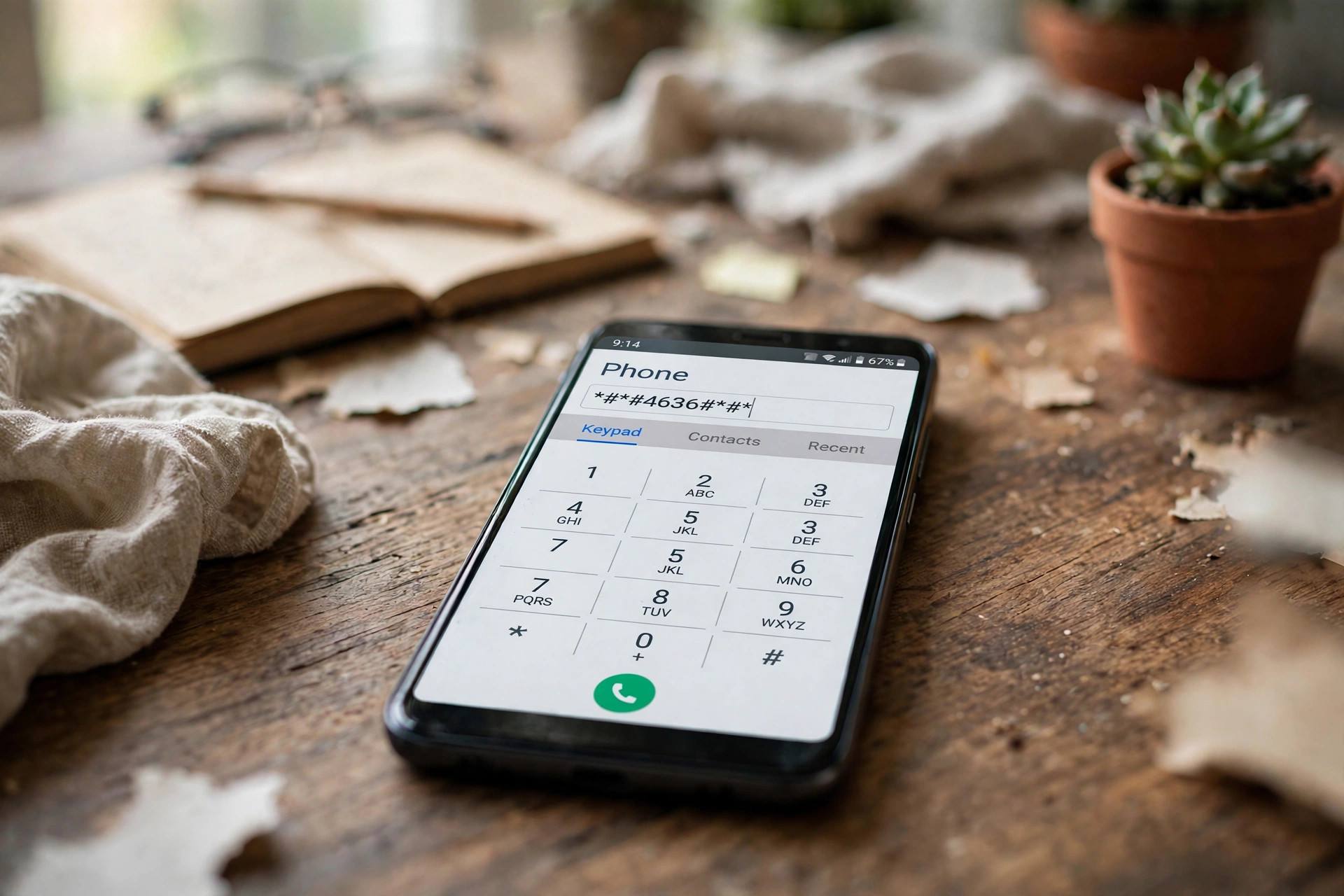
Older Androids — and some Samsung models even now — respond to hidden dialer codes. Open the Phone app and type *#*#4636#*#*. If it works on your device, a Testing menu appears. Tap “Battery Information” to see battery health (listed as Good, Overheat, Dead, etc.), current level, voltage, and temperature. Honestly, on modern phones this code is hit or miss, but when it works it takes ten seconds. On Samsung devices, the more reliable code is *#0228#, which opens a dedicated battery status screen.
Check Battery Health on Android With Apps
When the built-in tools come up empty, a well-reviewed diagnostic app fills the gap. Two that I actually recommend:
AccuBattery
AccuBattery is the gold standard among Android enthusiasts. It doesn’t read a factory-stored “health percentage” — Android doesn’t really keep one — but instead estimates capacity through repeated charge measurements. Install it, use your phone normally for a few charge cycles, and it compares actual charged energy against the design capacity. After three or four sessions, its estimate is surprisingly solid. The free version is plenty. The catch: it’s a battery monitor, not an instant answer, so you need a few days of patience.
CPU-Z
CPU-Z shows real-time battery data — temperature, voltage, technology, and status — on its Battery tab. It won’t give you a health percentage either, but voltage and temperature anomalies (a battery sitting far above normal voltage, or running hot at idle) can hint at problems. Think of it as a vital-signs check rather than a diagnosis.
Signs Your Android Battery Is Actually Degrading
Sometimes the honest answer doesn’t need an app. Watch for these patterns:
- Sudden shutdowns: the phone dies at 20 or 30 percent, then boots back showing a different charge level. That’s a classic degraded-battery symptom.
- Swelling: a screen that looks like it’s lifting, a case that no longer sits flat, or a phone that rocks on a table. Stop using it and get it serviced — a swollen battery is a safety issue, not just a performance one.
- Overheating at rest: the phone gets warm while sitting idle on a desk.
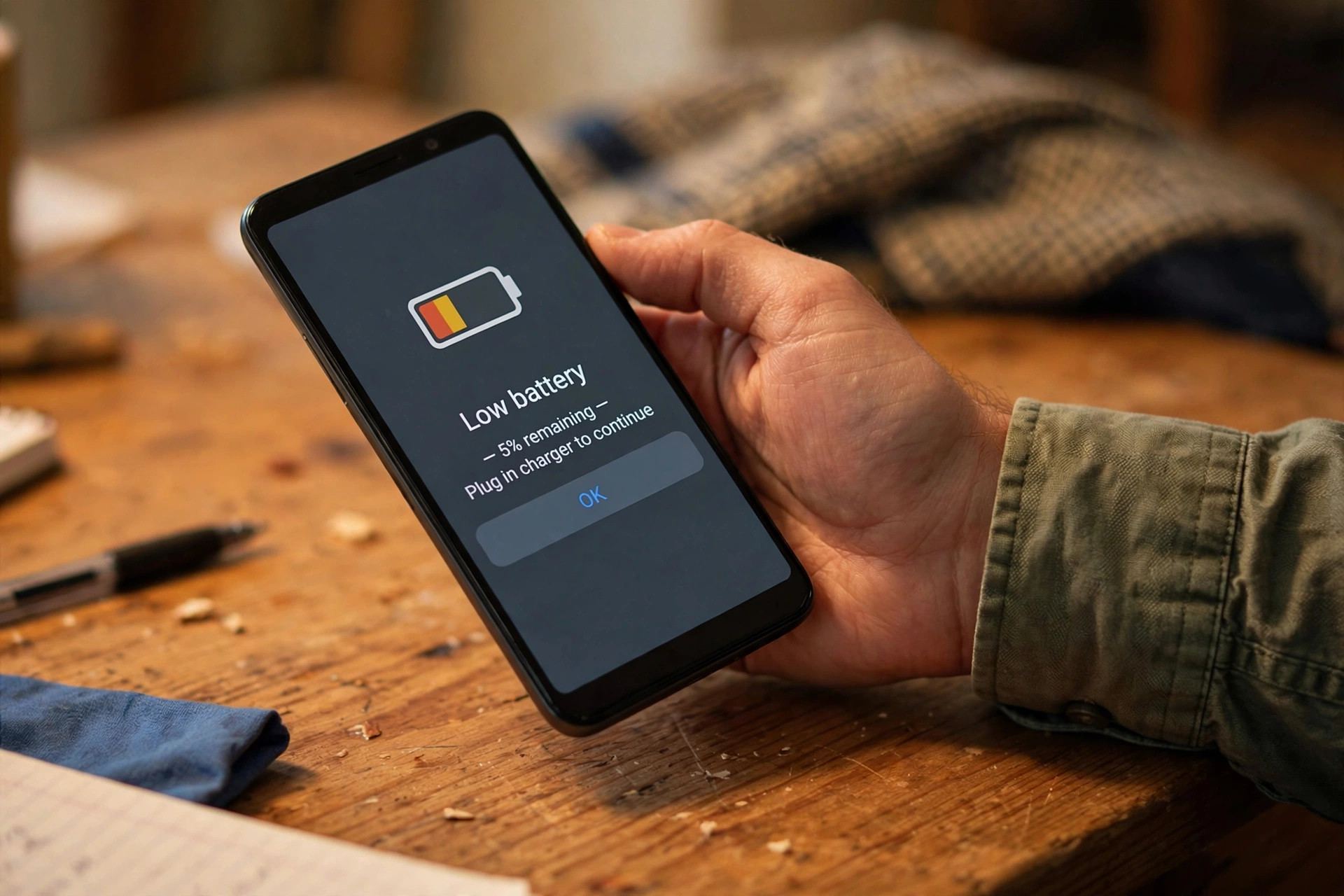
- Rapid drain after a full charge: 100 percent to dead in a few hours with light use.
If you see two or more of these, the battery’s health is poor regardless of what any app reports.
What a Healthy Battery Reading Looks Like
A new lithium-ion battery holds close to 100 percent of its design capacity. Most people start noticing real-world problems when usable capacity drops to roughly 75–80 percent — standby time collapses, and the phone can’t handle demanding apps. Some manufacturers consider a battery “consumed” below 80 percent. There’s no magic number that applies to every phone, so treat the trend as more important than any single figure: if your measured capacity is shrinking month after month, plan a replacement.
How to Make Your Android Battery Last Longer
Once you know where your battery stands, a few habits slow further decline:
- Keep the phone out of heat — leaving it on a car dashboard in summer ages the battery fast.
- Avoid sitting at 100 percent for hours; if your phone offers an 85-percent charge cap (many Samsungs do), use it.
- Don’t let it drain to zero routinely; shallow top-ups are kinder than deep cycles.
- Use the adaptive or optimized charging modes most brands now include.
- Update your OS — an outdated system with a misbehaving background process can masquerade as battery failure. keep your system updated
Reading Your Battery Health Results: What the Numbers Mean
Getting a number is one thing; knowing whether to worry is another. Here’s how I interpret results for people who ask me to look at their phones:
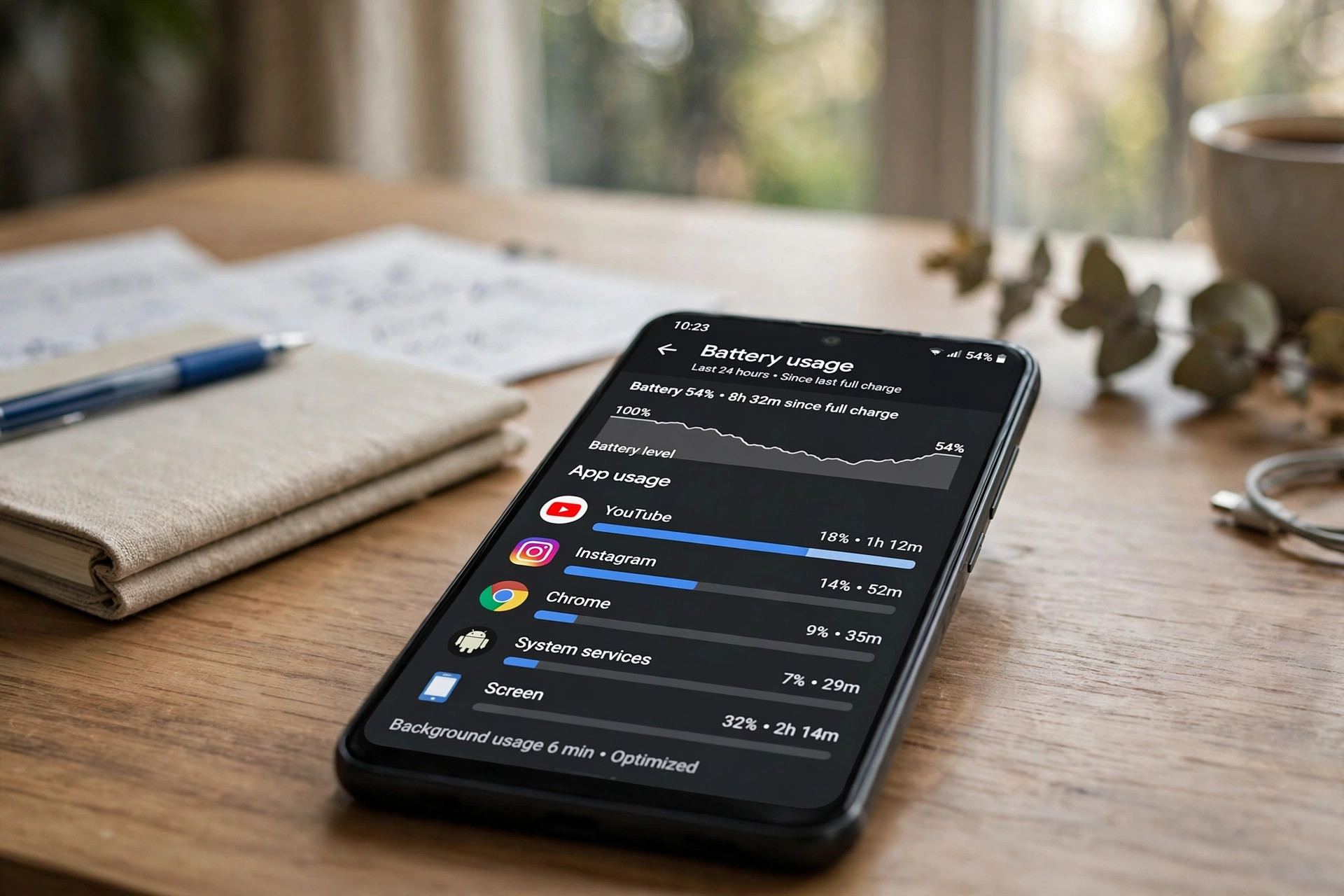
- 90–100% of design capacity: basically new. If the phone still drains fast, the problem is almost certainly software — a rogue app, a stuck sync, or an OS bug. Check which apps are eating battery in Settings, then Battery, then Battery Usage before blaming the cell.
- 80–90%: normal aging after a year or two of daily use. You’ll notice slightly shorter screen-on time, but nothing dramatic. No action needed.
- 70–80%: this is the grey zone where most people start complaining. Standby time drops noticeably, and heavy days become a charger hunt. Start thinking about a replacement within the next few months.
- Below 70%: the battery is genuinely worn. Sudden shutdowns and rapid drain are normal at this point. Replace it — the phone will feel new again.
One thing to remember: AccuBattery-style estimates wobble in the first few sessions. If your first reading looks alarming, give it a week of normal charging before making any decisions. A single bad measurement means nothing; a consistent downward trend means everything.
Should You Calibrate Your Android Battery?
You’ll see “battery calibration” apps and guides all over the place. Here’s the honest version: you cannot recalibrate a lithium-ion battery’s actual capacity — no app can restore worn chemistry. What calibration can fix is an inaccurate battery gauge: the phone’s software estimate of how much charge is left. If your phone jumps from 40% to 15% in minutes, a calibration cycle sometimes helps the gauge relearn.
The old-school method is simple: charge to 100%, use the phone until it shuts itself off, then charge uninterrupted back to 100%. Do it once, not monthly — deep discharges actually stress the battery, so this is a diagnostic trick, not maintenance. And skip the “calibration” apps that claim to fix battery health; at best they delete a system stats file, at worst they’re adware. If deleting unused apps is on your to-do list anyway, those are the first candidates I’d remove.
Built-In vs. App-Based Checks: Which Should You Trust?
Manufacturer diagnostics (Samsung Members, Pixel battery info) read data the phone’s own hardware reports — I trust these most for a yes/no answer about battery condition. AccuBattery-style apps estimate capacity from observed charging behavior, which is excellent for tracking trends over weeks but noisy in the short term. Dialer-code readouts are a quick sanity check but often show a generic “Good” that doesn’t tell you much.
My practical workflow: start with the built-in tool for a quick verdict. If it says the battery is fine but the phone still dies early, run AccuBattery for a week to measure real capacity, and check the battery usage screen to catch misbehaving apps. Nine times out of ten, one of those three steps finds the answer.
Frequently Asked Questions
Can I check battery health on Android without any app?
Yes, on many phones. Samsung offers diagnostics through the Samsung Members app, some Pixels show cycle count and manufacture date under battery settings, and dialer codes like *#*#4636#*#* sometimes open a testing menu with battery information. Motorola, Nothing, and some other brands genuinely have no built-in readout, so an app is the only option there.
Is AccuBattery accurate?
It’s an estimate, not a factory measurement — it derives capacity from repeated charge sessions, so it needs a few days of data before it settles. After four or five full-ish charges, most users find it consistent and useful. Treat it as a trend tool rather than gospel.
What is a good battery health percentage on Android?
There’s no official Android-wide scale the way Apple has. Generally, anything above 85 percent of design capacity behaves like new, and most people notice real problems below about 80 percent. If an app reports 70 percent, your phone will likely struggle through a normal day.
Should I replace my phone battery or buy a new phone?
If the phone otherwise works well — camera, performance, storage are fine — a battery replacement is usually the smarter, cheaper move. Official service centers and reputable repair shops both do it. Consider a new phone instead if the battery is one of several problems, or the device no longer gets security updates.
Does fast charging ruin battery health?
Modern fast charging is designed for it — phones manage heat and taper the current as the battery fills. Heat is the real enemy, so fast charging in a cool room is far less harmful than slow charging in a hot car. Avoid charging under a pillow or in direct sun.
Why does my phone die at 20 percent?
That’s one of the clearest signs of a degraded battery. As capacity shrinks, the phone’s charge estimate gets unreliable, and voltage can collapse under load even when the percentage looks fine. Check your battery health with the methods above — and if the battery is swollen or the phone runs hot, get it serviced rather than just monitoring it.