Best Note Taking App for Android: Top Picks Tested


“Rachel, I have an Android — what’s the best note app for me?” As an educator who’s watched the Apple-vs-Android note-taking debate play out in classrooms for years, I can tell you the good news upfront: Android users have never had better options. The best note taking app for Android isn’t one single winner — it depends on how you take notes — but there are clear standouts, and I’ll help you find yours.
In this guide, I’ll cover the top note-taking apps that shine on Android, what each does best, Android-specific features worth knowing about, and how to choose without the usual app-store overwhelm.
What Matters Most on Android
Before the app-by-app breakdown, here’s what I tell my Android-using students to prioritize:
- A great Android app, not an iOS port. Some apps treat Android as an afterthought — slow updates, missing features. The picks below all take Android seriously.
- Home-screen widgets. This is Android’s quiet superpower: a widget that lets you start a note in one tap, without opening the app. You’ll capture far more if capture is instant.
- Google integration. If your school runs on Google Workspace, an app that plays nicely with Drive, Docs, and Calendar removes enormous friction.
- Offline reliability. Campus Wi-Fi is a rumor in some buildings. Your notes must work without a connection and sync later.
- Battery and performance. A note app that drains your battery by noon is a failed note app. The best Android picks are light and efficient.
If you’re comparing across the whole landscape (not just Android), my best note taking apps guide covers every platform.
The Best Note Taking Apps for Android
1. Google Keep — Best Built-In Simplicity
Keep comes pre-installed on most Android phones, and honestly? For quick capture, it’s superb. Color-coded notes, checklists, voice memos with transcription, photo notes — all synced to your Google account and searchable from anywhere. Its Android widget is excellent: one tap to a new note from your home screen. Best for: students who want instant capture with zero setup. Limitation: it’s a capture tool, not a full study system — pair it with something meatier below.
2. Microsoft OneNote — Best Free Full System
OneNote’s Android app is genuinely excellent — fast, full-featured, and completely free. Digital notebooks with sections and pages, handwriting support, audio recording, document scanning via Office Lens integration. Syncs flawlessly with the desktop version. On Android tablets with a stylus, it’s one of the best handwriting experiences available. Best for: students who want a complete, free system on phone, tablet, and computer.
3. Notion — Best for Organized Study Systems
Notion’s Android app has matured enormously — it’s now fast and fully capable, not the sluggish companion it once was. Build course dashboards, linked topic pages, assignment trackers, and revision databases. The free plan covers everything a student needs. Best for: planners who love structure and don’t mind weekend setup time.
4. Obsidian — Best for Deep Thinkers
Obsidian’s Android app is free and surprisingly capable, with the same linked-note philosophy as desktop. Your notes live as local files — great for privacy and ownership. The mobile experience rewards users who keep notes in Markdown; if that sounds like you, it’s powerful. Note that official sync between devices is a paid add-on, though community workarounds exist. Best for: concept-heavy subjects where connections matter.
5. Samsung Notes — Best for Samsung Users
If you use a Samsung phone or tablet, don’t sleep on the pre-installed Samsung Notes. With an S Pen, it’s arguably the best handwriting experience on Android — pressure sensitivity, shape correction, handwriting-to-text conversion, and PDF annotation. Syncs through your Samsung account. Best for: Samsung device owners, especially with an S Pen.
6. Joplin — Best Open-Source Pick
Joplin’s Android app is free, open-source, and private — end-to-end encryption, no account required, Markdown support. Less polished than the giants, but dependable and honest. Syncs via services you choose. Best for: privacy-minded students who like owning their tools.
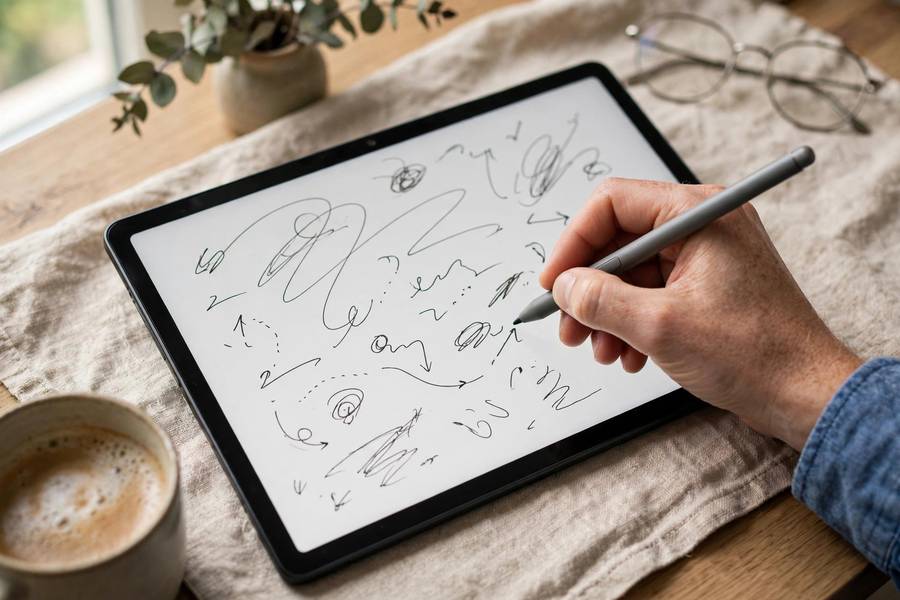
For Handwriting: Stylus Apps Worth Trying
A special note for students with a stylus (S Pen, USI pen, or similar): handwriting your notes has real cognitive benefits — the slower pace forces you to process and summarize rather than transcribe. On Android, your best handwriting options are:
- Samsung Notes (Samsung devices): the gold standard on Android for ink feel and features.
- OneNote: excellent ink-to-text, great on larger tablets.
- Noteshelf or Squid: dedicated handwriting apps with paper-like feel, good for students who think best with a pen.
My classroom-tested advice: handwrite during lectures for understanding, then type a clean summary afterward for searchability. The Cornell Notes method adapts beautifully to this workflow — cues and summaries in ink, detailed notes typed.
Android-Specific Features to Use
These are the Android tricks that make note-taking genuinely better than on other platforms:
- Widgets: Put a “new note” widget on your home screen. One tap, zero friction. This single change doubles how much students capture, in my experience.
- Google Assistant: “Hey Google, take a note” drops text straight into Keep. Perfect for thoughts that strike while walking across campus.
- Split screen: Lecture slides on one side, notes on the other. Android’s split-screen multitasking is a study superpower on tablets.
- Share-sheet capture: Highlight text in any app, hit Share, send it to your notes app. Building a research collection becomes effortless.
- Live Transcribe / Recorder: Pixel’s Recorder app (and similar tools) transcribes lectures in real time, offline. Pair transcripts with your own notes — the AI meeting-note techniques I recommend transfer directly to lecture capture.

Choosing the Right One for You
Cut through the noise with three questions:
1. How do you take notes — typing, handwriting, or voice? Typists: Notion, OneNote, Obsidian. Handwriters: Samsung Notes or OneNote with a stylus. Voice/thinkers: Keep’s voice memos plus transcription.
2. What’s your device setup? Samsung phone + tablet with S Pen? Start with Samsung Notes. Mixed Android/Windows? OneNote syncs beautifully. Living in Google’s world? Keep + Docs is frictionless.
3. System-builder or minimalist? If you love organizing, Notion or Obsidian will delight you. If organization feels like a chore, Keep for capture plus one simple storage app is the sustainable choice.
Then do the 10-minute test: install your top pick, take a real note from today’s class, and try finding it again via search. If retrieval feels natural, commit for a month. Consistency beats optimization — the students I see thrive picked an app and stuck with it.
Setting Up for Success
Once you’ve chosen, spend twenty minutes on setup — it pays off all semester:
- Create one notebook or folder per course. Simple, obvious, and the structure most students actually maintain.
- Add the widget to your home screen. Make capture instant or it won’t happen.
- Enable offline access for your current semester’s notebooks. Future you, sitting in a Wi-Fi dead zone before an exam, says thanks.
- Set a weekly 15-minute review. Sort the week’s captures, tag key concepts, and build your running “key topics” list per course. This habit is what separates organized students from app collectors.
- Back up what matters. Enable cloud sync and, for critical notes, periodic export. Losing a semester of notes to a broken phone is a preventable tragedy.
And when exam season arrives, your organized notes become your greatest asset — short, spaced review sessions from well-structured notes beat marathon cramming every time. My guide to studying for final exams shows you how to turn those notes into results.

Final Thoughts
The best note taking app for Android is the one matched to your hands and habits: Keep for instant capture, OneNote for a complete free system, Notion for structured planners, Obsidian for deep connectors, Samsung Notes for S Pen users. All are free or have generous free tiers.
Pick one today. Add the widget. Take a real note. Then keep showing up — because the app is just a container. The learning happens in the capturing, the organizing, and the reviewing. That’s the part no app can do for you, and it’s the part that actually raises grades.
Frequently Asked Questions
It depends on your style: Google Keep is best for instant capture, OneNote is the best free complete system, Notion suits organized planners, Obsidian is ideal for connecting ideas, and Samsung Notes is unbeatable for S Pen handwriting on Samsung devices.
Keep is excellent for capturing thoughts, lists, and reminders, but it’s not a full study system on its own. Most students pair it with OneNote or Notion: capture quickly in Keep, then file important notes into the main system.
Yes — Samsung Notes with an S Pen offers the best handwriting experience on Android, and OneNote also handles stylus input well on tablets. Handwriting aids retention, so it’s worth trying if your device supports a pen.
Yes — OneNote, Keep, Samsung Notes, Obsidian, and Joplin all work offline and sync when you’re back online. Just enable offline access for your important notebooks ahead of time.
Absolutely — every app in this guide is free or has a generous free tier: Keep, OneNote, and Samsung Notes are completely free, while Notion, Obsidian, and Joplin offer full-featured free plans for students.