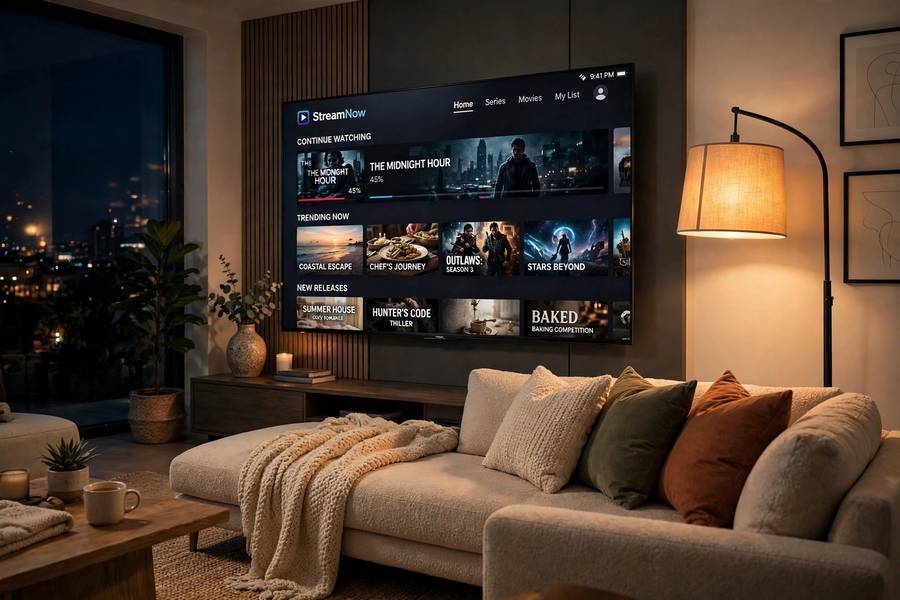
Count the screens in your living room right now. I just did: the TV, the little display on my soundbar, and the thermostat on the wall. The big one is the most interesting, because it’s not really a TV anymore. It’s a computer wearing a TV costume.
When you press the Netflix button on your remote, a whole chain of hardware and software fires off to put that show on screen in about three seconds. I’ve spent years setting up, troubleshooting, and occasionally yelling at smart TVs — mine, my family’s, friends’ — so here’s the full picture: the screen, the brain, the software, the streaming, and the privacy part nobody reads about.
- A Smart TV Is a Computer (Really)
- The Screen: LED, QLED, and OLED Explained
- The Brain: Processor and Memory
- The Software: TV Operating Systems
- How Streaming Actually Reaches Your TV
- Remotes, Voice, and Smart Home
- The Privacy Part Nobody Reads
- Buying Tips: What Actually Matters
- Frequently Asked Questions
A Smart TV Is a Computer (Really)
Strip away the marketing and a smart TV contains the same basic ingredients as a smartphone: a processor (SoC), a few gigabytes of RAM, a small amount of storage (usually 8–16GB), a WiFi chip, and an operating system that runs apps. The “smart” part is just apps + internet on a big screen.
When you open Netflix, the TV’s processor loads the app into RAM, pulls video over WiFi, and decodes it in real time. It gets software updates, runs background processes, and slows down as apps get heavier — sound familiar? It’s a computer that happens to be 55 inches wide.
This explains the confusing behavior: it slows down like an aging phone, and those 8GB fill up with app caches. See it as a computer and your troubleshooting instincts transfer directly.

The Screen: LED, QLED, and OLED Explained
The display is where most of your money goes, and where the terminology gets deliberately confusing. Let me cut through it.
LED TV (most common, cheapest): actually an LCD panel with LED backlighting — “LED TV” is marketing-speak. The always-on backlight makes blacks look grayish; full-array local dimming (independently dimming zones) helps a lot, while cheaper edge-lit models look worse.
QLED (Samsung’s headline tech): a LED/LCD TV with a quantum dot layer for purer, brighter colors. Extremely bright (great for sunny rooms) and cheaper than OLED at large sizes, though blacks still aren’t perfect because the backlight remains.
OLED (LG, Sony, and others): the premium option, and fundamentally different. Each pixel produces its own light — no backlight at all. When a pixel needs to be black, it turns off: perfect blacks, infinite contrast, the best picture you can buy. Tradeoffs: higher price, slightly lower peak brightness, and a small burn-in risk with static images over thousands of hours.
Mini-LED (newer): a LED/LCD TV with thousands of tiny backlight zones instead of dozens — narrowing the gap with OLED on blacks while keeping LED brightness and prices.
If you’re comparing big-screen tech, here’s how a projector works — same content, completely different approach to making a big picture.
The Brain: Processor and Memory
TV processors don’t get the glory, but they determine how your TV feels day to day: decoding the video stream, upscaling lower-resolution content to 4K, running the interface, processing motion.
Upscaling affects everything you watch, since most content still isn’t 4K. The processor invents missing pixels in real time to fill the screen. Good processors (Sony and LG are strong here) do this convincingly; cheap ones produce soft, smeary images. It’s a genuine reason expensive TVs look better playing the same show.
Two processor-driven features worth knowing about:
- Motion smoothing (every brand renames it): the TV invents extra frames to smooth motion — the “soap opera effect” most film lovers switch off immediately.
- Game Mode: cuts processing to reduce input lag — the delay between pressing a button and seeing the result. Essential for gaming (look for under 15ms), irrelevant otherwise. Modern TVs auto-switch when they detect a console.
Manufacturers put weak processors in TVs to hit price points — which is why the interface gets sluggish within a couple of years, and why so many people end up buying streaming sticks.
The Software: TV Operating Systems
Every smart TV runs an operating system, and they’re not all equal. The big ones:
- Tizen (Samsung): clean interface, good apps, but pushes Samsung’s own services and menu ads fairly hard.
- webOS (LG): my favorite interface — the bottom launcher bar is fast and intuitive.
- Google TV / Android TV (Sony, TCL, Hisense): the Google ecosystem with the Play Store and built-in Chromecast. Can feel cluttered.
- Roku TV (TCL, Hisense, others): the simplest interface, bar none. Great for less tech-savvy family members.
- Fire TV (Amazon): fine if you’re deep in Amazon’s world; pushes Prime content hard.
Here’s what the brochures won’t tell you: TV makers stop updating the software after 2–4 years, and app developers eventually drop support for old versions. Your 2021 TV might lose its Netflix app someday — not because the TV broke, but because the software aged out.
My honest advice: buy the TV for the panel, not the platform — a $40–50 streaming stick outperforms any built-in system and stays updated for years.

How Streaming Actually Reaches Your TV
Press play, and here’s the invisible chain reaction:
- The app contacts the streaming service’s servers and requests the video.
- The video comes from a CDN (content delivery network) — servers distributed worldwide that cache popular content close to you. Your stream probably originates in your own city.
- Video arrives via adaptive bitrate: the TV measures your connection and switches quality up or down on the fly. That’s why a show starts blurry, then sharpens — or dips when someone else starts a video call.
- The processor decodes the compressed data (codecs like HEVC or AV1), upscales if needed, and displays it — typically 60 times per second.
The numbers: 4K needs ~25 Mbps per stream, HD needs 5–8 Mbps. If the TV buffers while your laptop doesn’t, the TV’s weaker WiFi chip is usually the bottleneck — try wired Ethernet, the single best fix. If everything buffers, this breakdown of how WiFi actually works will help.
Remotes, Voice, and Smart Home
Old remotes used infrared — you had to point them at the TV. Most smart TV remotes now use Bluetooth, which works through couch cushions without line of sight. Many have microphones for voice search, which genuinely works well on Google TV and Fire TV.
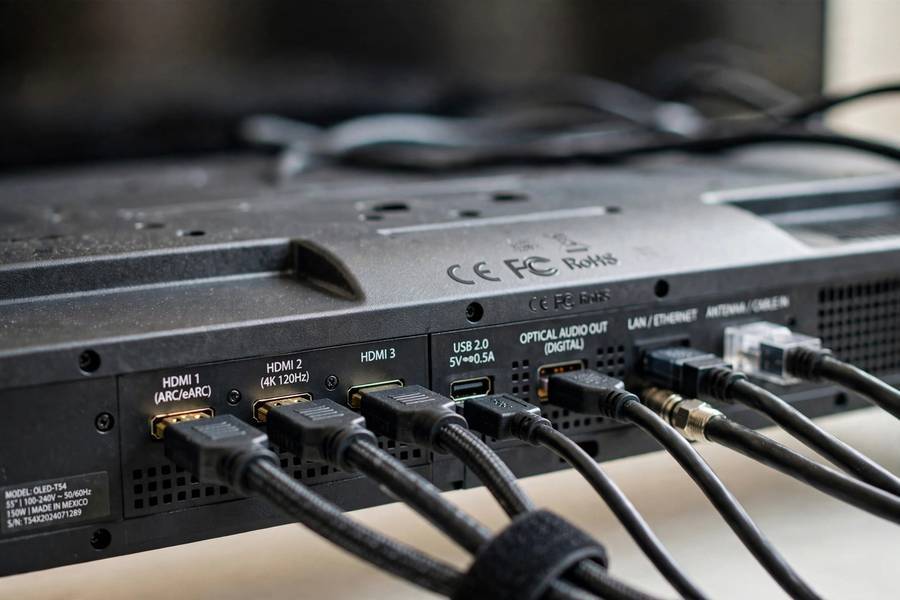
HDMI-CEC is the underappreciated hero: it lets devices control each other over HDMI. Turn on your PlayStation and the TV switches inputs automatically. If your setup needs three remotes, check that CEC is enabled everywhere (brands rename it: Samsung’s Anynet+, LG’s SimpLink, Sony’s Bravia Sync).
The Privacy Part Nobody Reads
Here’s the part of the manual nobody reads: your smart TV watches what you watch.
Most smart TVs run ACR — automatic content recognition. It works by periodically capturing what’s on your screen (or analyzing audio fingerprints) and matching it against a database to identify exactly what you’re watching — including content from HDMI devices and antennas, not just streaming apps. That viewing data gets tied to an advertising profile and sold or shared with data brokers and advertisers.
It’s disclosed in the privacy policies everyone scrolls past — and it’s genuinely part of why TVs got so cheap.
You can fight back, and I recommend it:
- During setup, decline every optional data-sharing agreement — “viewing information services,” “interest-based advertising,” “voice data collection.”
- After setup, go to Settings → Privacy and turn off anything mentioning “viewing data,” “ACR,” or “interest-based ads.” Every brand buries these differently, which tells you everything about their priorities.
- A streaming stick doesn’t fully solve it — the TV’s ACR can still see what’s on screen — but the settings above cover most of it.
Your phone does far more — but you should know it’s happening, because the TV won’t volunteer it.
Buying Tips: What Actually Matters
After all of that, here’s my condensed buying advice:
- Size first. The most common regret is buying too small. For 4K, sit roughly 1 to 1.5 times the screen’s diagonal away: a 55″ TV wants 6–8 feet; 65″ wants 7–10 feet.
- Panel type second. OLED for dark-room movie lovers, QLED/Mini-LED for bright rooms, good full-array LED for budgets. Skip 8K — there’s essentially no 8K content, and you can’t see the difference at normal distances.
- HDMI 2.1 if you game. Needed for 4K/120Hz on PS5/Xbox. If you don’t game, ignore it.
- Check the refresh rate is real. Marketing “Motion Rate 240” on a 60Hz panel is meaningless. 120Hz native is nicer for sports and gaming; 60Hz is fine for movies.
- Plan for a soundbar. TV speakers are universally mediocre — thin TVs can’t move air. Even a $100 soundbar is a massive upgrade. For late-night private listening, see how noise cancelling headphones work.
- Don’t pay for the smart platform. Buy the panel. A streaming stick covers the software for years longer than the built-in system will.
A smart TV is a computer, a display, and a data-collection device in one chassis. Knowing which part does what means you buy for the right reasons and fix the right problems.
Frequently Asked Questions
Only for the “smart” features — streaming apps, updates, and voice assistants need an internet connection over WiFi or Ethernet. A smart TV works fine as a regular display without internet: antenna channels, cable boxes, game consoles, and Blu-ray players all work through HDMI with no connection at all.
Most do, through a technology called ACR (automatic content recognition) that identifies what’s on screen — including HDMI and antenna content — and shares viewing data with advertisers. You can disable it in Settings → Privacy by turning off “viewing information,” “ACR,” and “interest-based ads,” and by declining optional data agreements during setup.
The panel itself typically lasts 7–10 years (OLED somewhat less with heavy static-image use due to burn-in risk). But the smart software usually feels outdated within 3–4 years as apps get heavier and updates stop. A cheap streaming stick plugged into HDMI extends the useful smart life well beyond that.
OLED has the better picture — perfect blacks and infinite contrast since each pixel makes its own light — and wins for movie watching in dim rooms. QLED gets brighter, handles sunny rooms better, costs less at large sizes, and has no burn-in risk. For bright living rooms or heavy news/sports viewing with static logos, QLED is the safer pick.
TV processors are weaker than phone chips and apps get heavier over time, so a 3-year-old TV often feels sluggish. Try restarting the TV, clearing app caches, and uninstalling unused apps. If it’s still slow, a $40–50 streaming stick (Roku, Chromecast, Fire Stick) will run circles around the built-in system.
Yes, via HDMI — it works fine for presentations, video, and casual use. For desk work there are caveats: enable Game or PC mode to cut input lag, sit farther back than you would with a monitor, and know that text looks less sharp than on a real monitor because TV pixels are larger and subpixel layouts differ.