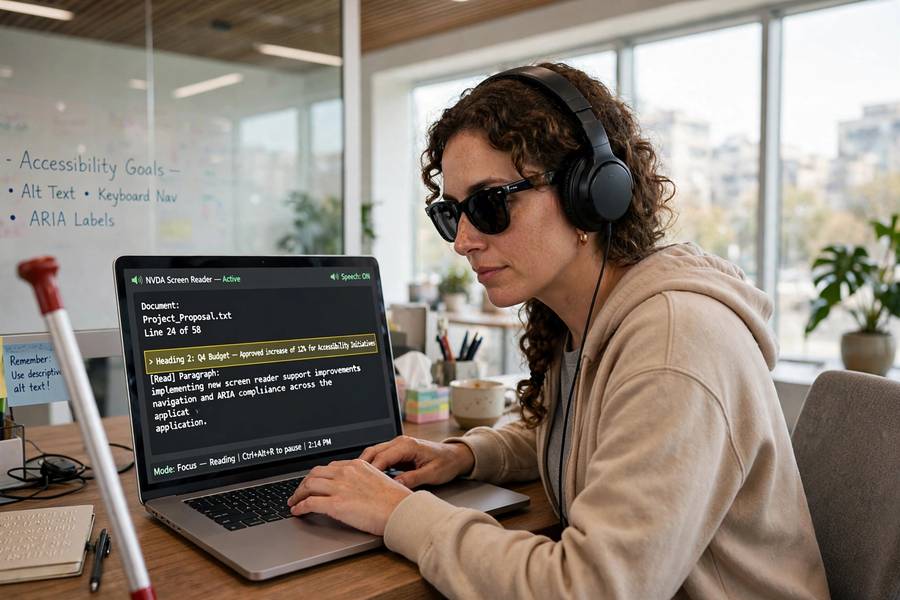
A screen reader user once told me she “reads” about 400 words per minute — faster than most sighted people read print. She wasn’t speed-reading; she was speed-listening, her screen reader rattling through text at a pace that sounds like gibberish to the uninitiated but is perfectly clear to her trained ear. That conversation rewired my understanding of what screen readers are. They’re not accessibility accessories. For millions of people, they’re the primary way of using a computer — and the text-to-speech conversion at their heart is a remarkable piece of engineering.
So how do screen readers convert text to speech? The process has two halves that are equally important: first, figuring out what to read (extracting meaningful content from the chaos of a screen), and second, speaking it (converting that content to audio). Most explanations cover only the second half. The first half is where the real magic — and the real failures — happen. For the speech synthesis foundations, see how text to speech works.
Table of Contents
- The Two Halves: Reading the Screen, Then Speaking It
- How Screen Readers Know What to Read
- The Accessibility Tree: The Secret Map
- From Content to Speech: The TTS Stage
- Navigation: More Than Just Reading Aloud
- Why Bad Websites Break Screen Readers
- Voices, Speed, and Customization
- Screen Readers vs Regular Text to Speech
- The Future: AI-Powered Understanding
- Frequently Asked Questions
The Two Halves: Reading the Screen, Then Speaking It
Here’s the misconception to kill first: screen readers don’t “see” the screen. They don’t look at pixels. A screen reader is a software layer that interrogates the operating system and applications about what’s on screen — what text exists, what controls are present, what’s currently focused — and then converts that structured information into speech (or Braille).
This means the conversion pipeline is: screen content → structured data → prioritized text → speech audio. The first arrow (content to structured data) depends on the app providing good information. The last arrow (text to speech) is the TTS engine doing its job. When a screen reader works beautifully, both halves are healthy. When it fails, it’s usually the first half — the app didn’t describe itself properly — not the speech synthesis.
Think of it like a simultaneous interpreter at the UN. The interpreter’s speaking ability (TTS) matters, but the harder job is understanding the delegate’s intent from incomplete, accented, fast speech (content extraction). Screen readers are interpreters between the visual world of software and the auditory world of their users.
How Screen Readers Know What to Read
Applications expose their content to screen readers through accessibility APIs — platform-level interfaces (UI Automation on Windows, NSAccessibility on macOS, Accessibility Services on Android) that let assistive software ask: what’s on screen right now? What’s the focused element? What just changed?
Well-built applications answer these questions richly: this is a button labeled “Submit order,” this is a heading level 2, this text field has the label “Email address,” this table has three columns. The screen reader takes this structured description and decides what to speak, in what order, with what announcements (“button,” “heading level 2,” “table with 3 columns and 5 rows”).
Poorly built applications answer with shrugs: an unlabeled button is just “button.” A clickable div is invisible. A custom widget exposes nothing. The screen reader can’t speak what the app won’t describe — it’s like asking the interpreter to translate a delegate who’s mumbling into their hand. This is why accessibility work by developers matters so enormously: they’re not decorating for screen readers, they’re providing the raw material screen readers need to function.
The Accessibility Tree: The Secret Map
Under the hood, the key data structure is the accessibility tree — a parallel version of the page or app’s structure, containing only the meaningful elements with their roles, names, states, and relationships. If the visual interface is the territory, the accessibility tree is the map the screen reader navigates by.
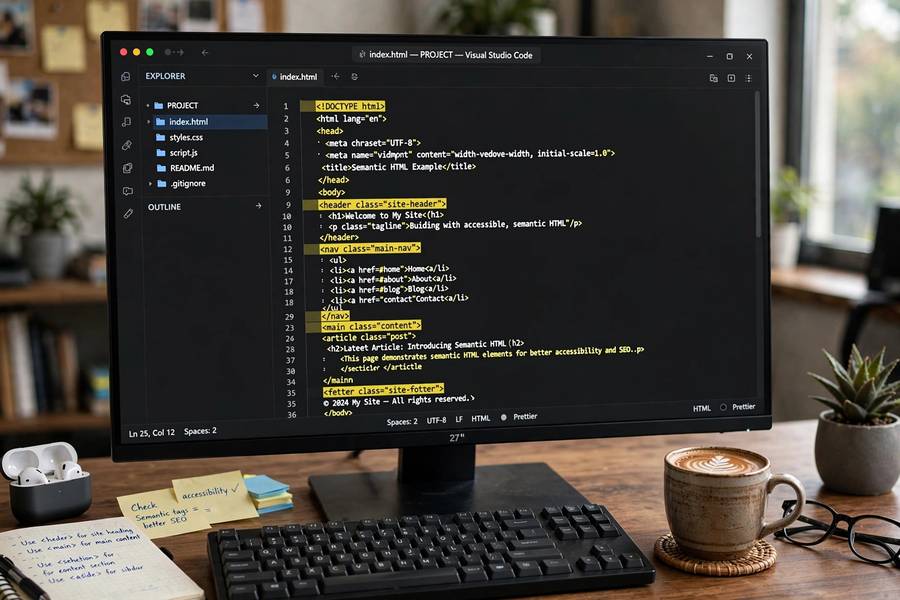
For web pages, the browser builds this tree from the HTML — which is why semantic HTML matters so much. A real <button> element automatically appears in the accessibility tree as a button with its text as the label. A <div> styled to look like a button appears as… nothing meaningful, unless the developer adds ARIA attributes to describe it. Every “div soup” website is a map with blank spots where the roads should be.
The screen reader traverses this tree to present content: reading in document order, jumping between headings, listing links, navigating tables cell by cell. A well-structured accessibility tree makes the difference between “I can use this site” and “this site is a wall of ‘clickable, clickable, clickable.'”
From Content to Speech: The TTS Stage
Once the screen reader has decided what to say, it hands text to a speech synthesizer — the same fundamental TTS technology behind modern AI voices, though screen readers have specific requirements that shape their TTS choices.
Speed is the big one. Screen reader users routinely listen at 300-500 words per minute — two to three times normal speech rate. At those speeds, naturalness matters less than clarity and responsiveness. The classic screen reader voices (slightly robotic, extremely intelligible at high speed) persist because they’re optimized for the actual use case, not for demo impressiveness. A beautiful neural voice that’s sluggish to start speaking is worse than a robotic voice that responds instantly — when you’re navigating by audio, every millisecond of latency is felt.
Screen readers also do things regular TTS doesn’t: speaking UI metadata (“heading level 2,” “link,” “checked checkbox”), spelling words out on demand, announcing capitalization and punctuation optionally, and handling navigation commands (read next sentence, read by word, spell the word). The TTS engine is working in a tight interactive loop with the user, not just reading documents aloud.
Navigation: More Than Just Reading Aloud
The popular image of a screen reader — software that reads the screen top to bottom — misses its most powerful feature: structured navigation. Experienced users don’t listen linearly; they jump. Headings to headings to find sections. Links lists to find navigation. Landmarks to find the main content. Table navigation to move cell by cell. Find commands to search.
This is why the accessibility tree matters more than the speech: navigation operates on structure, not text. A page with proper headings is skimmable by audio the way a sighted user skims visually. A page without headings is an undifferentiated stream — technically readable, practically unusable. When accessibility advocates say “use headings properly,” this is the payoff they’re describing: it turns listening from a chore into something approaching skimming.
Screen readers also provide browse modes (virtual cursors that move through content independently of system focus), forms modes (for filling in fields), and application modes for complex widgets. They also pair naturally with voice input — many users combine speech output with voice control (how voice recognition works). Mastering these modes is a genuine skill — proficient screen reader use takes months to learn, which is worth remembering before judging the technology by a five-minute trial.
Why Bad Websites Break Screen Readers
Let me be blunt about the failure modes, because they’re everywhere. Images without alt text: the screen reader announces “image” or reads the filename (“IMG_4829_final_v2.jpg”). Videos without captions or transcripts: silent voids. Forms with visual-only labels: “edit box” with no indication of what goes in it. Custom dropdowns and date pickers built from divs: keyboard-inaccessible and undescribed. Infinite scroll without announcements: the user doesn’t know new content loaded. CAPTCHAs: the classic accessibility wall (audio alternatives exist but are often unusable).
Each of these is a developer choice, and each has a known fix — which is what makes them frustrating rather than tragic. Alt text, semantic HTML, labeled forms, keyboard accessibility, ARIA where needed: none of this is exotic. It’s basic craft. The web’s screen reader experience is largely determined not by screen reader technology but by whether developers did this basic work.
The encouraging trend: automated accessibility checking is improving, AI tools can now generate decent alt text and flag issues, and legal pressure (accessibility lawsuits keep rising) is motivating compliance. The discouraging trend: the pace of new inaccessible design patterns (canvas-based apps, complex single-page interactions) keeps generating new problems. It’s an arms race, and currently the developers creating problems outnumber those fixing them.
Voices, Speed, and Customization
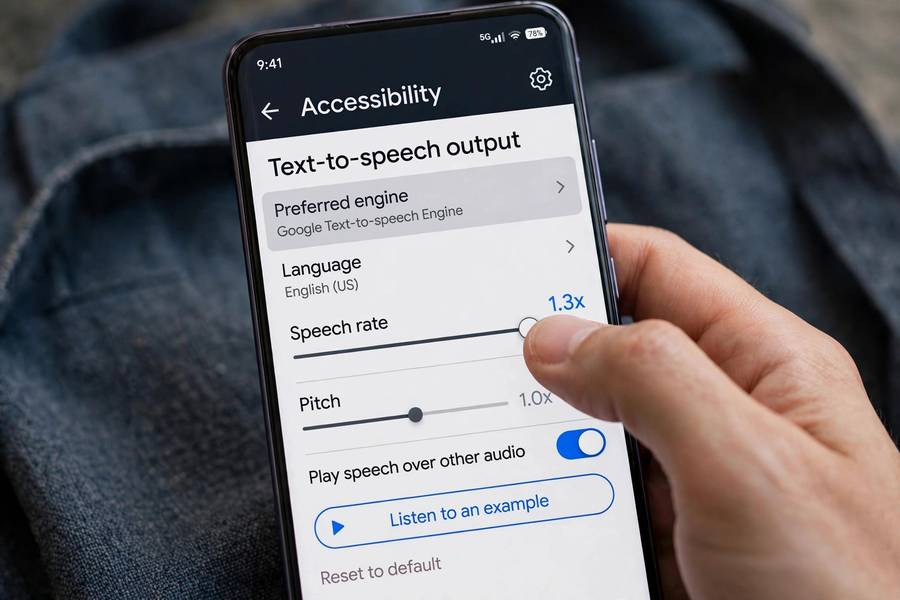
Screen reader users customize extensively, and the options reveal how personal this technology is. Voice selection (many use the classic compact voices for speed, some prefer newer neural voices for long reading), speech rate (adjusted per context — faster for skimming, slower for unfamiliar content), punctuation verbosity (some want every comma announced, most don’t), and earcons — short audio icons for common events, faster than spoken announcements.
Multilingual users switch synthesizer languages on the fly. Some run multiple screen readers for different tasks. Power users customize keystrokes extensively — screen reader proficiency looks like piano playing, both hands flying across keyboard shortcuts while the speech rattles at 400 wpm.
This customization culture is worth noting because it contradicts the “one accessible version” mindset. Accessibility isn’t a single setting; it’s a flexible toolkit that users configure to their needs. Respect that expertise — accessibility features designed without disabled users’ input reliably miss the mark.
Screen Readers vs Regular Text to Speech
It’s worth distinguishing clearly: all screen readers use TTS, but not all TTS is a screen reader. A screen reader is an interactive navigation system for computing interfaces that happens to speak. A TTS app (like a read-aloud browser extension) just vocalizes text linearly.
The difference matters for expectations. A read-aloud tool reading a well-formatted article is a fine experience. But try filling out a form, navigating a spreadsheet, or using a complex web app with just read-aloud — you can’t, because there’s no structural navigation, no UI announcements, no interaction model. Screen readers are operating systems for the ears; TTS is a voice. Both valuable, fundamentally different jobs — one navigates, the other narrates.
The Future: AI-Powered Understanding
AI is starting to fill the gaps that bad development leaves. Image recognition can describe unlabeled images. AI can infer the purpose of an unlabeled button from its visual context and surrounding text. Some screen readers now offer “AI describe” for images, charts, and even complex interfaces — generating the descriptions that developers failed to provide.
This is genuinely exciting and slightly bittersweet. Exciting because it helps users right now, on today’s imperfect web. Bittersweet because it risks letting developers off the hook — “the AI will describe it” becoming an excuse not to write alt text. The AI descriptions are good but not perfect, and they can’t replace intentional accessibility design any more than spell-check replaces writing skill.
The deeper future: AI that understands interfaces semantically — not just reading the accessibility tree but comprehending what the user is trying to do and helping them do it. “Book me a flight” executed through understanding the booking site’s structure. We’re early, but the direction is clear: from reading screens to understanding them. The screen reader of 2030 may be less a reader and more an agent — which brings its own questions about control and trust that the accessibility community is already debating thoughtfully.

Frequently Asked Questions
Screen readers first extract structured content from apps via accessibility APIs (building an “accessibility tree” of elements), decide what to speak based on user navigation, then pass text to a speech synthesizer. The extraction half — getting meaningful content from the app — matters as much as the speech synthesis half.
No. Screen readers don’t look at pixels; they interrogate the operating system and applications through accessibility APIs about what text, controls, and structure exist. This is why semantic HTML and proper labeling matter — the screen reader can only speak what the app describes.
Classic screen reader voices prioritize clarity at very high speeds (300-500 words per minute) and instant responsiveness over naturalness. At those speeds, the slightly robotic voices remain intelligible while prettier neural voices can lag. Users choose speed and responsiveness for navigation.
A screen reader is an interactive navigation system for computer interfaces that uses speech output — it lets users jump between headings, fill forms, and navigate apps. Plain text to speech just reads text aloud linearly. All screen readers use TTS, but TTS alone can’t navigate interfaces.
Because the site doesn’t expose proper structure: images without alt text, unlabeled form fields, buttons built from generic divs, and custom widgets invisible to accessibility APIs. The screen reader can only work with what the site describes — fixing this is basic web development craft.