How to Use Google Maps Offline: 2026 Download Guide

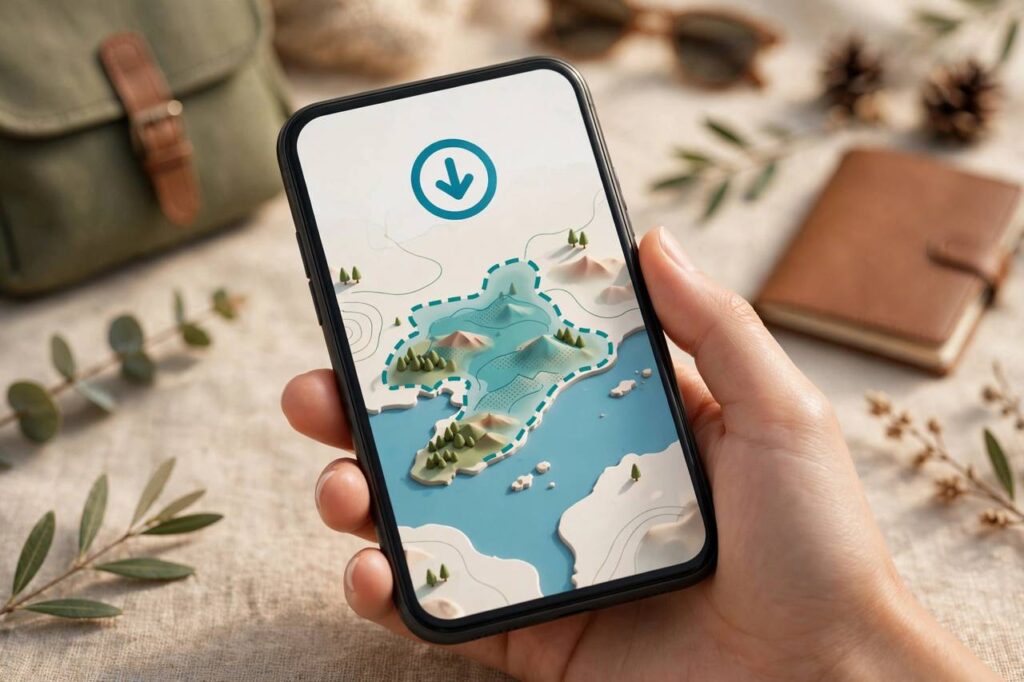
Knowing how to use Google Maps offline is the difference between navigating confidently and staring at a gray grid with a blue dot in the middle of nowhere. I test phones and travel with them constantly — planes, rural roads, foreign cities with no local SIM yet — and offline maps are the single most valuable thing you can download before a trip. The feature is free, it works on both Android and iPhone, and most people either do not know it exists or set it up wrong. This is the 2026-updated walkthrough: downloading maps on both platforms, managing auto-updates and storage, and the honest list of what works offline and what does not.
How it works, briefly: you download map data (roads, places, and routing info) for a geographic area to your phone. When you lose signal, Maps switches to the downloaded data automatically. Positioning still works offline — GPS does not need the internet — so navigation keeps functioning. What you lose is live data: traffic, transit updates, and satellite imagery detail.
How to Use Google Maps Offline on Android
- Open Google Maps and tap your profile picture → Offline maps.
- Tap “Select your own map”.
- Pinch and zoom to frame the area you need — the app shows the download size as you adjust. Larger area, larger file.
- Tap Download. Wait for it to finish on WiFi.
To use it: just open Maps and navigate normally. If you are offline, Maps uses the downloaded area automatically — no mode to switch. You can verify what is downloaded anytime in profile → Offline maps.
How to Use Google Maps Offline on iPhone
The process is nearly identical on iOS:
- Open Google Maps, tap your profile picture → Offline maps.
- Tap “Select your own map” and frame your area.
- Tap Download.
iPhone notes: downloads work the same, but iOS is more aggressive about offloading unused app data — check before a trip that your maps are still there (profile → Offline maps shows each area and its size). Also, Apple Maps has its own separate offline maps feature (download in Apple Maps directly); the two do not share downloads.
Managing Auto-Updates: Do Not Let Maps Expire Mid-Trip
Downloaded maps expire — Google refreshes the data periodically, and stale maps get removed:
- In Offline maps → Settings (gear icon), turn on auto-update so maps refresh whenever you are on WiFi. This is the single most important setting.
- Enable “Download over WiFi only” to avoid burning mobile data on multi-hundred-megabyte map updates.
- Before any trip, open Offline maps and check the “expires” date on each area. Refresh anything expiring during your travel dates while you still have good WiFi.
- If storage is tight, delete areas you no longer need — expired maps are dead weight.

Storage Tips: Offline Maps Are Big
A city-sized area runs 100–500 MB; a large region or small country can exceed 1 GB. Managing that:
- Download only what you need: frame tightly around your actual route and destinations. Downloading “all of France” for a Paris weekend wastes a gigabyte.
- Use SD card storage on Android if your phone supports it: Offline maps → Settings → Storage preferences → SD card. iPhones have no equivalent — it is internal storage or nothing.
- Clear app cache periodically: Maps accumulates cached data beyond your downloads. My guide on how to clear cache on Android walks through reclaiming that space safely.
- Delete ruthlessly after trips: finished the trip, delete the map. You can re-download in seconds next time.
- If storage is critically full, how to delete apps on Android covers the fastest ways to free large chunks of space — unused apps are usually the biggest win.
What Works Offline (and What Does Not)
The honest limits, so you plan around them:
- Works: turn-by-turn driving navigation, route calculation within downloaded areas, search for places inside the downloaded region, saved places and lists, GPS positioning.
- Partially works: walking and cycling directions (available but less detailed), business hours and reviews (cached data may be stale).
- Does not work: live traffic and rerouting around jams, public transit schedules and real-time departures, satellite/street view imagery, searching outside downloaded areas, ride-hailing integrations.
The practical takeaway: offline Maps is a superb driving navigator and a decent city-exploration tool, but it is not a transit app. In cities where you will rely on subways and buses, screenshot your key routes or download the local transit app’s offline data too.
Pro Tips for Travelers
- Download before you fly: airport WiFi is slow and hotel WiFi is worse. Do it at home on fast WiFi the night before.
- Download the arrival city AND the departure city — people always forget the return leg.
- Save key places in advance: star your hotel, the conference venue, and the embassy in Google Maps while online. Saved places work fully offline and are searchable within downloaded areas — do this for every trip and you will never stand on a foreign street corner squinting at a street sign again.
- Download a translation pack too: Google Translate’s offline language packs pair perfectly with offline maps abroad.
- Bring a car charger: GPS navigation with the screen on is heavy battery drain. Offline mode actually saves some battery (no constant data fetching), but not enough to skip the charger. For rental cars, pack your own cable and mount — built-in infotainment varies wildly by country and model.
Using Offline Maps for Hiking and Rural Driving
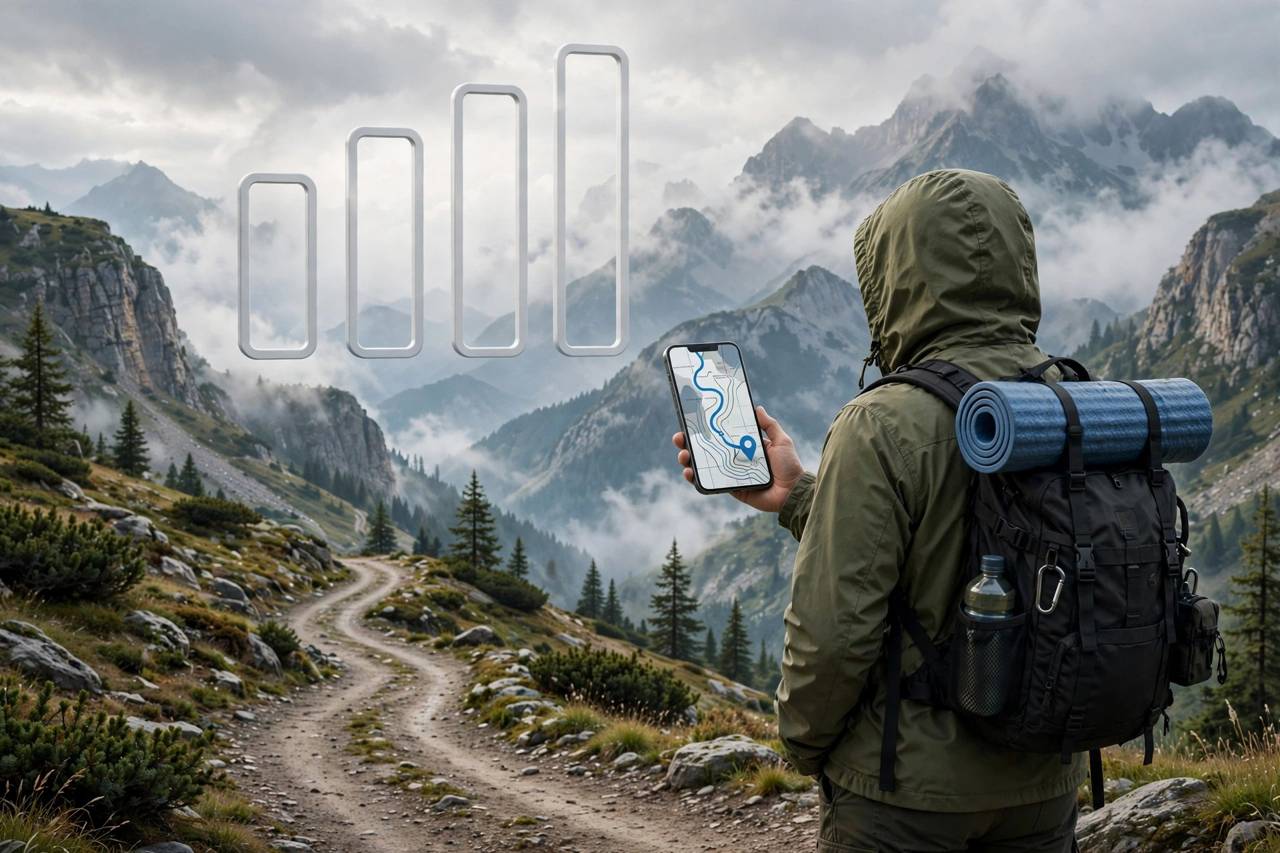
Offline Google Maps shines brightest where signal is weakest:
- Hiking: download the trail region at high zoom before you go. Google Maps shows many established trails and footpaths — not as detailed as dedicated hiking apps (AllTrails, Gaia GPS), but perfectly adequate for well-marked routes. For serious backcountry hiking, pair it with a dedicated app and a paper backup.
- Rural driving: download generously along your whole route, not just the destination — the stretches between towns are exactly where signal dies. Offline routing recalculates without data as long as you stay within downloaded areas.
- Zoom-level trick: the download captures detail at multiple zoom levels, but very fine detail (small footpaths, individual buildings) needs the area downloaded at closer zoom. If a trail looks vague, re-download that specific area framed tighter.
Common Download Failures and Fixes
- “Download failed” errors: almost always storage space or an interrupted connection. Free up space, connect to stable WiFi, and retry. Large areas sometimes need two attempts.
- Download stuck at a percentage: pause and resume the download, or cancel and restart it. If it repeatedly sticks at the same point, shrink the selected area — you may be hitting a corrupted map tile.
- “Area too large” message: Google caps single downloads by size. Split the region into two or three overlapping areas and download each separately.
- Maps not working offline despite downloading: check you are signed into the same Google account, the area has not expired, and location services are enabled. Also confirm the app has storage permission — without it, downloads silently fail.
Offline Maps vs. Alternatives
- Apple Maps offline (iPhone): solid alternative with a cleaner interface, but a smaller place database outside the US and no cross-platform sync. Download in Apple Maps directly — Google downloads do not transfer.
- Maps.me / Organic Maps: built for offline from the ground up, using OpenStreetMap data. Excellent for hiking and developing regions where Google’s data is thin. Worth installing as a backup.
- Dedicated GPS devices: for multi-day backcountry trips, a Garmin or similar still wins on battery life and ruggedness. Phone offline maps cover everything short of that.
- Paper maps: not a joke — for remote areas, a paper map cannot run out of battery, break, or lose GPS lock in a canyon. The serious traveler’s backup.
Saving Battery While Navigating Offline
Navigation is one of the heaviest battery drains on a phone — screen on, GPS active, processor routing. Offline mode helps slightly (no constant data fetching), but these matter more:
- Download the route, then enable battery saver: Android’s battery saver and iPhone’s Low Power Mode both extend navigation time meaningfully with minimal impact on routing.
- Turn the screen off between turns: Google Maps’ voice guidance keeps working with the screen off. For highway driving with infrequent turns, this doubles battery life.
- Lower screen brightness: the display is the biggest single drain. Auto-brightness in daylight usually over-shoots; manual control saves more.
- Close other apps and disable background refresh for anything non-essential before a long drive.
- Bring power, period: for drives over two hours, a car charger or power bank is non-negotiable. A dead phone is not a navigation device.
Frequently Asked Questions (FAQ)
How much storage do offline Google Maps use?
It scales with area: a single city is typically 100–500 MB, a large metro region up to 1 GB, and small countries can run several GB. The app shows the exact size before you download, so frame the area tightly and check the number.
Do offline maps expire?
Yes — Google refreshes map data and expires downloads after a period (the app shows each area’s expiry date). Turn on auto-update over WiFi in Offline maps settings and your maps refresh silently; otherwise, re-download before trips.
Can I navigate with Google Maps offline?
Yes — turn-by-turn driving navigation works fully offline within downloaded areas, using GPS for positioning. You lose live traffic, transit schedules, and rerouting around new congestion, but core navigation is solid.
Does offline Google Maps use mobile data?
Navigation itself uses none within downloaded areas. But watch the edges: searching outside a downloaded area, loading satellite view, or triggering a map update will use data. Enable “WiFi only” for downloads and updates to be safe.
Why did my offline map disappear?
Common causes: it expired (check auto-update), the app’s storage was cleared by the OS (iOS offloads unused data aggressively), or you signed out of your Google account (downloads are tied to the account). Re-download on WiFi before you need it.
Can I use offline maps in another country?
Yes — download the area before you go (or on WiFi after arrival). GPS works worldwide without a local SIM. Just remember that place data and search are limited to what was in the download, and local business info may be thinner in some regions.