How to Use Your Phone as a Hotspot: iPhone & Android

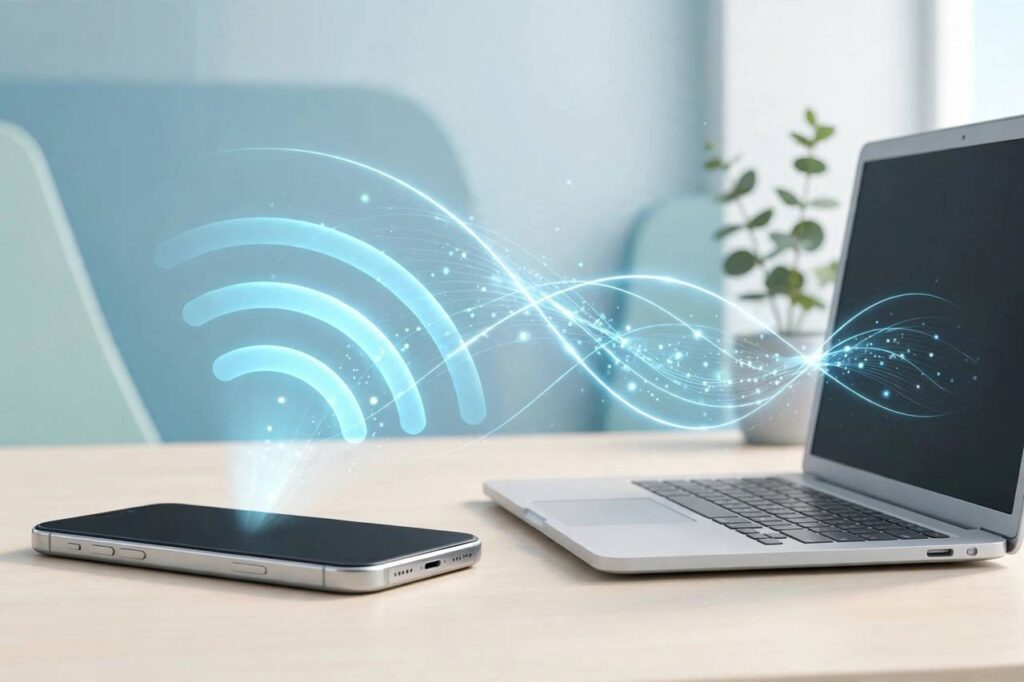
Learning how to use your phone as a hotspot turns the device in your pocket into a WiFi router — genuinely useful when the hotel WiFi is unusable, the cafe network is sketchy, or you need to get a laptop online somewhere with no internet at all. I test phones and connectivity gear for a living, and the mobile hotspot is one of the most underused features on modern smartphones: it takes about a minute to set up, works on both iPhone and Android, and most people only discover it during an emergency. This guide covers setup on both platforms, the data and battery realities nobody mentions, and how to keep your hotspot fast, frugal, and secure.
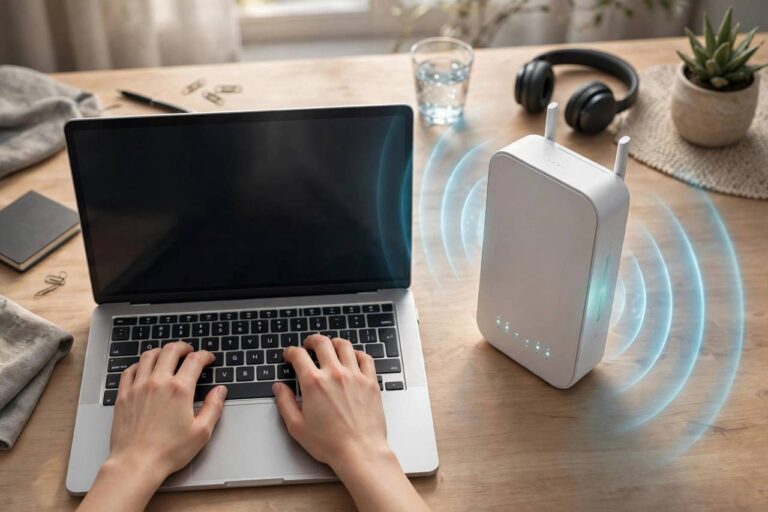
What a hotspot actually does: your phone shares its cellular data connection over WiFi (or USB/Bluetooth), and other devices connect to it like any wireless network. Speed depends entirely on your cellular signal — a hotspot on strong 5G is faster than many home connections; on one bar of signal, it is barely email-grade.
How to Use Your Phone as a Hotspot on iPhone
- Open Settings → Personal Hotspot (it also appears under Settings → Cellular on some versions).
- Toggle Allow Others to Join on.
- Note the Wi-Fi Password shown — tap it to set your own strong password.
- On the other device, open WiFi settings and connect to your iPhone’s name using that password.
iPhone extras worth knowing: Family Sharing (in Personal Hotspot settings) lets family members join without entering the password. Maximize Compatibility switches the hotspot to 2.4 GHz — slower, but it fixes connections with older devices that cannot see 5 GHz networks. And you can connect via USB (plug in, trust the computer) or Bluetooth for slightly better battery life than WiFi hotspot mode.
How to Use Your Phone as a Hotspot on Android
- Open Settings → Network & internet → Hotspot & tethering (Samsung: Settings → Connections → Mobile Hotspot and Tethering).
- Tap Wi-Fi hotspot and toggle it on.
- Tap the hotspot name/password settings to customize the network name and set a strong password.
- Connect your other device to the hotspot name with that password.
Android extras: most Android phones let you choose the band (2.4 GHz for range and compatibility, 5 GHz for speed), set auto-off timers (hotspot turns off when no devices are connected — excellent for battery), and limit connected devices. USB tethering (in the same menu) shares the connection over cable with zero WiFi battery cost.
USB and Bluetooth Tethering: The Alternatives
- USB tethering: fastest, most stable, charges your phone simultaneously. Best for laptop work sessions. Enable it in the same hotspot/tethering menu while plugged in.
- Bluetooth tethering: slowest, but the most battery-efficient wireless option. Fine for light browsing and messaging; painful for video or large downloads.
- WiFi hotspot: the default choice — fastest wireless option, connects multiple devices, costs the most battery.
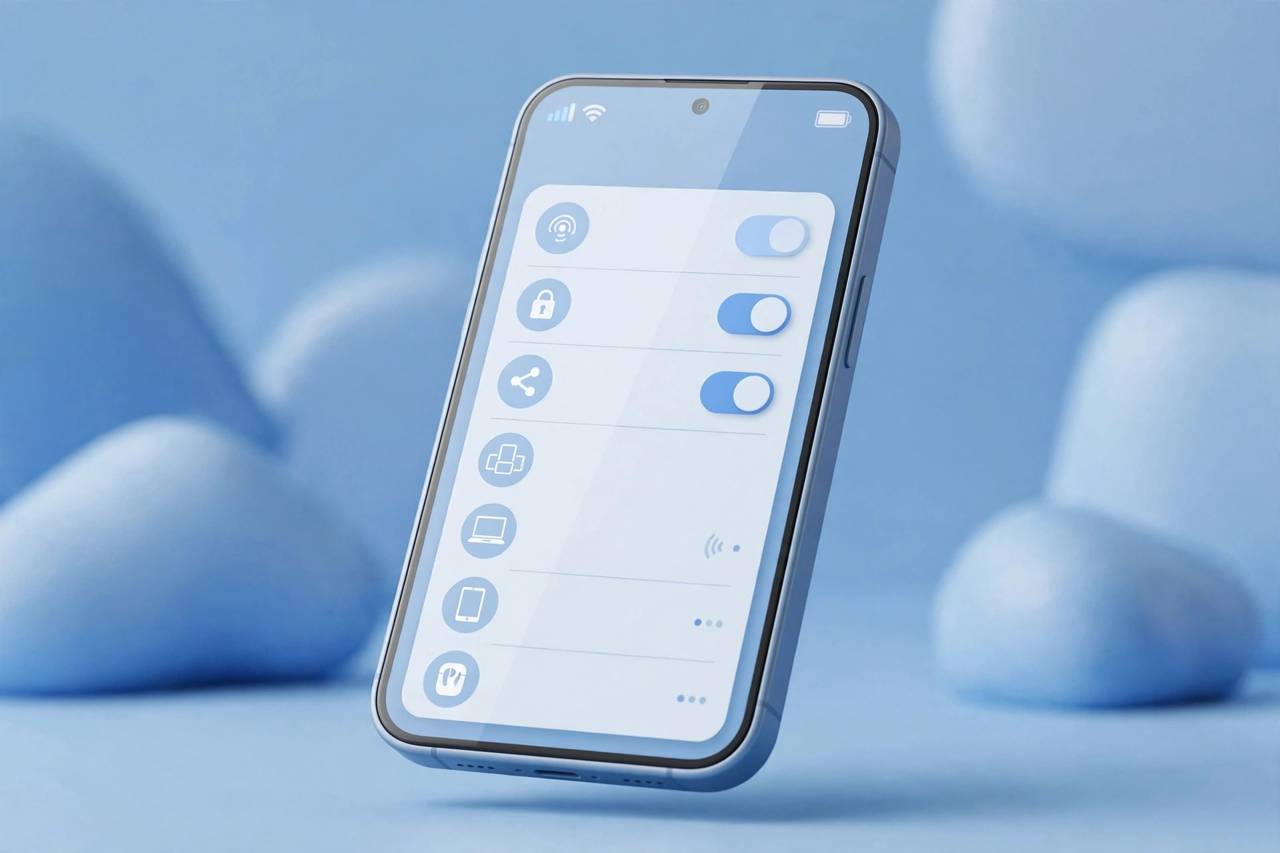
The Data Reality: Hotspots Eat Data Faster Than You Think
This is the section that saves people from bill shock. Laptops are data-hungry in ways phones are not:
- Check your plan first: many “unlimited” plans cap hotspot data separately (commonly 5–40 GB) or throttle hotspot speeds. Check your carrier’s terms before relying on it.
- A one-hour video call uses roughly 1–2 GB. A Windows or macOS update can silently download 3–5 GB in the background. Cloud photo syncs, Dropbox, and app updates all fire the moment a laptop sees “WiFi.”
- Set the laptop connection as metered: on Windows, mark the hotspot connection as metered (Settings → Network → Wi-Fi → your hotspot → Metered connection) to pause automatic updates and background syncs. macOS has Low Data Mode for the same purpose.
- Monitor usage: both iPhone (Settings → Cellular → Personal Hotspot) and Android (Settings → Network → Data usage) show hotspot data consumption. Check it during long sessions — and set a mental budget before you start, because background laptop processes will happily spend gigabytes you did not authorize.
Battery Preservation Tips
Hotspot mode is among the most battery-intensive things a phone does — cellular radio transmitting constantly plus WiFi radio serving clients:
- Plug in whenever possible. Obvious, but people forget until the phone dies mid-session. USB tethering solves this automatically.
- Lower the screen brightness or turn the screen off — the display is the other big drain, and you do not need it while hotspotting.
- Use auto-off timers (Android) or just toggle the hotspot off between uses (iPhone) — an idle hotspot still burns battery.
- Reduce connected devices to only what you need. Each client adds radio work.
- Prefer USB tethering for long sessions — it bypasses the WiFi radio entirely and charges simultaneously. For video calls especially, the stability difference over a shaky WiFi hotspot is immediately noticeable.
- Keep the phone cool: hotspotting generates heat; do not leave it in direct sun. Heat throttles performance and degrades the battery faster.
Hotspot Security: Do Not Skip This
- Always use a password — an open hotspot lets strangers route traffic through your phone and your data plan. Use WPA2/WPA3 (the default on modern phones) with a strong unique password.
- Change the default hotspot name if it includes your real name (“John’s iPhone” broadcasts identity to everyone in range).
- Turn it off when done. A forgotten hotspot is an open door and a dead battery.
- On public hotspots generally (not yours), treat the network as untrusted — which is exactly the situation your own phone hotspot solves. For the underlying tech, see how WiFi works.
Troubleshooting: Devices Will Not Connect to Your Hotspot
- Hotspot not visible: toggle the hotspot off and on, and make sure “Allow Others to Join” (iPhone) or the hotspot toggle (Android) is actually on. On iPhone, the hotspot only broadcasts for a short window after you open the Personal Hotspot screen — keep that screen open while connecting.
- Wrong password errors: retype carefully — phone keyboards love to autocorrect passwords. Temporarily set a simple password to test, then change it back to something strong.
- Connects but no internet: the phone itself has no data connection (check mobile data is on and you have signal), or the carrier blocks tethering on your plan. Toggle airplane mode on and off to reset the data connection.
- Older device cannot see the hotspot: switch to 2.4 GHz band (iPhone: Maximize Compatibility; Android: hotspot band setting). Ancient devices only speak 2.4 GHz.
- Works then drops: usually battery optimization killing the hotspot, overheating, or the phone’s screen-lock sleep behavior. Disable battery optimization for the hotspot function and keep the phone cool and charged.
International Travel: Hotspot Abroad
Your phone hotspot is often the best internet you will get while traveling — with caveats:
- Roaming data is expensive: hotspot usage counts as regular data, and roaming rates can be brutal. A local eSIM with a generous data allowance is almost always cheaper than roaming your home plan.
- eSIM + hotspot is the winning combo: buy a travel eSIM (Airalo, Holafly, and similar), install it before departure, and hotspot your laptop off the local data. I do this on every trip — it takes ten minutes to set up and beats every alternative on both price and convenience.
- Check tethering restrictions: some travel eSIMs and local plans restrict or throttle hotspot use — read the fine print before buying.
- Hotel WiFi vs. hotspot: if the hotel WiFi is slow but your cellular signal is strong, the hotspot wins. If both are weak, tether over USB for the most stable connection. And in countries where hotel WiFi requires a room-number login per device, one hotspot connection neatly sidesteps the whole rigmarole.
Hotspot vs. Alternatives: When Something Else Is Better
- Portable WiFi router (MiFi): better for groups and multi-day use — dedicated battery, no drain on your phone, connects more devices. Worth it for frequent travelers; overkill for occasional use.
- Tethering a tablet with its own SIM: if your tablet has cellular, skip the phone hotspot entirely and let the tablet use its own data.
- Public WiFi + VPN: for light browsing in cafes and airports, public WiFi with a VPN is simpler than hotspotting. Use your hotspot when the public network is slow, sketchy, or requires personal details to join.
- Upgrading your plan: if you hotspot weekly, a plan with generous hotspot data beats fighting caps every month. Do the math on your actual usage first.
Frequently Asked Questions (FAQ)
Does using my phone as a hotspot cost extra?
Depends on your plan. Most modern plans include hotspot at no extra charge but with separate data caps or speed limits — “unlimited data” often means limited high-speed hotspot data. Check your carrier’s hotspot terms; the overage or throttling surprise is the classic hotspot gotcha.
Why is my hotspot so slow?
Almost always the cellular signal, not the hotspot feature — check your phone’s signal bars and try moving near a window or outdoors. Other causes: too many connected devices, the carrier throttling hotspot speeds, or the phone overheating. USB tethering is slightly faster than WiFi hotspot in marginal conditions.
Can I use my phone as a hotspot without WiFi?
The hotspot creates its own WiFi network using cellular data — it does not need existing WiFi. In fact, the phone cannot share a WiFi connection it is connected to (on most phones); the hotspot always runs on mobile data. No cellular signal means no hotspot.
How many devices can connect to my hotspot?
Typically 5–10 depending on the phone, and you can usually set the limit in hotspot settings. Practical advice: fewer is better. Each additional device splits the same cellular bandwidth and adds battery drain.
Is USB tethering better than WiFi hotspot?
For a single laptop, yes: faster, more stable, more secure (no wireless broadcast), and it charges your phone at the same time. WiFi hotspot wins when you need to connect multiple devices or devices without USB (tablets, e-readers).
Why does my hotspot keep turning off?
Usually auto-off timers (Android turns the hotspot off when no devices are connected — check the timeout setting), aggressive battery optimization killing it, or the phone overheating. iPhone’s hotspot also sleeps when the screen locks for a while on some versions; toggling Personal Hotspot off and on re-advertises it.