How to Spot Phishing Emails: 5 Visual Checks That Work

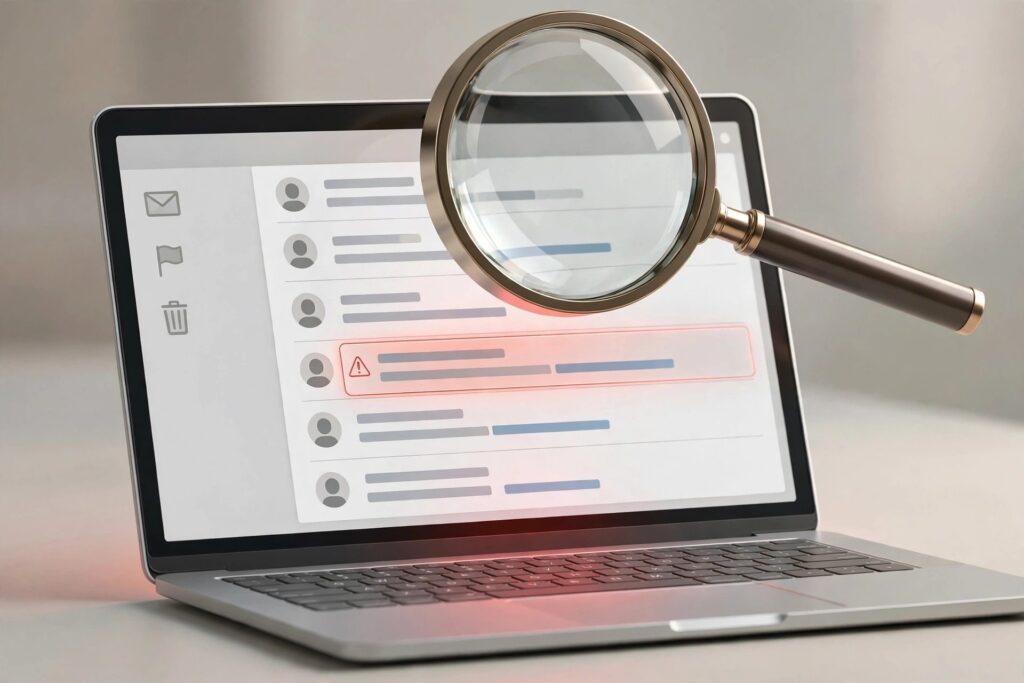
Learning how to spot phishing emails is no longer optional internet hygiene — it is self-defense. I test phones, apps, and security tools for a living, and I can tell you the uncomfortable truth: phishing is the number one way ordinary people get hacked, not sophisticated zero-day exploits. The attackers do not break in; they get invited in, through an email that looked just legitimate enough. The good news is that almost every phishing email fails at least one of five visual checks, and once you train your eye to run them, spotting fakes becomes almost automatic. Here are the five checks, in the order I run them.
One thing to get straight first: phishing is not just “obvious spam” anymore. Modern phishing emails use correct logos, proper grammar, and real company names. Some are targeted — using your name, your employer, even details from your social media. The checks below work against the sloppy ones and the sophisticated ones alike, because they verify rather than trust.
How to Spot Phishing Emails: The Five Visual Checks
Run these on any email that asks you to click, download, log in, or act urgently. Thirty seconds, five checks:
Check 1: The sender — look past the display name
The display name is cosmetic; anyone can set it to “PayPal Security.” What matters is the actual address behind it. On desktop, hover over or click the sender name to reveal the real address. On mobile, tap the sender name to expand the details. Red flags:
- The domain does not match the company: support@paypa1-secure.com instead of paypal.com. Look for letter substitutions (rn for m, 1 for l), extra words, and wrong top-level domains.
- A free email provider sending “official” mail: your bank does not email from Gmail.
- A long, random-looking address, or one that has nothing to do with the claimed sender.
This single check catches the majority of phishing attempts. Attackers can spoof display names effortlessly; spoofing the actual sending domain convincingly is much harder.
Check 2: The links — hover before you click
Never trust the text of a link — trust its destination. On a computer, hover your cursor over any link and read the URL preview in the corner of your browser or email client. On a phone, long-press the link (without lifting to open it) to preview the destination. Red flags:
- The destination domain does not match the company it claims to be.
- URL shorteners (bit.ly and friends) hiding the real destination in a “security” email — legitimate companies rarely do this.
- Long URLs stuffed with the real company’s name as a subdomain trick: paypal.com.secure-login.example.ru is actually example.ru — read domains right to left.
- HTTP instead of HTTPS on a login page. (HTTPS alone does not prove legitimacy — phishers use it too — but its absence is a hard stop.)
Check 3: The attachments — the most dangerous click
Attachments are how phishing becomes malware. Treat every unexpected attachment as hostile until proven otherwise:
- Never enable macros or “enable editing/content” on an Office document from email. This is the classic malware delivery method — the document looks blank or broken until you click “enable,” which runs the payload.
- Be suspicious of HTML attachments, ZIP files, and ISO files from unknown senders — all common malware carriers.
- “Invoice,” “receipt,” “shipping notification,” and “resume” attachments you did not expect are the most abused lures in existence.
- When in doubt, do not open it — contact the supposed sender through a separate, trusted channel and ask if they sent it.
Check 4: The pressure — urgency is a weapon
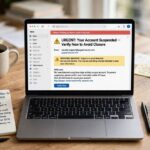
Phishing runs on manufactured urgency: “Your account will be suspended in 24 hours.” “Unauthorized login detected — verify now.” “Payment failed — update immediately.” The urgency is deliberate — it is designed to make you act before you think, bypassing exactly the checks in this guide. Legitimate companies do send urgent-sounding mail occasionally, but they never require you to act through the email itself. The defense is simple: any email that pressures you to act fast gets verified through a separate channel. Open the app directly, type the website address yourself, or call the number on your card — never the number in the email.
Check 5: The context — does this email make sense?
Step back and ask three questions:
- Was I expecting this? A password reset you did not request, a package you did not order, a refund you were not owed — unexpectedness is itself a signal.
- Is the greeting right? “Dear Customer” from a company that knows your name is a yellow flag. (Though note: some legitimate bulk mail is generic, so this is supporting evidence, not proof.)
- Does the request match how this company operates? Banks do not ask for passwords by email. Tax agencies do not demand gift cards. Tech support does not email you out of the blue about viruses.
Anatomy of Three Real-World Phishing Attacks
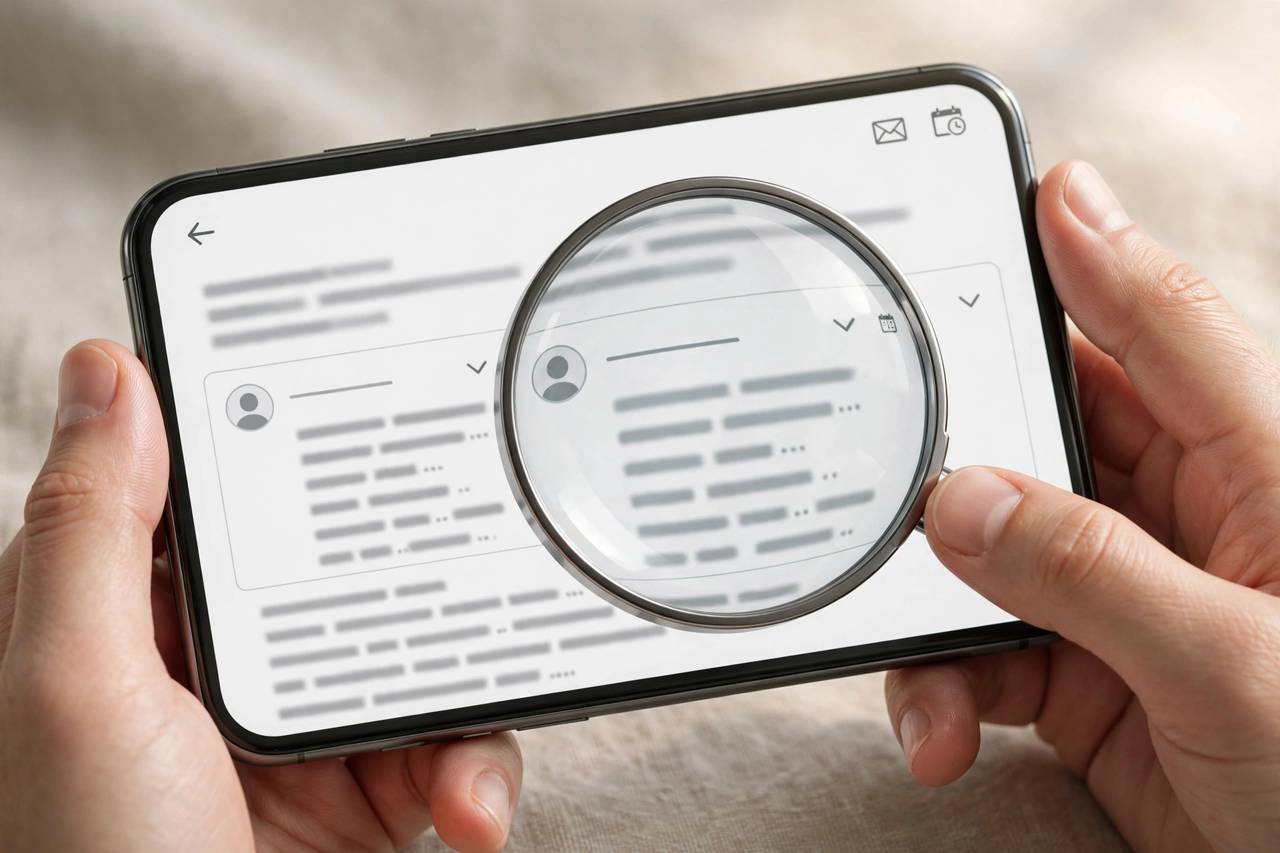
Abstract advice sticks better with concrete examples. Here are three attack patterns I see constantly in testing:
- The fake invoice: “Your invoice #INV-88412 is attached.” The attachment is a Word document that looks broken until you click “Enable Content” — which installs malware. Targets: small businesses and freelancers. Defense: checks 3 and 5 — unexpected attachment plus a sender you do not recognize.
- The account warning: “Unusual sign-in attempt detected on your Apple ID. Verify now.” The link leads to a pixel-perfect Apple login page on a lookalike domain. Targets: everyone. Defense: checks 1, 2, and 4 — hover the link, note the urgency, and verify by opening the Settings app yourself instead.
- The boss scam (BEC): an email that appears to come from your CEO: “Are you available? I need you to process a payment urgently.” No links, no attachments — just social engineering. Targets: finance and admin staff. Defense: check 5 — does the request match normal process? Verify through a separate channel (call the person, or message them on the internal chat) before moving any money.
Notice the pattern: every attack fails at least two of the five checks. Run all five, every time, and the whole category collapses.
Phishing Beyond Email: Texts, Calls, and QR Codes
The same playbook now runs on every channel:
- Smishing (SMS phishing): “Your package could not be delivered — reschedule here.” Same checks apply: unexpected, urgent, link to a lookalike domain. Do not tap; go to the courier’s site directly.
- Vishing (voice phishing): calls claiming to be your bank, the tax office, or tech support. Real organizations do not ask for passwords, codes, or remote access over inbound calls. Hang up and call the official number.
- Quishing (QR code phishing): malicious QR codes on parking meters, restaurant tables, and mailed letters that lead to credential-harvesting sites. Preview the URL before opening any QR link — your phone shows the destination before you commit.
The channel changes; the psychology does not. Urgency plus a request to act through the attacker’s channel equals fraud, whether it arrives by email, text, call, or QR code.
What to Do When You Spot One
- Do not click, do not reply, do not download. Even “unsubscribe” links in phishing mail confirm your address is live.
- Report it: most email clients have a “Report phishing” option — use it. Forward it to your IT department if it arrived at work. In the US, you can forward phishing texts to 7726 (SPAM).
- Delete it. After reporting, delete the message so nobody clicks it later.
What to Do If You Already Clicked
Do not panic — act quickly and methodically:
- Disconnect: if you downloaded something, disconnect from the internet to limit malware communication.
- Do not enter credentials on the suspicious page. If you already did, change that password immediately — from a device you trust, on the real site — and change it anywhere else you reused it.
- Enable two-factor authentication on the affected account if it was not on already.
- Scan your device with reputable antivirus/anti-malware software.
- Watch for fallout: monitor bank and email accounts for unusual activity for the next few weeks. Consider a fraud alert with credit bureaus if financial credentials were exposed.
One structural defense worth setting up today: a password manager will not autofill your credentials on a fake domain — which means it silently refuses to cooperate with phishing sites. That is a second layer of protection that works even when your eyes miss something. And for the close cousin of email phishing that arrives by text, see my guide on how to spot a phishing email for the single-message red flags.
Frequently Asked Questions (FAQ)
Can phishing emails come from real companies’ addresses?
Rarely, but yes — through compromised accounts or, less commonly, spoofing flaws. That is why the checks layer: even if the sender looks right, pressure tactics plus link mismatches still expose the fraud. When a “real” sender asks for something unusual, verify through a separate channel.
What does a phishing email address look like?
Common patterns: misspelled brand domains (paypa1.com, micros0ft.com), brand names as subdomains of unrelated domains (apple.verify-account.net), free providers for official business, and long random strings. Train yourself to read the actual domain — the part just before the first single slash — and compare it to the real company’s domain.
Should I reply to ask if a suspicious email is real?
No. Replying confirms your address is active and monitored, which makes you a more valuable target. Verify through the company’s official app, website (typed by you), or published phone number instead.
Can my email provider’s spam filter catch all phishing?
No. Filters catch the vast majority, but determined attackers constantly evolve to evade them, and some legitimate mail must be allowed through by design. Treat the spam filter as a first line of defense, not the only one — the five checks in this guide are the second line.
Is it safe to preview a suspicious email?
Reading the email text in your client is generally safe — the danger is in clicking links, downloading attachments, or enabling content. Do not let preview panes lull you into clicking; run the checks first.
What is spear phishing?
Phishing targeted at a specific person using personal details — your name, role, colleagues’ names, recent purchases. It is far more convincing than bulk phishing because everything “checks out” superficially. The defense is the same five checks, with extra weight on check 5: does the request itself make sense, verified through a separate channel?