How to Share WiFi Password From iPhone to Android (3 Methods)

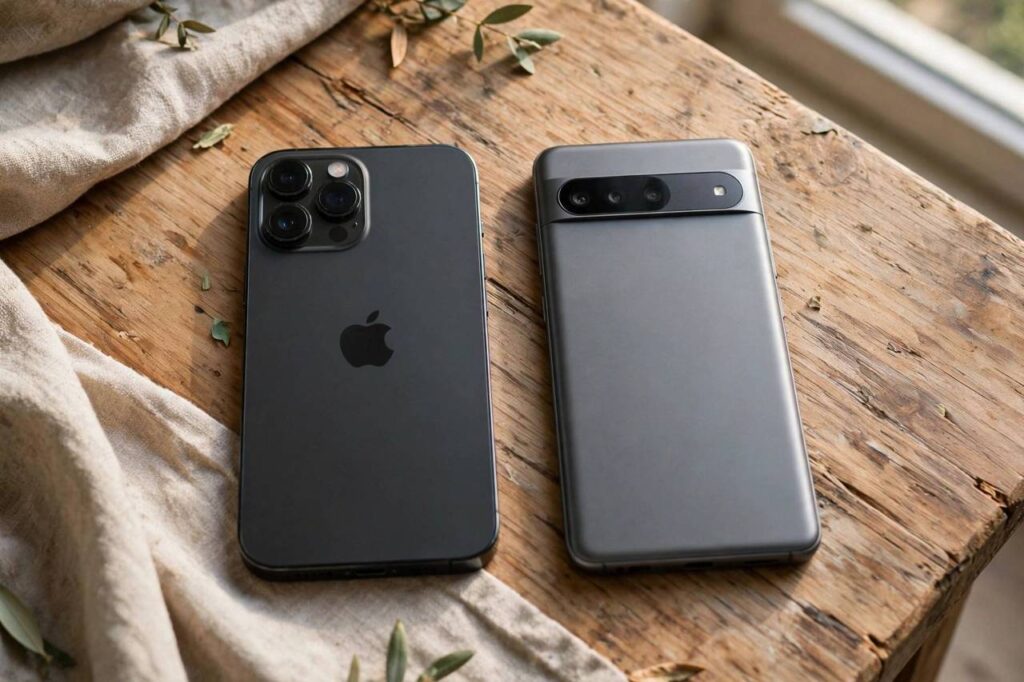
You’re on your iPhone, connected to WiFi, and your friend with an Android phone asks for the password. On iPhone-to-iPhone this takes one tap. iPhone-to-Android? Nothing happens. It’s one of the most annoying gaps in the smartphone world, and it exists for a specific technical reason I’ll explain below. The good news: learning how to share WiFi password from iPhone to Android takes about two minutes once you know the three methods, ranked here from easiest to most involved.
I’ve walked dozens of people through this, and the QR code method wins for nearly everyone. But all three work, so pick the one that fits your situation.
Why One-Tap Sharing Doesn’t Work (The Technical Reason)
Apple’s one-tap WiFi sharing uses a proprietary handshake between Apple devices. When two iPhones are near each other, they verify identity through Apple IDs and Bluetooth, then transfer the network credentials over an encrypted channel. Android phones don’t participate in this handshake because it’s built on Apple’s private protocols, not an open standard.
This isn’t a bug or an oversight you can fix with a setting. It’s two ecosystems that never agreed on a shared method. Apple has no incentive to build Android compatibility into a feature designed to keep people inside its ecosystem, and Google’s Nearby Share handles Android-to-Android instead. Understanding this saves you from wasting time looking for a toggle that doesn’t exist.
The universal workaround is the QR code, which works because it’s just encoded text. Your iPhone generates a code containing the network name and password, and any Android camera can read it. No Apple ID, no handshake, no compatibility issues. If you’re curious about the underlying tech, how WiFi itself works explains the radio and protocol layer that both phones share regardless of brand.
How to Share WiFi Password From iPhone to Android With a QR Code
This is the method I recommend to everyone. It takes under a minute and works with any Android phone made in the last several years.
- On your iPhone, open the Shortcuts app (it’s preinstalled).
- Tap the + to create a new shortcut, add the “Generate QR code” action, and set it to encode your WiFi network’s name and password in the format:
WIFI:T:WPA;S:YourNetworkName;P:YourPassword;; - Run the shortcut to display the QR code full-screen.
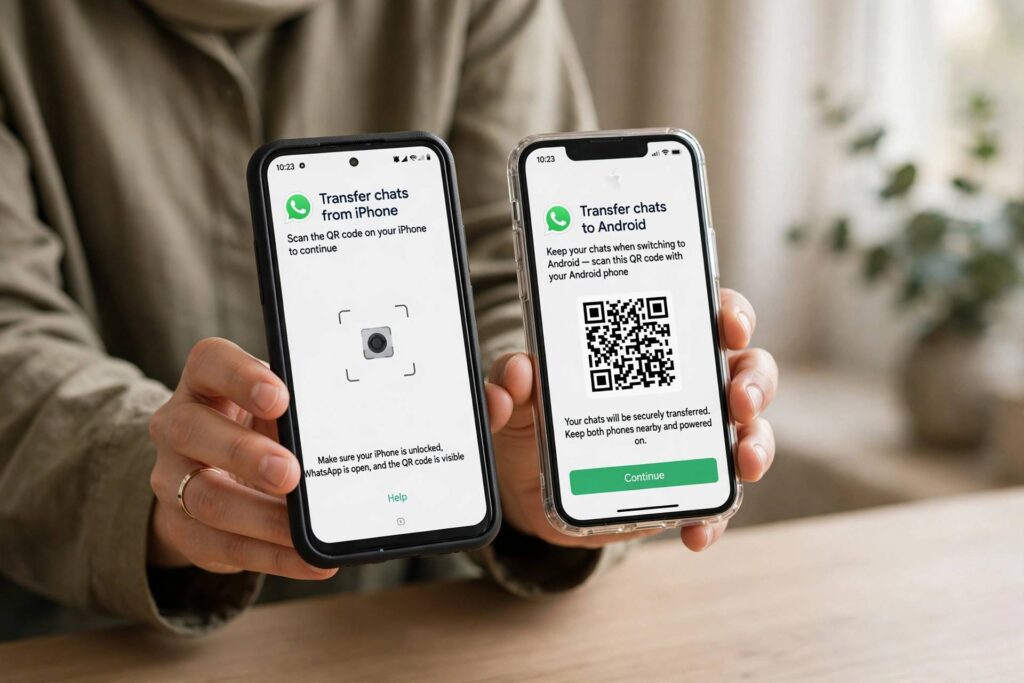
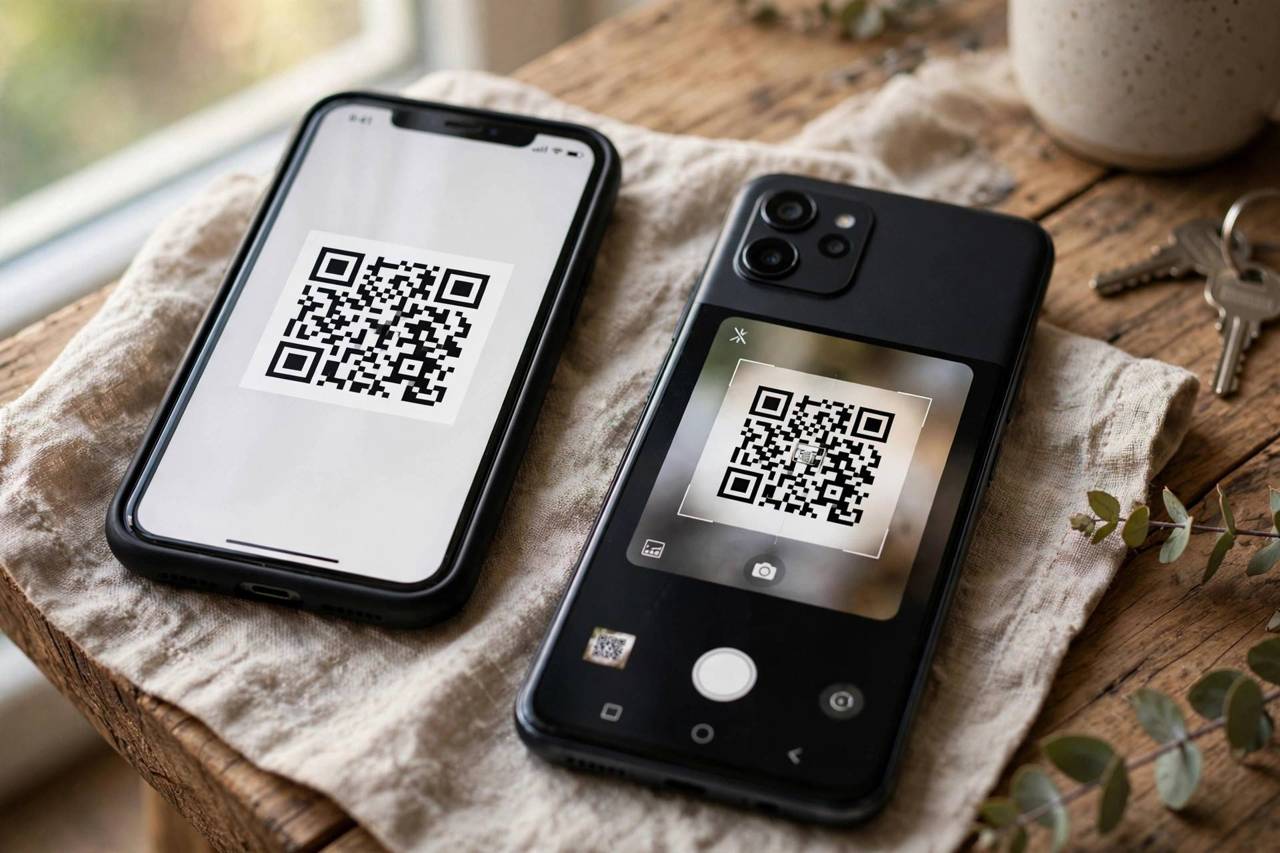
- On the Android phone, open the camera app and point it at the code. A prompt appears to join the network. Tap it.
Don’t want to build a shortcut? Several free websites generate WiFi QR codes: you type the network name and password, and they produce a printable code. Stick it on the fridge and guests can connect themselves forever. For a network you share often, printing the code once eliminates the question permanently.
One security note: anyone who photographs the QR code has your password, so treat a printed code like a written-down password. Fine for home guests, not for the office lobby.
Method 2: Manual Sharing (Simplest, No Setup)
Sometimes the low-tech answer is the right one. On your iPhone, go to Settings, then WiFi, then tap the “i” icon next to the connected network. If you’re running a recent iOS version, you’ll see the password field with an option to reveal it after authentication. Read it out or type it into the Android phone manually.
This method has zero setup and works on any combination of devices. Its only weakness is human error: long random passwords get misheard and mistyped. For complex passwords, read in small chunks and have the Android user read back what they typed before hitting join.
Manual sharing is also the fallback when the QR method fails, which happens occasionally with very old Android cameras that can’t parse WiFi QR codes. When in doubt, read it aloud.
Method 3: Personal Hotspot (When There’s No Shared Network)
Sometimes the real problem isn’t sharing a password, it’s that there’s no WiFi network to share. You’re on cellular, or the network in question is one your iPhone remembers but isn’t currently near. In that case, share your iPhone’s connection directly.
On your iPhone, go to Settings, then Personal Hotspot, and turn on “Allow Others to Join.” Set a hotspot password if you haven’t already. On the Android phone, open WiFi settings, find your iPhone’s name in the network list, and connect with the hotspot password.
Watch your data usage with this method, since you’re routing their traffic through your cellular plan. It’s perfect for getting someone online quickly, less ideal as a permanent arrangement. Turn the hotspot off when you’re done to save battery and data.
Which Method Should You Use?
| Situation | Best Method |
|---|---|
| Friend visiting your home | QR code (print it once, reuse forever) |
| Quick one-time share | Manual (read the password aloud) |
| No WiFi network available | Personal hotspot |
| Sharing with many people (party, office) | Printed QR code on display |
| Old Android phone | Manual (camera may not read QR codes) |
Sharing at Events, Offices, and Gatherings
For one-off shares with friends, generating a QR code on the spot is perfect. For recurring situations, a printed code is better. Print the WiFi QR code on a small card and keep it where guests naturally look: the fridge, the entryway table, the guest room nightstand. Pair it with the network name in plain text for the rare device that can’t scan.
In offices or shared spaces, check with whoever manages the network before posting credentials publicly. Many workplaces use guest networks specifically so the main password never needs sharing; ask IT for the guest network details instead of distributing the primary password. For events, a QR code displayed at the entrance beats answering the password question fifty times.
Troubleshooting When the QR Code Won’t Scan
When scanning fails, work through the checklist. First, brightness: the displaying phone should be at full brightness, since dim screens defeat cameras. Second, distance: hold the scanning phone six to twelve inches away and let it focus. Third, verify the code itself by scanning it with your own iPhone camera; if your phone can’t read it, the code was generated incorrectly.
Common generation errors include typos in the network name (it’s case-sensitive), wrong security type selected (most home networks are WPA2, encoded as WPA in the format), and special characters in the password that break the encoding. Regenerate carefully, test it yourself, and fall back to manual entry if the Android device is simply too old to parse WiFi codes.
Guest Networks: The Smarter Way to Share
If you share WiFi often, consider setting up a guest network on your router instead of sharing your main password at all. Most modern routers support this in a few taps in their app. A guest network isolates visitors from your private devices (computers, smart home gear, network storage) while giving them full internet access.
The workflow becomes elegant: generate one QR code for the guest network, print it, and never change it. Your main network password stays private forever, and you can change or disable the guest network anytime without reconfiguring your own devices. For households with frequent visitors, this is the setup I recommend over any sharing method.
Frequently Asked Questions
Can iPhone share WiFi password to Android automatically?
No. Apple’s automatic WiFi sharing only works between Apple devices signed into iCloud. There is no setting that enables it for Android; you need the QR code, manual, or hotspot method.
Is it safe to share my WiFi password via QR code?
The QR code contains your password in plain text encoding, so anyone who scans or photographs it gets the password. It’s as safe as telling someone the password verbally. Don’t post the code publicly.
Why can’t my Android camera read the WiFi QR code?
Most Android cameras from the last five years read WiFi QR codes natively. If yours doesn’t, update the camera app, try Google Lens, or fall back to manual password entry. The code format itself is standard.
Can Android share WiFi password to iPhone?
Android to Android sharing works through Nearby Share or QR codes in WiFi settings. Android to iPhone has the same limitation in reverse: use a QR code generated on the Android side, which the iPhone camera can read.
Will sharing my hotspot use a lot of data?
It depends entirely on what the connected device does. Browsing and messaging use little; video streaming and large downloads use a lot. Check your iPhone’s hotspot data usage in Settings if you’re concerned.
Can I share WiFi password from iPhone to Android without an app?
Yes. The Shortcuts app method uses only preinstalled iOS software, and free QR generator websites work in any browser. Manual password sharing needs no tools at all. No third-party app is required for any method in this guide.
Does sharing my WiFi slow down my connection?
It can, depending on what the other person does and your total bandwidth. Browsing and messaging have negligible impact; 4K streaming or large downloads will. If slowdowns bother you, most routers let you limit guest network speeds in their settings.
Why does my iPhone offer to share WiFi with some contacts but not others?
Apple’s automatic sharing requires both devices to be Apple products, both signed into iCloud, and each person saved in the other’s contacts with their Apple ID email. If any condition fails, no prompt appears. Android devices never qualify, which is why the QR method exists.
Can I see WiFi passwords for networks I joined long ago?
On iPhone, go to Settings, WiFi, tap Edit in the corner, authenticate, then tap a saved network to view its password. On Android, saved network passwords are visible in WiFi settings under saved networks. Both require device authentication, so they stay private to the phone’s owner.
Is there an app that shares WiFi from iPhone to Android automatically?
No legitimate app bypasses the platform limitation; Apple’s sharing protocol is closed to third parties. Apps claiming to do this are either QR code generators with extra steps or scams. Stick to the QR, manual, and hotspot methods in this guide.
The Bottom Line
One-tap sharing is Apple-only by design, but the QR code method is nearly as fast and works universally. Generate the code once, print it for frequent guests, and never spell out a 20-character password over the phone again.