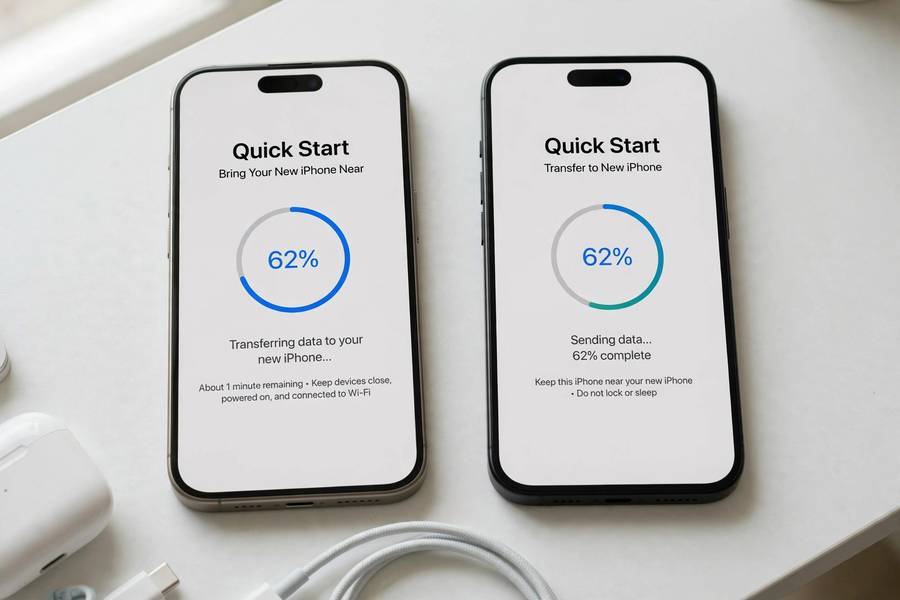
Moving from an old iPhone? New iPhone day should be fun — but the transfer, moving years of photos, apps, messages, and settings from the old phone to the new one, is where the fun goes to die if you pick the wrong method. I’ve done this transfer four times now (mine, my mom’s, my partner’s, and one very dramatic one for a friend the night before a flight), and I can tell you exactly which iPhone-to-iPhone method to use and which to avoid: Quick Start, iCloud restore, and computer backup, honestly ranked below. (Starting fresh or switching from Android? Start with our complete guide to setting up a new iPhone instead.)
See also: delete apps on iPhone.
Table of Contents
- Before you start: the 10-minute prep
- Method 1: Quick Start (fastest for most people)
- Method 2: iCloud backup restore
- Method 3: computer backup (most reliable)
- Method 4: Move to iOS from Android
- What actually transfers (and what doesn’t)
- Common problems and fixes
- After the transfer: the 5-minute checklist
- Frequently Asked Questions
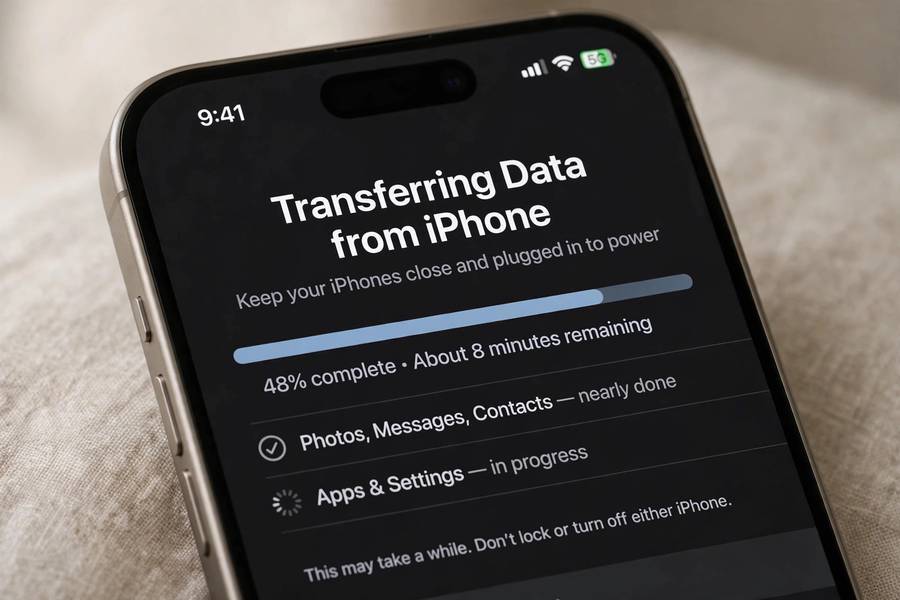
Before You Start: The 10-Minute Prep
Do these on your OLD phone before touching the new one. Skipping this is how transfers go sideways:
- Update your old iPhone to the latest iOS. Both phones need to be on recent software for Quick Start to work smoothly. This alone prevents half of all transfer failures.
- Charge both phones to at least 50%. Or just keep both plugged in. A transfer dying at 80% because of a dead battery is a special kind of pain.
- Connect to WiFi. A strong, stable connection. Not hotel WiFi, not your neighbor’s. This matters most for the iCloud method.
- Know your Apple ID password. You’ll need it. If you haven’t typed it in two years, check it now — not mid-transfer.
- Turn on Bluetooth on the old phone (needed for Quick Start to find the new phone).
Method 1: Quick Start (Fastest for Most People)
This is Apple’s phone-to-phone transfer, and for most people it’s the right choice. Both phones talk directly to each other over WiFi.
How it works:
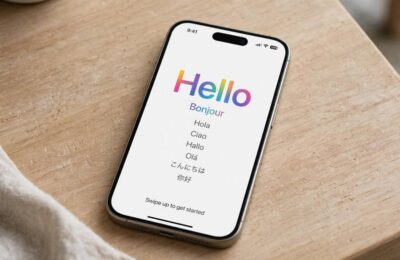
- Turn on the new iPhone and place it next to your old one.
- The old phone shows a “Set Up New iPhone” prompt — tap Continue.
- An animation appears on the new phone; hold the old phone’s camera over it (like scanning a QR code).
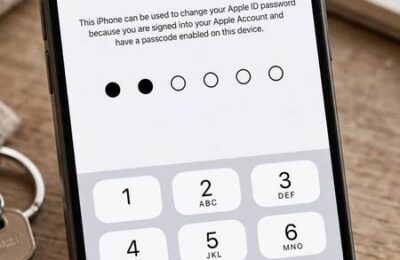
- Enter your old phone’s passcode on the new phone.
- Choose Transfer from iPhone. Keep both phones close together and plugged in.
Real timing: For a typical phone with 64–128 GB of data, expect 30–90 minutes. More data or slower WiFi means longer. It feels slow, but it’s doing the most thorough job of the wireless options.
Why I recommend it: It transfers almost everything, including app data, and you don’t need a computer or extra iCloud storage. The phones handle it themselves.
Method 2: iCloud Backup Restore
If your old phone is lost, broken, or you don’t have it handy, this is your method. You’re restoring from a backup in the cloud rather than from the phone itself.
For a deeper dive, see our guide to backing up an Android phone.
How it works:
- On the OLD phone (if you have it): go to Settings > [your name] > iCloud > iCloud Backup and tap Back Up Now. Wait for it to finish.
- On the NEW phone, during setup, choose Restore from iCloud Backup.
- Sign in with your Apple ID and pick the most recent backup.
- Wait. Apps download in the background after the main restore finishes.
The catch: Apple’s free iCloud tier is only 5 GB, which covers almost nobody’s full phone. Apple does give you temporary free iCloud storage for transfers — when you go to Settings > General > Transfer or Reset iPhone > Get Started on your old phone, Apple offers unlimited temporary backup space for 21 days. Use it. It’s free and it’s designed exactly for this.
Real timing: 1–3 hours depending on your data size and internet speed. The restore itself might finish in 30 minutes, but apps and photos continue downloading in the background for hours.
Method 3: Computer Backup (Most Reliable)
The old-school method, and honestly the most bulletproof. If your WiFi is flaky or you have a massive photo library, do this.
On a Mac (macOS Catalina or later):
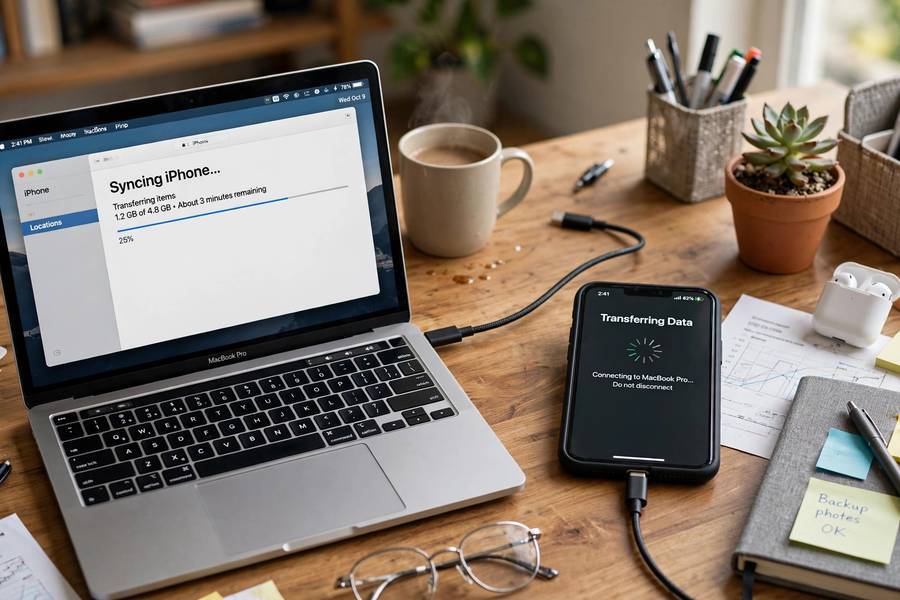
- Connect the old iPhone to your Mac, open Finder, select the iPhone.
- Choose Back up all of the data on your iPhone to this Mac and click Back Up Now. (Check “Encrypt local backup” if you want passwords and Health data included — you do.)
- Connect the new iPhone, select it in Finder, and click Restore Backup.
On Windows (or older Macs): Same process in iTunes (Windows) or via the Apple Devices app.
Why it’s the most reliable: No WiFi dependency, no iCloud storage limits, and encrypted backups include the most data (saved passwords, Health app data, WiFi settings). The transfer speed is limited by the cable, not your internet.
Real timing: Usually 20–60 minutes for the backup plus 20–60 for the restore. Faster than it sounds because USB is quick.
Method 4: Move to iOS From Android
Switching from Android instead? That’s a different move — Apple’s Move to iOS app handles contacts, messages, photos, and WhatsApp, with its own quirks and limitations. I walk through the full Android-to-iPhone path in our guide to setting up a new iPhone — start there.
What Actually Transfers (and What Doesn’t)
Here’s the straight answer, because this is what everyone actually worries about:
Transfers with all iPhone-to-iPhone methods:
– Photos and videos
– Contacts, calendars, reminders
– Text messages and iMessage history
– Apps (they re-download, but their data comes along)
– Settings, wallpapers, WiFi passwords
– Apple Watch pairing (you’ll re-pair, but data carries over)
Only transfers with encrypted computer backup or iCloud Keychain:
– Saved passwords
– Health app data
– Safari history
Does NOT transfer:
– Face ID / Touch ID (you set these up fresh — security reasons)
– Apple Pay cards (re-add them manually)
– Music not purchased from iTunes (sync it separately)
– Anything in apps that don’t use iCloud or their own cloud sync — check important apps individually
Common Problems and Fixes
“Transfer is stuck at the same percentage for an hour.” Usually it’s still working — large photo libraries pause on big files. Give it another 30 minutes. If it’s truly frozen (no progress for 2+ hours), restart both phones and start over. Your old phone’s data is untouched, so there’s nothing to lose.
“Not enough iCloud storage.” Use the temporary free transfer storage: on the old phone go to Settings > General > Transfer or Reset iPhone > Get Started. Apple gives you unlimited backup space for 21 days specifically for this.
“Quick Start won’t detect the new phone.” Both phones need Bluetooth on, WiFi on, and reasonably current iOS. Restart both. If it still fails, fall back to the iCloud or computer method — they’re just as good.
“Some apps are missing after the transfer.” Apps that are no longer on the App Store won’t transfer. Also, apps download in the background for hours after the restore “finishes” — check again in the morning before panicking.
“My Apple Watch won’t pair.” Unpair it from the old phone first (Watch app > All Watches > info button > Unpair), then pair with the new phone during or after setup. Your health data comes along if you used encrypted backup.
After the Transfer: The 5-Minute Checklist
The transfer says it’s done. Don’t put the old phone in a drawer yet — run through this first:
- Open Photos and spot-check. Scroll through a few albums. Make sure your recent photos are there.
- Send a test text and make a test call. Confirms your number and SIM/eSIM moved correctly.
- Open your banking and 2FA apps. These are the ones most likely to need re-authentication. Do it now while you still have the old phone as backup.
- Check Apple Pay. Re-add your cards — they never transfer.
- Keep the old phone for a week. Don’t wipe it yet. If something’s missing, you can still grab it. Wipe it only after you’re sure.
Frequently Asked Questions
Quick Start typically takes 30–90 minutes for 64–128 GB of data. iCloud restore takes 1–3 hours depending on internet speed. Computer backup is usually fastest at 40–120 minutes total. Apps continue downloading in the background for hours after any method.
Quick Start uses a direct phone-to-phone WiFi connection, so you need WiFi enabled but not necessarily internet. iCloud restore needs real internet. Computer backup needs neither — just a cable.
iPhone to iPhone: yes, if you back up WhatsApp to iCloud first (WhatsApp > Settings > Chats > Chat Backup). Android to iPhone: yes, via the Move to iOS app, which includes a WhatsApp transfer option.
With Quick Start, no — both phones are busy and need to stay near each other. With iCloud or computer backup, you can keep using the old phone until you start the restore on the new one, but back up right before switching to avoid losing recent data.
Yes. iMessage and SMS history transfer with all iPhone-to-iPhone methods. If you use iCloud Messages sync, they’re already in the cloud and will appear automatically when you sign in.
Yes, but wait a week. Verify everything transferred — photos, banking apps, 2FA — before erasing. Then go to Settings > General > Transfer or Reset iPhone > Erase All Content and Settings. Remove it from your Apple ID first if you’re selling it.