How to Install Minecraft Mods: The Complete Beginner’s Guide

My first attempt at figuring out how to install Minecraft mods ended with a corrupted save, three conflicting tutorials, and a launcher that refused to open. Fifteen years into modding, I can now set up a 200-mod pack in an afternoon — and this guide will get you from zero to modded without the pain I went through. We will cover the critical Java vs Bedrock distinction, choosing between Forge and Fabric, installing mods step by step, staying safe, and fixing the problems everyone hits.
The single most important thing to know: modding works completely differently depending on which Minecraft you own. Java Edition (PC/Mac/Linux) has the massive modding scene with thousands of free mods. Bedrock Edition (consoles, mobile, Windows store version) uses add-ons from a marketplace instead, with a much smaller free selection. This guide focuses on Java Edition modding, with a Bedrock section at the end so nobody is left out.
How to Install Minecraft Mods on Java Edition
Here is the full process. It looks long, but after your first mod the whole thing takes five minutes.
Step 1: Install Java and back up your worlds
Modern Minecraft bundles its own Java runtime, so you usually do not need to install Java separately — but do back up your saves before modding anything. Copy your saves folder somewhere safe. Mods occasionally corrupt worlds, especially when removed mid-playthrough, and a backup turns a disaster into a minor inconvenience. This thirty-second habit will save you real tears someday.
Step 2: Choose a mod loader — Forge or Fabric
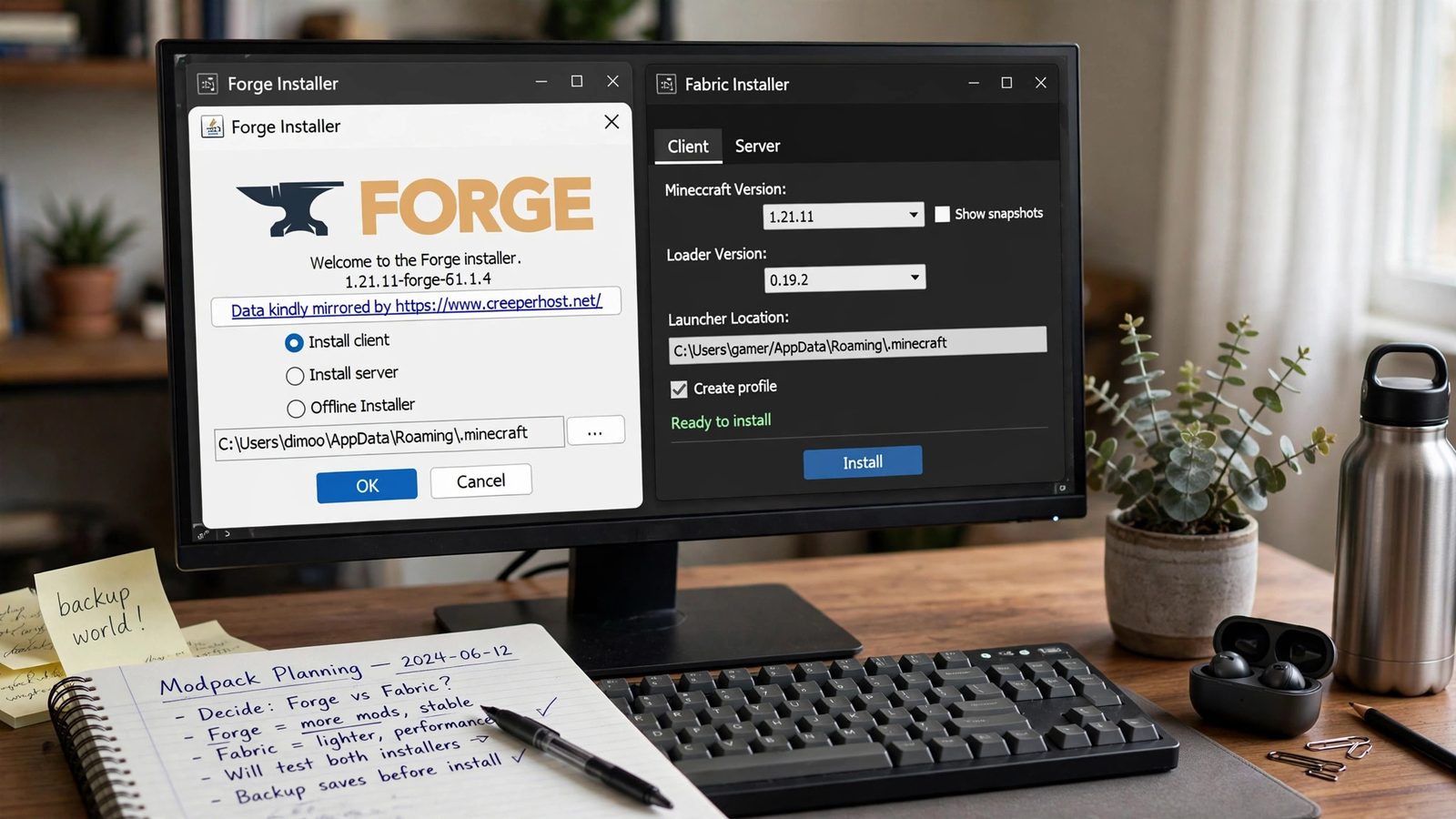
A mod loader is the framework mods run on, and you must pick one before downloading any mods. Forge is the veteran: the biggest mod library, the most tutorials, and the home of legendary big mods. Fabric is the modern lightweight alternative: faster updates after new Minecraft versions, snappier performance, and a thriving ecosystem of its own. The rule is simple — check which loader your must-have mods support, and pick that one. Most mods are exclusive to one loader, so this choice shapes everything downstream. For beginners, Forge’s enormous library and tutorial base make it the easier start.
Step 3: Install the loader
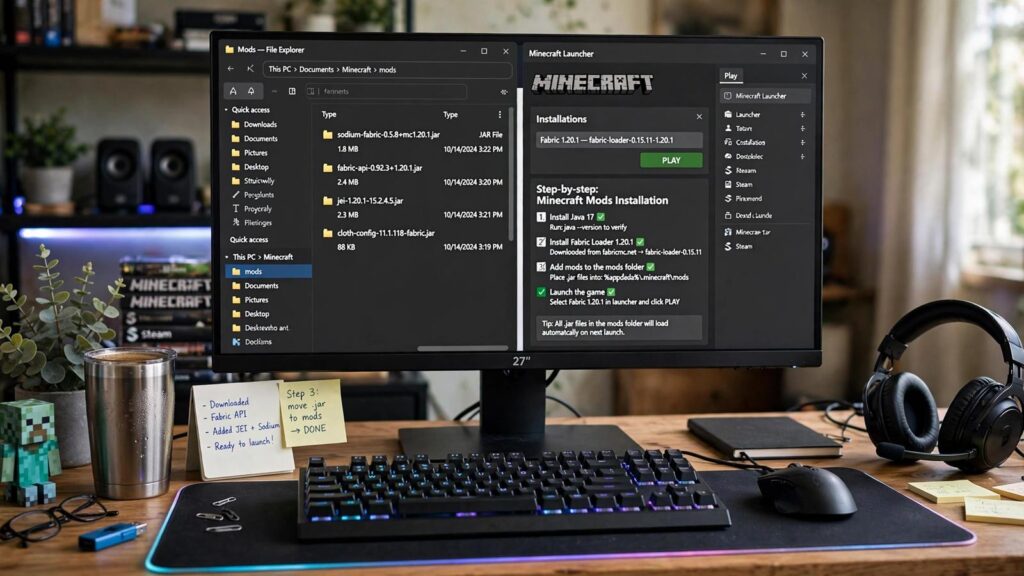
Download the loader installer for your Minecraft version from the official Forge or Fabric site — never from random mirrors. Run the installer, select Install Client, and confirm. Then open the Minecraft launcher: you will see a new profile for the loader version. Launch it once to generate the mods folder, then close the game. That first launch creates the directory structure everything else depends on, so do not skip it.
Step 4: Download mods from safe sources
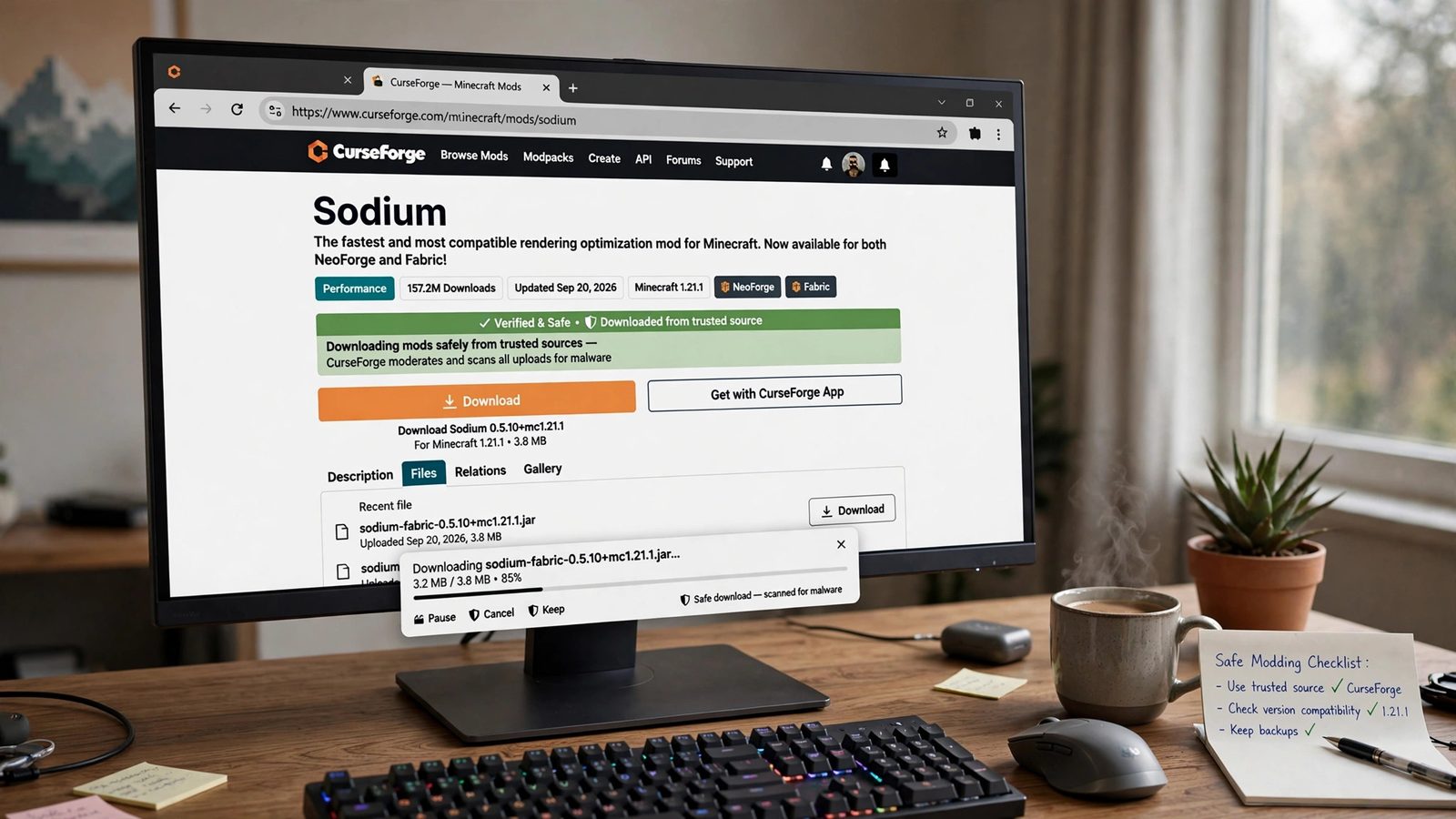
Get mods from CurseForge or Modrinth — the two reputable repositories where files are scanned and authors are verified. Match three things exactly: the mod’s supported Minecraft version, your loader (Forge or Fabric), and any dependency mods the page lists (many mods require library mods like Architectury or Cloth Config). Download the .jar files and drop them into your mods folder. That is genuinely the whole installation — there is no setup wizard, no registry editing, just files in a folder.
Step 5: Launch and verify
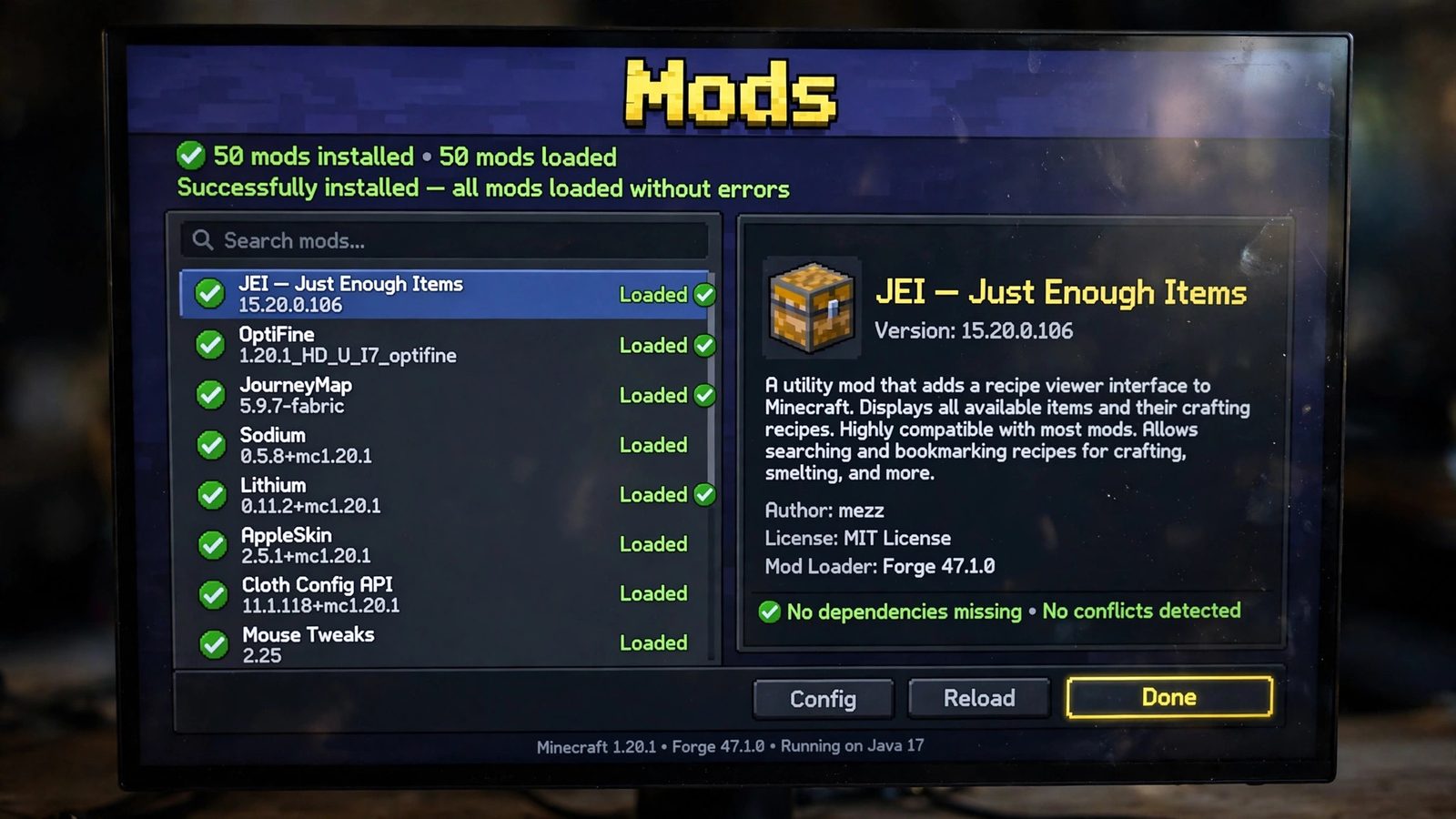
Start the game with the loader profile. On the main menu you should see a Mods button listing everything installed — open it and confirm your mods appear with no error flags. Create a test world before touching your main saves, and spend ten minutes checking that each mod’s features actually work. If the game crashes on startup, do not panic: remove the most recently added mod and try again. Nine times out of ten, crashes come from version mismatches or missing dependencies, both easy to fix once identified.
Forge vs Fabric: Which Should Beginners Choose?
Let us go deeper, since this is the decision that confuses everyone. Forge has been around since the early days and hosts the largest collection of content-heavy mods — the total conversions, the tech mods with hundred-hour progression, the magic systems. Its community is enormous, which means nearly every problem you hit has a documented solution. The trade-off is weight: Forge loads slower and updates to new Minecraft versions take longer.
Fabric is lean and fast, built by a community that prioritizes clean code and quick updates. It dominates the performance-mod scene — the mods that double your framerate live here — and its lightweight philosophy means snappier load times. Its library is smaller for giant content mods but excellent for quality-of-life improvements. My recommendation: want the famous big mods everyone talks about? Forge. Want performance and modern polish? Fabric. Either way, commit to one loader per profile — mixing loaders is not possible and mixing their mods guarantees crashes.
Staying Safe: How to Avoid Malware and Scams
Modding’s dark side is real: fake download buttons, repackaged mods with malware, and scam sites mimicking CurseForge. Protect yourself with simple rules. Download only from CurseForge, Modrinth, or the mod author’s official page — never from ad-wall aggregator sites. Be suspicious of any site demanding you disable your adblocker or run an executable installer; legitimate mods are .jar files you place manually. Check download counts and recent comments — popular, actively maintained mods with engaged comment sections are safe bets. Keep a decent antivirus running, and never download mods from Discord links or YouTube descriptions without verifying the source independently.
One more safety habit: mod in profiles, not in your main installation. The launcher supports multiple profiles, so keep a clean vanilla profile alongside your modded ones. If a modded profile ever breaks badly, your vanilla game remains untouched. This separation also lets you run different modpacks for different moods without conflicts.
Fixing Common Mod Problems
Everyone hits these; none are fatal. Game crashes on startup: usually a version mismatch or missing dependency — check the crash log’s first lines, which name the culprit mod more often than you would expect. Mods not appearing in the menu: you probably put them in the wrong folder or downloaded the wrong loader version. Two mods conflicting: remove half your mods, test, and binary-search your way to the offender — tedious but foolproof. Performance tanking: add performance mods for your loader and allocate more RAM in the launcher’s Java arguments (4-6GB is plenty for most packs; more is not always better).
World corrupted after removing a mod: this is why we back up. Restore the backup, and in future, avoid removing content-adding mods mid-playthrough — blocks and items from removed mods become holes in your world. When in doubt, the modding community’s forums and Discords are genuinely helpful; describe your loader, version, and the crash log excerpt, and someone will usually diagnose it within the hour.
What About Bedrock Edition?
Bedrock modding — called add-ons — works through behavior packs and resource packs rather than .jar files. The simplest path is the in-game Marketplace, where add-ons install with one click but mostly cost real money. Free add-ons exist on community sites: download the .mcpack or .mcaddon file, open it, and Minecraft imports it automatically, then activate it in your world’s settings. The selection is far smaller than Java’s and true total-conversion mods do not exist, but add-ons can still transform your game with new mobs, items, and mechanics. Console players: the Marketplace is your only official option, so watch for sales.
Curious about the engineering that makes all this possible — how games are built to be extended in the first place? Our breakdown of how video games are made explains the architecture behind moddable games.
Best Starter Mods for Your First Modded Playthrough
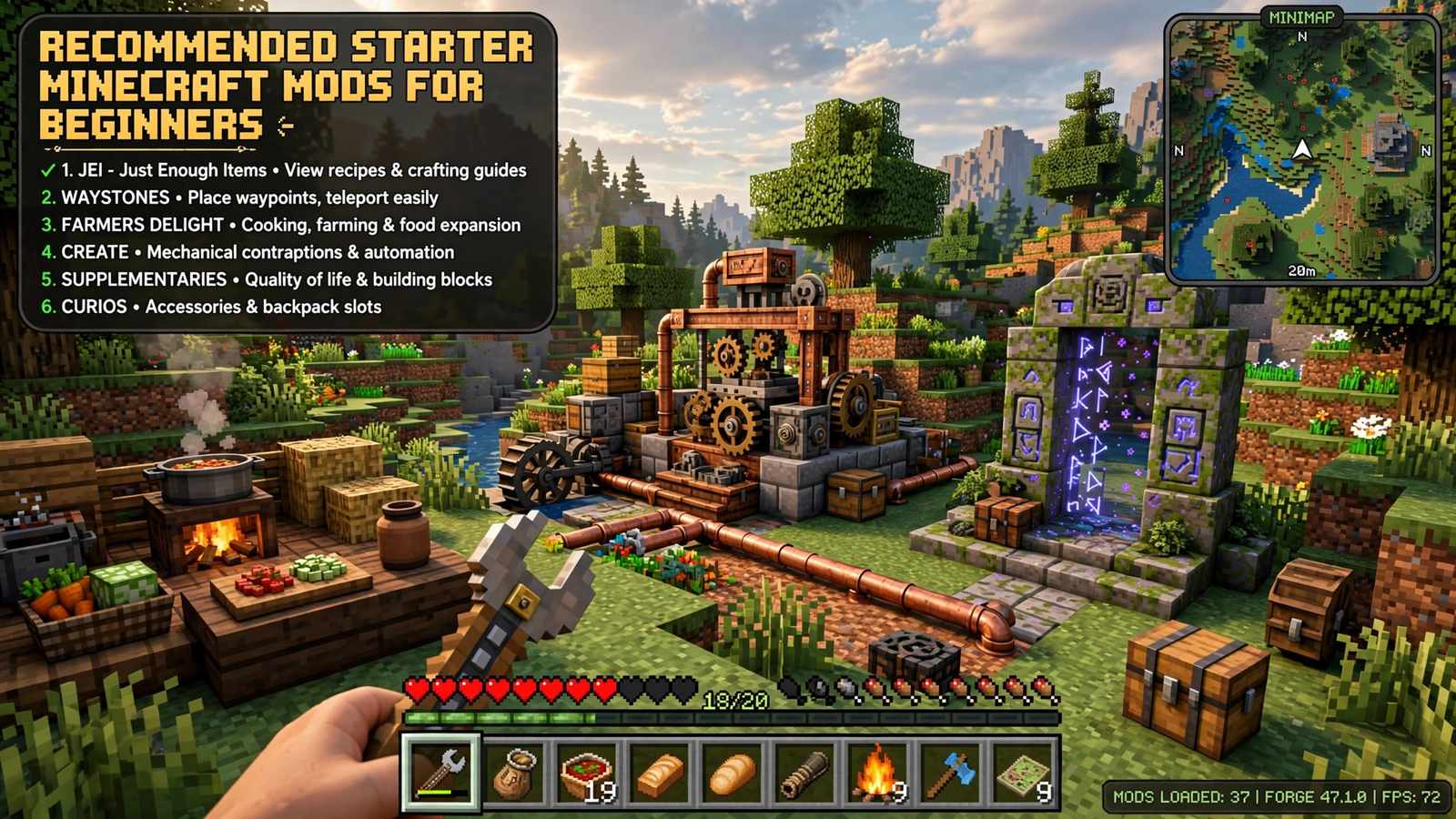
Once the loader works, what should you actually install? Start with quality-of-life mods that improve vanilla without changing it: a minimap mod, an inventory-tweaks mod, and a performance mod for your loader. These teach you the install-verify loop with zero risk. Next, add one content mod in an area you love — a exploration mod if you are an adventurer, a tech or magic mod if you are a builder. Resist installing thirty mods at once; every addition multiplies the chance of conflicts, and you will not know which mod added the cool thing you just found. Five great mods you understand beat fifty you do not.
When you are comfortable, graduate to curated modpacks on CurseForge or Modrinth — pre-built collections where someone else solved the compatibility puzzles. Packs themed around exploration, technology, or hardcore survival each offer hundreds of hours, and installing one is as easy as clicking install in a launcher app. Just remember the golden rule: back up before, test after, and never update mid-playthrough unless you enjoy chaos.
Frequently Asked Questions
Are Minecraft mods free?
Java Edition mods are overwhelmingly free — the community has kept modding free for over a decade. Bedrock add-ons are mixed: many free community options exist, but Marketplace content costs money. Never pay for a Java mod; legitimate ones are always free.
Can mods get me banned?
Not for single-player or private servers — modding those is completely fine and expected. Public servers have their own rules, and some ban certain mods (especially cheats or x-ray). Check each server’s policy before joining with mods installed.
Do mods work on console or mobile Minecraft?
Not the Java-style mods in this guide — consoles and mobile run Bedrock Edition, which uses add-ons instead. The modding scene described here requires Java Edition on PC, Mac, or Linux.
How many mods can I install at once?
With a decent PC, a hundred or more — large modpacks routinely ship 200+ mods. The limits are RAM, load times, and mod conflicts rather than any hard cap. Start with five to ten, learn the ropes, then scale up to curated modpacks.
Will mods break when Minecraft updates?
Usually yes — major updates require loader and mod updates, which is why modded players often stay on older versions deliberately. Whole communities standardize on versions like 1.20.1 for stability. Update your modded profile only when your key mods have caught up.
Installing Minecraft mods is one of gaming’s great rites of passage: intimidating once, trivial forever after. Pick your loader, download from safe sources, back up your worlds, and start small. Before you know it you will be the friend explaining Forge vs Fabric to someone else — and trust me, that day comes faster than you think.