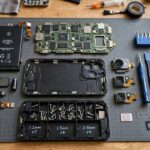
Your finger is an electrical instrument. That is not a metaphor — it is the literal reason your phone responds to a tap. Every time you scroll, pinch, or type on glass, you are disturbing a carefully engineered electric field, and a chip is measuring that disturbance thousands of times per second. I have taken apart enough phones to have stared at these layers with my own eyes, and the engineering is genuinely elegant. Here is how it works, which types exist, and why your gloves betray you every winter.
Table of Contents
- The Short Version: Your Finger Is the Switch
- Capacitive Touchscreens: The One in Your Pocket
- Resistive Touchscreens: The Older, Tougher Cousin
- Other Touchscreen Types You Might Encounter
- Multi-Touch: How Your Phone Tracks Ten Fingers at Once
- Why Gloves Don’t Work (and What Does)
- The Display Underneath: Separate From the Touch Layer
- Touchscreen Problems and Quick Fixes
- Frequently Asked Questions

The Short Version: Your Finger Is the Switch
A touchscreen is two things stacked together: a display that shows the image, and a transparent sensor layer on top that detects touch. The sensor layer is the interesting part. In the capacitive screens used by virtually every phone and tablet today, that layer is a grid of microscopic electrodes holding a tiny electrical charge. Your body conducts electricity. When your finger gets close to the glass, it pulls a small amount of charge away from that spot — and the controller chip detects exactly where the charge changed.
That is the whole trick. No pressure required. No moving parts. Just your finger disturbing an electric field, measured with extreme precision.
Capacitive Touchscreens: The One in Your Pocket
Let us get slightly more specific, because the details are cool. A capacitive touchscreen has two layers of transparent conductive material — usually indium tin oxide, or ITO — arranged as rows on one layer and columns on the other, separated by a thin insulator. The controller sends a signal through the rows and listens on the columns, scanning the entire grid many times per second.
When your finger touches the glass, it forms a tiny capacitor with the electrodes beneath. Capacitance at that intersection changes measurably. The controller compares the before-and-after readings across the whole grid and calculates the touch point — often to within a fraction of a millimeter.
There are two subtypes worth knowing:
- Surface capacitive: Electrodes only around the edges, with a uniform conductive coating across the screen. Simpler and cheaper, but less precise. You will find these on some kiosks and older industrial panels.
- Projected capacitive (PCAP): The row-and-column grid described above, etched directly into the glass layers. This is what your phone uses. It supports multi-touch, works through thin glass, and is extremely precise. When people say “capacitive touchscreen” today, they mean PCAP.
The practical advantages are why PCAP won: it responds to the lightest touch, supports gestures, lasts a long time (no layers to wear out from pressing), and the glass surface is easy to clean. The trade-off is that it only responds to conductive input — fingers, capacitive styluses, special gloves. A plastic pen does nothing.
This kind of invisible, precise sensing is the same family of engineering you find in other personal tech. The way your earbuds detect a tap on their stem, for instance, uses similar capacitive sensing — which is partly why how wireless earbuds work feels so seamless when you tap to pause.
Resistive Touchscreens: The Older, Tougher Cousin
Before capacitive took over, resistive screens ruled — and they are still everywhere in industrial equipment, ATMs, and restaurant point-of-sale systems. I have a soft spot for them because they are beautifully simple.
A resistive touchscreen is two flexible conductive layers separated by tiny spacer dots. Press on the screen and the top layer bends down to touch the bottom layer at that point. The controller measures the voltage at the contact point and converts it to coordinates. Pressure is literally the input mechanism.
Advantages: it works with anything — gloved fingers, styluses, pens, fingernails. It is cheap and durable in harsh environments. Disadvantages: you must actually press, which feels clunky next to capacitive; multi-touch is difficult or impossible; the flexible top layer scratches and wears over time; and the extra layers dim the display slightly.
If you have ever used an old GPS unit or a warehouse scanner that needed a firm poke with a stylus, you have used resistive touch. It is not worse technology — it is different technology, optimized for different conditions.
Other Touchscreen Types You Might Encounter
Capacitive and resistive cover 95% of what you will touch, but a few other approaches exist:
- Infrared (IR) touch: A frame of IR LEDs and light sensors around the screen’s edge creates an invisible grid of light beams. Break a beam with your finger and the system knows where. Used on some large interactive whiteboards and kiosks. Works with any object, but the bezel frame is bulky.
- Surface acoustic wave (SAW): Ultrasonic waves travel across the glass surface; touching it absorbs some wave energy at that point. Very clear image quality since there is no coating on the glass. Found on some high-end kiosks. Vulnerable to dirt and scratches disrupting the waves.
- Optical imaging: Cameras in the corners watch the screen surface and triangulate touch positions. Used on some large-format displays.
You will probably never need to choose between these as a consumer, but it is useful to know they exist when you encounter a weird public kiosk that responds to literally anything, including your sleeve.
Multi-Touch: How Your Phone Tracks Ten Fingers at Once
Pinch-to-zoom feels like magic, but the mechanism is straightforward once you understand the grid. Remember the rows and columns of electrodes? The controller scans every intersection independently. When two fingers touch, two intersections report capacitance changes. Three fingers, three points. The controller tracks each point’s position over time, and the software interprets the pattern: two points moving apart means zoom in, two points rotating means rotate, and so on.
Modern controllers can track ten or more simultaneous touch points, and they do it fast enough that gestures feel instantaneous. The software layer adds the intelligence — distinguishing a tap from a long press from a swipe based on timing and movement. Palm rejection (ignoring the side of your hand when you write with a stylus) is the same system deciding that a large, stationary contact area is not an intentional touch.
Why Gloves Don’t Work (and What Does)
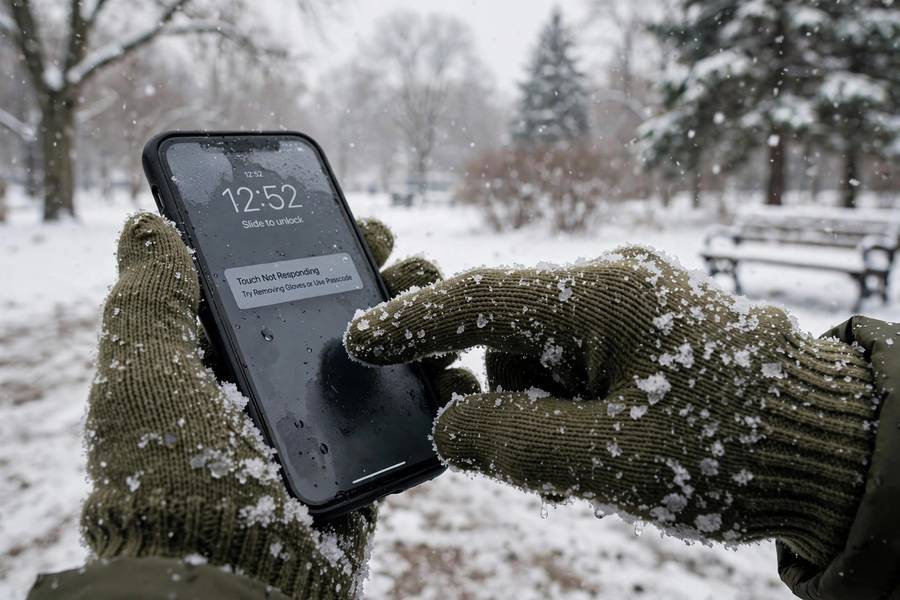
The number-one touchscreen complaint every winter, explained: standard gloves are insulators. They block the electrical connection between your finger and the screen, so no charge is disturbed and no touch registers. It is not a flaw — it is the technology working exactly as designed.
Your options:
- Touchscreen-compatible gloves have conductive thread (usually silver or copper) woven into the fingertips, restoring the electrical path. They work well and cost little. I keep a pair in my coat pocket from November through March.
- Capacitive styluses have a conductive rubber or mesh tip that mimics a finger. Good for precision work; less good for quick phone checks in the cold.
- Nose. I am not proud of it, but it works. Your nose is conductive and usually glove-free.
One more quirk in the same family: touchscreens can act strangely with wet fingers or raindrops, because water is conductive and creates false touch signals. Most modern phones have gotten much better at rejecting water interference, but a soaking-wet screen will still misbehave. That is physics, not a defect.
The Display Underneath: Separate From the Touch Layer
A common misconception: the touchscreen and the screen are the same thing. They are not. The touch sensor is a transparent layer laminated on top of the display panel. The display itself — LCD or OLED — is a completely separate technology that only handles showing the image.
This separation matters for two practical reasons. First, when your phone screen cracks but still responds to touch, the display layer broke while the sensor survived (or vice versa — a dead touch zone with a perfect image means the sensor layer is damaged). Second, it explains why screen protectors generally do not affect touch: the capacitive field reaches through thin glass and plastic just fine. Only very thick protectors or air gaps cause problems.
If you are interested in the display half of the equation — how the image itself gets projected and produced — how a projector works covers the optics side of display technology nicely.
Touchscreen Problems and Quick Fixes
After years of troubleshooting phones for friends and family, here are the touch issues I see most and what actually fixes them:
- Dead zones or phantom touches: Often a failing digitizer. Try a restart first; if it persists, the screen assembly likely needs replacement. No software setting fixes broken hardware.
- Screen protector interference: Thick tempered glass or a poorly applied protector with air bubbles can reduce sensitivity. Remove it and test.
- Wet screen: Dry it. Seriously. Water creates false capacitance readings.
- Gloves: See above. Conductive gloves or bust.
- Unresponsive after a drop: The digitizer connector may have loosened. A repair shop can reseat it in minutes — do not assume the whole phone is dead.
- Laggy touch response: Usually software — too many background processes, or a failing storage chip. Back up your data before assuming hardware failure.
One honest note: touchscreen repairs are one of the most common phone repairs for a reason. The sensor layer is thin and laminated to the display, so most shops replace the whole screen assembly. Get quotes from two places; prices vary wildly.

Frequently Asked Questions
A capacitive touchscreen has a grid of electrodes under the glass holding a small electrical charge. Your finger conducts electricity, so touching the screen disturbs the charge at that spot. A controller chip detects where the charge changed and registers it as a touch — no pressure needed.
Capacitive screens detect the electrical properties of your finger and respond to light touch, supporting multi-touch gestures — this is what phones use. Resistive screens detect physical pressure between two flexible layers, work with any object including gloves, but require a firm press and generally don’t support multi-touch.
Standard gloves are electrical insulators — they block the connection between your finger and the screen, so the capacitive sensor detects nothing. Touchscreen-compatible gloves have conductive thread in the fingertips that restores the electrical path, which is why they work.
The touchscreen’s electrode grid is scanned at every row-column intersection independently, so each finger creates its own detectable capacitance change. The controller tracks all touch points simultaneously, and software interprets their movement patterns as gestures like pinch-to-zoom or rotate.
Often yes. The touch sensor and the display are separate layers — a crack may damage the display layer while the sensor still works, or kill touch in one zone while the image looks fine. If touch is erratic or dead after a crack, the digitizer is damaged and the screen assembly usually needs replacement.
Normally no — the capacitive field passes through thin glass and plastic easily. Very thick protectors, poorly applied ones with air bubbles, or metal-containing protectors can reduce sensitivity. If touch worsens right after applying one, remove it and test before assuming the phone is faulty.