How to Archive Chats on WhatsApp (Without Deleting Anything)

Your WhatsApp chat list looks like a junk drawer — old group chats from 2021, a plumber you messaged once, seventeen “Happy Birthday!!” threads. If you want to know how to archive chats on WhatsApp, you’re really asking how to tidy up without deleting anything or offending anyone. Good news: archiving is the perfect middle ground, and it takes seconds. I archive ruthlessly and my chat list has never been calmer.
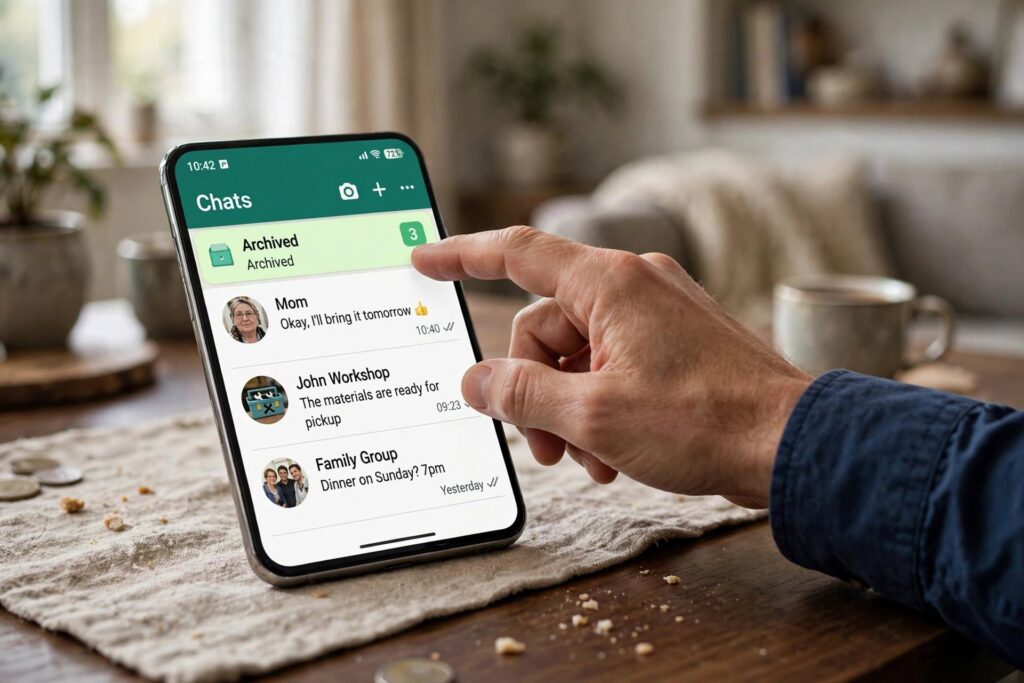
Archiving hides a chat from your main list without deleting it, muting it, or notifying the other person. New messages from archived chats don’t bump them back to the top (with the default setting) — they quietly wait in the Archived folder until you go looking. Think of it as filing, not trashing.
How to Archive Chats on WhatsApp (Android)
- Open WhatsApp and find the chat you want to archive.
- Long-press the chat until it’s selected (a checkmark appears).
- Tap the archive icon at the top — it looks like a box with a downward arrow.
- The chat vanishes from your main list into the Archived folder.
To archive several at once, long-press the first chat, then tap the others to select them, then hit the archive icon. You can archive as many as you like — there’s no limit.
How to Archive Chats on WhatsApp (iPhone)
- Open WhatsApp and go to the Chats tab.
- Swipe left on the chat you want to archive.
- Tap Archive.
Alternatively, tap Edit (top left), select multiple chats, then tap Archive at the bottom. Same result, faster for bulk cleanups.
Where Do Archived Chats Go?
Archived chats live in the Archived folder, which sits at the very top of your Chats tab (above all conversations). Tap it to see everything you’ve filed away. To unarchive, long-press (Android) or swipe left (iPhone) on the chat inside the Archived folder and choose Unarchive — it pops right back into your main list, exactly where it would be chronologically.
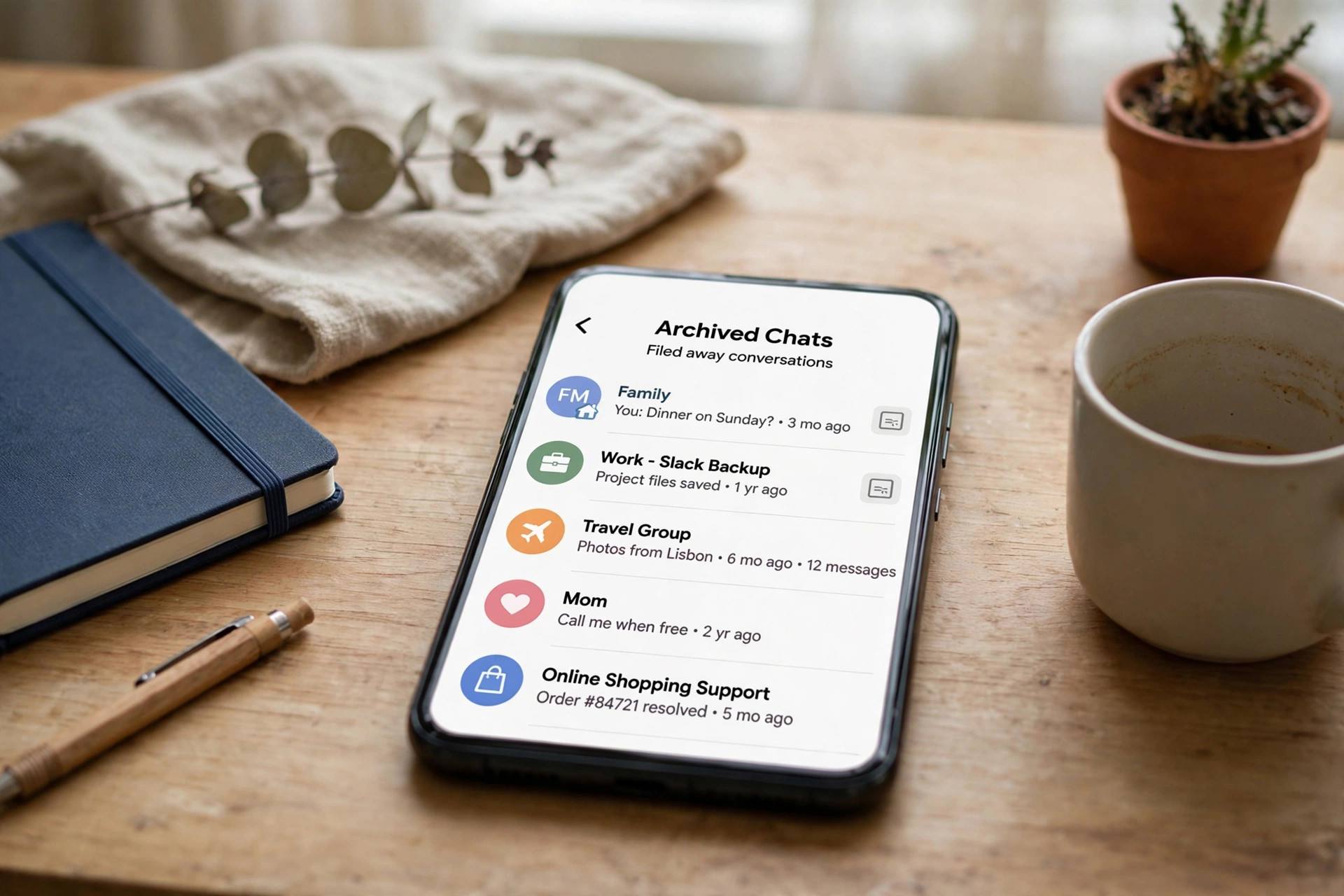
Archive vs. Mute vs. Delete vs. Block: What’s the Difference?
People mix these up constantly, so here’s the clean breakdown:
- Archive: hides the chat from your main list. Messages still arrive; the chat stays in the Archived folder. Nobody is notified. The relationship is unchanged.
- Mute: silences notifications for a chat (8 hours, 1 week, or always) but leaves it in your main list. You still see every message — your phone just doesn’t buzz.
- Delete: removes the chat from your phone only. The other person keeps their copy. This is permanent for you (unless you have a backup containing it).
- Clear chat: deletes the messages but keeps the chat in your list — a fresh empty thread.
- Block: cuts contact entirely — they can’t message or call you, and can’t see your profile updates.
Archiving is the gentlest option: invisible to the other person, reversible in two taps, and nothing is lost.
The “Keep Chats Archived” Setting You Should Know About
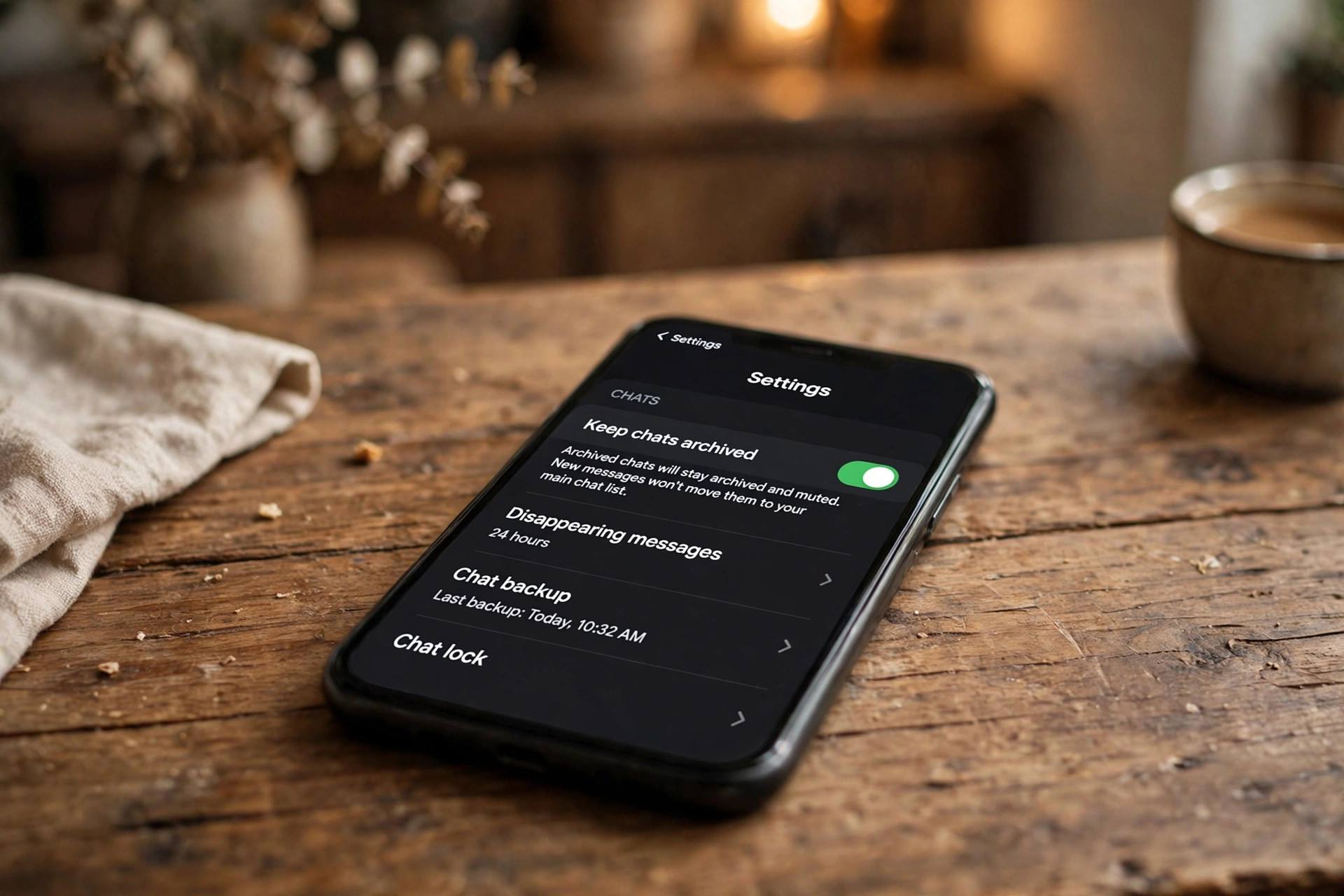
Here’s the setting that determines whether archiving actually works the way you expect. Under Settings, then Chats, there’s a toggle called Keep chats archived:
- On (recommended): new messages from archived chats stay in the Archived folder. The chat only returns to your main list if you unarchive it manually or someone mentions/@s you in a group. This is the “file it and forget it” behavior most people want.
- Off: any new message yanks the chat straight back into your main list, unarchived. This was the old default behavior, and it made archiving nearly useless for active chats.
If your archived chats keep reappearing, this toggle is almost certainly off. Flip it on and the problem disappears.
Smart Ways to Use Archiving
- The annual declutter: once or twice a year, scroll your chat list and archive everything you haven’t opened in months. Takes ten minutes, feels amazing.
- Project chats: wedding planning group, apartment-hunting thread, the fantasy football league — archive when the project ends instead of leaving digital corpses in your list.
- Low-priority people: the acquaintance you reply to twice a year doesn’t need main-list real estate. Archive them; you’ll still see their messages when you check the folder.
- Work-life separation: archive work chats on Friday evening, unarchive Monday morning. Your weekend chat list becomes purely personal. (Combine with muting for the full effect.)
- Before handing your phone to someone: archiving sensitive chats is faster than deleting and far less suspicious than a locked app — though for real privacy, use proper app locks, not just archiving.
What Archiving Doesn’t Do
A few honest limitations: archiving doesn’t stop messages from arriving — if someone messages you constantly, the Archived folder just accumulates them. It doesn’t hide the chat from WhatsApp Web or linked devices (the Archived folder syncs everywhere, which is good). It doesn’t reduce storage usage — archived chats with years of photos and videos still occupy the same space; only deleting media or chats frees storage. And it doesn’t notify or affect the other person in any way — which is exactly the point.

Archiving Group Chats: Special Notes
Groups archive just like individual chats, with two quirks worth knowing. First, if Keep chats archived is on, a group only pops back to your main list when someone @mentions you specifically — regular messages stay filed. Second, you can archive a group without leaving it: you still receive everything, you’re still a member, but it’s out of sight. This is the ideal setup for the family group that’s 90% good-morning images — stay in it, never see it unless you choose to. Exiting a group notifies everyone and can cause drama; archiving is the drama-free alternative.
Archiving, Backups, and Switching Phones
A question I hear a lot: if I archive chats and then switch phones, do the archived chats survive? Yes — archiving is just an organizational flag, and it transfers with your chat backup like everything else. Restore your backup on the new phone and your Archived folder is intact, chats still filed. One caveat: the Keep chats archived toggle is a setting, not chat data — double-check it’s still on after a fresh install, since settings occasionally reset. Also note that archived status doesn’t transfer if you switch platforms via unofficial methods, but the official move-to-iOS / move-to-Android tools preserve it. Either way, nothing archived is ever at risk of deletion — the worst case is a chat landing back in your main list, which takes two taps to re-file.
The Archive + Mute Combo: Maximum Peace
For chats you want fully out of sight and out of mind, combine archiving with muting. Archive hides the chat; mute (set to “Always”) kills the notification badge that would otherwise show a count on the Archived folder. Together, the chat effectively ceases to exist until you deliberately go looking — no visual clutter, no red badges, no buzzes. I use this for: the neighborhood group with 200 daily messages, work channels during vacations, and any group I’m socially obligated to stay in but don’t need to read. It’s the closest WhatsApp gets to a “do not disturb” list, and unlike leaving groups, nobody’s feelings get hurt.
Teaching Someone Less Tech-Savvy to Archive
If you’re setting this up for a parent or grandparent drowning in forwarded good-morning messages, keep it to three steps: (1) show them the long-press-and-archive gesture on one chat, (2) show them where the Archived folder lives at the top of the chat list, and (3) turn on Keep chats archived for them. Don’t explain mute, labels, and disappearing messages in the same sitting — that’s how you get the “just do it for me” response and a phone you now maintain forever. One skill per visit. They’ll be archiving like a pro by the third family gathering.
Archive Etiquette: The Social Side of Filing Chats Away
Archiving is invisible, but your behavior after archiving isn’t. If you archive a friend’s chat and then take three weeks to reply, the archive didn’t cause the awkwardness — the slow reply did. A few social guidelines: don’t use archiving to ghost people you owe answers to; the chat is hidden from you, not from the expectation. For group chats you’ve mentally checked out of, consider whether leaving honestly is kinder than silently archiving — close friends notice absence either way. And if someone asks “did you get my message?”, “it got buried, sorry” is true whether the chat was archived or not. The tool is neutral; the manners are yours. Used well, archiving just means your attention goes where you actually intend it — which is the whole point.
Frequently Asked Questions
How do I archive chats on WhatsApp?
On Android, long-press the chat and tap the archive icon (box with a downward arrow). On iPhone, swipe left on the chat and tap Archive. Archived chats move to the Archived folder at the top of your Chats tab. Nothing is deleted and nobody is notified.
Will the other person know if I archive their chat?
No. WhatsApp doesn’t notify anyone when you archive a chat. From their side, absolutely nothing changes — your messages still deliver, read receipts still work normally, and your profile looks the same.
Do archived chats come back when someone messages me?
It depends on your “Keep chats archived” setting (Settings, then Chats). With it on — the recommended setup — new messages stay in the Archived folder and the chat doesn’t return to your main list. With it off, any new message pulls the chat back out.
What’s the difference between archiving and muting on WhatsApp?
Archiving hides the chat from your main list; muting silences its notifications. They’re independent — you can do either or both. Muted chats stay visible; archived chats stay notifying (unless also muted). For a chat you want fully out of mind, archive and mute it.
Can I archive all WhatsApp chats at once?
Yes. Go to Settings, then Chats, then Archive all chats. This archives every conversation in one tap — useful for a total reset. Individual chats can be unarchived afterward as needed. Note this doesn’t archive anything already archived; it just files the rest.
Does archiving chats free up storage space?
No. Archiving only reorganizes — the messages, photos, and videos still live on your phone. To free space, go to Settings, then Storage and Data, then Manage Storage, where you can delete large files chat by chat without losing the conversations themselves.