How to Hide Last Seen on WhatsApp (Full Privacy Setup)

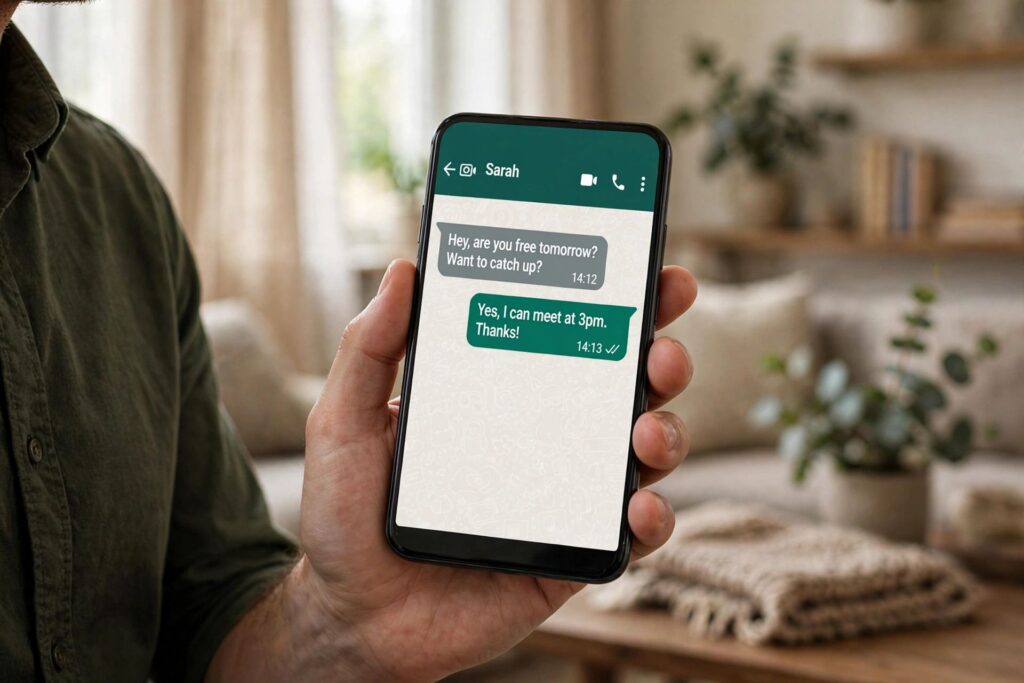
There’s something freeing about opening WhatsApp without the whole world knowing you were “last seen at 2:47 a.m.” If you’ve ever hesitated to check a message because someone would notice, here’s how to hide last seen on WhatsApp — a setting buried just deep enough that plenty of people never find it. I changed mine years ago and never looked back.
Last Seen is that little line under a contact’s name showing when they last opened the app. It’s also tied to your online status — the “online” indicator that appears while you’re actively in the app. WhatsApp lets you control both from the same screen, and understanding the difference matters before you start toggling.
How to Hide Last Seen on WhatsApp
- Open WhatsApp and go to Settings (gear icon on iPhone; three-dot menu, then Settings, on Android).
- Tap Privacy.
- Tap Last Seen and Online.
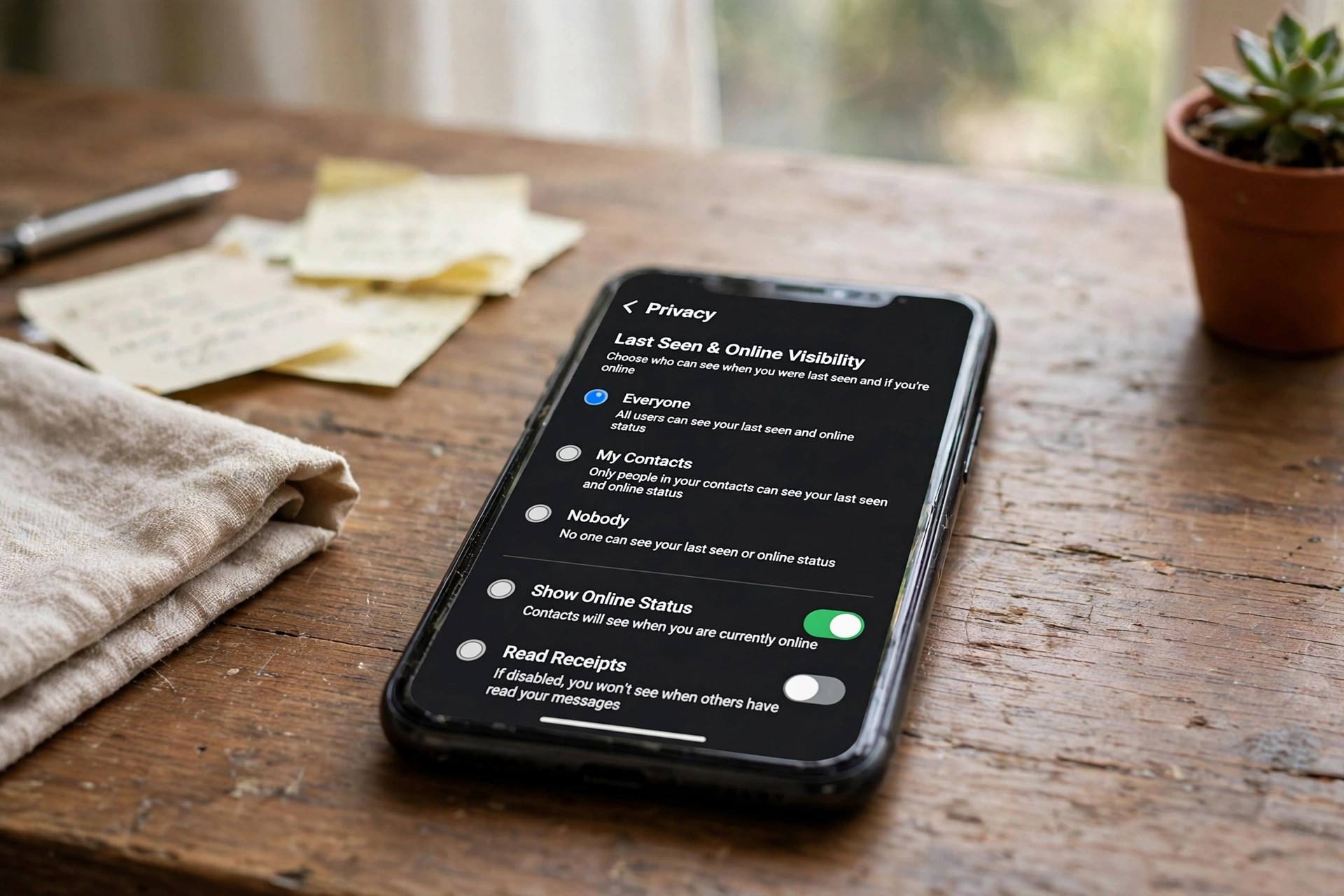
- Under “Who can see my last seen,” choose Nobody, My Contacts, My Contacts Except…, or Everyone.
- Under “Who can see when I’m online,” pick Everyone or Same as last seen.
Most people who want privacy pick Nobody for Last Seen and Same as last seen for online. That combination hides both indicators from everyone.
What Each Option Means
- Everyone: anyone with your number (even strangers) sees your Last Seen. This is the default — worth changing if you’ve never touched it.
- My Contacts: only people in your address book see it.
- My Contacts Except…: everyone in your contacts except specific people you exclude. Great for hiding from one or two people without going fully private.
- Nobody: no one sees your Last Seen, period.
The Trade-Off Nobody Mentions
Here’s the part people miss: hiding your Last Seen also hides everyone else’s from you. Set it to Nobody and you can’t see anyone’s Last Seen either. WhatsApp enforces reciprocity here just like it does with read receipts. turning off read receipts if you want the full privacy setup. Decide whether the trade is worth it — for most privacy-minded people, it is.
Hiding “Online” vs. Hiding “Last Seen”
These are siblings, not twins. “Last Seen” is the timestamp shown when you’re not in the app. “Online” is the live indicator while you are using it. Setting both to private gives you the full stealth mode: nobody sees when you were last active, and nobody sees you active in real time. Note that even with everything hidden, people can still see you typing… in an open chat — WhatsApp has no setting for that.
When Hiding Last Seen Actually Matters
- Late-night messaging: no more explaining a 3 a.m. timestamp.
- Work boundaries: colleagues can’t track when you’re active outside hours.
- Awkward social math: “you were online but didn’t reply” conversations disappear.
- Strangers: with the default “Everyone” setting, anyone who has your number — including spam contacts — can monitor your activity patterns. Switching to “My Contacts” or “Nobody” closes that.
Hiding Last Seen on Android vs. iPhone: Exact Steps
On Android
- Open WhatsApp, tap the three-dot menu, then Settings.
- Tap Privacy.
- Tap Last seen and online.
- Choose who sees your Last Seen: Everyone, My Contacts, My Contacts Except…, or Nobody.
- Choose who sees your online status: Everyone, or Same as last seen.
On iPhone
- Open WhatsApp, tap Settings (bottom right).
- Tap Privacy.
- Tap Last Seen and Online.
- Same four options for Last Seen, same two for online status.
The setting syncs to WhatsApp Web and desktop automatically — no separate configuration needed.
“My Contacts Except…”: The Surgical Option
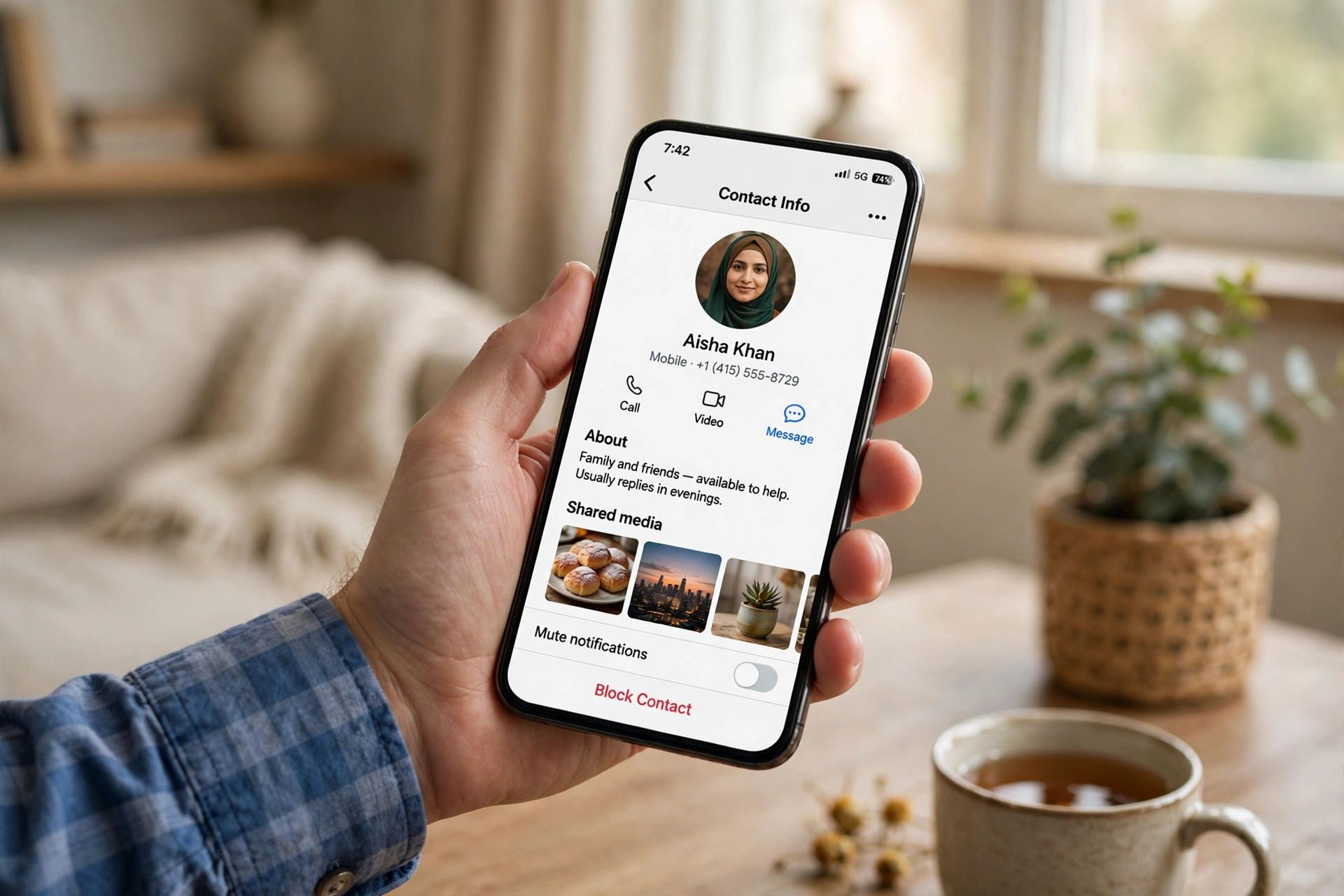
Most guides stop at “set it to Nobody,” but the most useful option is often My Contacts Except… It lets you hide your Last Seen from specific people — a nosy relative, a clingy ex, a coworker — while everyone else sees it normally. Nobody gets a notification that they’ve been excluded; they just see no timestamp, exactly as if you’d set it to Nobody. To use it:
- In the Last Seen screen, select My Contacts Except….
- Tick the contacts you want to exclude.
- Confirm. Done.
Revisit the list occasionally — it doesn’t update itself when your relationships do.
Blocking vs. Hiding: Know the Difference
People sometimes hide their Last Seen when what they actually want is to block someone. Quick comparison:
- Hiding Last Seen: the person can still message you, see your profile photo (depending on settings), and see you in groups. They just can’t see your activity timestamps.
- Blocking: they can’t message or call you, can’t see your Last Seen, online status, status updates, or profile photo changes. It’s total.
If someone’s behavior is the problem — harassment, spam, relentless messaging — hiding your timestamp won’t fix it. Block them: open the chat, tap their name, scroll down, and tap Block. Privacy settings manage visibility; blocking manages access.
The Complete WhatsApp Privacy Checklist
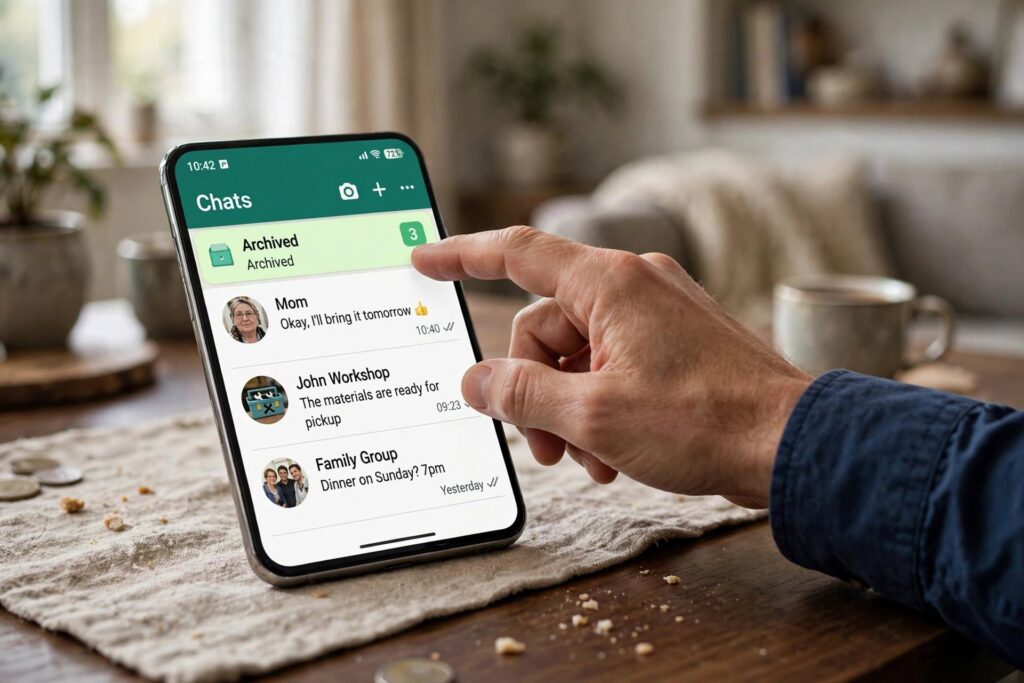
Last Seen is the setting people ask about most, but it works best as part of a full pass through Settings, then Privacy:
- Last Seen and Online: Nobody (or My Contacts Except…), per this guide.
- Profile Photo: My Contacts.
- About: My Contacts.
- Status: My contacts except… — curate the exclusions.
- Read receipts: off. turning off read receipts
- Groups: My Contacts — stops random group adds.
- Live location: never share it indefinitely; use 1-hour shares when needed.
- Disappearing messages: set a default timer if you like chats that clean up after themselves.
- Two-step verification: not a visibility setting, but the single most important WhatsApp security toggle. Turn it on under Settings, then Account.
Troubleshooting: Last Seen Still Visible?
- You set “My Contacts” but they’re not in your contacts: anyone not saved in your address book still sees nothing — wait, that’s the point. But if a specific person can still see it, check they’re actually saved as a contact, or switch to “My Contacts Except…” and exclude them directly.
- Online status still shows: you restricted Last Seen but left online visibility on “Everyone.” Set it to “Same as last seen.”
- They see “typing…”: no setting hides the typing indicator in an open chat. Close the chat if you don’t want them to know you’re composing.
- Changes not applying: force-close and reopen WhatsApp, and check your connection — privacy settings sync to WhatsApp’s servers, and a failed sync can leave the old setting active.
Last Seen Myths That Won’t Die
- “There’s an app that shows hidden Last Seen.” No legitimate app can. WhatsApp doesn’t send your Last Seen to anyone you’ve hidden it from — there’s nothing for a third-party app to intercept. Apps claiming otherwise are scams, often harvesting your contacts or credentials. Never grant them access.
- “Hiding Last Seen makes you invisible.” It hides two specific indicators. Your profile photo, status updates, group activity, “typing…” indicator, and message delivery all still work normally.
- “WhatsApp Web ignores the setting.” It doesn’t. The privacy setting is account-level and applies across phone, web, and desktop.
- “People can tell you’ve hidden it specifically from them.” With “My Contacts Except…,” excluded people see exactly what “Nobody” looks like — no timestamp. There’s no “hidden from you” badge.
Last Seen on Linked Devices and WhatsApp Web
If you use WhatsApp on multiple devices, good news: the Last Seen setting is tied to your account, not your phone. Set it once on your primary device and it applies to WhatsApp Web, the desktop app, and companion phones. One caveat: if a linked device was connected before you changed the setting and hasn’t synced since, it can briefly show stale information. Force a sync by opening WhatsApp on your phone with a data connection after changing any privacy setting. And remember that an active WhatsApp Web session shows you as “online” on the phone side while you’re using it — the online-visibility setting governs who sees that, so set it to “Same as last seen” if you want consistency.
Teaching Family Members to Set This Up
If you’re configuring this for a parent or grandparent, two tips from experience: first, change the setting with them rather than for them, narrating each tap — otherwise the first accidental settings wander leaves them lost. Second, explain the reciprocity trade-off in plain terms (“you won’t see when others were last online either”) before they notice and think something broke. The number-one support call after this change is “WhatsApp is broken, I can’t see anyone’s last seen anymore.” A thirty-second explanation upfront saves the call.
What “Last Seen Recently” Means
Sometimes instead of a timestamp you’ll see vague labels like “last seen recently,” “within a week,” or “within a month.” These appear when someone has restricted their Last Seen visibility from you — WhatsApp shows a fuzzy range instead of nothing at all in some versions of the app. It means the same thing as a hidden timestamp: they’ve chosen not to share precise activity info with you. Don’t read more into it; it’s the privacy setting working as designed, not a glitch or a partial block.
Privacy Settings After Changing Phones
Good news for upgraders: WhatsApp privacy settings — including Last Seen — are tied to your account and restore with your chat backup when you move to a new phone. You don’t need to reconfigure them. The one exception is if you register a completely new number, which creates a fresh account with default (public) settings. So after a number change, walk through the Privacy screen once and re-lock everything down. It takes two minutes and it’s easy to forget in the chaos of a new device.
Frequently Asked Questions
How do I hide my last seen on WhatsApp?
Go to WhatsApp Settings, then Privacy, then “Last Seen and Online.” Set “Who can see my last seen” to Nobody (or My Contacts Except… to exclude specific people), and set the online visibility to “Same as last seen.” Changes take effect immediately.
If I hide my last seen, can I still see other people’s?
No. WhatsApp makes this reciprocal: hiding your Last Seen from everyone means you can’t see anyone else’s either. The same rule applies to read receipts.
Can people still see when I’m online if I hide last seen?
They can, unless you also restrict the “online” setting. Set “Who can see when I’m online” to “Same as last seen” to hide both. Even then, the “typing…” indicator still appears in open chats.
Does hiding last seen hide me from group chats?
Your Last Seen setting applies everywhere, but group chats still show your messages and activity within the group normally. Nobody can see a timestamp of your app usage, but your participation in the group is still visible — that’s how groups work.
Why can’t I see someone’s last seen?
Either they’ve restricted it in their privacy settings, they’ve blocked you, or there’s no conversation history. If you recently changed your own setting to Nobody, that’s also why — it’s reciprocal, remember.
Will hiding last seen affect my chats or messages?
Not at all. Messages send, deliver, and arrive exactly the same. This setting only controls the visibility of your activity timestamps — nothing about how WhatsApp functions changes.