How to Share Location on WhatsApp (Live or Just Once)

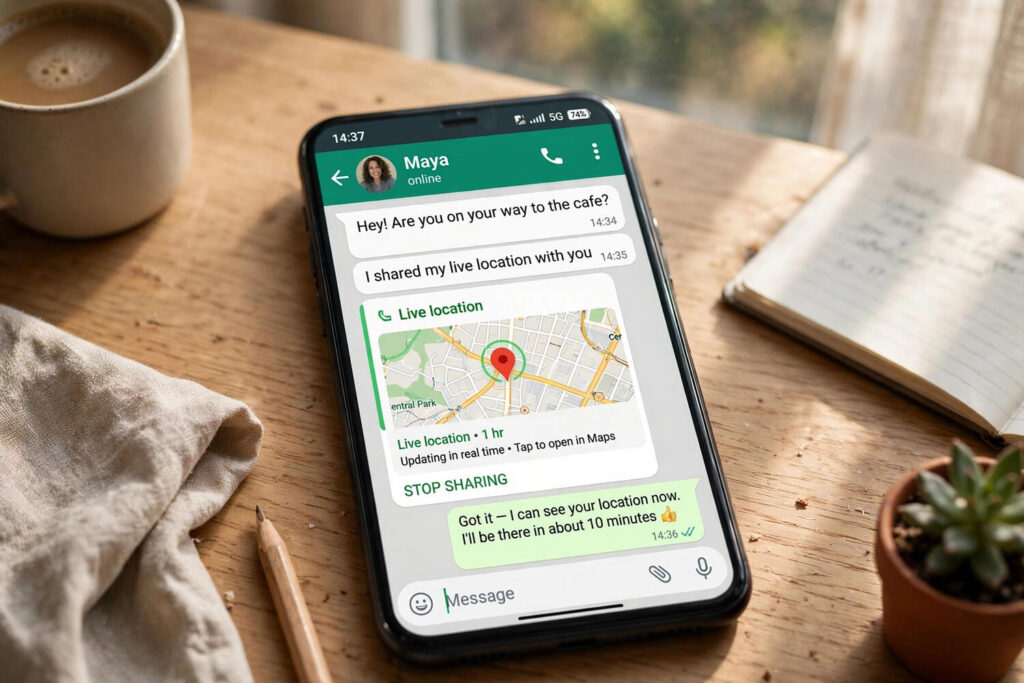
“I’m outside” is the least useful message in modern life. Outside where? Which entrance? I have spent twenty minutes circling a mall parking lot because someone’s “I’m here” contained zero actionable information. WhatsApp’s location sharing fixes this completely — one tap sends a precise map pin, or a live dot that moves with you in real time until you stop it. I use it for airport pickups, finding friends at festivals, and letting family track my late-night cab ride home. Here is how to share location on WhatsApp on both iPhone and Android, the difference between the two sharing modes, and the privacy settings you should know about.
Live Location vs. Current Location: Know the Difference
WhatsApp offers two kinds of location sharing, and picking the wrong one causes confusion. Current location sends a single static snapshot — a map pin of where you are right now, frozen in time. Use it for “meet me here” situations: the restaurant entrance, your parked car, the Airbnb. The recipient gets a pin they can tap to open in their maps app and navigate to.
Live location shares your real-time position for a duration you choose — 15 minutes, 1 hour, or 8 hours — updating as you move. The recipient watches your dot travel along the map. Use it for “I’m on my way” situations: someone tracking your arrival, coordinating a moving meetup, or safety check-ins during travel. Live location keeps updating in the background until the timer expires or you stop it manually, and everyone in the chat can see it — in group chats, multiple people can share live location simultaneously, each with their own dot.
How to Share Location on WhatsApp: iPhone
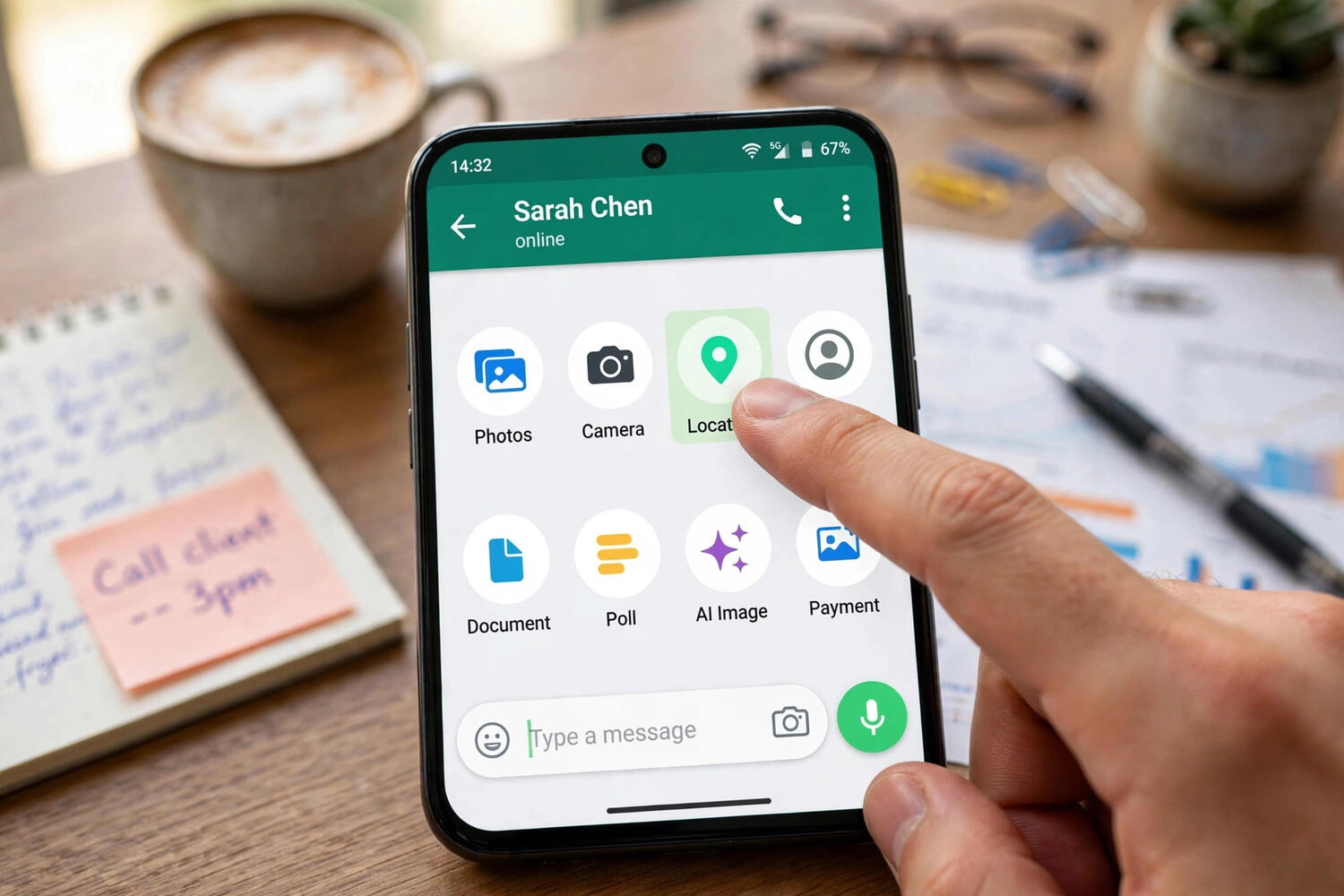
Open the chat with the person or group. Tap the + button to the left of the message field, then tap Location. If this is your first time, iOS will ask for location permission — choose “While Using the App” at minimum; live location needs background updates, so “Always” works more reliably, though WhatsApp functions with the lesser permission while the app is open.
You will see a map with your position and two options at the bottom: Share Live Location and Send Your Current Location. For live location, tap it and choose 15 minutes, 1 hour, or 8 hours, optionally add a comment (“in the blue Honda”), and send. For a static pin, tap Send Your Current Location. You can also search for a nearby place — a restaurant, station, landmark — and send that instead of your exact coordinates, which is handy when “my location” is less useful than “the place we’re meeting.”
How to Share Location on WhatsApp: Android
The flow is nearly identical. Open the chat, tap the attach (paperclip) icon, then Location. Grant location permission when prompted. Choose Share live location with your duration, or Send your current location for the static pin. The nearby-places search works the same way.
One Android-specific note: aggressive battery optimization on some phones (particularly Xiaomi, Oppo, and Vivo) can kill WhatsApp’s background location updates, making live location freeze or stop early. If your live location keeps dying, go to Settings > Apps > WhatsApp > Battery and set it to Unrestricted, and check that location permission is set to “Allow all the time” for reliable background tracking.
How to Stop Sharing Live Location
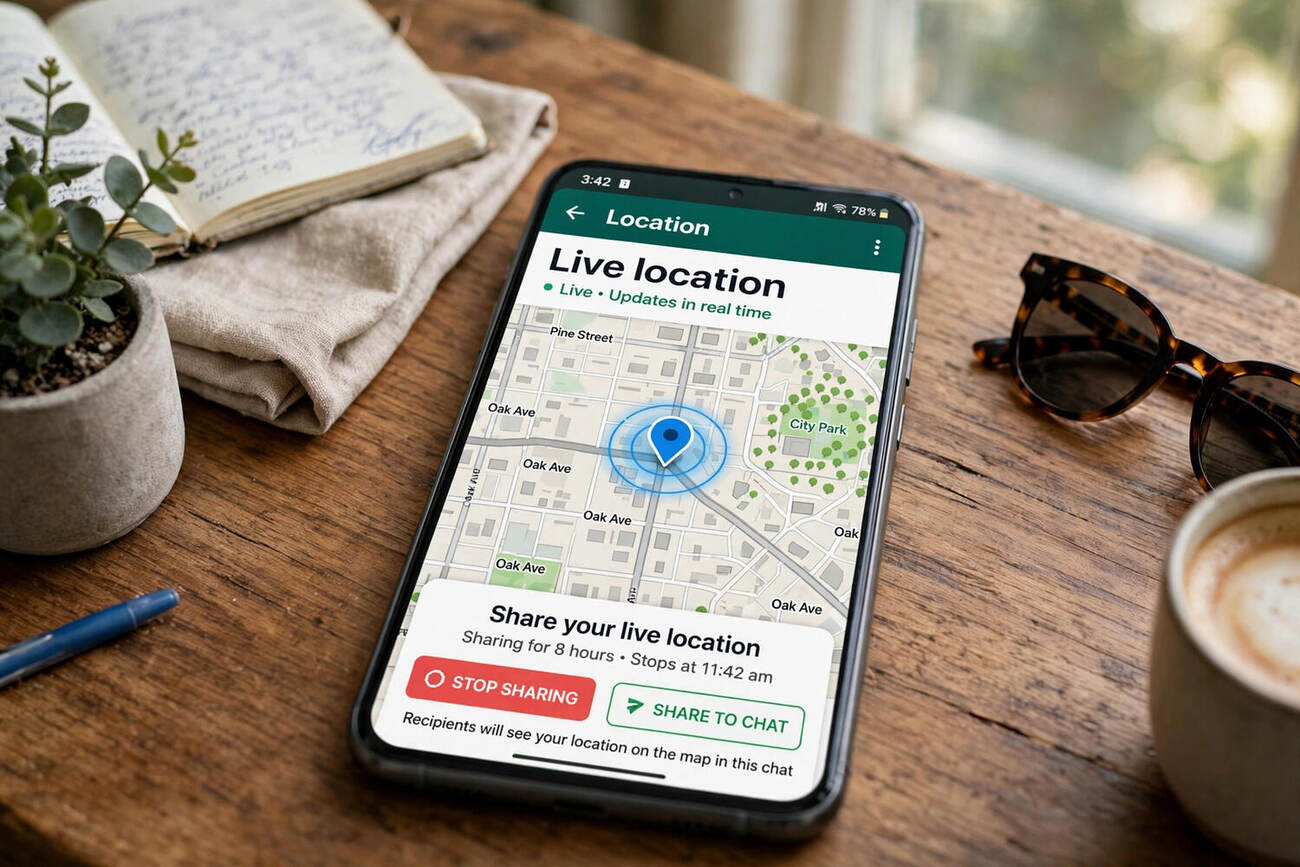
Open the chat where you are sharing, tap the live location message, and tap Stop Sharing. It stops immediately for everyone in that chat. You can also stop all live location sharing at once: go to WhatsApp Settings > Privacy > Live Location and tap Stop Sharing — useful when you have forgotten which chats are still tracking you. The timer expiring stops it automatically, so the 15-minute option is effectively self-cleaning.
Worth knowing: stopping is instant and silent — the recipient just sees the dot stop updating. There is no “Sophia stopped sharing” announcement, which avoids awkwardness but means you should tell people if they are actively navigating to you.
Privacy: What You Are Actually Sharing
Location sharing on WhatsApp is end-to-end encrypted like everything else in your chats — only the people in the conversation can see it, not WhatsApp or Meta. That said, think before you share. Live location in a group chat is visible to every member, including that one person you barely know. An 8-hour share you forgot about keeps broadcasting long after the need ended. My personal rules: default to 15 minutes, use current location instead of live whenever a static pin suffices, stop sharing the moment its purpose is served, and never share live location in groups with people you would not hand your address to.
Also note the metadata reality: your phone’s location services must be on for any of this to work, and the precision depends on GPS signal. Indoors or in dense cities, the pin can be off by a block — fine for meetups, not for surgery.
Troubleshooting When Location Sharing Fails
Location option is missing? Update WhatsApp — very old versions lack the feature. Also check that location services are enabled at the OS level; WhatsApp cannot offer what the phone denies.
Live location freezes or stops early? Battery optimization killing the background process is the usual cause on Android (see the fix above). On iPhone, make sure Background App Refresh is on for WhatsApp and location permission is not set to “Ask Every Time.”
Pin is wildly inaccurate? You are probably indoors or between tall buildings where GPS struggles. Step outside for a moment, or switch to sending a searched nearby place instead of your raw coordinates.
Recipient cannot open the location? They need a reasonably current WhatsApp version too, plus a maps app to navigate with. The location message itself renders inside WhatsApp regardless.
Sharing Location in WhatsApp Groups
Group location sharing is where the feature shines brightest — and where it needs the most care. In a group chat, tap + or the paperclip, then Location, exactly as in a one-to-one chat. Multiple members can share live location simultaneously, and the map shows everyone’s dot at once, each labeled. For festival meetups, group hikes, wedding guest coordination, or a family road trip in multiple cars, this is transformative: no more “where are you??” message storms.
The caution is proportional to the convenience. Every group member sees your live dot — including people you might not share it with individually. Before sharing in a group, glance at the member list and ask whether you are comfortable with all of them knowing your precise movements for the next hour. For large or loose groups, prefer sending a static current-location pin (“here’s where I am”) over live tracking. And when the event ends, stop sharing; group chats have long memories and longer membership lists.
Using Shared Locations for Navigation
Receiving a location is only half the feature — using it well is the other half. Tap any shared location message and WhatsApp shows it on a map with the sender’s name; tap again to open it in your default maps app (Google Maps or Apple Maps) for turn-by-turn navigation. For live locations, the map updates in real time, showing both your position and theirs converging — genuinely useful when directing a lost driver to your exact spot.
A few practical notes: the shared pin’s accuracy depends on the sender’s GPS, so in dense downtowns allow for a block of error and use landmarks in the chat (“I’m by the north entrance”). If someone sends a searched place instead of their coordinates — the restaurant rather than their phone’s position — navigate to the place; it is usually more useful than raw coordinates anyway. And if you are the one being navigated to, stay put once you have shared: a moving target with a static pin is how twenty-minute delays happen.
Location Sharing Alternatives Worth Knowing
WhatsApp is not the only option, and sometimes it is not the best one. Google Maps location sharing runs longer — up to 24 hours or indefinitely until stopped — and works for people without WhatsApp; it is the better choice for multi-day trip coordination. Apple’s Find My is the smoothest option inside the Apple ecosystem, with precise sharing among family members and no chat app involved. Telegram offers live location too, with similar durations.
So when is WhatsApp the right call? When the coordination is already happening in a WhatsApp chat — which, for most of life, it is. The best tool is the one everyone already has open. Switching apps mid-plan loses people; sharing location in the chat where the plan lives keeps everyone together. Use the dedicated tools for dedicated needs (a week-long family trip = Google Maps or Find My), and use WhatsApp for everything conversational. Match the tool to the social context, not just the technical spec.
When Live Location Actually Matters: Real Safety Scenarios
Location sharing is a feature most people set up once and forget. But in specific situations it is genuinely one of the most useful safety tools on your phone.
Solo travel and late-night rides. Before getting into a ride-share or taxi in an unfamiliar city, start an 8-hour live location share with a trusted contact. If anything goes wrong, someone knows exactly where you are — and honestly, the habit alone makes you a harder target.
Hiking and outdoor meetups. Share live location with your hiking group for the duration of the trek. Coverage is unreliable in the hills, but WhatsApp keeps retrying, and the last known position updates the moment you regain signal.
Kids and elderly parents. For a teenager walking home after dark or a parent with memory issues, a standing live location share during the journey gives peace of mind without a phone call every ten minutes. Agree on the arrangement first — tracking someone without their knowledge crosses a line, no matter how good the intention.
Coordinating in crowds. Festivals, markets, tourist sites: share live location with your group instead of texting “where are you?” forty times. It is the least dramatic use case and the one you will use most.
The common thread: decide before the situation who gets your location and for how long. Set it up once, and in the moment you need it, it is already running.
Frequently Asked Questions
How do I share my live location on WhatsApp?
Open the chat, tap + (iPhone) or the paperclip (Android), tap Location, then Share Live Location and choose 15 minutes, 1 hour, or 8 hours.
What’s the difference between live location and current location?
Current location sends one static map pin of where you are now. Live location shares your real-time moving position for a set duration, updating as you travel.
Can I stop sharing live location before the time ends?
Yes — tap the live location message in the chat and tap Stop Sharing. Or stop everything at once via Settings > Privacy > Live Location.
Is WhatsApp location sharing private?
It’s end-to-end encrypted, so only chat participants can see it. But everyone in the chat can see it — be careful with live location in group chats.
Why does my WhatsApp live location keep stopping?
Usually battery optimization killing WhatsApp in the background. On Android, set WhatsApp’s battery usage to Unrestricted; on iPhone, enable Background App Refresh.
Does sharing location on WhatsApp drain battery?
Live location uses GPS continuously, so yes, it drains battery faster than normal while active. Static current-location shares use negligible battery.