How to Change Your WiFi Password: Any Router, Any Brand

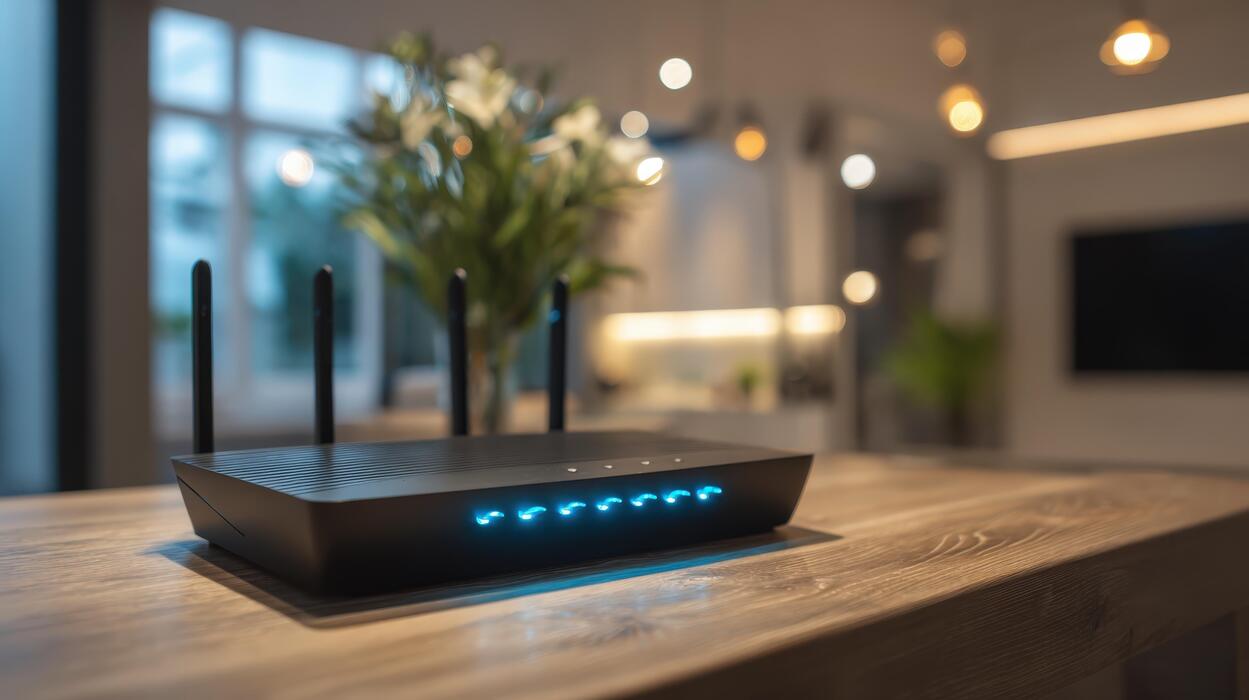
Learning how to change your WiFi password is one of those tasks that sounds trivial until you are staring at a router login page asking for credentials you have never seen. I test networking gear and smart-home devices for a living, so I log into routers constantly — and I can tell you the process is the same on nearly every brand: find the router’s address, log in, open the wireless settings, change the password, reconnect everything. This guide covers that universal method step by step, the brand-specific login addresses for Asus, Netgear, TP-Link, and Linksys, and — crucially — what to do when you are completely locked out.
Why bother changing it? Three good reasons: the default password printed on the router is often weak or widely known, anyone you ever shared the old password with still has access, and a fresh strong password is the single most effective home-network security step. Change it once a year, and any time someone untrustworthy had access.
How to Change Your WiFi Password: The Universal Method
Every consumer router works roughly the same way. Follow these steps:
Step 1: Find your router’s admin address
- Windows: open Command Prompt, type ipconfig, and look for “Default Gateway” — usually 192.168.1.1 or 192.168.0.1.
- Mac: System Settings → Wi-Fi → Details on your network → look for Router.
- iPhone/Android: Wi-Fi settings → tap your connected network → look for Router/Gateway IP.
- Or check the sticker on the router itself — most print the admin address and default credentials there.
Step 2: Log into the router
Type the gateway address into a browser (connected to the router’s network — WiFi or ethernet). Enter the admin username and password. If you never changed them, try the sticker defaults, or the classics: admin/admin, admin/password, or just admin with a blank password. If none work and you did not set them, someone did — skip to the locked-out section below.
Step 3: Open the wireless settings
Look for a section called Wireless, Wi-Fi Settings, or Wireless Security. On dual-band routers you will see separate 2.4 GHz and 5 GHz sections — change the password on both (you can use the same password for both bands).
Step 4: Change the password and save
Find the Password, Passphrase, or Pre-Shared Key field, enter the new password, and save/apply. The router may reboot — that is normal.
Step 5: Reconnect everything
Every device on the network will disconnect and need the new password — phones, laptops, TVs, smart speakers, thermostats, all of it. This is the tedious part. Do it methodically, room by room, and you will catch everything.
Choosing a Strong WiFi Password
- Length beats complexity: a 20-character passphrase of random words beats an 8-character symbol salad and is easier to type into a TV remote.
- WPA2 or WPA3: while you are in the wireless settings, confirm the security mode is WPA2-Personal (AES) or WPA3 — never WEP or “Open,” which are effectively no security at all.
- Do not reuse a password from another account. WiFi passwords get shared with guests; keep them unique.
- Write it down somewhere sensible: a password manager, or a card taped inside a kitchen cabinet — physical access to your home is a much smaller threat than a weak password.
Brand-Specific Login Addresses and Defaults
- Asus: router.asus.com or 192.168.1.1. Default credentials are on the router sticker; newer models force you to set them on first setup.
- Netgear: routerlogin.net or 192.168.1.1. Default is usually admin/password (older) or sticker credentials (newer). Netgear also pushes its Nighthawk app, which can change the WiFi password without the browser login.
- TP-Link: tplinkwifi.net or 192.168.0.1. Defaults are commonly admin/admin on older models, sticker credentials on newer ones. The Tether app is the easiest path on current models.
- Linksys: myrouter.local or 192.168.1.1. Linksys Smart Wi-Fi accounts (created at first setup) are used instead of local passwords on recent models — check the Linksys app first.
Tip: every major brand now has a companion app (Asus Router, Nighthawk, Tether, Linksys) that handles password changes with far less friction than the browser interface. If the app is set up, use it — it is the same change, minus the gateway-address detective work. If your router brand is not listed here (Arris, Motorola, Ubiquiti, or an ISP-provided gateway), the universal method still applies unchanged — and the sticker on the device remains the fastest path to the admin address and default credentials.

Should You Change the Network Name (SSID) Too?
Not required, but consider it if the current name is the manufacturer default (NETGEAR-5G, ASUS_5G) — default names advertise your router brand to anyone scanning, which helps attackers pick exploits. A neutral custom name reveals nothing. Avoid personal identifiers in the SSID — your network name is visible to every neighbor, so “SmithFamilyWiFi” is free information. And no, hiding the SSID (disabling broadcast) is not real security; it is trivially bypassed and causes more connection headaches than it prevents.
Guest Networks: The Right Way to Share WiFi
Instead of handing your main password to every visitor, use the guest network — nearly every modern router has one:
- Set it up once: in the router admin, find Guest Network settings, enable it, and give it its own name and password.
- Isolate it: enable “client isolation” or “guest isolation” if offered — guests get internet but cannot see your computers, NAS, printers, or smart-home devices.
- Share freely: give guests the guest password without worry. Change it occasionally; it costs nothing.
- Use it for IoT too: many security-conscious users put smart-home gadgets on the guest network, isolated from their computers — a reasonable precaution given IoT security track records.
This is the single best answer to “should I share my WiFi password”: yes, but not your real one.
Locked Out? How to Recover Router Access
If nobody knows the admin password and the defaults do not work, you have one option: the factory reset.
- Find the reset button: a pinhole on the back or bottom of the router, usually labeled Reset.
- Hold it for 10–30 seconds (with the router powered on) using a paperclip, until the lights blink or reboot. Check your manual — hold times vary.
- Wait for it to fully reboot (two to three minutes), then log in with the sticker defaults.
- Reconfigure from scratch: the reset wipes everything — WiFi name, password, port forwards, custom DNS. Set it all up again, and this time write the admin password down.
Warning: a factory reset also drops your internet connection settings on some ISP setups (PPPoE credentials, VLAN tags). If your ISP required special configuration, have those details handy before you reset — or call your ISP first. Take a phone photo of every settings page before resetting; it makes rebuilding twice as fast.
For context on what all these wireless settings actually mean, my explainer on how WiFi works covers the technology underneath. And if your router is several years old, it may be worth checking what WiFi 6E is — upgrading the router itself is sometimes the real fix for network problems.
When Changing the Password Does Not Fix Your Problem
A new password solves security and freeloaders. It does not solve:
- Slow speeds: usually router placement (central, elevated, away from metal and microwaves), interference from neighboring networks (try a different WiFi channel), or simply an old router struggling with modern device counts.
- Dead zones: a password change does nothing for coverage. Mesh systems or access points do.
- Devices that will not connect at all: often a band issue — some smart-home gadgets only see 2.4 GHz. Temporarily disabling the 5 GHz band during setup, or enabling a separate 2.4 GHz SSID, fixes most of these.
- Frequent disconnects: check for firmware updates first; routers with years-old firmware are a leading cause of flaky connections.
Diagnose before you upgrade: the number of people who buy a new router when the old one just needed a firmware update and a better shelf is staggering.
After the Change: The Reconnection Checklist
- Phones and tablets (the easy ones).
- Laptops and desktops.
- Smart TVs and streaming sticks — the ones everyone forgets until movie night.
- Smart speakers, thermostats, doorbells, cameras — check each manufacturer’s app.
- Printers — WiFi printers are notoriously fiddly; you may need to rerun their wireless setup.
- Guests’ devices — send the new password proactively, or better, set up the guest network (most routers have one) and share that instead.

Frequently Asked Questions (FAQ)
Will changing my WiFi password kick everyone off?
Yes — every connected device disconnects immediately and must reconnect with the new password. Warn the household first, and do it at a low-stakes time, not in the middle of someone’s video call or download.
How often should I change my WiFi password?
Once a year is a sensible cadence for most homes, plus any time someone you do not fully trust had access (ex-roommate, former Airbnb guest, the neighbor you shared it with three years ago). More frequent changes add little security for typical home use.
What is the default router password?
There is no universal default — check the sticker on your router. Common historical defaults include admin/admin and admin/password, but modern routers increasingly use unique per-device passwords printed on the label, which is much safer.
Can I change my WiFi password from my phone?
Yes — either through the router’s browser admin page (type the gateway IP in your phone’s browser while on the WiFi) or, more easily, through the manufacturer’s app (Asus Router, Nighthawk, Tether, Linksys). The app route is strongly recommended.
Does changing the WiFi password make my internet faster?
No — but it can feel that way if unknown devices were hogging your bandwidth. The real effect is security: removing freeloaders and closing access you forgot you granted. For actual speed issues, the problem is usually placement, interference, or an old router.
I forgot my router admin password. What now?
Factory reset via the pinhole button, as described in the recovery section above. There is no backdoor or master password — that is by design. After resetting, set a new admin password and store it in your password manager so this does not happen again.