How to Check Screen Time on iPhone: Full Walkthrough

Figuring out how to check screen time on iPhone is one of those things Apple made powerful but buried just deep enough that most people never look at it. I test phones for a living, and Screen Time is one of the first things I open on any iPhone I review — because the gap between how much people think they use their phone and what the data says is always enormous. Whether you want to cut back, set limits for a kid, or just satisfy your curiosity, this is the complete walkthrough: enabling it, reading the report properly, and fixing it when the data shows up blank.
A quick orientation: Screen Time lives in Settings → Screen Time. It tracks app usage, pickups, and notifications automatically once enabled, and it syncs across your Apple devices signed into the same Apple Account. Everything below assumes a reasonably current iOS version — the layout shifts slightly year to year, but the structure has been stable for a long time.
How to Check Screen Time on iPhone: The 30-Second Method
- Open Settings and tap Screen Time.
- If you see a “Turn On Screen Time” prompt, tap it and follow the setup (choose “This is My iPhone” or “This is My Child’s iPhone”).
- Tap See All App & Website Activity (or “See All Activity” on some versions).
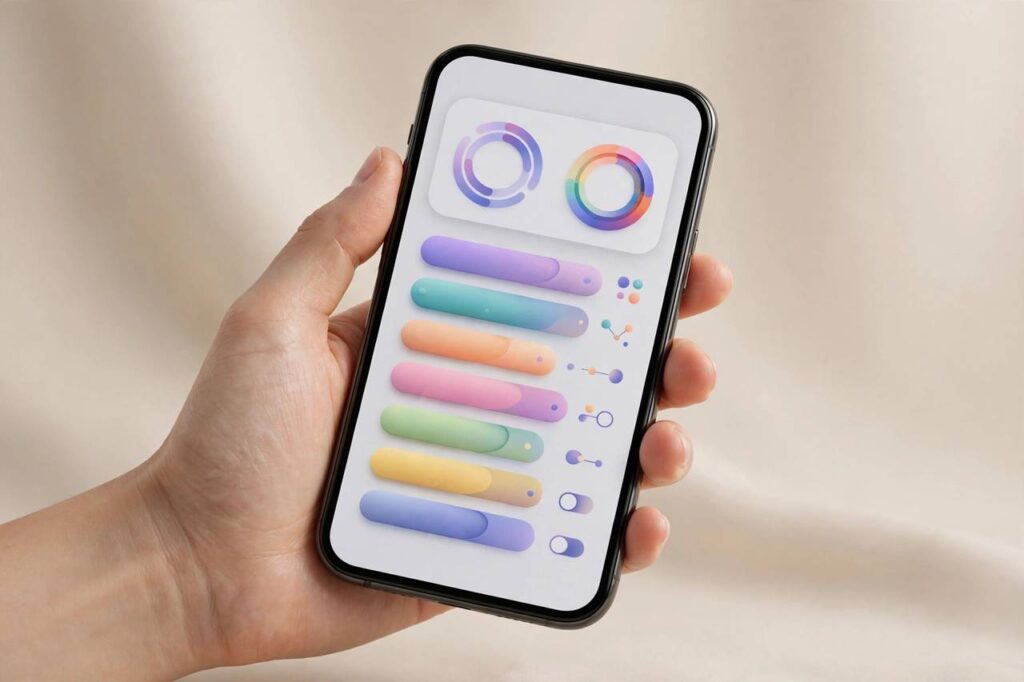
- You are looking at your usage report: total screen time today, broken down by app and category.
That is the whole basic flow. The report defaults to today; tap “Week” at the top to see the seven-day view, and tap any app name for its individual detail — total time, number of pickups, and notification counts.
Reading the Report Like a Pro
The headline number is the least interesting part. Here is what actually matters:
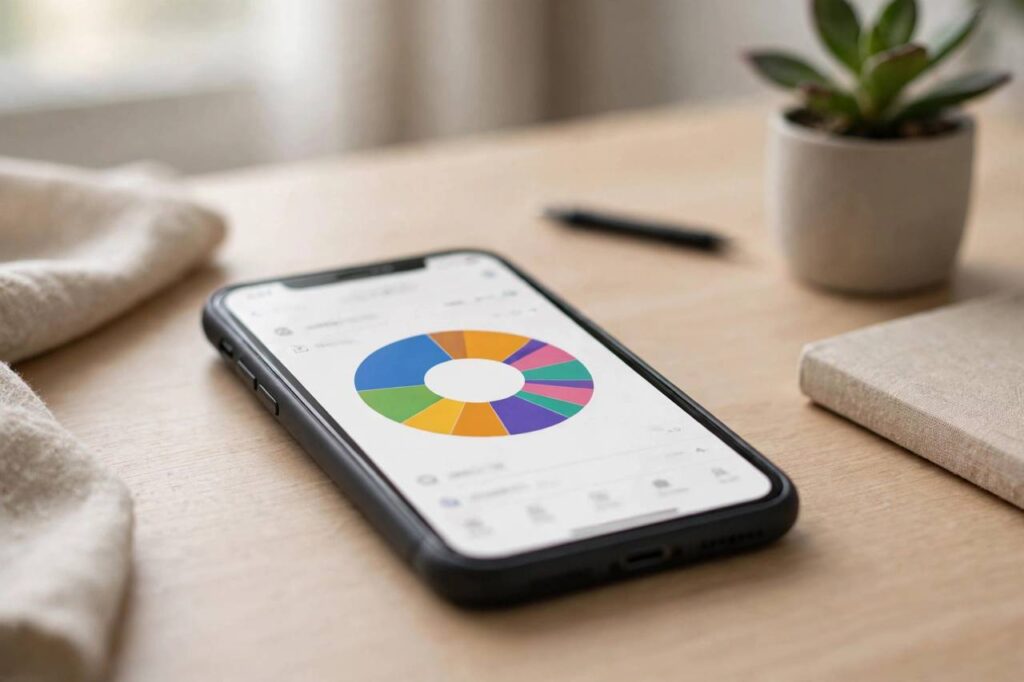
- App breakdown: the bar chart shows where your hours go. Most people discover one or two apps eating triple what they guessed — usually social or video apps. This is the awareness that makes everything else work.
- Pickups: how many times you unlocked the phone, and which app you opened first each time. High pickups with low total time means compulsive checking — the hardest pattern to break and the most worth breaking.
- Notifications: which apps ping you most. Notifications drive pickups, so this is the root cause behind the pickup number. An app sending forty notifications a day is not informing you; it is farming you.
- Category view: groups apps into Social, Entertainment, Productivity, and so on. Useful for spotting that “fifteen minutes of messages” was actually two hours of social.
- Downtime vs. active: the report distinguishes. If your total looks shocking, check how much was genuinely active use versus the phone sitting unlocked.
One more reading tip: compare weekdays to weekends. Many people have a reasonable weekday pattern and a weekend blowout — or vice versa. The weekly view with per-day bars makes this obvious, and the fix differs: weekday overuse usually means notification hygiene, while weekend binges usually mean you need a better default activity competing for that time.
Setting It Up Right: The Options Worth Configuring
- Share Across Devices: in Screen Time settings, turn this on to combine iPhone, iPad, and Mac usage into one report. Without it, each device reports separately and the numbers understate reality.
- Screen Time Passcode: set a four-digit passcode (different from your lock passcode) so limits cannot be casually overridden — essential if the limits are for a child, useful for yourself if you want real friction.
- Downtime: schedule hours (e.g., 10pm–7am) when only allowed apps work. The nuclear option for late-night scrolling, and remarkably effective.
- App Limits: set daily caps per app or category — e.g., 30 minutes for Social. When the limit hits, the app locks (overridable with the passcode, or with a one-tap “ignore” if no passcode is set).
- Communication Limits: control who can be contacted during Downtime — relevant for kids’ devices.
- Content & Privacy Restrictions: the parental-control suite: age ratings, web content filters, purchase restrictions.
When Screen Time Data Is Blank or Wrong: Fixes
Screen Time occasionally shows nothing, or numbers that are obviously wrong. Work through these in order:
- Wait 24 hours after enabling. The most common “bug” is impatience — Screen Time needs a full day of tracking before the report populates meaningfully.
- Check that it is actually on: Settings → Screen Time should show activity options, not the “Turn On” prompt. Family Sharing setups sometimes have it enabled on the organizer’s device but not the child’s.
- Toggle Share Across Devices off and on if numbers look incomplete — this re-syncs the reporting pipeline.
- Check the date and time: wrong device date/time corrupts the daily buckets. Settings → General → Date & Time → Set Automatically.
- Restart the iPhone. The classic fix resolves a surprising number of stuck Screen Time services.
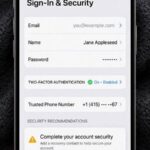
- Sign out and back into your Apple Account as a last resort — this resets the sync state. (Make sure you know your password and have a backup first; see my guide on how to backup an iPhone before doing anything account-related.)
If Screen Time shows data for some apps but not others, that is usually normal — system apps and some background activity report differently, and web usage in private browsing is not tracked.
Using Screen Time to Actually Change Habits
Data without action is trivia. The intervention ladder that works, from least to most aggressive:
- Notifications audit: turn off notifications for every app in your top-notification list that is not messaging from real humans. This alone cuts pickups dramatically for most people.
- One app limit: cap your single biggest time-sink at a reasonable number. Do not cap everything at once — you will just override them all and learn that limits are optional.
- Downtime for sleep: schedule Downtime for your sleep hours. The phone becomes a clock and an alarm, nothing more.
- Grayscale or app removal: for the truly hooked app, delete it from the phone and use the desktop version. Friction is the point.
Review the weekly report every Sunday — two minutes. The people who sustain lower screen time are not the ones with the strictest limits; they are the ones who keep looking at the data.
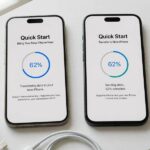
If you are setting all of this up on a brand-new device, my walkthrough for how to set up a new iPhone covers Screen Time as part of the initial configuration, so you can build good defaults from day one.
Screen Time for Kids: What Parents Should Know
Screen Time is also Apple’s parental control system, managed through Family Sharing:
- Set it up from the parent’s device: Settings → Family → child’s name → Screen Time.
- Always set a Screen Time passcode the child does not know — without it, every limit is a suggestion.
- Use Downtime for bedtime and school hours, App Limits for games and social, and Content Restrictions for age-appropriate ratings.
- “Ask to Buy” (in Family Sharing purchase settings) pairs with Screen Time to gate app downloads and in-app purchases.
- Expect an arms race: kids are remarkably creative at finding workarounds (changing time zones to beat Downtime is a classic — which is why the device should use automatic date/time, locked by the passcode).
Screen Time vs. Third-Party Alternatives
Apple’s Screen Time is free, system-level, and cannot be uninstalled — which is exactly why it beats third-party screen-time apps for most people. Third-party apps on iOS are sandboxed: they cannot see system-wide usage the way Screen Time can, so their reports are estimates. Where third-party apps sometimes win is in coaching features — streaks, challenges, social accountability — that Apple does not provide. My take after testing both: use Screen Time for the data and limits (it is more accurate and harder to bypass), and add a third-party app only if you specifically want the motivational layer. Do not pay for a subscription just to see a number Apple shows you for free.
Quick-Start Checklist
If you want the essentials without reading the whole guide twice, do this in order: open Settings → Screen Time and turn it on; enable Share Across Devices; set a Screen Time passcode; look at See All App & Website Activity and note your top three apps; turn off notifications for the worst offender; set one App Limit on your biggest time-sink; schedule Downtime for your sleep hours. That is ten minutes of setup for a system that runs itself — and the Sunday two-minute review is what makes it stick long-term.
Frequently Asked Questions (FAQ)
Why is my Screen Time not showing any data?
The top causes: it was just enabled (wait 24 hours), Share Across Devices is off on one device, or the device date/time is wrong. Work through the fixes in the troubleshooting section above in order — impatience and sync issues cover nearly every case.
Can someone tell if I check their Screen Time?
On a shared family setup, the organizer can view a child’s Screen Time remotely — that is the designed behavior. On your own device, checking your own report notifies nobody. There is no stealth “someone viewed your Screen Time” alert.
Does Screen Time track private browsing?
No. Safari Private Browsing activity is not recorded in Screen Time reports, and most third-party browsers’ private modes are similarly excluded. Screen Time tracks app-level usage, not a complete surveillance record.
How do I turn off Screen Time completely?
Settings → Screen Time → scroll down → Turn Off Screen Time (enter the passcode if one is set). Note this also removes any limits and Downtime schedules — it is all-or-nothing.
Can I see Screen Time for a specific app?
Yes: in the activity report, tap any app name to see its individual stats — daily average, total time, pickups launched from it, and notifications. This is the fastest way to confront exactly how much time one app consumes.
What is the difference between Downtime and App Limits?
Downtime blocks everything except allowed apps during scheduled hours (e.g., bedtime). App Limits cap total daily usage per app or category regardless of time of day. They stack: you can have a 1-hour daily social limit AND Downtime from 10pm to 7am.