How to Pair Bluetooth Headphones: iPhone, Android & Windows

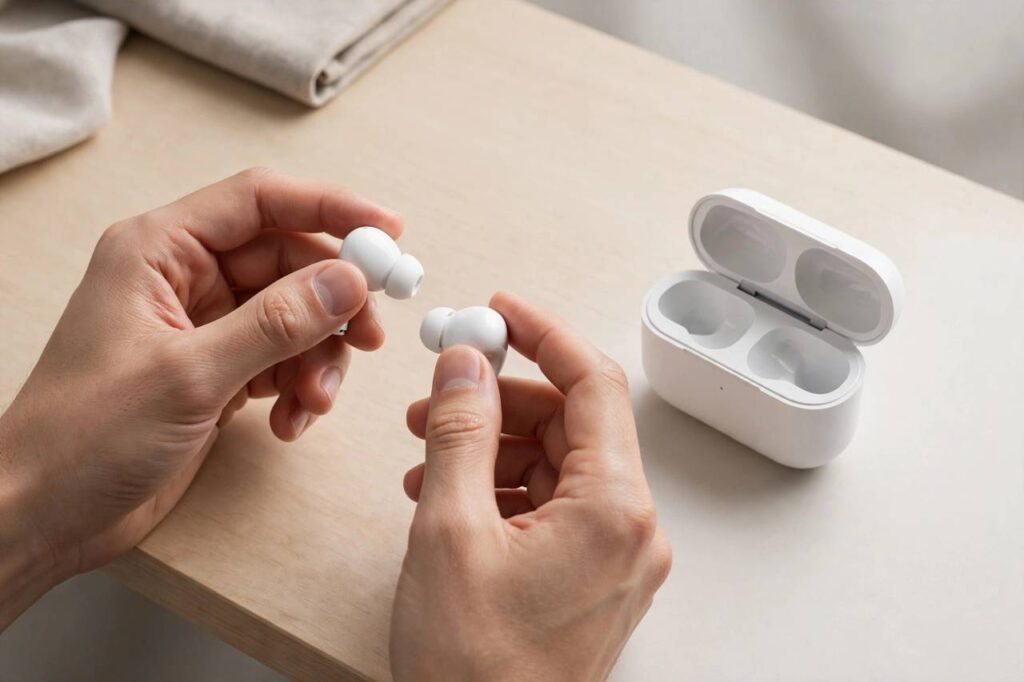
Pairing Bluetooth headphones should take thirty seconds. When it works, it does. But when it does not — when your phone cannot see the headphones, or they connect to your laptop instead, or the sound stutters — it becomes one of those small tech frustrations that ruins a morning. I test phones, headphones, and audio gear for a living, and I have paired hundreds of headphone models across iPhone, Android, and Windows. The process is 90% identical everywhere, and the failures are almost always one of five things. This guide covers the standard method for each platform, then the five common failures and their fixes.
First, the universal principle that explains most pairing confusion: Bluetooth headphones must be in pairing mode to be discoverable. Fresh out of the box, most enter pairing mode automatically the first time. After that, they try to reconnect to the last device — and you have to manually put them back into pairing mode to connect something new. How to do that varies by model (usually holding a button for a few seconds until a light blinks), so check your manual. Ninety percent of “my phone can’t find my headphones” is this.
How to Pair Bluetooth Headphones: The Standard Method
Regardless of platform, the sequence is: put headphones in pairing mode → open Bluetooth settings → select the headphones → confirm. Here are the platform specifics:
How to Pair Bluetooth Headphones on iPhone
- Put your headphones in pairing mode (light blinking).
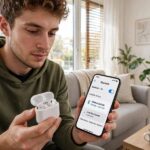
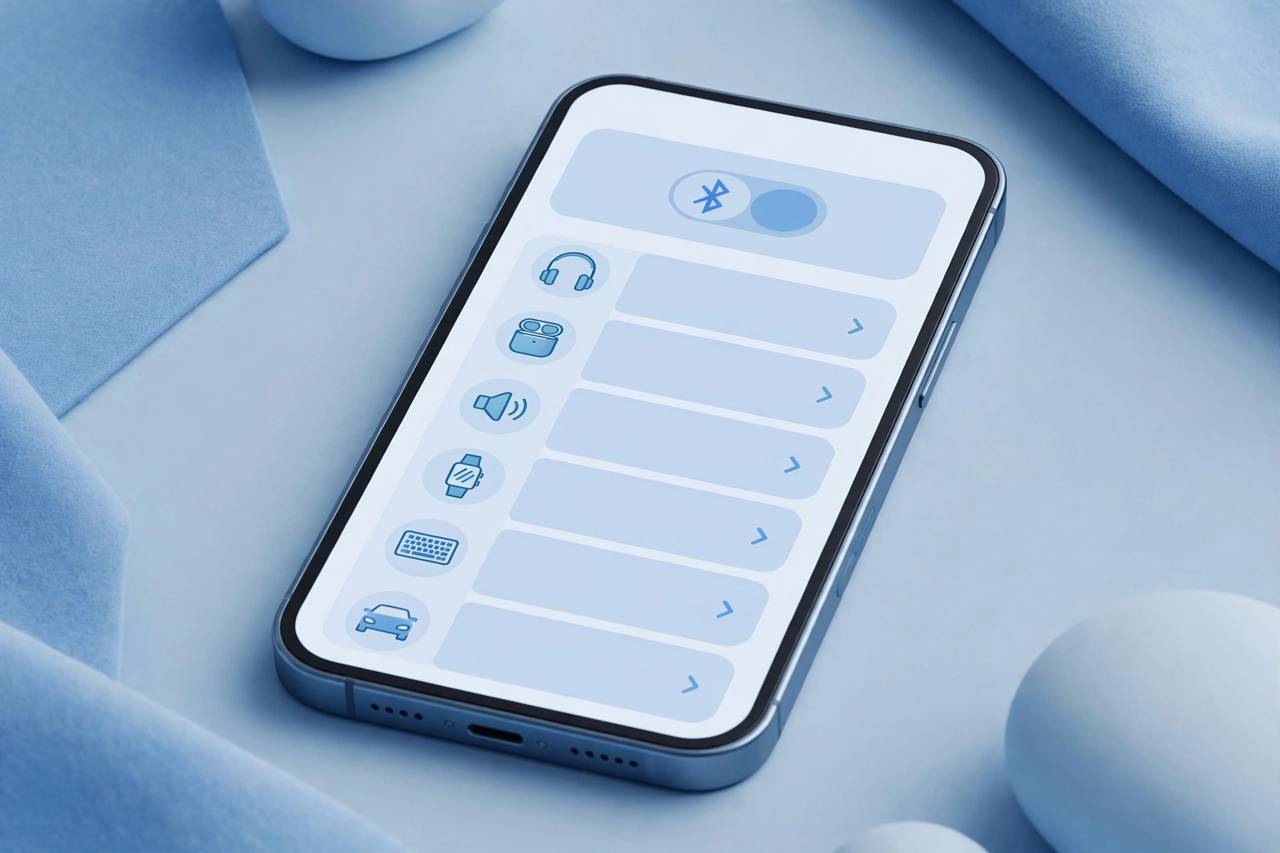
- Open Settings → Bluetooth and make sure Bluetooth is on.
- Wait for your headphones to appear under “Other Devices” and tap the name.
- Confirm any pairing request. Connected — they will move to “My Devices.”
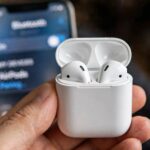
iPhones also support quick-pairing for AirPods and some Beats: just open the case near the phone and tap Connect. For standard Bluetooth headphones from other brands, the manual method above is the way.
How to Pair Bluetooth Headphones on Android
- Put your headphones in pairing mode.
- Open Settings → Connected devices → Pair new device (wording varies slightly by brand — Samsung, Pixel, and OnePlus all put it in a slightly different spot, but it is always under Bluetooth settings).
- Tap your headphones’ name in the list of available devices.
- Accept the pairing prompt. Some Android phones offer Fast Pair for supported models — a pop-up appears automatically near the phone.
How to Pair Bluetooth Headphones on Windows
- Put your headphones in pairing mode.
- Open Settings → Bluetooth & devices and turn Bluetooth on.
- Click Add device → Bluetooth.
- Select your headphones from the list and click Connect.
Windows quirk worth knowing: after pairing, right-click the speaker icon → Sound settings and confirm your headphones are set as the output device. Windows sometimes pairs successfully but keeps playing audio through the laptop speakers.
Brand-Specific Pairing Notes
The standard method covers most models, but a few popular brands have quirks worth knowing:
- Sony (WH-1000X series, WF earbuds): hold the power button for about seven seconds until you hear “Bluetooth pairing” — the voice prompt confirms it. Sony’s Sound Connect app manages multipoint and firmware updates.
- Bose (QuietComfort series): slide and hold the power/Bluetooth switch to the Bluetooth symbol until the light blinks blue. The Bose app handles multipoint switching.
- Apple AirPods: open the case near your iPhone and tap Connect — or hold the setup button on the case back until the light flashes white for manual pairing to non-Apple devices.
- Jabra: most models enter pairing mode automatically when first removed from the case; afterward, hold both earbud buttons for three seconds. The Sound+ app is required for multipoint on many models.
- JBL: hold the Bluetooth button until the light blinks. Budget JBL models sometimes need a full reset (hold volume+ and volume- together) if pairing repeatedly fails.
When in doubt, the manual’s pairing section is two pages long and answers everything — it is the most under-read document in tech.
How to Pair Bluetooth Headphones With TVs, Cars, and Consoles
- Smart TVs: most have Bluetooth in Settings → Sound → Audio Output. Pairing works like a phone, but expect slight audio delay (lip-sync issues) — look for a “low latency” or “game mode” audio setting if dialogue feels off.
- Cars: put the car’s system in pairing mode first (usually under phone/Bluetooth settings on the infotainment screen), then pair from the phone. If calls work but music does not, check that both “phone audio” and “media audio” profiles are enabled for the car connection.
- Game consoles: PlayStation and Xbox do not support standard Bluetooth audio pairing — they require proprietary headsets or a USB Bluetooth transmitter plugged into the console. Nintendo Switch does support Bluetooth audio (System Settings → Bluetooth Audio), with a limit on connected controllers while it is active.
The 5 Common Pairing Failures (and Fixes)
Failure 1: The headphones are connected to another device
The most common failure by far. Your headphones auto-connected to your laptop in the other room, so your phone cannot see them — Bluetooth headphones typically connect to one audio source at a time. Fix: turn off Bluetooth on the other device temporarily, or disconnect the headphones from it, then put them back in pairing mode.
Failure 2: The headphones are not actually in pairing mode
Being “on” is not the same as being “in pairing mode.” If the headphones do not appear in your device’s list after 30 seconds, re-trigger pairing mode (usually a long-press until the LED blinks in a distinct pattern — often alternating colors). Check the manual for your specific model.
Failure 3: Too much distance or interference
Bluetooth range is theoretically 10 meters but realistically much less through walls. Keep the headphones within a meter of the phone during pairing. Microwaves, busy Wi-Fi environments, and USB 3.0 hubs can all interfere — move away from them while pairing.
Failure 4: Stale pairing data — “forget and re-pair”
If headphones appear but refuse to connect, or connect with no sound, the stored pairing is corrupted. On your phone/PC, find the headphones in the Bluetooth device list, choose “Forget this device,” then pair fresh. This resolves a remarkable percentage of stubborn cases.
Failure 5: Low battery or firmware issues
Some headphones will not enter pairing mode below a certain charge — if nothing else works, charge them fully first. Also check the manufacturer’s app for firmware updates; I have seen updates fix chronic pairing and multipoint issues on several major brands.
Multipoint: Connecting to Two Devices at Once
Many modern headphones support multipoint — staying connected to your phone and laptop simultaneously, switching automatically for calls. If yours do, enable it in the manufacturer’s app; it is often off by default. Note that multipoint can cause exactly the “wrong device grabbed the connection” confusion described above — if you find it more annoying than useful, turning multipoint off and pairing manually is completely legitimate. Personally, I leave multipoint on for work headphones and off for everything else.
Curious what is actually happening during pairing? My explainer on how Bluetooth works covers the protocol underneath. And if your new headphones have noise cancellation, how noise-cancelling headphones work explains the other half of the magic.
Fixing Audio Quality Issues After Successful Pairing
Paired but sounds bad? Different problem, different fixes:
- Muffled, low-quality audio on Windows calls: Windows switches Bluetooth headphones to the low-quality “headset” profile (HSP) when the microphone activates. Fix: in Sound settings, set the headphones (Stereo) as output and disable the headset microphone — or use a separate mic. This single issue accounts for most “my headphones sound terrible on Zoom” complaints.
- One earbud quieter or silent: clean the earbud contacts and the case charging pins, then re-seat both buds until they click. If one bud consistently undercharges, that bud is usually the culprit.
- Volume too low overall: check for separate volume controls — many headphones have their own volume independent of the phone. Turn the phone to max, then adjust on the headphones. Also disable any “absolute volume” quirks in Android developer options if levels seem capped.
- Audio delay in videos/games: some delay is inherent to Bluetooth (codecs matter — aptX Low Latency and LC3 are better than basic SBC). For gaming and video editing, wired is still king.
Frequently Asked Questions (FAQ)
Why won’t my Bluetooth headphones show up on my phone?
Almost always one of three things: they are not in pairing mode (being powered on is not enough), they are already connected to another device, or they are too far away. Put them in pairing mode next to the phone with other devices’ Bluetooth off, and they will appear.
How do I put my headphones in pairing mode?
It varies by model: commonly a long-press (3–7 seconds) on the power or Bluetooth button until the LED blinks rapidly or alternates colors. Earbuds often enter pairing mode automatically when you open the case with both buds inside. Check your model’s manual — this is the step people skip.
Can Bluetooth headphones connect to two devices at once?
Only if they support multipoint, and it must usually be enabled in the manufacturer’s app. Without multipoint, headphones connect to one device at a time and you must disconnect from the first before pairing the second.
Why does my Bluetooth audio stutter or cut out?
Usually interference or distance: move the phone closer, keep it on the same side of your body as the headphone antenna, and move away from microwaves and congested Wi-Fi. Low battery on either end also causes dropouts. Persistent stuttering across devices can indicate a firmware issue — check for updates.
Do I need to unpair before pairing to a new device?
Not necessarily — just put the headphones in pairing mode and pair the new device. But “forgetting” the old pairing on devices you no longer use prevents the auto-reconnect hijacking described in Failure 1, so it is good hygiene.
Is it safe to leave Bluetooth on all the time?
For practical purposes, yes. Modern Bluetooth has a negligible battery impact when idle, and the historical security scares (like BlueBorne) were patched years ago on updated devices. The main reason to toggle it off is avoiding the auto-connect confusion, not security — and keeping your software updated matters far more than toggling the radio.