How to Transfer WhatsApp Chats From Android to iPhone (2 Ways)

Switching from Android to iPhone used to mean saying goodbye to your WhatsApp history — years of chats, photos, and voice notes, gone. Not anymore. If you’re figuring out how to transfer WhatsApp chats from Android to iPhone, you now have two official methods, and picking the right one depends on your situation. I’ve walked friends, family members, and clients through both, and the process is genuinely straightforward once you know which path fits — but each has specific requirements that will stop you cold if you miss them. Here’s the complete comparison, plus the troubleshooting checklist for when things go sideways.
One critical fact first: WhatsApp transfers move your account information, profile photo, chats, and media — but not your call history or your display name in some edge cases. And the transfer happens during the iPhone’s initial setup or via WhatsApp’s in-app feature, depending on the method. You can’t do it “later” with the Move to iOS method — timing matters.
Method 1: Move to iOS App (Best During Initial iPhone Setup)
Apple’s Move to iOS app is the official path when you’re setting up a brand-new iPhone (or one that’s been factory reset). It migrates your WhatsApp data as part of a broader Android-to-iPhone transfer. If you’re moving everything else too, read how to transfer to a new iPhone first.
Requirements: Android 5 (Lollipop) or later; iPhone running iOS 15.5 or later; both phones on the same Wi-Fi network and plugged into power; the same phone number on both devices; and — this trips people up — the iPhone must be new or factory-reset, because Move to iOS only runs during initial setup.
- On your Android phone, install or open the Move to iOS app from the Play Store.
- Start setting up your iPhone. On the Apps & Data screen, tap Move Data from Android.
- On Android, enter the code displayed on the iPhone to pair the devices.
- On the Transfer Data screen, select WhatsApp.
- Tap Start on Android and wait — the app prepares the data for export. Keep both phones close, unlocked, and undisturbed.
- Once the iPhone setup completes, install WhatsApp from the App Store, log in with the same phone number, and tap Start when prompted to import. Tap Done to finish. New to iOS entirely? Our how to set up a new iPhone guide covers the rest of the essentials.
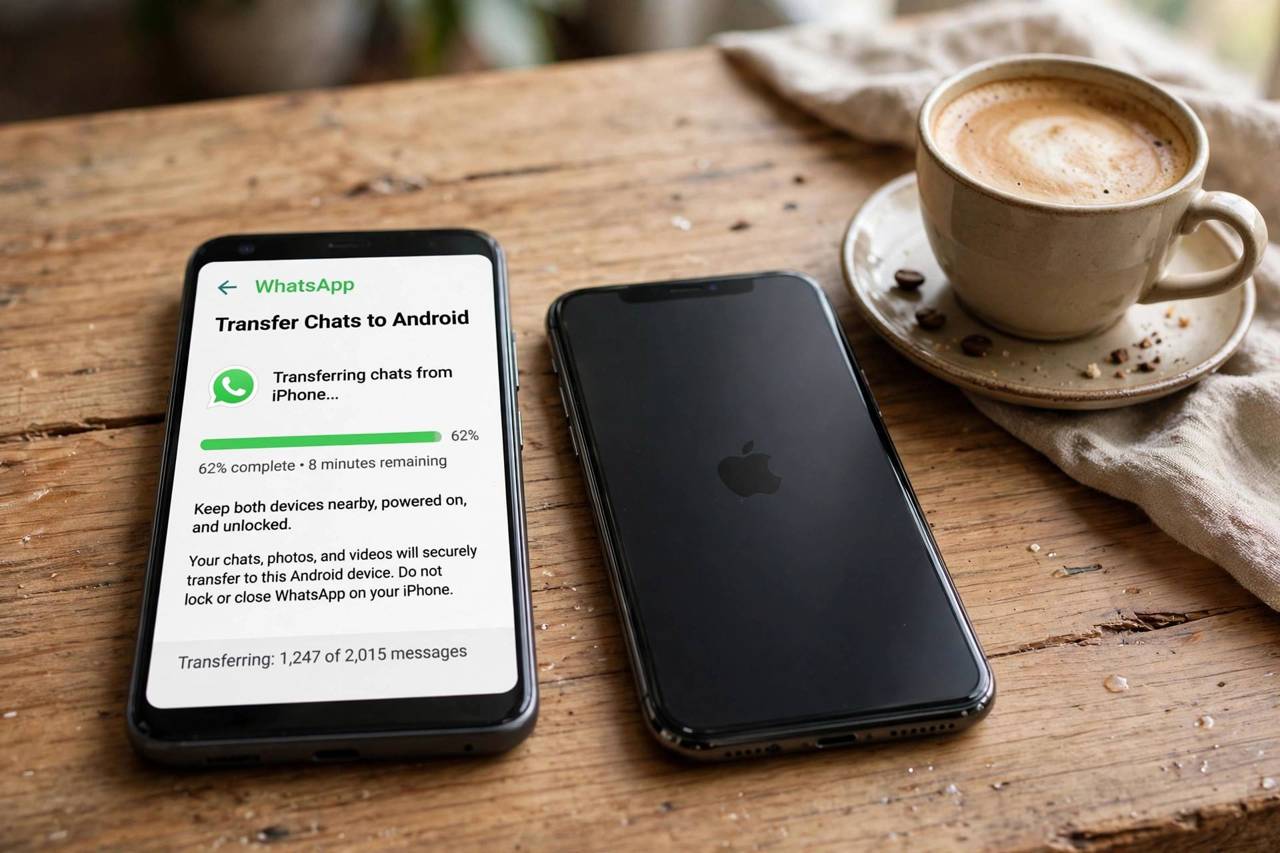
The transfer itself can take anywhere from a few minutes to over an hour depending on how much chat history and media you have. Do not use either phone during the transfer — interruptions are the top cause of failures.
Method 2: In-App Chat Transfer via QR Code (Best for Already-Set-Up iPhones)
WhatsApp later added its own transfer feature that doesn’t require resetting your iPhone. This is the better choice if your iPhone is already set up and you just want to move WhatsApp over.
Requirements: Both phones on the same Wi-Fi network; both running recent WhatsApp versions; same phone number on both.
- On the iPhone, install WhatsApp but don’t complete registration yet — or, if it’s a fresh transfer scenario, open WhatsApp and begin setup with your number.
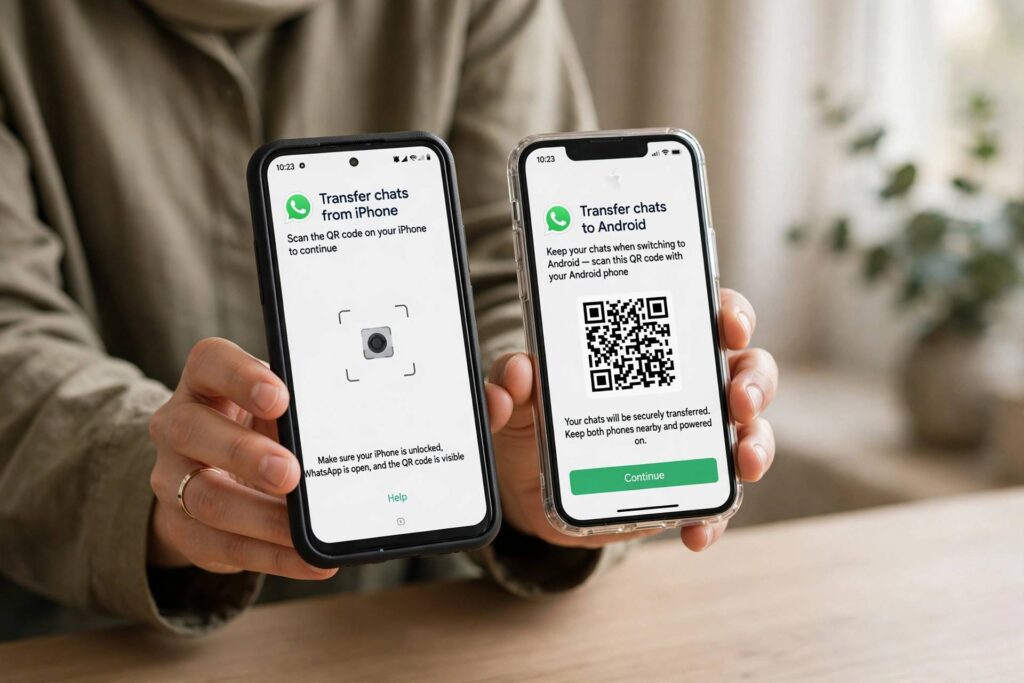
- On your Android phone, open WhatsApp → Settings → Chats → Move chats to iOS (wording varies slightly by version).
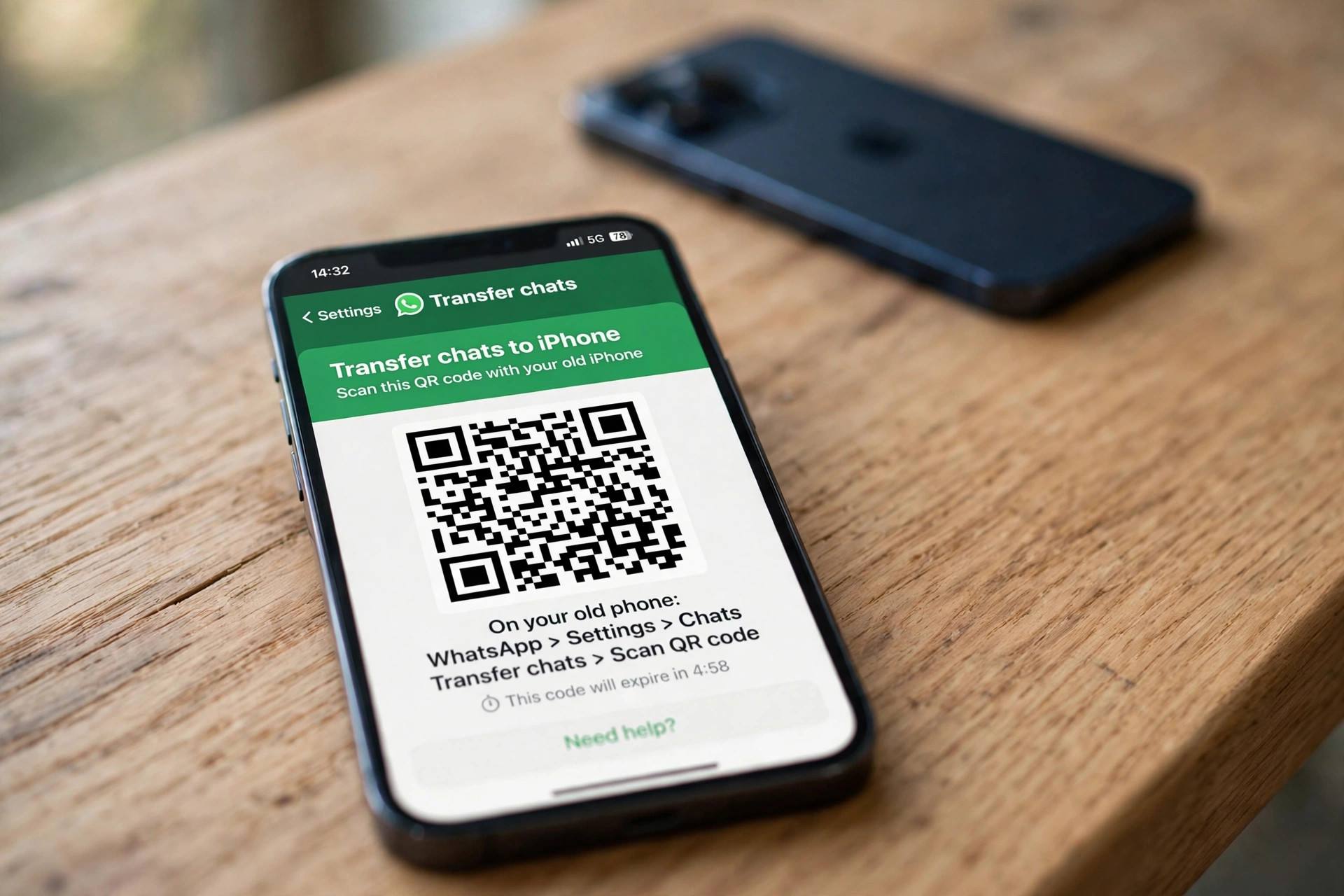
- A QR code appears on the iPhone. Scan it with the Android phone.
- Keep both phones on the same Wi-Fi, close together, until the transfer completes. Then finish registration on the iPhone.
This method is faster to start and doesn’t touch the rest of your phone’s data — it’s WhatsApp-only. For most people switching phones without a full reset, this is the path of least resistance.
Move to iOS vs. In-App QR: Which Should You Use?
- Use Move to iOS if: your iPhone is brand new or you’re willing to factory-reset it, and you also want to move photos, contacts, and other app data in one go. It’s the full-move solution.
- Use the in-app QR method if: your iPhone is already set up, you only need WhatsApp moved, or you don’t want to reset the iPhone. It’s the surgical option.
- Both require: the same phone number, same Wi-Fi, recent OS and app versions, and patience during the transfer.
Troubleshooting Checklist: When the Transfer Fails
Most failures come from a short list of causes. Work through these in order:
- Different phone numbers: The transfer only works with the same number on both devices. Change your number on Android first (WhatsApp → Settings → Account → Change number) if needed.
- Wi-Fi mismatch: Both phones must be on the same Wi-Fi network. Phone hotspots and VPNs break the pairing — disable VPNs on both devices.
- Outdated software: Update WhatsApp on both phones and confirm the iPhone runs iOS 15.5+. Old versions silently fail.
- Interruption: Calls, notifications pulling focus, or the screen locking mid-transfer can corrupt it. Enable Do Not Disturb, keep phones plugged in, and don’t touch them.
- Not enough iPhone storage: Your WhatsApp backup needs room to land. Free up space exceeding your Android WhatsApp data size before starting. Our guide to how to back up an iPhone covers managing iPhone storage safely.
- Move to iOS option missing: It only appears during the iPhone’s initial setup. If your iPhone is already set up, use the in-app QR method instead — or factory-reset (after backing up).
- Transfer stalls at a percentage: Give it time — large media libraries take a while. If it’s stuck over 30+ minutes with no movement, restart both phones and try again; partial transfers don’t damage your Android data.
Your Android WhatsApp data stays intact until you delete it — the transfer copies, it doesn’t move. So the worst case of a failed attempt is wasted time, not lost chats. Verify everything arrived on the iPhone before wiping or trading in the Android.
How to Transfer WhatsApp Chats From Android to iPhone Without Losing Media
The number one anxiety in this whole process is media — years of photos and videos. Here’s what actually happens to it. The transfer moves your media files directly between phones over the local connection; it does not go through the cloud. That’s why it’s slow with big libraries and why both phones need to stay put. Videos are the bulk — if your transfer is crawling, it’s the videos.
A critical point of confusion: backups don’t cross platforms. Android WhatsApp backs up to Google Drive; iPhone WhatsApp backs up to iCloud. You cannot restore a Google Drive backup onto an iPhone, full stop. This is exactly why the direct transfer methods exist — they’re the bridge between two incompatible backup systems. Anyone telling you to “just restore the backup” on the new phone is describing something that doesn’t work.
Before transferring, do a media triage: in WhatsApp → Settings → Storage and Data → Manage Storage, you’ll see which chats are the hogs. Consider clearing the biggest videos you don’t need (forwarded memes, mostly) — every gigabyte you trim is minutes off the transfer. And make sure the iPhone has free space exceeding your WhatsApp data size; the transfer needs working room beyond the final footprint.
After the Transfer: The Verification Checklist
Don’t wipe the Android until you’ve confirmed everything. Walk through this:
- Spot-check chats: Open your five most important chats — oldest messages, shared photos, voice notes. Play one voice note; open one old photo. Corruption is rare but it happens, and it’s better to know now.
- Check group memberships: Groups should carry over with you as a member. If a group is missing, you’ll need to be re-added — note which ones matter.
- Enable iCloud backup on the iPhone: WhatsApp → Settings → Chats → Chat Backup → Back Up Now, and turn on Auto Backup. Your future self — switching phones again someday — will thank you.
- Re-verify notifications and settings: Notification tones, archived chats, and starred messages sometimes need a nudge. Starred messages in particular are worth checking.
- WhatsApp Business users: the same transfer works, but catalogs and labels deserve a check — business data has more moving parts.
- Securely wipe the Android: only after a week of normal use on the iPhone. Back up the Android one final time, remove accounts, then factory reset. A week of overlap is cheap insurance.
What Doesn’t Transfer (and the Workarounds)
Honesty corner: a few things don’t make the trip. Call history doesn’t transfer — if you need records of calls, screenshot the important ones before switching. Some settings (notification tones per chat, wallpaper) reset to defaults; five minutes of reconfiguration fixes it. WhatsApp Pay history, where available, is tied to the device and bank setup — you’ll re-verify on the iPhone.
Stickers: third-party sticker packs usually need re-adding, though favorites often survive. And if you used disappearing messages, remember their nature — expired messages are gone everywhere, by design. None of these are deal-breakers, but knowing them in advance beats discovering them after the Android is wiped. Screenshot what matters, transfer, verify, then wipe.
Frequently Asked Questions
How do I transfer WhatsApp chats from Android to iPhone?
Use either Apple’s Move to iOS app during the iPhone’s initial setup (select WhatsApp on the Transfer Data screen), or WhatsApp’s built-in Move chats to iOS QR-code feature. Both require the same phone number and the same Wi-Fi network on both phones.
Can I transfer WhatsApp without resetting my iPhone?
Yes — WhatsApp’s in-app QR transfer works on an already-set-up iPhone. Only the Move to iOS method requires a new or factory-reset iPhone.
Do I need the same phone number to transfer WhatsApp?
Yes. The transfer is tied to your number. If you’re changing numbers, change it on the Android WhatsApp first, then transfer.
What transfers with WhatsApp from Android to iPhone?
Your account info, profile photo, individual and group chats, chat history, and media (photos, videos, voice notes). Call history and some settings don’t carry over.
Why is my WhatsApp transfer stuck?
Common causes: different Wi-Fi networks, VPN enabled, outdated app/OS versions, insufficient iPhone storage, or the phones being disturbed mid-transfer. Large media libraries also just take a long time — give it at least 30 minutes before retrying.
Is my Android WhatsApp data deleted after transfer?
No — the transfer copies your data; nothing is deleted from the Android phone. Verify everything on the iPhone first, then wipe the Android separately when you’re ready.
How to transfer WhatsApp chats from Android to iPhone comes down to one decision — full phone move or WhatsApp-only — and then following the requirements exactly. Get the number, the Wi-Fi, and the versions right, leave the phones alone during the transfer, and years of chats land safely on the new phone.