How to Turn Off Autocorrect on iPhone (and Smarter Fixes)

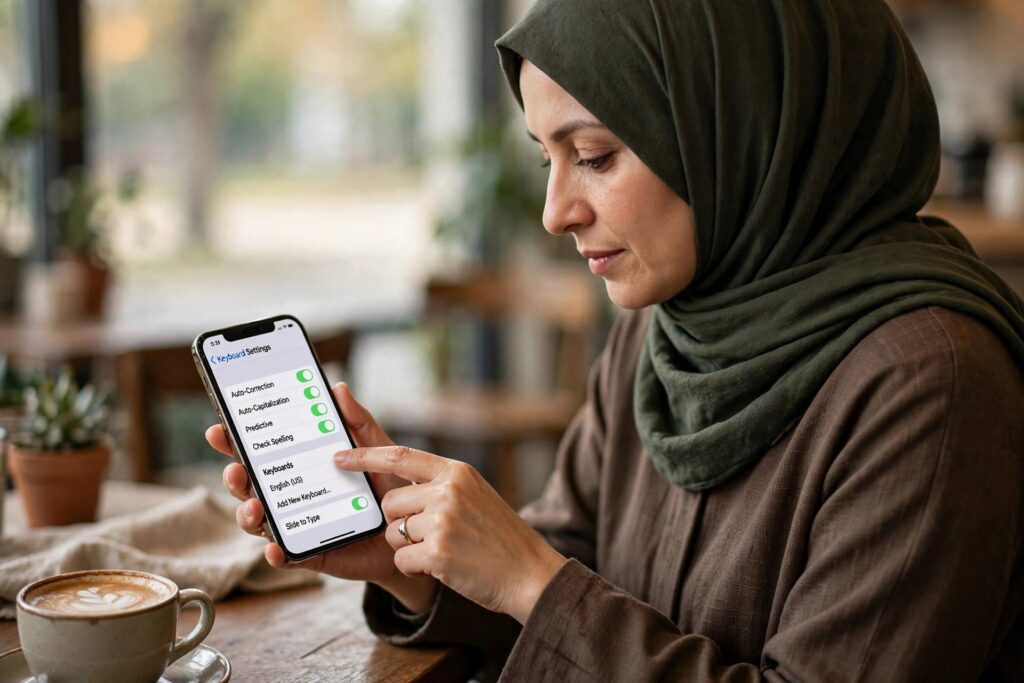
Learning how to turn off autocorrect on iPhone takes about fifteen seconds — but before you flip that switch, it is worth knowing what you are actually turning off, because iOS has three separate features that people lump together as “autocorrect,” and disabling the wrong one (or all of them bluntly) often creates new annoyances. I have walked dozens of people through this, and the happiest outcomes are rarely the nuclear option. This guide covers the off-switch, the smarter alternatives most people actually want, and how to fix the keyboard when it seems to have a mind of its own.
We will start with the direct answer, then go deeper: the difference between autocorrect, predictive text, and auto-capitalization; text replacement as a surgical fix for your problem words; and the keyboard dictionary reset for when things have gone truly sideways.
How to Turn Off Autocorrect on iPhone: The Steps
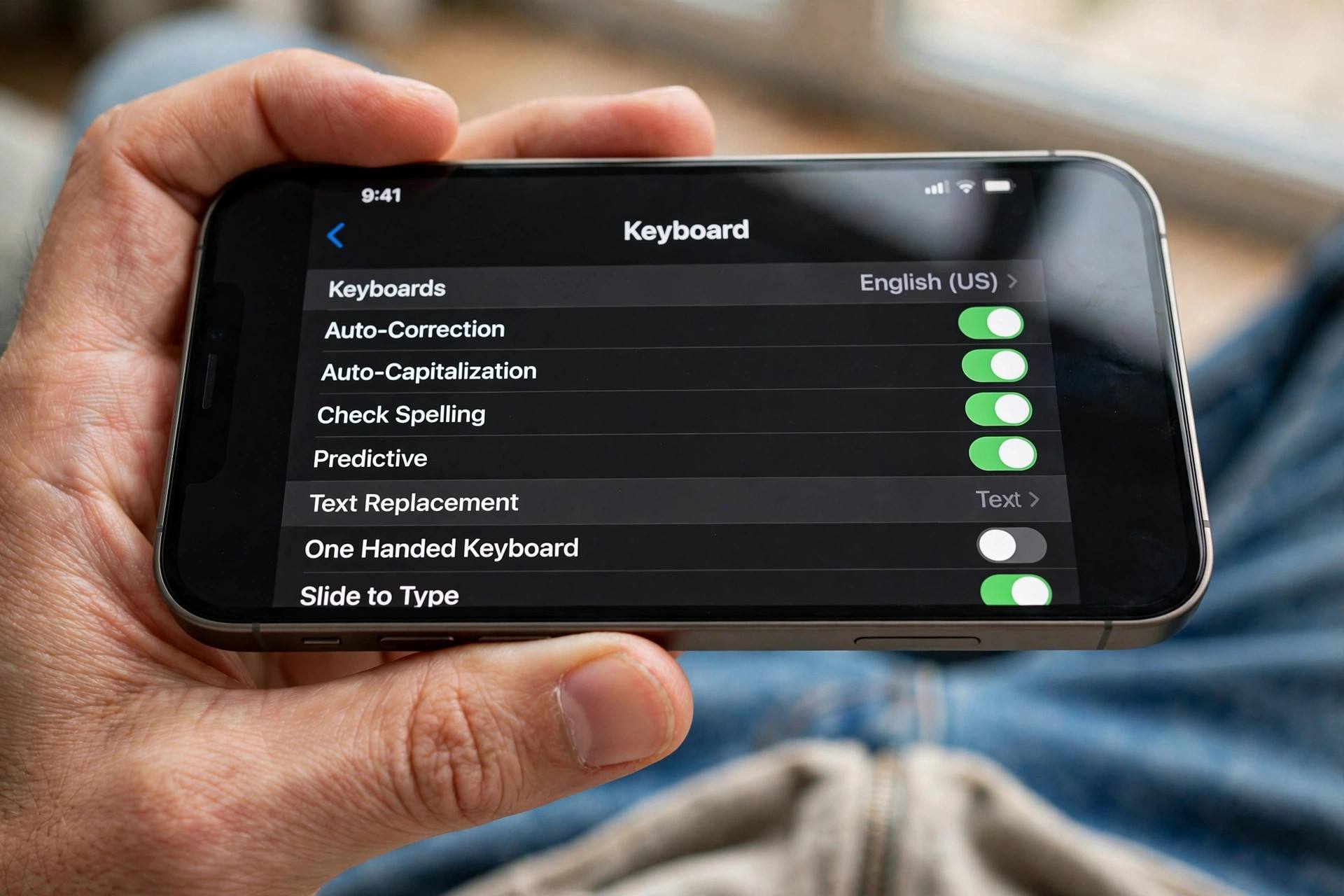
Here is the direct path: open Settings → General → Keyboard, then toggle off Auto-Correction. That is the whole procedure. Your iPhone will stop automatically replacing words as you type, effective immediately across all apps.
What changes: misspelled words will no longer be silently swapped for what the phone thinks you meant. What does not change: the red (well, dotted) underline suggestions still appear, predictive text above the keyboard still works if enabled, and spell-check still flags errors — those are separate toggles on the same screen. If your goal was “stop changing my words without asking,” this single toggle does it.
A note on where people get lost: on newer iOS versions the Keyboard settings screen is long, and Auto-Correction sits among a dozen similar toggles. Scroll deliberately. And if you use multiple keyboards (emoji, third-party, other languages), this setting applies per the iOS keyboard system-wide — third-party keyboards have their own settings inside their own apps.
Autocorrect vs. Predictive Text vs. Auto-Capitalization
These three get blamed as one, but they are different features with different toggles — and understanding the split solves half of all keyboard complaints. Auto-Correction replaces what you typed with what it thinks you meant, automatically. Predictive Text suggests the next word above the keyboard but never inserts anything without your tap. Auto-Capitalization capitalizes the first word of sentences and proper nouns as it recognizes them.
Common complaint, precise diagnosis: “My phone keeps changing ‘gonna’ to ‘gonna’… ” — that is auto-correction. “Words appear above the keyboard and it is distracting” — that is predictive text; toggle off Predictive Text on the same settings screen. “It capitalizes random words mid-sentence” — usually auto-capitalization misfiring on words it thinks are proper nouns; toggle off Auto-Capitalization if it bothers you more than it helps.
My usual recommendation: before killing auto-correction entirely, try turning off just the one behavior that annoys you. Many people discover their real enemy was predictive text clutter or overzealous capitalization, and auto-correction itself was quietly fixing genuine typos they never noticed.
Text Replacement: The Surgical Fix for Problem Words
Here is the option almost nobody knows about, and it is the best one for most people. Instead of disabling auto-correction globally because it mangles five specific words — your friend’s unusual name, industry jargon, a second language’s vocabulary — teach the keyboard those words individually with Text Replacement: Settings → General → Keyboard → Text Replacement, tap +, and add the word as both phrase and shortcut.
Why this beats the off-switch: you keep auto-correction fixing your genuine typos (which it does hundreds of times a week without you noticing) while immunizing your special vocabulary. Add names, slang, abbreviations, technical terms — anything the keyboard “corrects” wrongly on repeat. I have seen people add thirty entries and transform their typing experience while leaving the safety net intact.
Power tip: text replacement also works as an expansion tool. Set “eml” to expand to your full email address, “addr” to your street address, or “sig” to your email sign-off. It is the most underused productivity feature on the iPhone, hiding one menu deep.
Resetting the Keyboard Dictionary
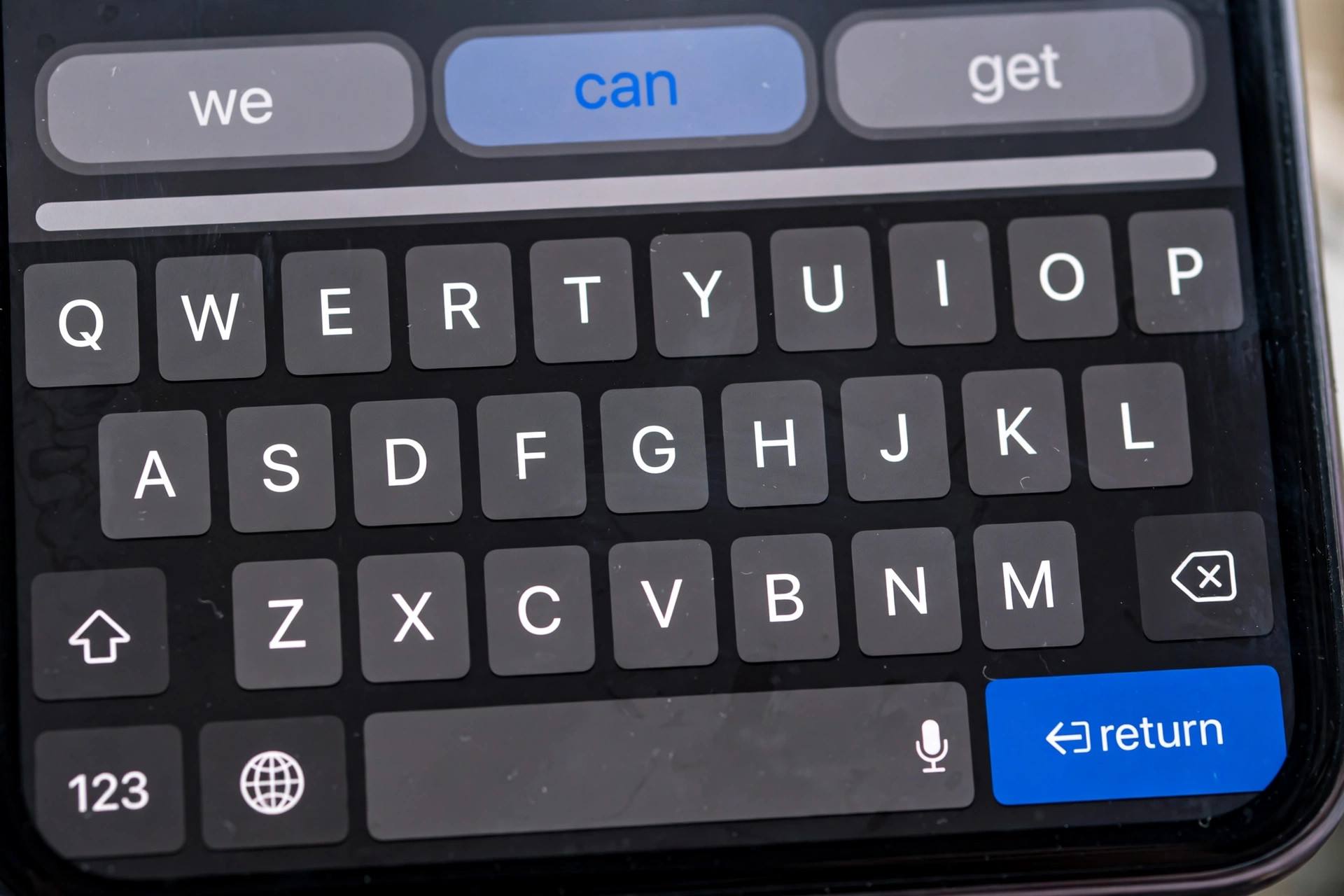
Sometimes the problem is not the feature but the learned data. Your iPhone builds a personal dictionary from your typing — every time you tap a suggestion or (critically) every time you backspace a correction and retype your version, it learns. Over months, this dictionary can accumulate bad habits: words you typed wrong once and confirmed, names from an old job, slang from a phase you have outgrown. The keyboard starts feeling like it is working against you.
The fix: Settings → General → Transfer or Reset iPhone → Reset → Reset Keyboard Dictionary. This wipes the learned words (not text replacements you added manually — those survive) and returns the keyboard to factory behavior. You will lose the genuinely useful learned words too, so treat this as a fresh start, not routine maintenance. After resetting, be deliberate for a week: when the keyboard suggests the right word, tap it; when it is wrong, correct it firmly. You are retraining it, and first impressions count.
When You Should Keep Autocorrect On
Honest counterpoint: most people who turn off auto-correction turn it back on within a month. The feature fixes far more errors than it creates — you simply never notice the saves, only the occasional spectacular misfire. Before disabling, try the middle path for two weeks: keep auto-correction on, add text replacements for your repeat offenders, and reset the dictionary if it has learned bad habits. This combination resolves the vast majority of complaints while preserving the safety net.
The people who genuinely benefit from disabling it: multilingual typists whose languages fight each other mid-sentence, writers of dialect or creative spelling, and anyone whose work vocabulary is so specialized that corrections are wrong more often than right. If that is you, turn it off with confidence — and consider whether a third-party keyboard designed for your use case serves you better than Apple’s.
Third-Party Keyboards: The Alternative Route
If Apple’s keyboard philosophy does not suit you, the App Store offers alternatives — Gboard, SwiftKey, and others — each with its own correction engine, gesture typing, and customization. Install one, then enable it under Settings → General → Keyboard → Keyboards → Add New Keyboard, and grant “Full Access” only if you understand the privacy tradeoff (full access lets the keyboard transmit data; Apple’s own keyboard processes everything on-device).
Third-party keyboards can be genuinely better for specific needs: superior multilingual support, better gesture typing, more aggressive or more conservative correction. But they occasionally lag behind on iOS updates and system integration (password fields, for instance, always revert to Apple’s keyboard for security). Try one for a week before committing — keyboard feel is personal, and switching costs are low.
Dictation: The Underrated Alternative
If typing fights you, stop typing. iPhone dictation (tap the microphone on the keyboard) has become remarkably accurate, handling punctuation commands (“comma,” “new paragraph”) and learning your vocabulary over time. For long messages, emails, and notes, speaking is often faster than even perfect typing — and it sidesteps the autocorrect wars entirely, since dictated text goes through a different correction pipeline.
The practical setup: dictate in a quiet space, speak punctuation naturally, and review before sending — dictation mishears proper nouns and homophones (“their” vs. “there”) the way typing mistypes letters. Many people end up with a hybrid workflow: dictate the bulk, type the corrections. It is not giving up on the keyboard; it is using the right tool for the length of the text.
Keyboard Settings Worth Reviewing While You Are There
Since you are already in Settings → General → Keyboard, audit the rest of the screen. Slide to Type (gesture typing) is worth trying for one-handed use. Delete Slide-to-Type by Word controls whether swiping back deletes whole words — personal preference, but know the option exists. “.” Shortcut (double-tap space for a period) is a quiet timesaver most people never enable. Enable Dictation must be on for the microphone key to appear. And Keyboards at the top manages your installed keyboards — remove ones you never use, because every extra keyboard is another globe-icon tap cycling past it.
Five minutes in this one settings screen, once, pays off every day you use the phone. Keyboards are the highest-touch interface on the device; they deserve the configuration effort.
When Autocorrect Fights Your Other Language
Multilingual typists get the worst of autocorrect: the keyboard “corrects” Spanish into English, transliterated words into nonsense, and names into the nearest English approximation. The fixes stack: add each keyboard language under Settings → General → Keyboard → Keyboards (iOS handles multilingual typing far better when it knows both languages are intentional), add problem words via Text Replacement in each language, and consider dictation for longer passages in your second language. If two languages constantly collide mid-sentence, disabling auto-correction while keeping predictive text is often the sweet spot — suggestions without forced replacements.
FAQ
Where is the autocorrect setting on iPhone?
Settings → General → Keyboard → Auto-Correction toggle. All keyboard behavior settings live on that one screen.
Why does my iPhone change correctly spelled words?
Usually the learned keyboard dictionary has picked up a wrong association, or the word resembles a more common one the system prefers. Add the word via Text Replacement, or reset the keyboard dictionary if the problem is widespread.
What is the difference between autocorrect and predictive text?
Auto-correction replaces words automatically as you type; predictive text only suggests words above the keyboard and never inserts them without your tap. They are separate toggles.
Will resetting the keyboard dictionary delete my text replacements?
No — manually added text replacements survive the reset. Only the automatically learned typing data is wiped.
How do I stop my iPhone from capitalizing words?
Toggle off Auto-Capitalization under Settings → General → Keyboard. This stops automatic capitalization without affecting correction or predictions.
Does turning off autocorrect affect all apps?
Yes, system-wide for Apple’s keyboard. Third-party keyboards have their own correction settings inside their respective apps.
Conclusion
The off-switch is fifteen seconds away in Settings → General → Keyboard. But the better fix for most people is surgical: text replacement for repeat offenders, a dictionary reset for accumulated bad habits, and separate toggles for predictive text and capitalization. Turn off only what actually bothers you — your future self, typing quickly and accurately, will appreciate the precision.