What Is a QR Code and How to Scan It (iPhone & Android)

If you have ever wondered what is a QR code and how to scan it, you are asking about one of the quietest success stories in technology. Those little square barcodes are everywhere now — restaurant menus, parking meters, boarding passes, Wi-Fi logins — and most people use them daily without knowing what they actually are. This guide covers the essentials: what QR codes do, how to scan one on any phone, and the safety habits worth building before you point your camera at a stranger’s code.
I explain technology for a living, and QR codes are a favorite example of a simple idea executed well. There is no account to create, no app you must install, no subscription. It is just a smarter barcode. Let us demystify it completely.
What a QR Code Actually Is
QR stands for “Quick Response,” and that is the whole design philosophy: a barcode optimized for fast scanning by a camera. A traditional UPC barcode (the one on groceries) stores about 20 characters in one dimension. A QR code stores up to a few thousand characters in two dimensions — that grid of black and white squares encodes data both horizontally and vertically.
What kind of data? Most commonly a URL — scanning takes you to a website. But QR codes can also encode plain text, Wi-Fi network credentials (scan to join the network, no password typing), contact cards, payment addresses, app store links, and authentication tokens. The three large squares in the corners are positioning markers; they let your camera recognize the code’s orientation instantly, which is why scanning works at angles and in mediocre lighting.
QR codes were invented in 1994 by a Japanese company, Denso Wave, to track car parts in factories. They spent two decades as an industrial tool before smartphones made them mainstream — first in Asia, then globally during the pandemic, when touch-free menus and check-ins made them suddenly essential. Now they are infrastructure: unglamorous, ubiquitous, and unlikely to go away.
How to Scan a QR Code on iPhone
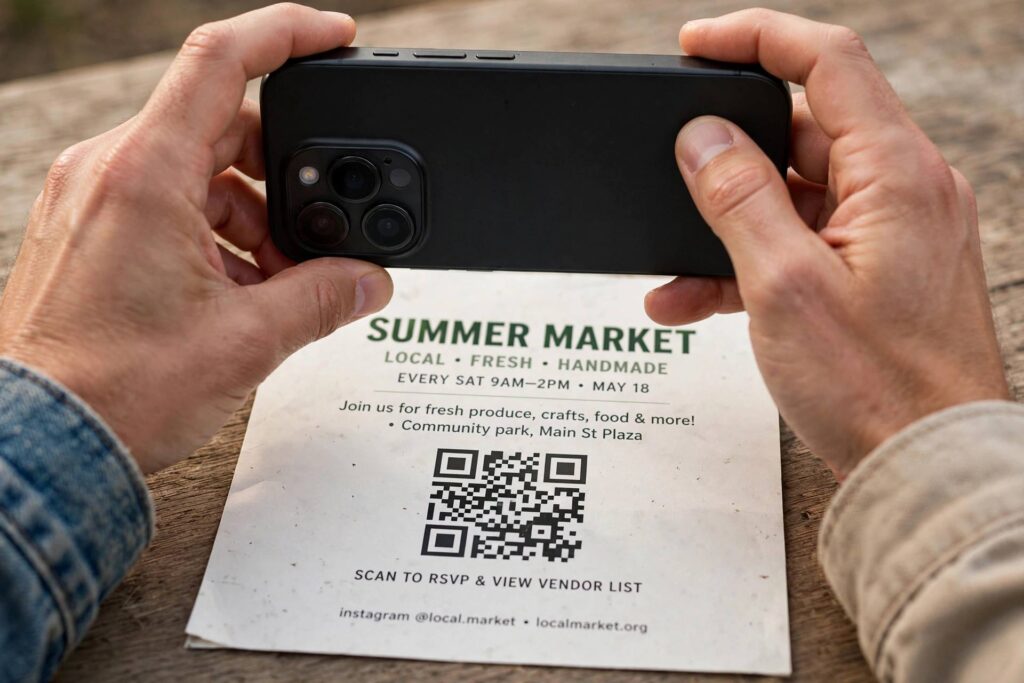
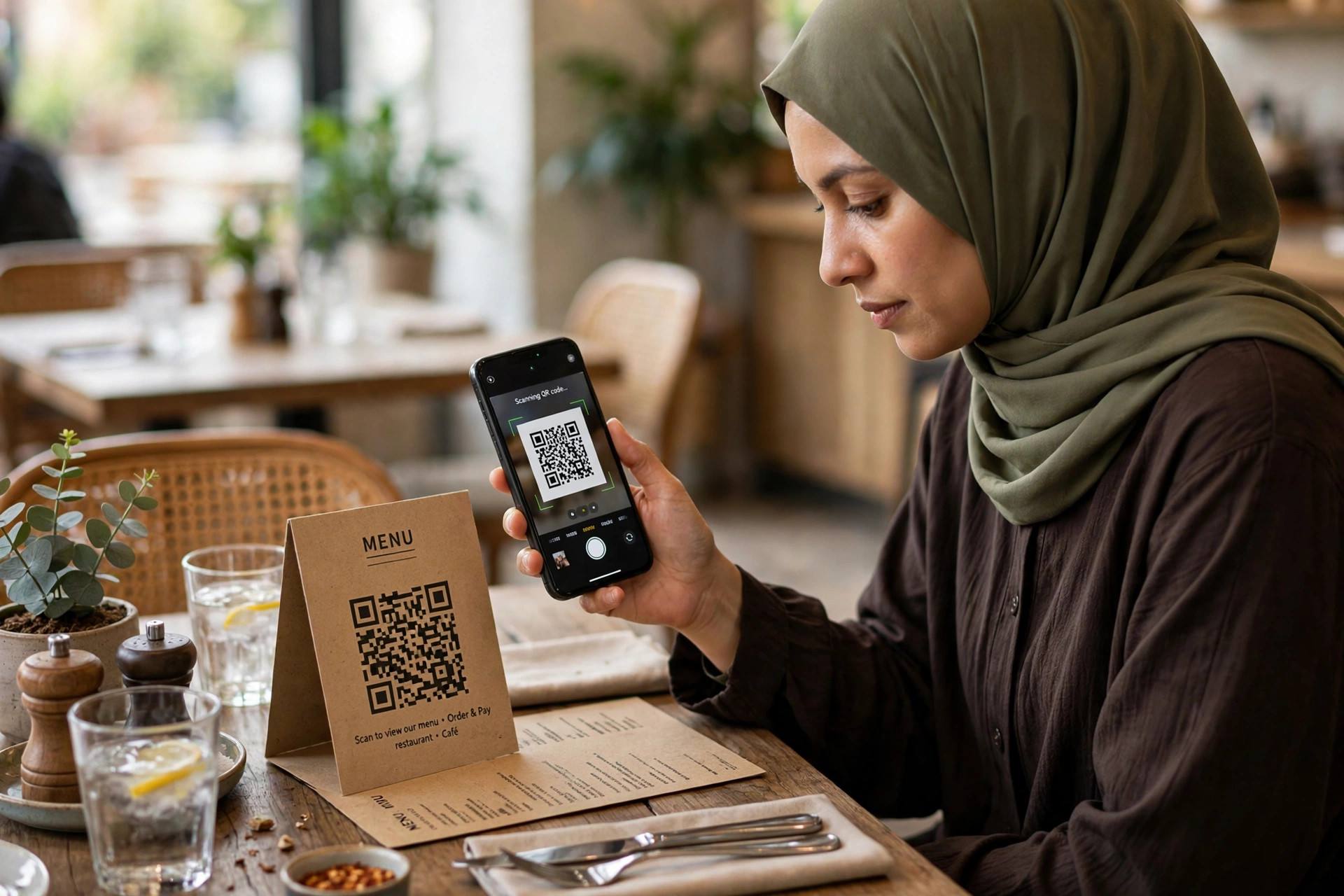
Modern iPhones scan QR codes natively — no app needed:
- Open the Camera app (or swipe to it from the lock screen).
- Point it at the QR code. You do not need to take a photo — just frame the code on screen.
- Wait a second. A notification banner or yellow link box appears.
- Tap the banner to open the link.
If nothing happens, check that scanning is enabled: Settings → Camera → “Scan QR Codes” should be toggled on. On older iPhones (before iOS 11), you needed a third-party scanner app — but any iPhone from the last several years handles it natively. You can also scan from a screenshot or saved image: open the Photos app, view the image containing the code, and long-press the code — iOS recognizes it.
How to Scan a QR Code on Android
Android is slightly more fragmented, but the basics are the same:
- Open the Camera app and point it at the code. Most Android phones (Samsung, Pixel, and others from the last several years) scan automatically and show a tappable link.
- If your camera does not respond, try Google Lens: open the Lens app (or tap the Lens icon in the Google app or camera interface), point at the code, and tap the detected link.
- Samsung phones also have a dedicated scanner: swipe down for Quick Settings and look for “Scan QR code.”
Like iPhone, you generally do not need a third-party scanner app anymore — and you should avoid installing one, because many free “QR scanner” apps are ad-ridden or worse. Your built-in camera is the safest scanner you have.
What QR Codes Are Used For (Beyond Menus)
Menus were just the beginning. Common uses you will encounter:
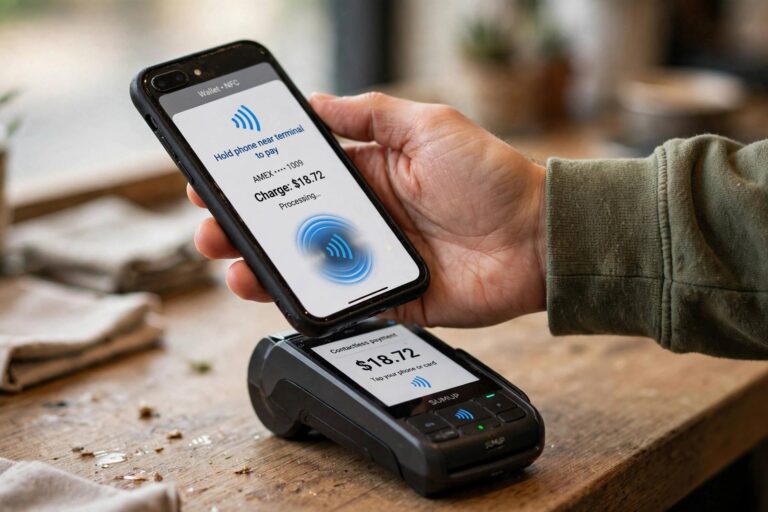
- Payments: scan to pay at markets, parking meters, and small vendors — huge in Asia, growing everywhere.
- Wi-Fi sharing: cafés and offices post a code that joins you to the network instantly. (Your phone shows the network name before connecting — check it matches.)
- Boarding passes and tickets: the code IS your ticket; the scanner at the gate reads it.
- Two-factor authentication setup: when you enable 2FA on an account, you scan a code to link your authenticator app.
- Product information: scan packaging for manuals, warranty registration, or sourcing details.
- Contact sharing: a code encoding a vCard adds someone to your contacts without typing.
Safety Tips: Think Before You Scan
QR codes are convenient, and convenience is exactly what scammers exploit. A QR code is just a link you cannot read before clicking — and attackers know it. Build these habits:
- Check the URL before tapping. Your phone shows a preview of where the code leads. If a restaurant menu code points to a weird shortened URL or a domain you do not recognize, stop. Legitimate businesses use their own domains.
- Be suspicious of stickers. A real attack method: scammers place their own QR stickers over legitimate ones — on parking meters, restaurant tables, package notices. If a code looks like a sticker slapped over another code, do not scan it.
- Never enter sensitive info from an unexpected code. A QR code that leads to a login page asking for your bank password is phishing, full stop. Navigate to your bank’s site yourself instead.
- Watch for payment redirection. If you scan to pay and the amount or recipient looks wrong, cancel. Verify the merchant name on the confirmation screen.
- Do not scan codes in unsolicited messages. A QR code in a random text or email gets the same skepticism as a suspicious link — because that is what it is.
None of this means QR codes are dangerous — they are as safe as the links they encode, and links from trusted sources are fine. It just means extending your normal “do not click weird links” instinct to “do not scan weird codes.”
What Is a QR Code and How to Scan It From a Photo
Sooner or later, someone sends you a QR code as an image — in a text message, an email, a social media post — and you cannot exactly point your phone’s camera at your phone’s screen. Here is how to handle QR codes that arrive as pictures, plus how to make your own.
On iPhone: open the image in the Photos app and long-press directly on the QR code — iOS recognizes it and offers the link, no screenshot gymnastics needed. Alternatively, if the code is in a message or email, long-press it right there. For codes in Safari, long-press works on the web page too. It is seamless once you know the gesture exists.
On Android: open the image and use Google Lens — in Google Photos, tap the Lens icon on any photo containing a code; in other apps, share the image to Lens. Samsung’s Gallery app has built-in QR detection on recent models. The principle is the same everywhere: the phone reads the code from the image file instead of the camera feed.
Creating your own QR codes is just as easy and genuinely useful: your Wi-Fi password as a code taped inside a kitchen cabinet (guests join without you spelling out the password), your contact card as a code on your phone’s lock screen wallpaper (networking without fumbling), a code linking to your portfolio on your resume. Chrome can generate one for any page (Share → Create QR code); free generator sites handle text, Wi-Fi credentials, and vCards. Use static codes for anything permanent — they encode the data directly and never depend on a third-party service staying online.
A note on QR codes you receive unsolicited: the same safety rules apply to image codes as physical ones — arguably more so, because a code in a text message arrives with zero context. Preview the URL before tapping. If a “package delivery” text contains only a QR code and no tracking number, treat it as phishing until proven otherwise. The convenience of image codes is real; the attack surface is real too. Same habit, both mediums: glance at the destination, then decide.
Frequently Asked Questions
Do QR codes expire?
The code itself does not expire — it is just encoded data. But the destination can change or die: a “static” QR code encodes its data permanently, while a “dynamic” QR code points to a redirect service the creator controls (and can change or let lapse). If an old code leads nowhere, the link behind it died, not the code.
Can a QR code hack my phone just by scanning it?
Scanning alone does not install anything — the code just opens a link or displays data. The risk comes from what you do next: entering credentials on a phishing page, downloading a malicious file, or approving a payment. Preview the URL, and treat the destination with normal web caution.
Why won’t my phone scan a QR code?
Common causes: scanning is disabled in camera settings, the code is too small or damaged, glare or poor lighting, or you are holding the phone too close (back up a little). On older phones, update the OS or use Google Lens. If a specific code never scans, it may be malformed — try the business’s website directly.
Can I create my own QR code?
Easily, and free. Your browser can do it (Chrome: share button → “Create QR code”), as can countless free generator sites. Use a static code for anything permanent (your contact card, your Wi-Fi) so it never depends on a third-party redirect service staying in business.
Do QR codes work without internet?
It depends on the content. A code encoding plain text, a contact card, or Wi-Fi credentials works fully offline. A code encoding a URL needs internet to load the page — the scan works, but the destination does not. Something to remember when traveling without data.
Now You Know
So what is a QR code and how to scan it? It is a two-dimensional barcode that encodes a link or data, invented for car factories and adopted by the world — and scanning it is just pointing your phone’s camera and tapping the preview. Build the habit of glancing at the URL before you tap, and you will use QR codes confidently for years. They are not going anywhere; now neither is your confusion about them.